> ## Documentation Index
> Fetch the complete documentation index at: https://docs.florists.digital/llms.txt
> Use this file to discover all available pages before exploring further.
# End of Day Reports
> Review past till sessions and export end-of-day data for accounting.
The **EOD/Cashups** export under Analytics lets you review past till sessions across all your devices and export detailed financial data for your accountant.
**This page covers features gated by Manager-tier permissions.** Managers and Admins have these by default; your administrator can adjust who has them in [Settings > Team](/settings/team).
Looking to close your till right now? See the [POS End of Day guide](/daily-operations/pos-end-of-day) for step-by-step instructions on counting your cash, reconciling payments, and closing the session.
 ## Reviewing past sessions
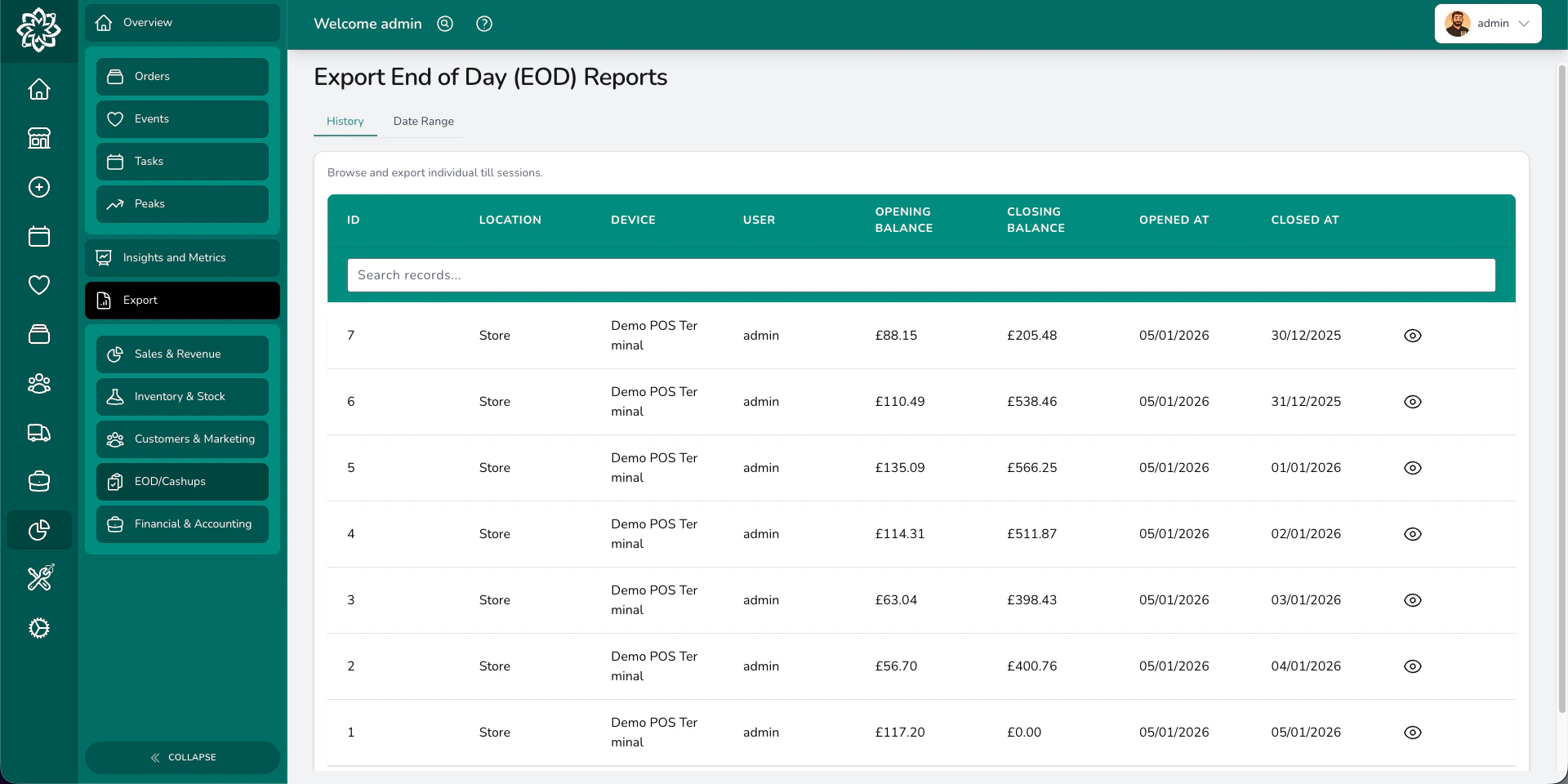
Go to **Analytics** > **Export** > **EOD/Cashups** to see a list of all till sessions on the **History** tab. Each row shows the location, device, the user who opened it, opening and closing balances, and the open and close times.
Click a session to open its full end of day report — a printable breakdown covering:
| Section | What's on it |
| ------------------------------------------ | --------------------------------------------------------------------------------------------- |
| **Sales Summary** | Gross, net, tax collected, tax refunded, opening balance, items sold, and average order value |
| **Payment Method Summary** | Totals taken per payment method |
| **Transaction Status Summary** | Counts and totals grouped by status (paid, refunded, voided, and so on) |
| **Transaction Details** | Every transaction grouped by status, with subtotals and a grand total |
| **Payment Details** | Individual payment records with method, amount, user, and timestamp |
| **Payment Method Reconciliation (CASHUP)** | Expected vs actual vs banked per method, with the difference highlighted |
| **Cash Denomination Details** | The denomination counts entered when closing the till |
| **Tax Breakdown** | Sales grouped by tax rate and item type |
| **Product Breakdown** | Each product sold with quantity and totals |
| **User Breakdown** | Transactions and totals per team member |
| **Petty Cash** | Cash movements during the session with category and reference |
## Date range reports
For a broader view, switch to the **Date Range** tab and generate a consolidated report covering multiple days and devices.
## Reviewing past sessions
Go to **Analytics** > **Export** > **EOD/Cashups** to see a list of all till sessions on the **History** tab. Each row shows the location, device, the user who opened it, opening and closing balances, and the open and close times.
Click a session to open its full end of day report — a printable breakdown covering:
| Section | What's on it |
| ------------------------------------------ | --------------------------------------------------------------------------------------------- |
| **Sales Summary** | Gross, net, tax collected, tax refunded, opening balance, items sold, and average order value |
| **Payment Method Summary** | Totals taken per payment method |
| **Transaction Status Summary** | Counts and totals grouped by status (paid, refunded, voided, and so on) |
| **Transaction Details** | Every transaction grouped by status, with subtotals and a grand total |
| **Payment Details** | Individual payment records with method, amount, user, and timestamp |
| **Payment Method Reconciliation (CASHUP)** | Expected vs actual vs banked per method, with the difference highlighted |
| **Cash Denomination Details** | The denomination counts entered when closing the till |
| **Tax Breakdown** | Sales grouped by tax rate and item type |
| **Product Breakdown** | Each product sold with quantity and totals |
| **User Breakdown** | Transactions and totals per team member |
| **Petty Cash** | Cash movements during the session with category and reference |
## Date range reports
For a broader view, switch to the **Date Range** tab and generate a consolidated report covering multiple days and devices.
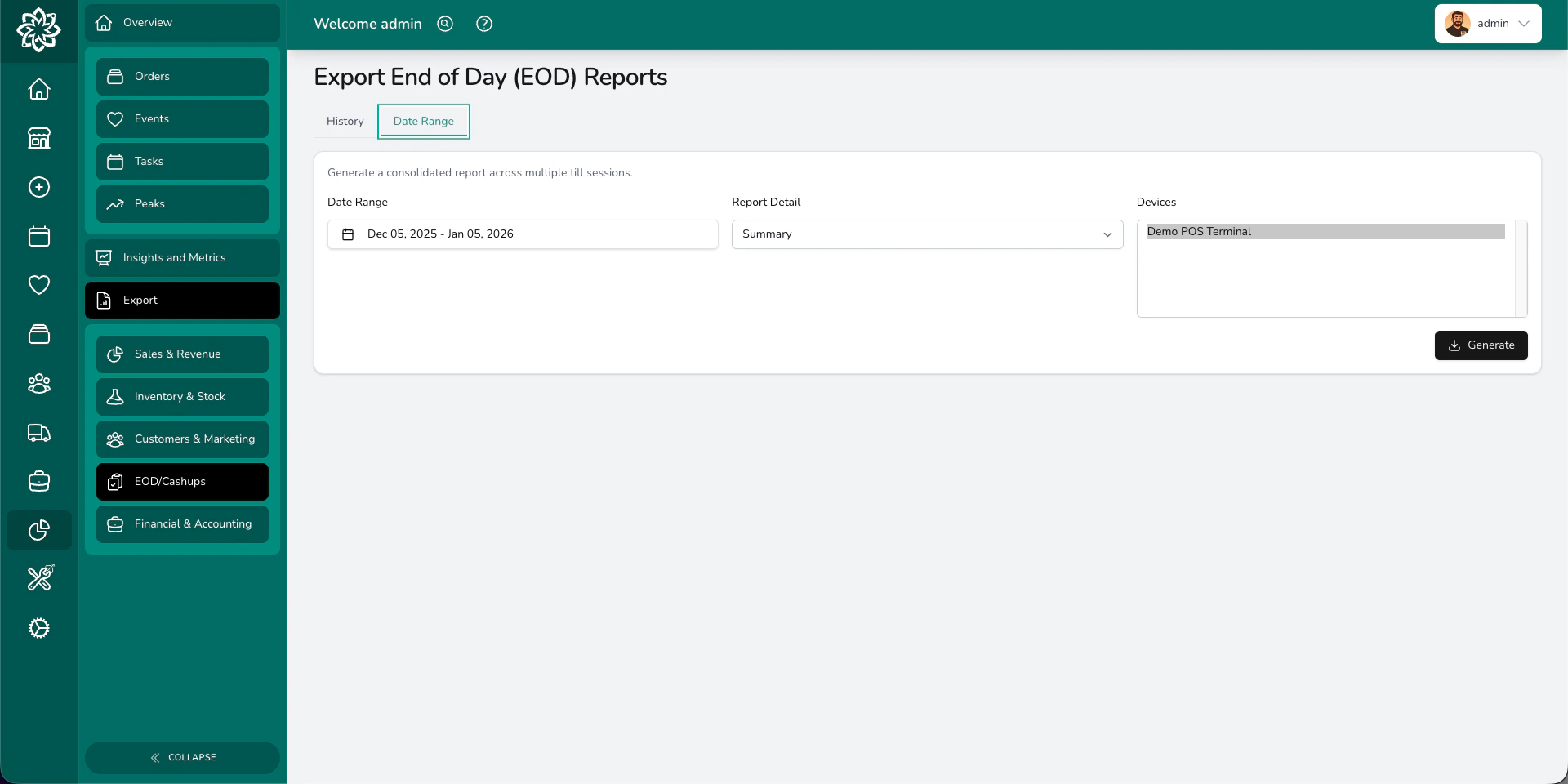 Pick a start and end date, for example the whole of last week or the full month.
**Summary** gives you the headline numbers per session. **Detailed** adds per-payment-method expected/actual/banked columns, a refunds sheet, and a petty cash receipts sheet.
Choose which till devices to include. You can select one, several, or all.
Click **Generate** to download an Excel file.
The Excel file always includes a **Sessions** sheet. Additional sheets appear when the selected range has data for them:
| Sheet | What's on it |
| ----------------------------------------- | ------------------------------------------------------------------------------------------------------------------------------------- |
| **Sessions** | Every till session with totals, tax breakdown, opening and closing balances, petty cash totals, and per-payment-method reconciliation |
| **Payments Summary** | Category totals across orders, events, and adjustments |
| **Payments – Orders** | Every order payment with date, transaction, method, amount, and who processed it |
| **Payments – Events** | Every event payment |
| **Payments – Adjustments** | Standalone adjustments and transfers |
| **Refunds** *(detailed only)* | Every refund with method, amount, reason, transaction, and who issued it |
| **Petty Cash Receipts** *(detailed only)* | Petty cash movements that have a receipt attached, with category, reference, note, and a link to the receipt |
The Sessions sheet adds one **tax column per rate** you've set up — for example, separate columns for your 20% and 0% rates — alongside the static Tax Collected, Tax Refunded, and Net Tax columns.
Florists commonly send this report to their accountant for monthly reconciliation.
## Common questions
Yes. Access is controlled by the **Exports: End of Day** permission, which Managers and Admins have by default. Your administrator can grant it to any user via an advanced permission override in [Settings > Team](/settings/team).
Yes. The date range report lets you select one, several, or all devices. The Excel export includes data from all selected devices.
Till sessions remain available for as long as your Digital Florists instance is active, so you can view and export reports from any date.
## What's next?
Step-by-step guide to closing the till.
The main POS guide for walk-in sales.
Generate and download reports across your business.
Manage invoicing, payments, and accounting.
Pick a start and end date, for example the whole of last week or the full month.
**Summary** gives you the headline numbers per session. **Detailed** adds per-payment-method expected/actual/banked columns, a refunds sheet, and a petty cash receipts sheet.
Choose which till devices to include. You can select one, several, or all.
Click **Generate** to download an Excel file.
The Excel file always includes a **Sessions** sheet. Additional sheets appear when the selected range has data for them:
| Sheet | What's on it |
| ----------------------------------------- | ------------------------------------------------------------------------------------------------------------------------------------- |
| **Sessions** | Every till session with totals, tax breakdown, opening and closing balances, petty cash totals, and per-payment-method reconciliation |
| **Payments Summary** | Category totals across orders, events, and adjustments |
| **Payments – Orders** | Every order payment with date, transaction, method, amount, and who processed it |
| **Payments – Events** | Every event payment |
| **Payments – Adjustments** | Standalone adjustments and transfers |
| **Refunds** *(detailed only)* | Every refund with method, amount, reason, transaction, and who issued it |
| **Petty Cash Receipts** *(detailed only)* | Petty cash movements that have a receipt attached, with category, reference, note, and a link to the receipt |
The Sessions sheet adds one **tax column per rate** you've set up — for example, separate columns for your 20% and 0% rates — alongside the static Tax Collected, Tax Refunded, and Net Tax columns.
Florists commonly send this report to their accountant for monthly reconciliation.
## Common questions
Yes. Access is controlled by the **Exports: End of Day** permission, which Managers and Admins have by default. Your administrator can grant it to any user via an advanced permission override in [Settings > Team](/settings/team).
Yes. The date range report lets you select one, several, or all devices. The Excel export includes data from all selected devices.
Till sessions remain available for as long as your Digital Florists instance is active, so you can view and export reports from any date.
## What's next?
Step-by-step guide to closing the till.
The main POS guide for walk-in sales.
Generate and download reports across your business.
Manage invoicing, payments, and accounting.