> ## Documentation Index
> Fetch the complete documentation index at: https://docs.florists.digital/llms.txt
> Use this file to discover all available pages before exploring further.
# Reports
> Generate and download detailed reports across every area of your business.
The **Reports** section lets you generate detailed, downloadable spreadsheets covering sales, inventory, delivery pictures, customers, financials, and end of day summaries. Each report has its own filters so you get the data you need.
**This page covers features gated by Manager-tier permissions.** Managers and Admins have these by default; your administrator can adjust who has them in [Settings > Team](/settings/team).
The Reports screen shows only the categories included with your plan.
## How reports work
1. Go to **Analytics** > **Export**
2. Pick a report category (Sales & Revenue, Inventory & Stock, Delivery Pictures, Customers & Marketing, EOD/Cashups, or Financial & Accounting)
3. Choose the specific report you need
4. Set your filters (date range, locations, statuses, etc.)
5. Click **Generate** and download the file
Most reports download as **Excel files (XLSX)** with multiple sheets: an overview sheet plus detailed breakdowns and an info sheet recording the filters you applied. Delivery Pictures downloads as a ZIP of photos.
### Formats at a glance
| Format | Where it's used | Opens in |
| ---------------- | -------------------------------------------------------------------------------------------------------------------------------------------------- | ------------------------------------------ |
| **XLSX** (Excel) | Most reports from Analytics > Export | Excel, Google Sheets, Numbers |
| **CSV** | Mailing list (when CSV is selected), bulk customer/order/product exports from Settings > Advanced > Disaster Recovery, ingredient template exports | Excel, Google Sheets, any spreadsheet tool |
| **PDF** | Order worksheets, order list, delivery run sheets | Any PDF viewer |
| **ZIP** | Delivery Pictures (bundle of delivery photos) | Any unzip tool |
### Exporting from other pages
A few other places let you export without going through Analytics > Export:
| Page | What you can export |
| ------------------------------------------- | ---------------------------------------------------------------------------------- |
| **Orders** | Order worksheets and order list as PDF |
| **Delivery** | Delivery run sheets as PDF |
| **Settings > Ingredients** | Ingredient list as CSV (blank template or with data) |
| **Settings > Advanced > Disaster Recovery** | Customer list, order list, orders by fulfilment date, and product catalogue as CSV |
The Digital Florists App doesn't include export tools — everything runs from the dashboard.
## Sales & Revenue
Five reports covering your sales from different angles:
| Report | What it answers |
| ---------------------------- | ------------------------------------------------------------------------------------------------------------------------------------------------------------------- |
| **Order Sales** | How much have you sold? Breaks down by date, occasion, product, category, source, and payment method. Covers more dimensions than the other sales reports. |
| **Event Sales** | How are weddings and events tracking? Totals, paid-to-date, and outstanding balances per event, with breakdowns by event type, payment status, and invoicing state. |
| **Customer Orders** | What has a specific customer ordered? Shows their full purchase history and order frequency. |
| **Orders by Payment** | How are customers paying? Groups revenue by card, cash, account, and other methods. |
| **Event Payments by Method** | How are event customers paying? Same breakdown, for weddings and events. |
The **Order Sales** report is the most flexible. You can filter by:
* Date type (order date, fulfilment date, or payment date)
* Order and payment status
* Order sources and integrations
* Locations
* Fulfilment methods (delivery, collection, relay)
* Order type
* Product categories and occasions
* Individual team members
* Till filter (All Orders, Till Only, or Without Till) for point of sale (POS) analysis
It generates a multi-sheet Excel file. Sheets included depend on what your filters return, but typically cover Overview, Occasions, Orders, Products, Product Details, Products By Category, Custom Products, Custom Product Details, Adjustments, and Events. A final **Info** sheet records the filters you applied.
Want to see just your **till sales**? Set the **Till Filter** to **Till Only** and pick which till devices to include. This is useful if you want to drill down to individual order level and understand what's making up your point of sale (POS) figures. If you have multiple POS devices, only tick the ones you want; the report pulls from every device ticked.
## Inventory & Stock
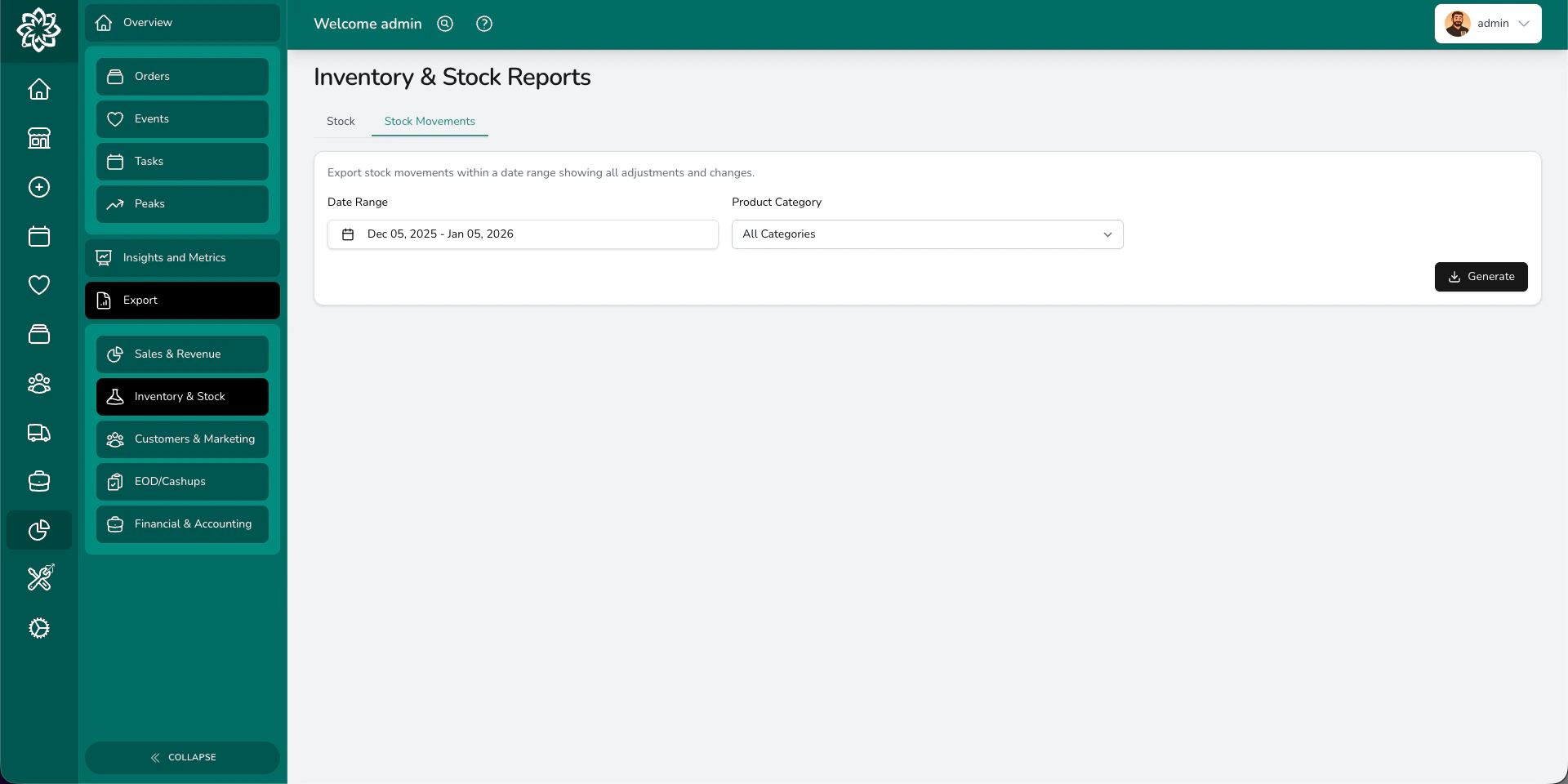 Four reports for managing your stock:
| Report | What it answers |
| ------------------------ | --------------------------------------------------------------------------------------------------------------------------------------------------- |
| **Stock** | What do we have right now? Current stock levels with cost and retail prices for every product with stock control enabled. |
| **Stock Movements** | What changed and when? A full history of every stock adjustment, including sales, manual corrections, imports, and returns. |
| **Ingredient Summary** | What do you need to order? Total ingredient demand across your orders, grouped by ingredient. Use this when sending stem counts to your wholesaler. |
| **Ingredient Breakdown** | Which orders need which ingredients? A per-order, per-product breakdown of ingredient requirements. |
Ingredient Summary and Ingredient Breakdown are only available if you've set up ingredient recipes on your product variants.
The ingredient reports let you filter by fulfilment date range, order status, and fulfilment method, so you can generate a shopping list for just this week's deliveries, just funeral work, or just confirmed orders.
## Customers & Marketing
Four reports for managing your stock:
| Report | What it answers |
| ------------------------ | --------------------------------------------------------------------------------------------------------------------------------------------------- |
| **Stock** | What do we have right now? Current stock levels with cost and retail prices for every product with stock control enabled. |
| **Stock Movements** | What changed and when? A full history of every stock adjustment, including sales, manual corrections, imports, and returns. |
| **Ingredient Summary** | What do you need to order? Total ingredient demand across your orders, grouped by ingredient. Use this when sending stem counts to your wholesaler. |
| **Ingredient Breakdown** | Which orders need which ingredients? A per-order, per-product breakdown of ingredient requirements. |
Ingredient Summary and Ingredient Breakdown are only available if you've set up ingredient recipes on your product variants.
The ingredient reports let you filter by fulfilment date range, order status, and fulfilment method, so you can generate a shopping list for just this week's deliveries, just funeral work, or just confirmed orders.
## Customers & Marketing
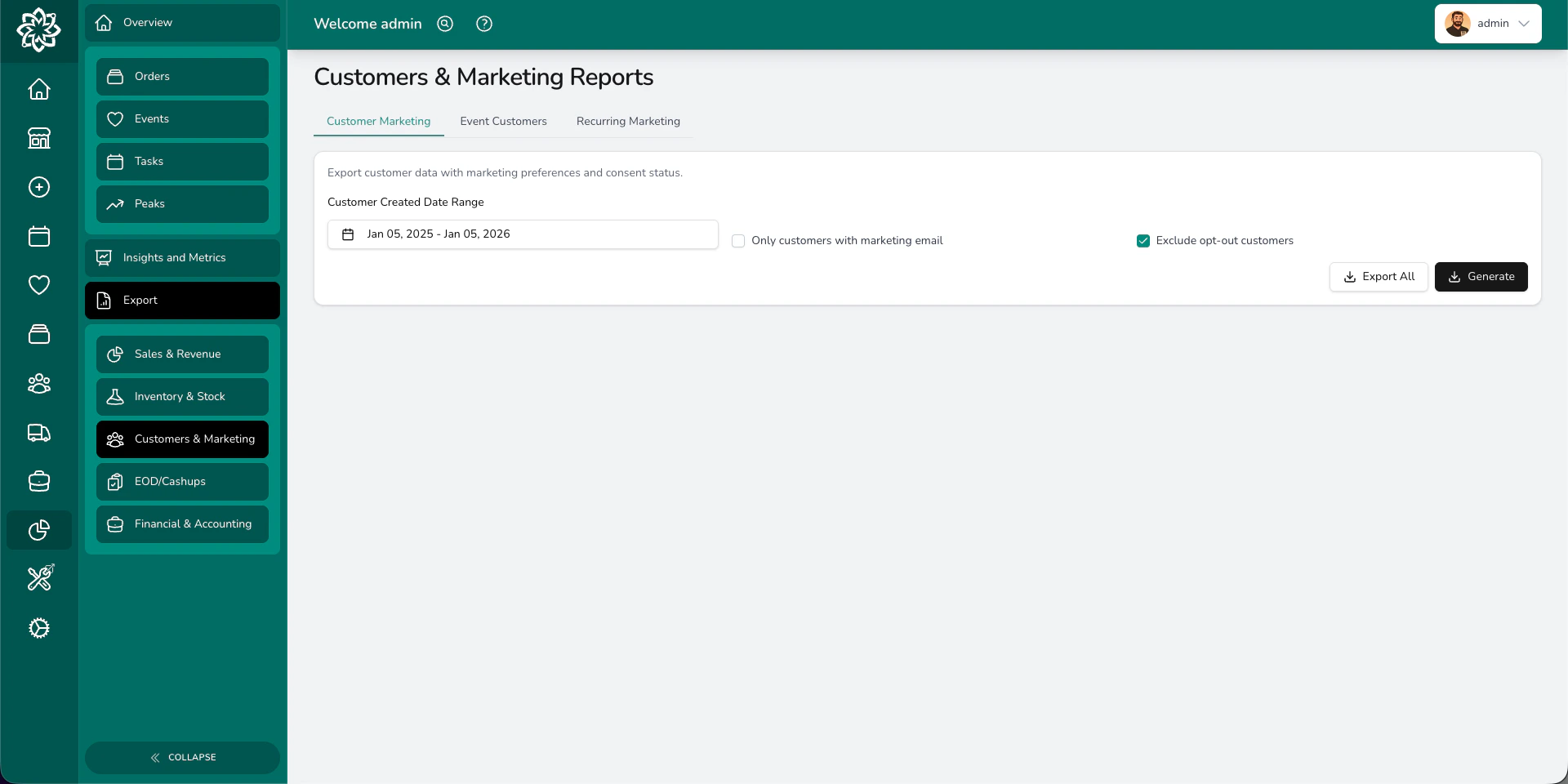 Four reports for understanding and reaching your customers:
| Report | What it answers |
| ----------------------- | ----------------------------------------------------------------------------------------------------------------------------------------------------------- |
| **Customer Marketing** | Who can you contact? Customer names, emails, phone numbers, and marketing consent status. Filter by date, or use **Export All** to download every customer. |
| **Mailing List** | Need a clean list for an email campaign? Pulls just the contactable customers with marketing consent. |
| **Event Customers** | Who's booked events? Customers who've had weddings or events, filterable by event date, creation date, or quote acceptance date. |
| **Recurring Marketing** | Who orders regularly? Customers with recurring or subscription orders, for targeted loyalty campaigns. |
Make sure you have proper consent before exporting or sharing customer data. Follow your shop's data protection policy.
You can choose to export only customers with a marketing email, and exclude those who've opted out. Both options are checkboxes on the report form before you generate.
## Financials & Accounting
Four reports for understanding and reaching your customers:
| Report | What it answers |
| ----------------------- | ----------------------------------------------------------------------------------------------------------------------------------------------------------- |
| **Customer Marketing** | Who can you contact? Customer names, emails, phone numbers, and marketing consent status. Filter by date, or use **Export All** to download every customer. |
| **Mailing List** | Need a clean list for an email campaign? Pulls just the contactable customers with marketing consent. |
| **Event Customers** | Who's booked events? Customers who've had weddings or events, filterable by event date, creation date, or quote acceptance date. |
| **Recurring Marketing** | Who orders regularly? Customers with recurring or subscription orders, for targeted loyalty campaigns. |
Make sure you have proper consent before exporting or sharing customer data. Follow your shop's data protection policy.
You can choose to export only customers with a marketing email, and exclude those who've opted out. Both options are checkboxes on the report form before you generate.
## Financials & Accounting
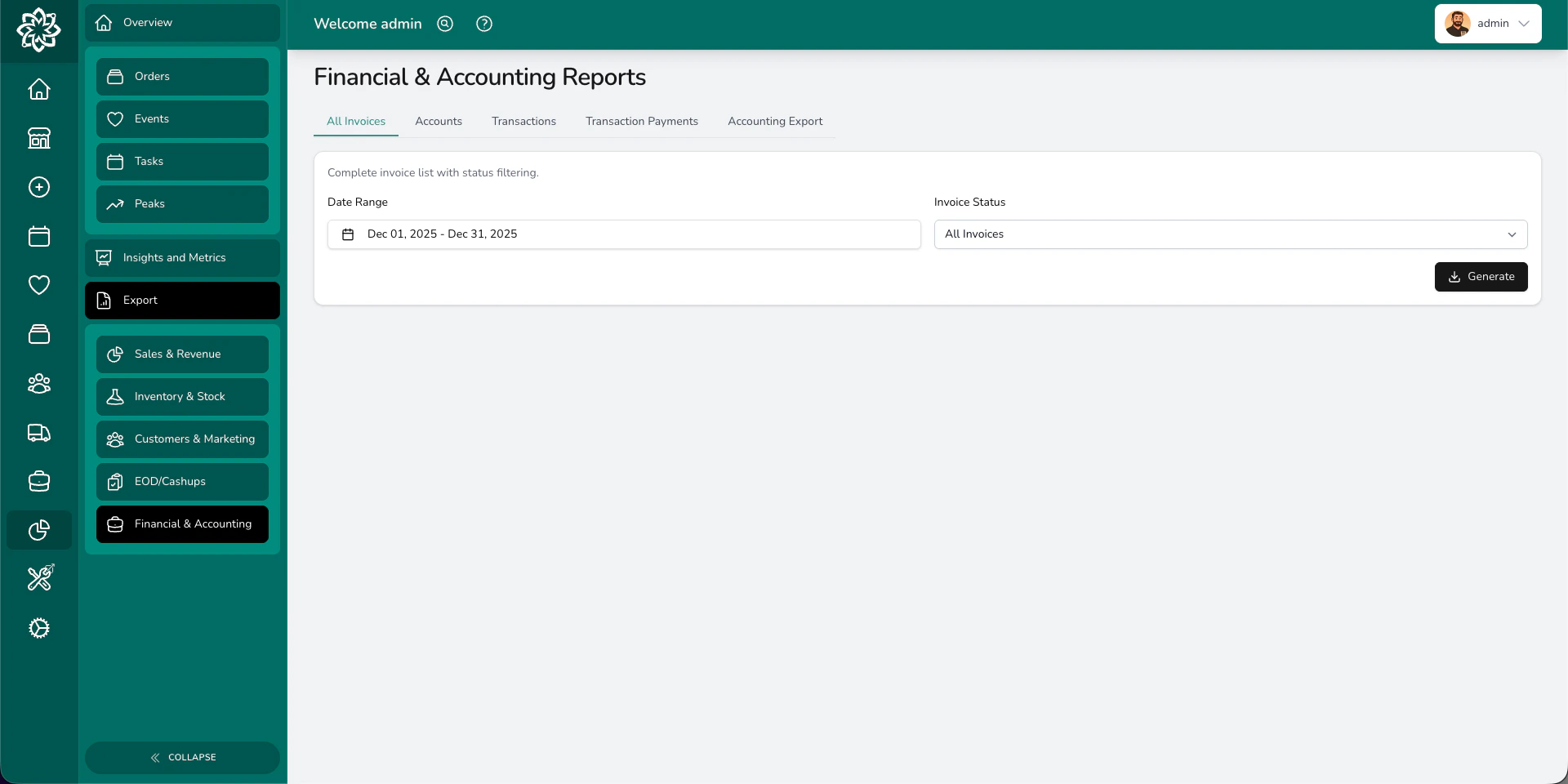 Five reports for your accounts and bookkeeping:
| Report | What it answers |
| ------------------------ | ------------------------------------------------------------------------------------------------------------------------------------------------------------------- |
| **All Invoices** | What's been invoiced? Every invoice with status (paid, unpaid, partially paid), amounts, and outstanding balances. |
| **Accounts** | Who owes us money? Outstanding payments, uninvoiced orders, and aged debt broken down into 0–30, 31–60, 61–90, and 91+ day buckets. |
| **Transactions** | What transactions happened? Raw transaction data with order and event references, filterable by date type and user. |
| **Transaction Payments** | How was each payment made? Every individual payment across orders, events, petty cash, and adjustments, with payment method, device, and refund tracking. |
| **Accounting Export** | How do I get this into my accounting software? Formatted exports for **Sage**, **Xero**, or **QuickBooks** with the right columns, tax codes, and account mappings. |
The **Accounting Export** formats your invoices for your accounting software. Select Sage, Xero, or QuickBooks, set your date range, and Digital Florists generates a file your accountant can import.
## End of Day
Five reports for your accounts and bookkeeping:
| Report | What it answers |
| ------------------------ | ------------------------------------------------------------------------------------------------------------------------------------------------------------------- |
| **All Invoices** | What's been invoiced? Every invoice with status (paid, unpaid, partially paid), amounts, and outstanding balances. |
| **Accounts** | Who owes us money? Outstanding payments, uninvoiced orders, and aged debt broken down into 0–30, 31–60, 61–90, and 91+ day buckets. |
| **Transactions** | What transactions happened? Raw transaction data with order and event references, filterable by date type and user. |
| **Transaction Payments** | How was each payment made? Every individual payment across orders, events, petty cash, and adjustments, with payment method, device, and refund tracking. |
| **Accounting Export** | How do I get this into my accounting software? Formatted exports for **Sage**, **Xero**, or **QuickBooks** with the right columns, tax codes, and account mappings. |
The **Accounting Export** formats your invoices for your accounting software. Select Sage, Xero, or QuickBooks, set your date range, and Digital Florists generates a file your accountant can import.
## End of Day
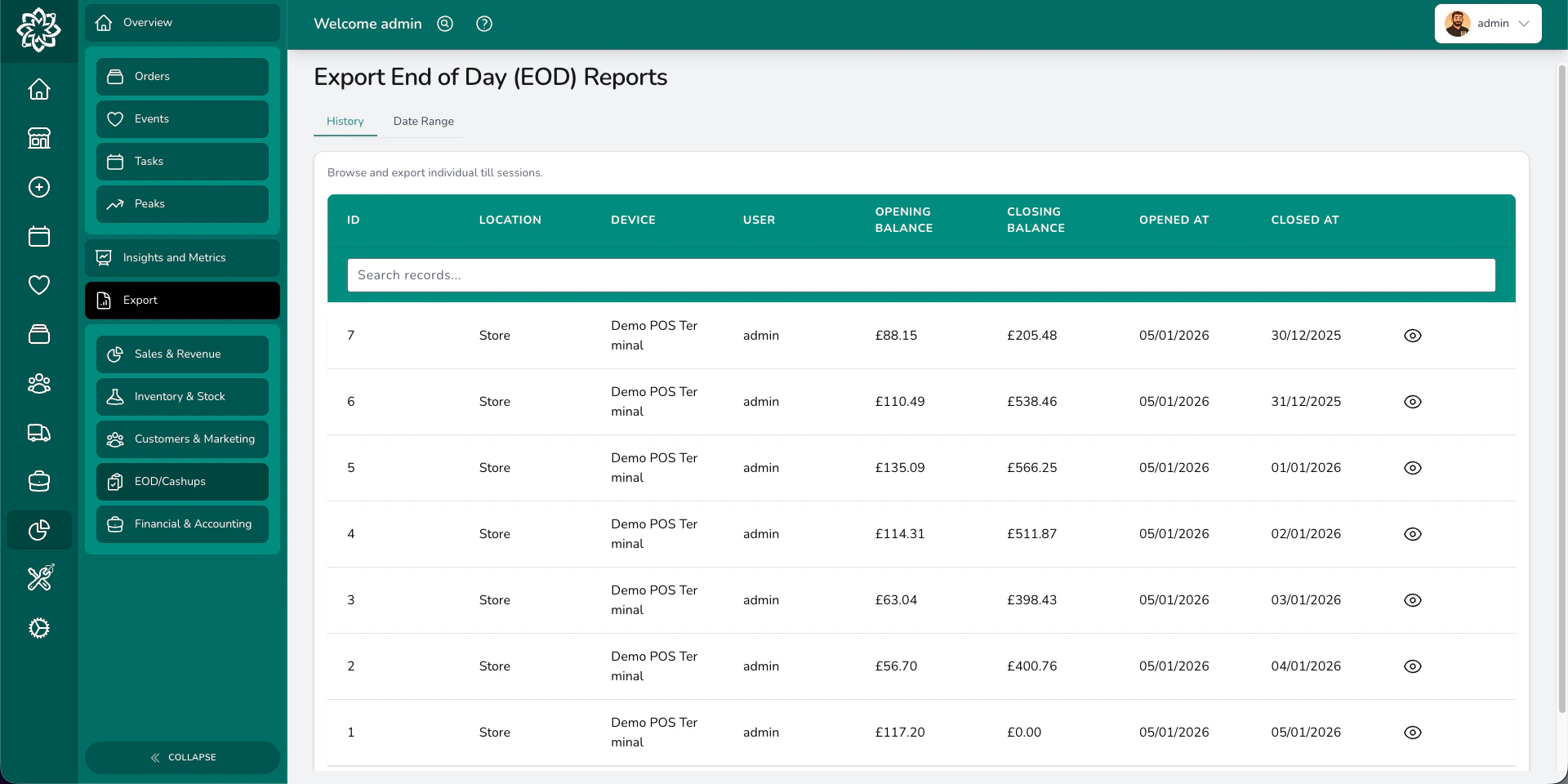 Two reports for closing out your day:
| Report | What it answers |
| -------------- | ------------------------------------------------------------------------------------------------------------------------------------------ |
| **History** | What happened in each till session? Browse individual sessions with their totals. |
| **Date Range** | What happened across multiple days? A consolidated report covering all till sessions in a date range, with summary or detailed breakdowns. |
The date range report generates a multi-sheet Excel file with: Sessions, Payments Summary, Payments by Orders/Events/Adjustments, Refunds, and Petty Cash Receipts.
[Learn more about end of day →](/analytics/eod)
## Audit logging
Reports generated from **Analytics** > **Export** are logged automatically. The audit log records who generated the file, when, which report type, and the context for that export (such as date range or filter selections). Your administrator can review export entries in the audit log to see who accessed what data and when.
Make sure you have proper consent before exporting or sharing customer data. Follow your shop's data protection policy.
## Understanding multi-sheet exports
Many reports download as Excel files with multiple sheets (tabs). Here's how to read them:
* **Overview / Summary** — the headline numbers and totals
* **Detail sheets** — the raw data behind the summary (individual orders, payments, products, and so on)
* **Info** — the filters you applied when generating the report, so you know what data is included
Open the file in Excel or Google Sheets and use the tabs at the bottom to switch between sheets.
## Common questions
Reports from **Analytics > Export** download as **XLSX** (Excel) files that open in Excel, Google Sheets, and Numbers. Delivery Pictures downloads as a ZIP. Order worksheets, the order list, and delivery run sheets are PDF.
The **All Invoices** report is capped at 10,000 records per export. Other reports have no hard limit, though very large exports may take a moment to generate.
Reports are gated by the **Analytics (View)** permission. Financial reports additionally require **Exports: Financial**, and end of day reports require **Exports: End of Day**. Your administrator can adjust who has each of these in [Settings > Team](/settings/team).
Yes. Exports generated from Analytics > Export are recorded in the audit log with who generated the file, when, the report type, and the context for that export. Your administrator can review these in the audit log.
Reports are generated on demand. For Xero or QuickBooks, Digital Florists generates a formatted spreadsheet you import into your accounting package — see [Accounting exports](/settings/integrations/accounting).
## What's next?
View your data visually with charts and trends.
Drill into specific areas like staff or products.
Learn about the daily cashup process.
Manage invoicing, payments, and accounting.
Two reports for closing out your day:
| Report | What it answers |
| -------------- | ------------------------------------------------------------------------------------------------------------------------------------------ |
| **History** | What happened in each till session? Browse individual sessions with their totals. |
| **Date Range** | What happened across multiple days? A consolidated report covering all till sessions in a date range, with summary or detailed breakdowns. |
The date range report generates a multi-sheet Excel file with: Sessions, Payments Summary, Payments by Orders/Events/Adjustments, Refunds, and Petty Cash Receipts.
[Learn more about end of day →](/analytics/eod)
## Audit logging
Reports generated from **Analytics** > **Export** are logged automatically. The audit log records who generated the file, when, which report type, and the context for that export (such as date range or filter selections). Your administrator can review export entries in the audit log to see who accessed what data and when.
Make sure you have proper consent before exporting or sharing customer data. Follow your shop's data protection policy.
## Understanding multi-sheet exports
Many reports download as Excel files with multiple sheets (tabs). Here's how to read them:
* **Overview / Summary** — the headline numbers and totals
* **Detail sheets** — the raw data behind the summary (individual orders, payments, products, and so on)
* **Info** — the filters you applied when generating the report, so you know what data is included
Open the file in Excel or Google Sheets and use the tabs at the bottom to switch between sheets.
## Common questions
Reports from **Analytics > Export** download as **XLSX** (Excel) files that open in Excel, Google Sheets, and Numbers. Delivery Pictures downloads as a ZIP. Order worksheets, the order list, and delivery run sheets are PDF.
The **All Invoices** report is capped at 10,000 records per export. Other reports have no hard limit, though very large exports may take a moment to generate.
Reports are gated by the **Analytics (View)** permission. Financial reports additionally require **Exports: Financial**, and end of day reports require **Exports: End of Day**. Your administrator can adjust who has each of these in [Settings > Team](/settings/team).
Yes. Exports generated from Analytics > Export are recorded in the audit log with who generated the file, when, the report type, and the context for that export. Your administrator can review these in the audit log.
Reports are generated on demand. For Xero or QuickBooks, Digital Florists generates a formatted spreadsheet you import into your accounting package — see [Accounting exports](/settings/integrations/accounting).
## What's next?
View your data visually with charts and trends.
Drill into specific areas like staff or products.
Learn about the daily cashup process.
Manage invoicing, payments, and accounting.