> ## Documentation Index
> Fetch the complete documentation index at: https://docs.florists.digital/llms.txt
> Use this file to discover all available pages before exploring further.
# Customers
> Manage customer profiles, order history, and credit accounts.
Your **Customers** section stores everyone who has ordered from you. Each customer has a profile with their contact details, order history, preferences, and any notes your team has added.
 ## Customer types
Every customer is one of two types, set under **Account Type** on the customer's edit screen.
| Type | How they pay |
| --------------------- | ------------------------------------------------------------------------------------------------------------------------ |
| **Standard Customer** | Pays for each order at the time of ordering. The default for walk-ins, phone orders, and website orders. |
| **Credit Customer** | A business with a credit account (funeral directors, hotels, offices) that's invoiced later instead of paying per order. |
For credit customers, the customer's edit screen also exposes payment terms, an optional account discount, and a default delivery slot. See [Account Customers](/business/account-customers) for the full setup.
## The customer profile
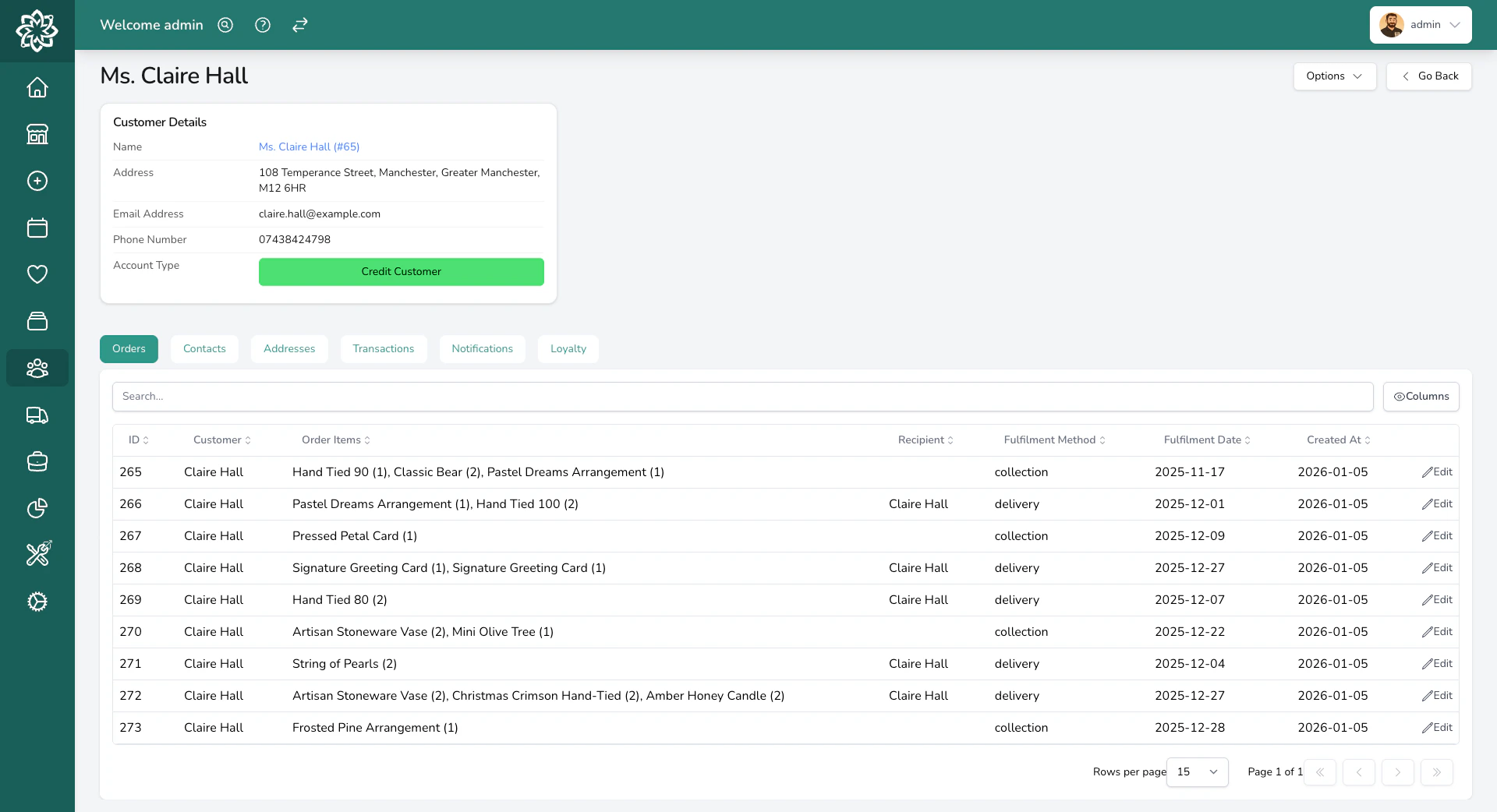
Opening a customer shows their contact details, notes, and a set of tabs for their related records.
The header shows their name, address, email, phone number, and account type. A bell icon appears next to the name if they've opted out of notifications, and a yellow note banner shows any note your team has saved (for example, "Always wants pink, never red").
Below that, six tabs split their related records:
* **Orders** — every order they've placed.
* **Contacts** — additional named contacts on the customer (for example, individual buyers within a hotel account).
* **Addresses** — addresses saved against the customer.
* **Transactions** — payments and refunds linked to the customer.
* **Notifications** — the log of order and marketing emails or texts sent to them.
* **Loyalty** — points earned and redeemed, if a loyalty programme is set up.
### Loyalty
## Customer types
Every customer is one of two types, set under **Account Type** on the customer's edit screen.
| Type | How they pay |
| --------------------- | ------------------------------------------------------------------------------------------------------------------------ |
| **Standard Customer** | Pays for each order at the time of ordering. The default for walk-ins, phone orders, and website orders. |
| **Credit Customer** | A business with a credit account (funeral directors, hotels, offices) that's invoiced later instead of paying per order. |
For credit customers, the customer's edit screen also exposes payment terms, an optional account discount, and a default delivery slot. See [Account Customers](/business/account-customers) for the full setup.
## The customer profile
Opening a customer shows their contact details, notes, and a set of tabs for their related records.
The header shows their name, address, email, phone number, and account type. A bell icon appears next to the name if they've opted out of notifications, and a yellow note banner shows any note your team has saved (for example, "Always wants pink, never red").
Below that, six tabs split their related records:
* **Orders** — every order they've placed.
* **Contacts** — additional named contacts on the customer (for example, individual buyers within a hotel account).
* **Addresses** — addresses saved against the customer.
* **Transactions** — payments and refunds linked to the customer.
* **Notifications** — the log of order and marketing emails or texts sent to them.
* **Loyalty** — points earned and redeemed, if a loyalty programme is set up.
### Loyalty
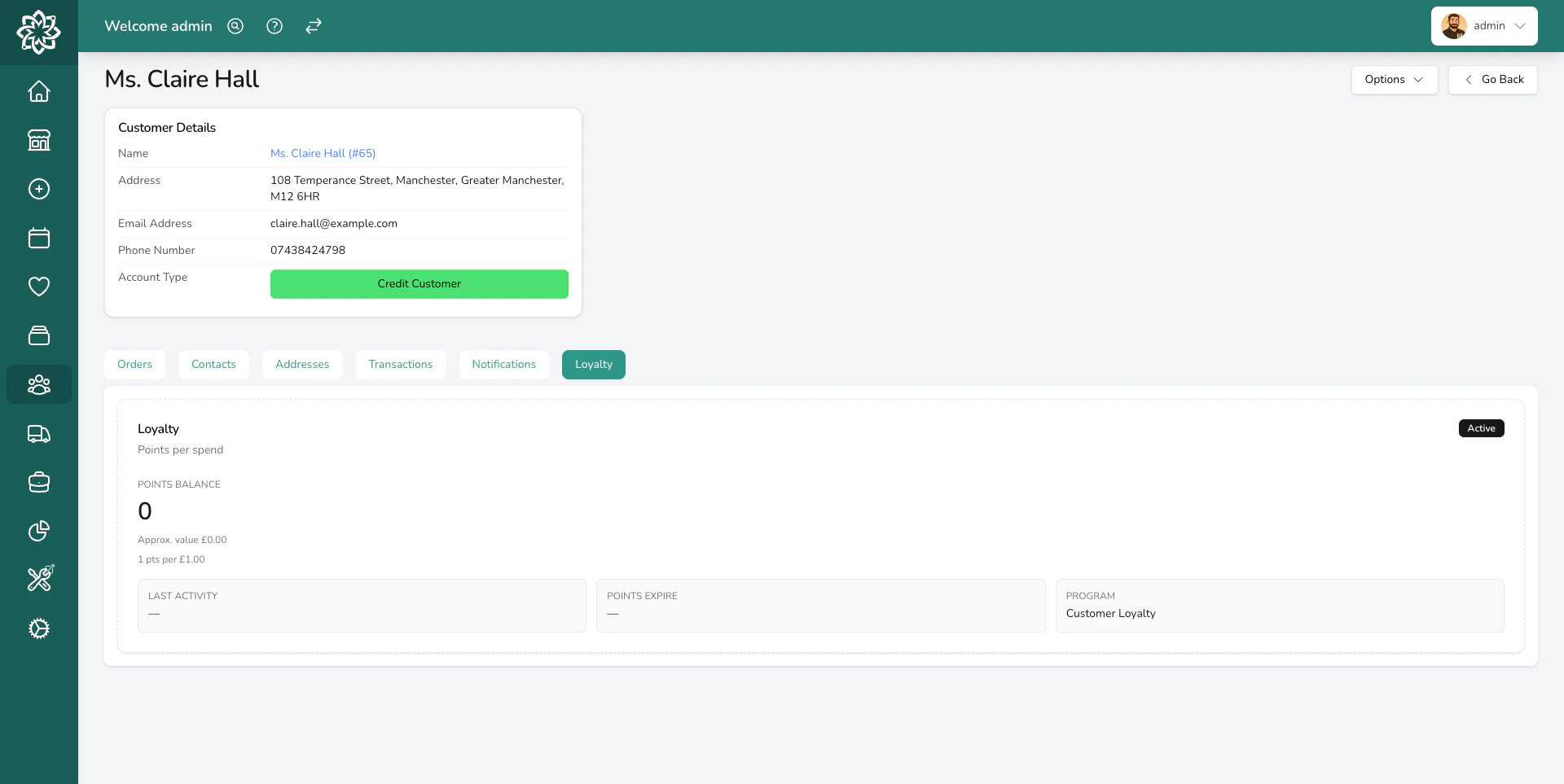 The Loyalty tab is only useful once you've set up a programme. See [Loyalty](/settings/loyalty) to configure points, tiers, and redemption.
## Merging duplicate customers
If a customer ends up with two profiles (for example, one from the website and one from a phone order), you can merge them into one. See [Merging customers](/business/customer-merge) for the step-by-step.
## Deleting a customer
Deletion removes the profile but keeps order history. See [Deleting customers](/business/customer-delete).
Make sure you have proper consent before exporting or sharing customer data. Follow your shop's data protection policy.
Use [Reports](/analytics/reports) to download your customer list as a CSV for use in email marketing tools. You can filter by date range and marketing opt-in status before exporting.
## Common questions
Yes. You can search by name, email, or phone number.
Yes. Separate email addresses with a semicolon — for example, `jane@example.com;john@example.com`. Both addresses receive every email Digital Florists sends to this customer.
Yes. Add a `+` tag after the name part of the email to create a unique variation. For example, `jane+hotel@example.com` and `jane+office@example.com` both deliver to the same inbox but are treated as separate customers in Digital Florists. The format is `name+tag@domain.com`.
Yes. See [Reports](/analytics/reports) for how to download your customer data as a CSV.
## What's next?
Combine duplicate profiles into one record.
GDPR right-to-be-forgotten flow.
See how customers are linked to orders.
Set up a loyalty programme for your customers.
The Loyalty tab is only useful once you've set up a programme. See [Loyalty](/settings/loyalty) to configure points, tiers, and redemption.
## Merging duplicate customers
If a customer ends up with two profiles (for example, one from the website and one from a phone order), you can merge them into one. See [Merging customers](/business/customer-merge) for the step-by-step.
## Deleting a customer
Deletion removes the profile but keeps order history. See [Deleting customers](/business/customer-delete).
Make sure you have proper consent before exporting or sharing customer data. Follow your shop's data protection policy.
Use [Reports](/analytics/reports) to download your customer list as a CSV for use in email marketing tools. You can filter by date range and marketing opt-in status before exporting.
## Common questions
Yes. You can search by name, email, or phone number.
Yes. Separate email addresses with a semicolon — for example, `jane@example.com;john@example.com`. Both addresses receive every email Digital Florists sends to this customer.
Yes. Add a `+` tag after the name part of the email to create a unique variation. For example, `jane+hotel@example.com` and `jane+office@example.com` both deliver to the same inbox but are treated as separate customers in Digital Florists. The format is `name+tag@domain.com`.
Yes. See [Reports](/analytics/reports) for how to download your customer data as a CSV.
## What's next?
Combine duplicate profiles into one record.
GDPR right-to-be-forgotten flow.
See how customers are linked to orders.
Set up a loyalty programme for your customers.