> ## Documentation Index
> Fetch the complete documentation index at: https://docs.florists.digital/llms.txt
> Use this file to discover all available pages before exploring further.
# Orders
> Everything you need to know about managing your orders.
**Orders** are where your day-to-day sales and event production work come together. Whether a customer walks in, calls, or orders online, your team prepares, delivers, collects, and closes out every order from the same dashboard.
 Events includes event production orders and five manually entered everyday orders per calendar month for each licensed location. Production orders created from an event don't use that allowance. [See how Events and everyday orders fit together](/events/overview#events-plans-and-everyday-orders).
## How orders work
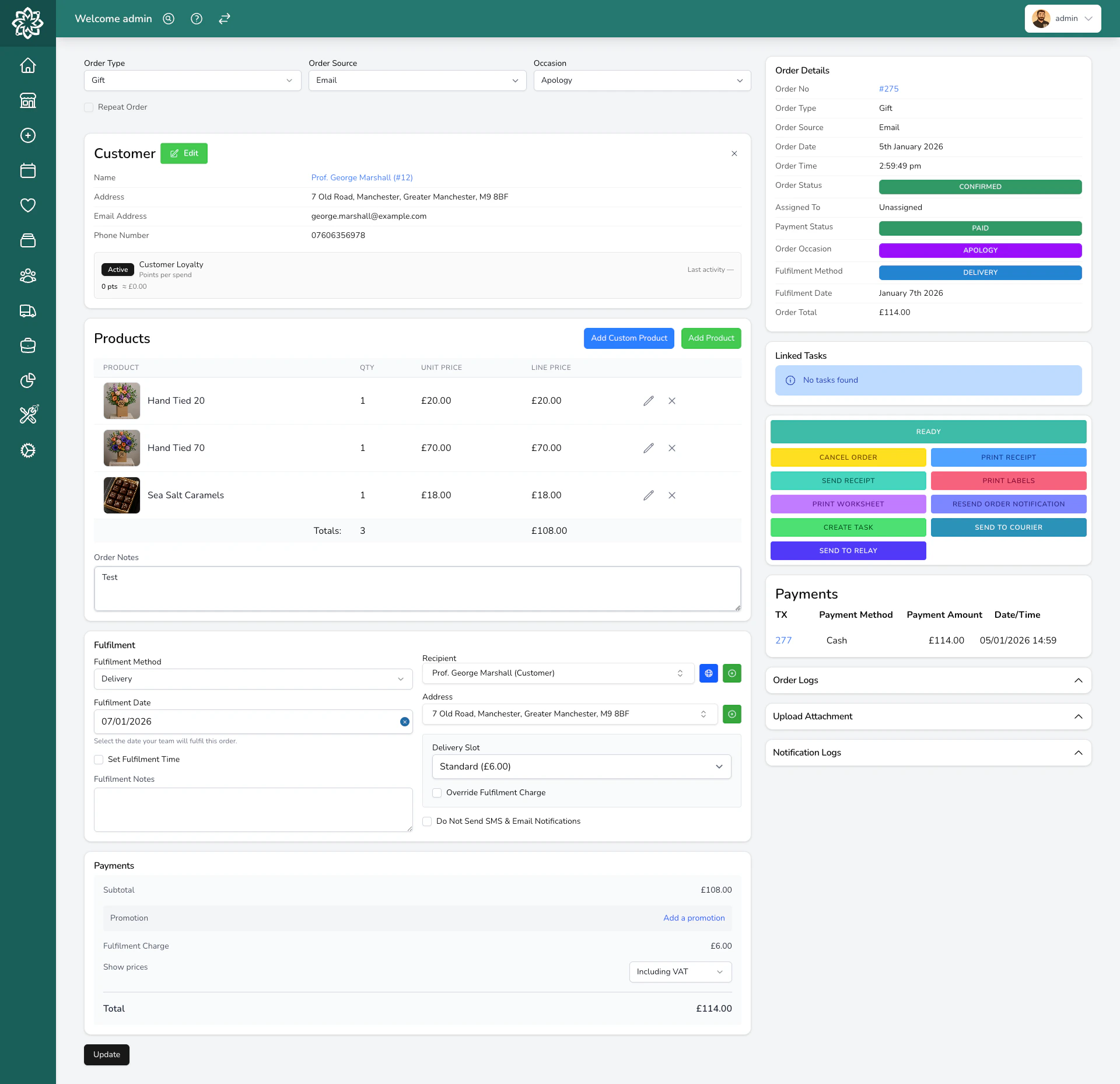
Every order has three pieces of information that update independently:
* **Status** — where the order is in your workflow (new, confirmed, ready, fulfilled)
* **Fulfilment method** — how it gets to the customer
* **Payment status** — whether it's been paid
An order can be confirmed but unpaid, or paid but not yet fulfilled. Your [Dashboard](/daily-operations/dashboard) uses these three signals to highlight what needs your attention.
## Order types
When you create an order, you pick a type that helps you organise your work:
* **Gift** — the standard order type for bouquets, arrangements, and plants
* **Funeral** — for sympathy flowers, tributes, and arrangements going to a funeral director or service. Set a funeral date and time so these get prioritised on your dashboard.
* **Corporate** — for business clients, often on account terms
* **Event** — for orders linked to an event or wedding. These are created from the [events workflow](/events/event-orders), not the standard Create Order form.
## Fulfilment methods
How the order gets to the customer:
* **Delivery** — your team delivers it locally
* **Collection** — the customer picks it up from your shop
* **Relay** — sends the order to another florist to fulfil (via Direct2Florist, Send to a Friend, or manually)
* **Courier** — sends it through a connected courier integration (Shiptheory or ShipStation). See [Courier Orders](/daily-operations/courier-orders) for the full flow.
## Order statuses
Orders move through these statuses as your team works on them:
| Status | What it means |
| ------------------------ | ---------------------------------------------------------------------------------------------------------------------------------------------------------------------------- |
| **Unconfirmed** | A new order that needs to be reviewed and accepted. Common for website and relay orders. |
| **Confirmed** | You've accepted the order. Your team can start working on it. |
| **Ready For Fulfilment** | The arrangement is made and waiting to go out or be collected. |
| **Out For Delivery** | Your driver is on the way to deliver it. This status is set automatically when a driver starts a delivery run — you can't mark an order Out For Delivery from the dashboard. |
| **With Courier** | The order has been handed to a courier service (courier orders only). |
| **Fulfilled** | Done. The order has been delivered or collected. |
| **Cancelled** | The order was cancelled by you or the customer. |
| **System Cancelled** | The system cancelled the order automatically — for example, when an unpaid POS transaction expired. You can't set this status manually. |
You don't have to use every status. Many shops go straight from Confirmed to Ready For Fulfilment to Fulfilled. Use the statuses that match your workflow.
## How an order moves through your shop
Changing an order's status is more than a label change — it triggers stock, notifications, automations, and bookkeeping. Here's what you should know.
### Transitions and rules
You can move an order to almost any status from almost any other, with two important exceptions:
**Fulfilled orders cannot be cancelled directly.** Once an order is marked as fulfilled, the cancel action is blocked. If you genuinely need to cancel a fulfilled order, you have to **reopen it first** — that moves it back to Confirmed — then cancel from there. The system handles the stock and refund implications correctly when you go via that path.
**With Courier** is only available for orders whose fulfilment method is **Courier**. A regular delivery order moves to **Out for Delivery** automatically when the driver starts the run on the app; it isn't a status you set from the dashboard.
### What happens when you change the status
The system fires off side-effects automatically. The notable ones:
* **Confirming a new order** triggers your auto-assign settings, so the order can land with the right designer or florist if you've configured that.
* **Cancelling an order** returns any reserved stock to your inventory, cancels related tasks, and reverses loyalty points that were accrued.
* **Marking Fulfilled** stamps the fulfilment time and accrues loyalty points (if loyalty is on).
* **Moving back from Out For Delivery to Confirmed** removes the order from its delivery run.
* **Reopening a cancelled order** re-reserves the stock.
These all happen in the background — you don't have to remember them, but it's worth knowing they fire so you understand why your dashboard counts or stock levels shift.
### Customer notifications by status
If you've turned on the matching notification template in [Notifications](/settings/notifications), customers get an automatic message at each step:
| Status | Notification sent |
| --------------------------------------- | --------------------------------------------------------------------------------------------------------------------- |
| **Unconfirmed** | Order received (when first created) |
| **Confirmed** | Order confirmed |
| **Out For Delivery** / **With Courier** | Out for delivery |
| **Ready For Fulfilment** | "Ready for collection" — but **only for collection orders**. Delivery orders don't notify the customer at this stage. |
| **Fulfilled** | Order fulfilled (or the carded notification, if the delivery was carded) |
| **Cancelled** | Order cancelled |
**Ready For Collection notifications are smart about timing.** If you mark a collection order Ready For Fulfilment on the day the customer is due to collect, the notification sends immediately. If you mark it ready earlier (the night before, say), the notification is held back and sent automatically at **8am on the collection day**.
## Payment statuses
Orders track payment separately from fulfilment — Unpaid, Partially Paid, Paid, Refunded, Partially Refunded, and Void. The canonical reference (with what each means and how they're driven by the transaction) lives in [Transactions > Payment statuses](/daily-operations/transactions#payment-statuses).
## The order details view
When you click an order on your [Dashboard](/daily-operations/dashboard), you open the **order details view** (also called the make-up view). This is where you and your team spend most of your time.
Events includes event production orders and five manually entered everyday orders per calendar month for each licensed location. Production orders created from an event don't use that allowance. [See how Events and everyday orders fit together](/events/overview#events-plans-and-everyday-orders).
## How orders work
Every order has three pieces of information that update independently:
* **Status** — where the order is in your workflow (new, confirmed, ready, fulfilled)
* **Fulfilment method** — how it gets to the customer
* **Payment status** — whether it's been paid
An order can be confirmed but unpaid, or paid but not yet fulfilled. Your [Dashboard](/daily-operations/dashboard) uses these three signals to highlight what needs your attention.
## Order types
When you create an order, you pick a type that helps you organise your work:
* **Gift** — the standard order type for bouquets, arrangements, and plants
* **Funeral** — for sympathy flowers, tributes, and arrangements going to a funeral director or service. Set a funeral date and time so these get prioritised on your dashboard.
* **Corporate** — for business clients, often on account terms
* **Event** — for orders linked to an event or wedding. These are created from the [events workflow](/events/event-orders), not the standard Create Order form.
## Fulfilment methods
How the order gets to the customer:
* **Delivery** — your team delivers it locally
* **Collection** — the customer picks it up from your shop
* **Relay** — sends the order to another florist to fulfil (via Direct2Florist, Send to a Friend, or manually)
* **Courier** — sends it through a connected courier integration (Shiptheory or ShipStation). See [Courier Orders](/daily-operations/courier-orders) for the full flow.
## Order statuses
Orders move through these statuses as your team works on them:
| Status | What it means |
| ------------------------ | ---------------------------------------------------------------------------------------------------------------------------------------------------------------------------- |
| **Unconfirmed** | A new order that needs to be reviewed and accepted. Common for website and relay orders. |
| **Confirmed** | You've accepted the order. Your team can start working on it. |
| **Ready For Fulfilment** | The arrangement is made and waiting to go out or be collected. |
| **Out For Delivery** | Your driver is on the way to deliver it. This status is set automatically when a driver starts a delivery run — you can't mark an order Out For Delivery from the dashboard. |
| **With Courier** | The order has been handed to a courier service (courier orders only). |
| **Fulfilled** | Done. The order has been delivered or collected. |
| **Cancelled** | The order was cancelled by you or the customer. |
| **System Cancelled** | The system cancelled the order automatically — for example, when an unpaid POS transaction expired. You can't set this status manually. |
You don't have to use every status. Many shops go straight from Confirmed to Ready For Fulfilment to Fulfilled. Use the statuses that match your workflow.
## How an order moves through your shop
Changing an order's status is more than a label change — it triggers stock, notifications, automations, and bookkeeping. Here's what you should know.
### Transitions and rules
You can move an order to almost any status from almost any other, with two important exceptions:
**Fulfilled orders cannot be cancelled directly.** Once an order is marked as fulfilled, the cancel action is blocked. If you genuinely need to cancel a fulfilled order, you have to **reopen it first** — that moves it back to Confirmed — then cancel from there. The system handles the stock and refund implications correctly when you go via that path.
**With Courier** is only available for orders whose fulfilment method is **Courier**. A regular delivery order moves to **Out for Delivery** automatically when the driver starts the run on the app; it isn't a status you set from the dashboard.
### What happens when you change the status
The system fires off side-effects automatically. The notable ones:
* **Confirming a new order** triggers your auto-assign settings, so the order can land with the right designer or florist if you've configured that.
* **Cancelling an order** returns any reserved stock to your inventory, cancels related tasks, and reverses loyalty points that were accrued.
* **Marking Fulfilled** stamps the fulfilment time and accrues loyalty points (if loyalty is on).
* **Moving back from Out For Delivery to Confirmed** removes the order from its delivery run.
* **Reopening a cancelled order** re-reserves the stock.
These all happen in the background — you don't have to remember them, but it's worth knowing they fire so you understand why your dashboard counts or stock levels shift.
### Customer notifications by status
If you've turned on the matching notification template in [Notifications](/settings/notifications), customers get an automatic message at each step:
| Status | Notification sent |
| --------------------------------------- | --------------------------------------------------------------------------------------------------------------------- |
| **Unconfirmed** | Order received (when first created) |
| **Confirmed** | Order confirmed |
| **Out For Delivery** / **With Courier** | Out for delivery |
| **Ready For Fulfilment** | "Ready for collection" — but **only for collection orders**. Delivery orders don't notify the customer at this stage. |
| **Fulfilled** | Order fulfilled (or the carded notification, if the delivery was carded) |
| **Cancelled** | Order cancelled |
**Ready For Collection notifications are smart about timing.** If you mark a collection order Ready For Fulfilment on the day the customer is due to collect, the notification sends immediately. If you mark it ready earlier (the night before, say), the notification is held back and sent automatically at **8am on the collection day**.
## Payment statuses
Orders track payment separately from fulfilment — Unpaid, Partially Paid, Paid, Refunded, Partially Refunded, and Void. The canonical reference (with what each means and how they're driven by the transaction) lives in [Transactions > Payment statuses](/daily-operations/transactions#payment-statuses).
## The order details view
When you click an order on your [Dashboard](/daily-operations/dashboard), you open the **order details view** (also called the make-up view). This is where you and your team spend most of your time.
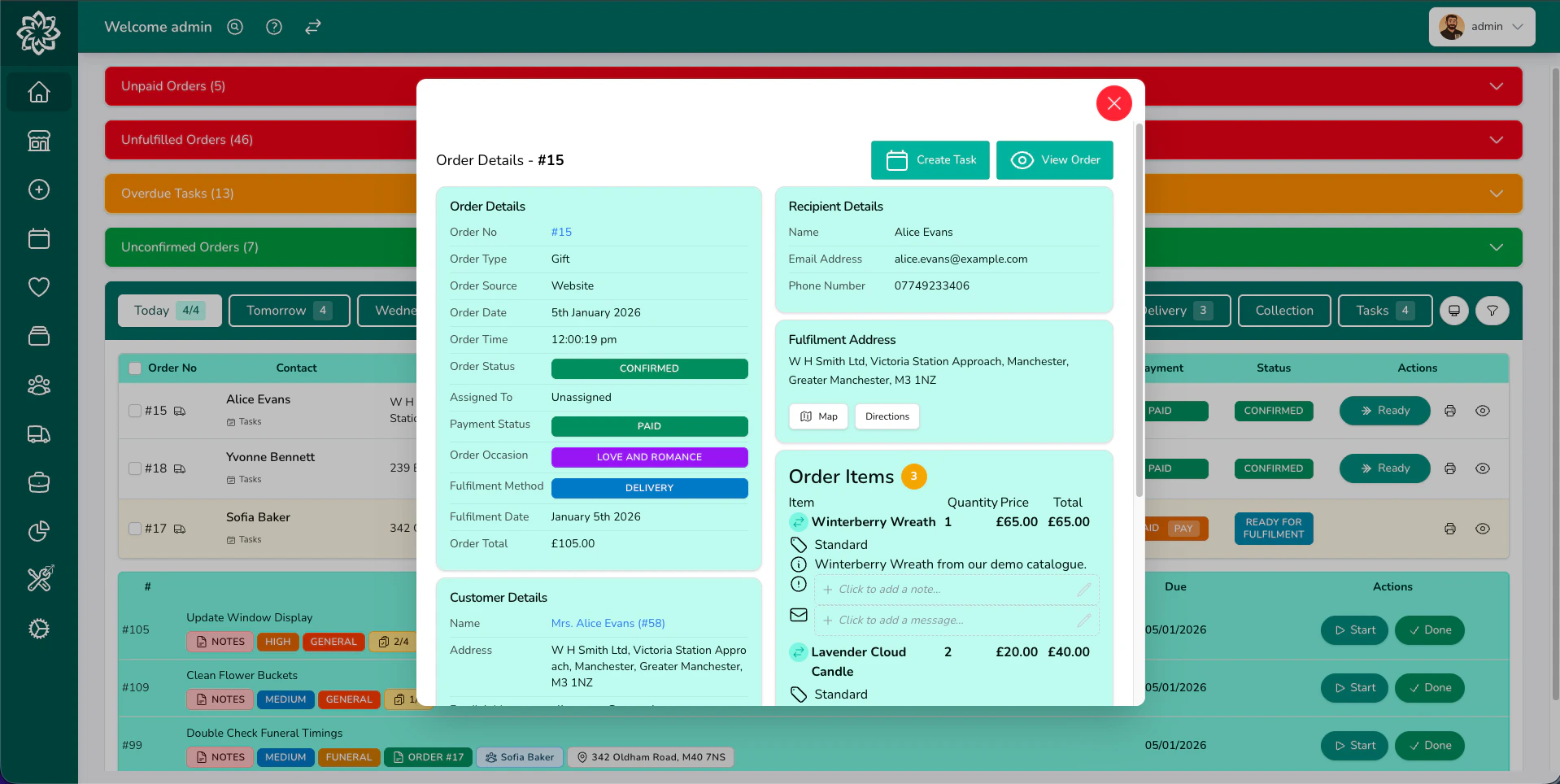 At the top you'll see the **order occasion**, **fulfilment method**, **fulfilment date**, and **order total**. Below that, the view is organised into sections:
* **Customer Details** — name, address, email, and phone number
* **Order Items** — each product with variant, quantity, price, description, notes, and card message fields
* **Upload Attachment** — for adding photos or documents to the order
* **Linked Tasks** — any tasks connected to this order
* **Notification Logs** — what emails or messages have been sent to the customer
### What you can do from the details view
* **Change the status** — move the order to its next stage
* **Print Receipt**, **Print Labels**, or **Print Worksheet** for this order
* **Send Receipt** to the customer by email
* **Resend Order Notification** if the customer didn't receive their confirmation
* **Send an ad-hoc email or SMS** from the notification logs — useful for following up on a specific order, with a record kept against the order
* **Send to Courier** to book a courier collection
* **Send to Relay** to forward the order to another florist
* **Upload attachments** like reference photos or documents — for example, if a customer shows you a picture of what they want, attach it to the order
* **Create a task linked to the order** — useful for follow-ups or anything that needs picking up later, kept connected to the order
* **Add notes and card messages** directly on each product
To edit the order's products, address, or other fields, click through to the **edit view**.
At the top you'll see the **order occasion**, **fulfilment method**, **fulfilment date**, and **order total**. Below that, the view is organised into sections:
* **Customer Details** — name, address, email, and phone number
* **Order Items** — each product with variant, quantity, price, description, notes, and card message fields
* **Upload Attachment** — for adding photos or documents to the order
* **Linked Tasks** — any tasks connected to this order
* **Notification Logs** — what emails or messages have been sent to the customer
### What you can do from the details view
* **Change the status** — move the order to its next stage
* **Print Receipt**, **Print Labels**, or **Print Worksheet** for this order
* **Send Receipt** to the customer by email
* **Resend Order Notification** if the customer didn't receive their confirmation
* **Send an ad-hoc email or SMS** from the notification logs — useful for following up on a specific order, with a record kept against the order
* **Send to Courier** to book a courier collection
* **Send to Relay** to forward the order to another florist
* **Upload attachments** like reference photos or documents — for example, if a customer shows you a picture of what they want, attach it to the order
* **Create a task linked to the order** — useful for follow-ups or anything that needs picking up later, kept connected to the order
* **Add notes and card messages** directly on each product
To edit the order's products, address, or other fields, click through to the **edit view**.
 ## Editing an order
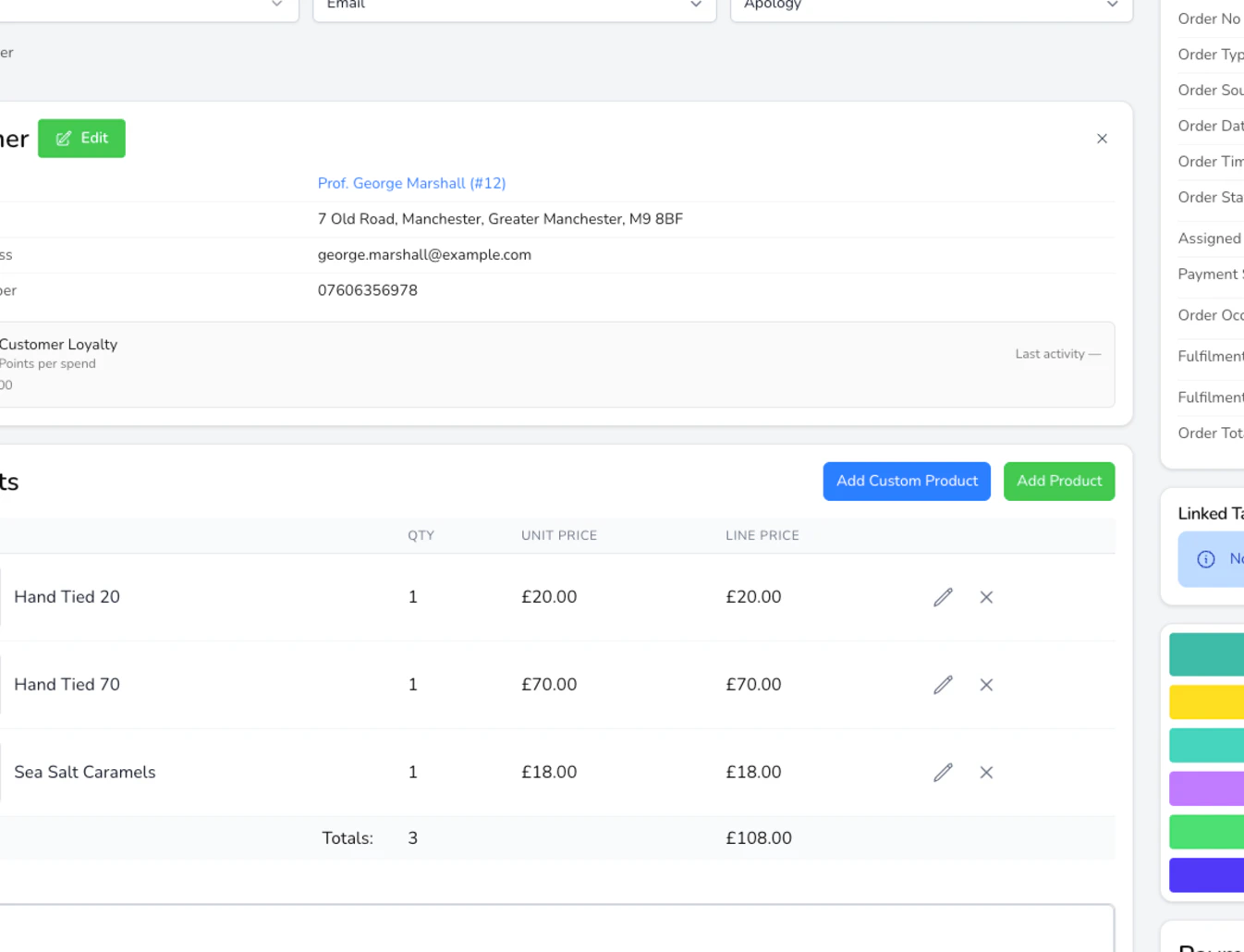
You can edit an order until it has been fulfilled. Click into the order and update any field, then click **Update**.
If you change the price of a paid order, the customer may need a refund or an additional payment. The system will flag this for you.
After an order has been fulfilled, most fields are locked. You can still add notes or attachments, but if you need to change products, prices, or addresses, it's usually cleaner to create a new order than to edit a fulfilled one.
## Cancelling an order
To cancel an order, open it and click **Cancel Order**. You'll need to:
1. Enter a **cancellation reason** for the record
2. Choose a **refund option**: Full Refund, No Refund, or a Custom Amount
The system handles the stock return and related-task cancellation automatically. See [Refunds](/daily-operations/refunds) for the refund mechanics.
Cancelling an order cannot be undone from the cancel screen. If you need to bring it back, you'll have to reopen it (which sets it back to Confirmed) — and that path has its own implications for stock and notifications. Make sure you've chosen the right refund option before confirming.
To cancel a **fulfilled** order, see the **Reopen first, then cancel** note in the transitions section above.
## Order sources
Each order is tagged with where it came from so you can track how customers are finding you:
* **Walk In** — customers who order in person
* **Phone** — phone orders
* **Email** — email orders
* **Website** — orders from your online store
* **Other** — anything else
## Finding past orders
Your dashboard shows today's and tomorrow's orders by default. Two ways to find orders from any other date:
* **From the dashboard** — click **Other** above the orders table to open a calendar. Each date shows the order count; click any date (past or future) to jump straight to its orders.
* **From the full orders list** — click the **Orders** icon in the left sidebar, then search by **fulfilment date** (in YYYY-MM-DD format, e.g. 2025-03-06) to see every order for that date in any status: unconfirmed, confirmed, fulfilled, cancelled, and everything in between.
Useful for checking what went out on a particular day, finding an order a customer is asking about, or reviewing orders that were never confirmed.
The dashboard filters by status. The full orders list in the sidebar shows **everything** for a given date — the best place to search when you're not sure what status an order is in.
## Repeat orders
For customers who want regular deliveries — weekly reception flowers, monthly office arrangements, fortnightly church displays — set up a **Repeat Order**. Digital Florists automatically generates a new order on your chosen schedule.
[Learn more about repeat orders →](/daily-operations/repeat-orders)
## Common questions
You can add notes and attachments, but most fields (products, prices, addresses) are locked. If you need significant changes, create a new order instead.
Fulfilled orders can't be cancelled directly. Reopen the order first (which sets it back to Confirmed), then cancel from there. The system handles stock and refund implications correctly when you go via that path.
The system flags it as outside your coverage area and suggests converting to a relay so another florist can fulfil it.
Yes. You can search by order number, customer name, recipient name, delivery address, postcode, or product name.
Open the order and use the **Substitute** option to swap a product or bundle for an alternative.
The Ready For Fulfilment notification only fires for **collection** orders. If you mark the order ready **on** the day of collection, it sends immediately. If you mark it ready **earlier** (e.g. the night before), it's held back and sent automatically at **8am on the collection day** — so the customer isn't told their flowers are ready before they are.
## What's next?
Step-by-step guide to creating a new order.
Automate orders for customers on a regular schedule.
Manage all your orders from one screen.
Set up delivery runs and track your drivers.
## Editing an order
You can edit an order until it has been fulfilled. Click into the order and update any field, then click **Update**.
If you change the price of a paid order, the customer may need a refund or an additional payment. The system will flag this for you.
After an order has been fulfilled, most fields are locked. You can still add notes or attachments, but if you need to change products, prices, or addresses, it's usually cleaner to create a new order than to edit a fulfilled one.
## Cancelling an order
To cancel an order, open it and click **Cancel Order**. You'll need to:
1. Enter a **cancellation reason** for the record
2. Choose a **refund option**: Full Refund, No Refund, or a Custom Amount
The system handles the stock return and related-task cancellation automatically. See [Refunds](/daily-operations/refunds) for the refund mechanics.
Cancelling an order cannot be undone from the cancel screen. If you need to bring it back, you'll have to reopen it (which sets it back to Confirmed) — and that path has its own implications for stock and notifications. Make sure you've chosen the right refund option before confirming.
To cancel a **fulfilled** order, see the **Reopen first, then cancel** note in the transitions section above.
## Order sources
Each order is tagged with where it came from so you can track how customers are finding you:
* **Walk In** — customers who order in person
* **Phone** — phone orders
* **Email** — email orders
* **Website** — orders from your online store
* **Other** — anything else
## Finding past orders
Your dashboard shows today's and tomorrow's orders by default. Two ways to find orders from any other date:
* **From the dashboard** — click **Other** above the orders table to open a calendar. Each date shows the order count; click any date (past or future) to jump straight to its orders.
* **From the full orders list** — click the **Orders** icon in the left sidebar, then search by **fulfilment date** (in YYYY-MM-DD format, e.g. 2025-03-06) to see every order for that date in any status: unconfirmed, confirmed, fulfilled, cancelled, and everything in between.
Useful for checking what went out on a particular day, finding an order a customer is asking about, or reviewing orders that were never confirmed.
The dashboard filters by status. The full orders list in the sidebar shows **everything** for a given date — the best place to search when you're not sure what status an order is in.
## Repeat orders
For customers who want regular deliveries — weekly reception flowers, monthly office arrangements, fortnightly church displays — set up a **Repeat Order**. Digital Florists automatically generates a new order on your chosen schedule.
[Learn more about repeat orders →](/daily-operations/repeat-orders)
## Common questions
You can add notes and attachments, but most fields (products, prices, addresses) are locked. If you need significant changes, create a new order instead.
Fulfilled orders can't be cancelled directly. Reopen the order first (which sets it back to Confirmed), then cancel from there. The system handles stock and refund implications correctly when you go via that path.
The system flags it as outside your coverage area and suggests converting to a relay so another florist can fulfil it.
Yes. You can search by order number, customer name, recipient name, delivery address, postcode, or product name.
Open the order and use the **Substitute** option to swap a product or bundle for an alternative.
The Ready For Fulfilment notification only fires for **collection** orders. If you mark the order ready **on** the day of collection, it sends immediately. If you mark it ready **earlier** (e.g. the night before), it's held back and sent automatically at **8am on the collection day** — so the customer isn't told their flowers are ready before they are.
## What's next?
Step-by-step guide to creating a new order.
Automate orders for customers on a regular schedule.
Manage all your orders from one screen.
Set up delivery runs and track your drivers.