> ## Documentation Index
> Fetch the complete documentation index at: https://docs.florists.digital/llms.txt
> Use this file to discover all available pages before exploring further.
# End of Day
> Close your till, count your cash, and review the day's takings.
At the end of the day (or the end of a shift), you close your till session. This is your **End of Day** — you count the cash, reconcile each payment method, and review a full breakdown of everything that happened during the session.
**This page covers features gated by Manager-tier permissions.** Managers and Admins have these by default; your administrator can adjust who has them in [Settings > Team](/settings/team).
 ## Closing the till
From the POS, click the **settings icon** and choose **Close Register**, or navigate directly to the End of Day screen.
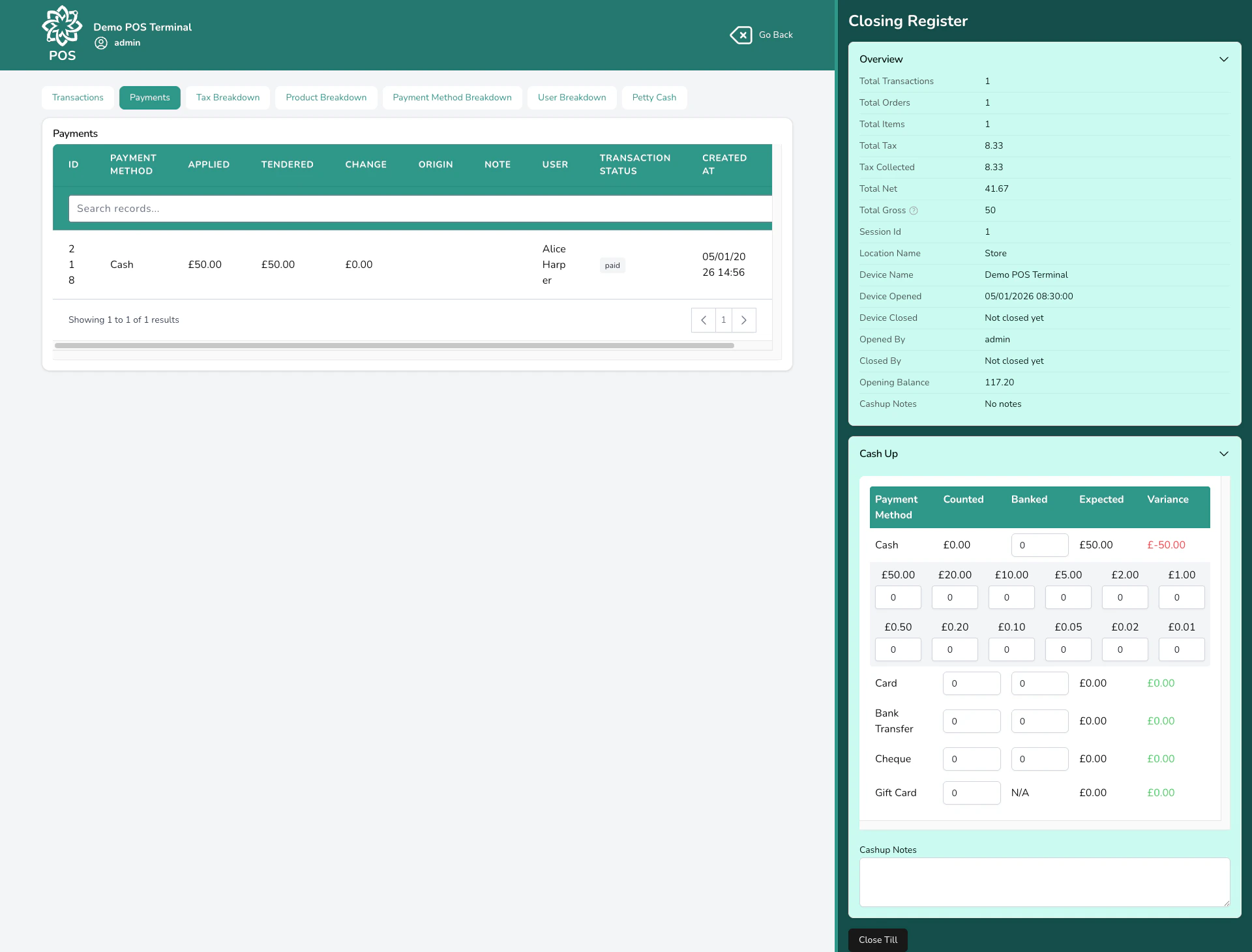
Count all the cash in your drawer. If **denomination counting** is enabled, enter the number of each coin and note — the total is calculated for you. Otherwise, enter the total amount directly.
For each payment method, enter two numbers:
* **Counted** — the total you have on hand (for cash, this comes from your denomination count)
* **Banked** — the amount you're putting in the safe or taking to the bank
Your dashboard shows the **expected** amount for each method (calculated from all the payments processed during the session) and highlights any **variance** — the difference between what you counted and what was expected.
If you made any petty cash movements during the session, they'll be shown here. The net petty cash (in minus out) adjusts the expected cash amount, so your count should still balance.
Use the notes field to record anything unusual — for example, "£5 short, possible miscounted change" or "Paid window cleaner £15 from till".
Click **Close Till** to end the session. A **Z-Report** (session summary receipt) opens automatically for printing. You're redirected to the full End of Day report.
You can close the till even if there's a variance. Discrepancies are logged but don't block you from closing. Use the notes field to explain any differences.
## The variance grid
The heart of the End of Day screen is the **variance grid** — a row for each payment method showing:
| Column | What it shows |
| ------------------ | --------------------------------------------------------------------- |
| **Payment Method** | Cash, Card, Gift Card, Account, etc. |
| **Counted** | What you physically counted or confirmed |
| **Banked** | How much you're depositing |
| **Expected** | What Digital Florists calculated from all payments during the session |
| **Variance** | The difference between Counted and Expected |
The variance is colour-coded so you can spot problems at a glance. If everything balances, you'll see zeros across the board.
If your cash variance is off, check the **Transactions** tab first. A common cause is a cash refund that was given but not recorded, or a petty cash movement that was forgotten.
## Petty cash
If **petty cash** is enabled on your device, you can record small cash movements during your session — like paying a supplier in cash, topping up the stamp fund, or receiving cash from another till.
Record each movement with the amount, direction, and a category. You can attach a photo of the receipt.
Petty cash movements are factored into your expected cash amount at close. If you took £20 out for milk and stamps, your expected cash will be £20 lower — so your count should still balance.
To review past sessions, run date-range reports, or export EOD data, see [End of Day Reports](/analytics/eod).
## Common questions
Yes. Variances are recorded but don't block you from closing. Add a note explaining the difference. If discrepancies are frequent, check that all cash refunds and petty cash movements are being recorded.
Yes. Both who opened and who closed the session are recorded. A shift handover mid-day is fine.
**Counted** is the total you have on hand for that payment method. **Banked** is how much you're depositing or putting aside. For example, you might count £500 in cash but only bank £400, keeping £100 as tomorrow's float.
Technically no — Digital Florists knows exactly what was processed through the terminal. But the Counted field for card payments lets you cross-check against your terminal's own end-of-day total, which is good practice.
Your expected cash will be off by that amount, showing a variance. You can add a note when closing to explain it. For future reference, record petty cash movements as they happen so your count balances at the end of the day.
No. Once a session is closed, it's final. If you need to make a correction, open a new session and process an adjustment. The audit trail preserves both the original close and the correction.
The Z-Report prints automatically when you close the till. You can also view and reprint it from the session's End of Day report in **Analytics** > **Reports** > **EOD Reports**.
## What's next?
Back to the main POS guide.
Process refunds at the till.
See your POS data alongside other business metrics.
Export your financial data for accounting.
## Closing the till
From the POS, click the **settings icon** and choose **Close Register**, or navigate directly to the End of Day screen.
Count all the cash in your drawer. If **denomination counting** is enabled, enter the number of each coin and note — the total is calculated for you. Otherwise, enter the total amount directly.
For each payment method, enter two numbers:
* **Counted** — the total you have on hand (for cash, this comes from your denomination count)
* **Banked** — the amount you're putting in the safe or taking to the bank
Your dashboard shows the **expected** amount for each method (calculated from all the payments processed during the session) and highlights any **variance** — the difference between what you counted and what was expected.
If you made any petty cash movements during the session, they'll be shown here. The net petty cash (in minus out) adjusts the expected cash amount, so your count should still balance.
Use the notes field to record anything unusual — for example, "£5 short, possible miscounted change" or "Paid window cleaner £15 from till".
Click **Close Till** to end the session. A **Z-Report** (session summary receipt) opens automatically for printing. You're redirected to the full End of Day report.
You can close the till even if there's a variance. Discrepancies are logged but don't block you from closing. Use the notes field to explain any differences.
## The variance grid
The heart of the End of Day screen is the **variance grid** — a row for each payment method showing:
| Column | What it shows |
| ------------------ | --------------------------------------------------------------------- |
| **Payment Method** | Cash, Card, Gift Card, Account, etc. |
| **Counted** | What you physically counted or confirmed |
| **Banked** | How much you're depositing |
| **Expected** | What Digital Florists calculated from all payments during the session |
| **Variance** | The difference between Counted and Expected |
The variance is colour-coded so you can spot problems at a glance. If everything balances, you'll see zeros across the board.
If your cash variance is off, check the **Transactions** tab first. A common cause is a cash refund that was given but not recorded, or a petty cash movement that was forgotten.
## Petty cash
If **petty cash** is enabled on your device, you can record small cash movements during your session — like paying a supplier in cash, topping up the stamp fund, or receiving cash from another till.
Record each movement with the amount, direction, and a category. You can attach a photo of the receipt.
Petty cash movements are factored into your expected cash amount at close. If you took £20 out for milk and stamps, your expected cash will be £20 lower — so your count should still balance.
To review past sessions, run date-range reports, or export EOD data, see [End of Day Reports](/analytics/eod).
## Common questions
Yes. Variances are recorded but don't block you from closing. Add a note explaining the difference. If discrepancies are frequent, check that all cash refunds and petty cash movements are being recorded.
Yes. Both who opened and who closed the session are recorded. A shift handover mid-day is fine.
**Counted** is the total you have on hand for that payment method. **Banked** is how much you're depositing or putting aside. For example, you might count £500 in cash but only bank £400, keeping £100 as tomorrow's float.
Technically no — Digital Florists knows exactly what was processed through the terminal. But the Counted field for card payments lets you cross-check against your terminal's own end-of-day total, which is good practice.
Your expected cash will be off by that amount, showing a variance. You can add a note when closing to explain it. For future reference, record petty cash movements as they happen so your count balances at the end of the day.
No. Once a session is closed, it's final. If you need to make a correction, open a new session and process an adjustment. The audit trail preserves both the original close and the correction.
The Z-Report prints automatically when you close the till. You can also view and reprint it from the session's End of Day report in **Analytics** > **Reports** > **EOD Reports**.
## What's next?
Back to the main POS guide.
Process refunds at the till.
See your POS data alongside other business metrics.
Export your financial data for accounting.