> ## Documentation Index
> Fetch the complete documentation index at: https://docs.florists.digital/llms.txt
> Use this file to discover all available pages before exploring further.
# Refunds
> Process refunds by order, by transaction, or as a standalone adjustment.
Sometimes you need to give money back. Whether a customer returns an item, you overcharged them, or they changed their mind, you can process refunds from the POS or when cancelling an order.
**This page covers features gated by Manager-tier permissions.** Managers and Admins have these by default; your administrator can adjust who has them in [Settings > Team](/settings/team).
## Quick refund from today's transactions
If the transaction you want to refund happened during your current till session, the quickest way is to find it in your transaction list. Go to the POS settings cog, tap **Close Register** (you don't need to close it), find the transaction, open it, and click **Issue Refund**. This saves you looking up the order or transaction ID.
## Refunding from the adjustments panel
For transactions from a previous day — or if you prefer to look up by order or transaction ID — open the **Refunds & Adjustments** panel from the POS settings menu. You'll see three tabs:
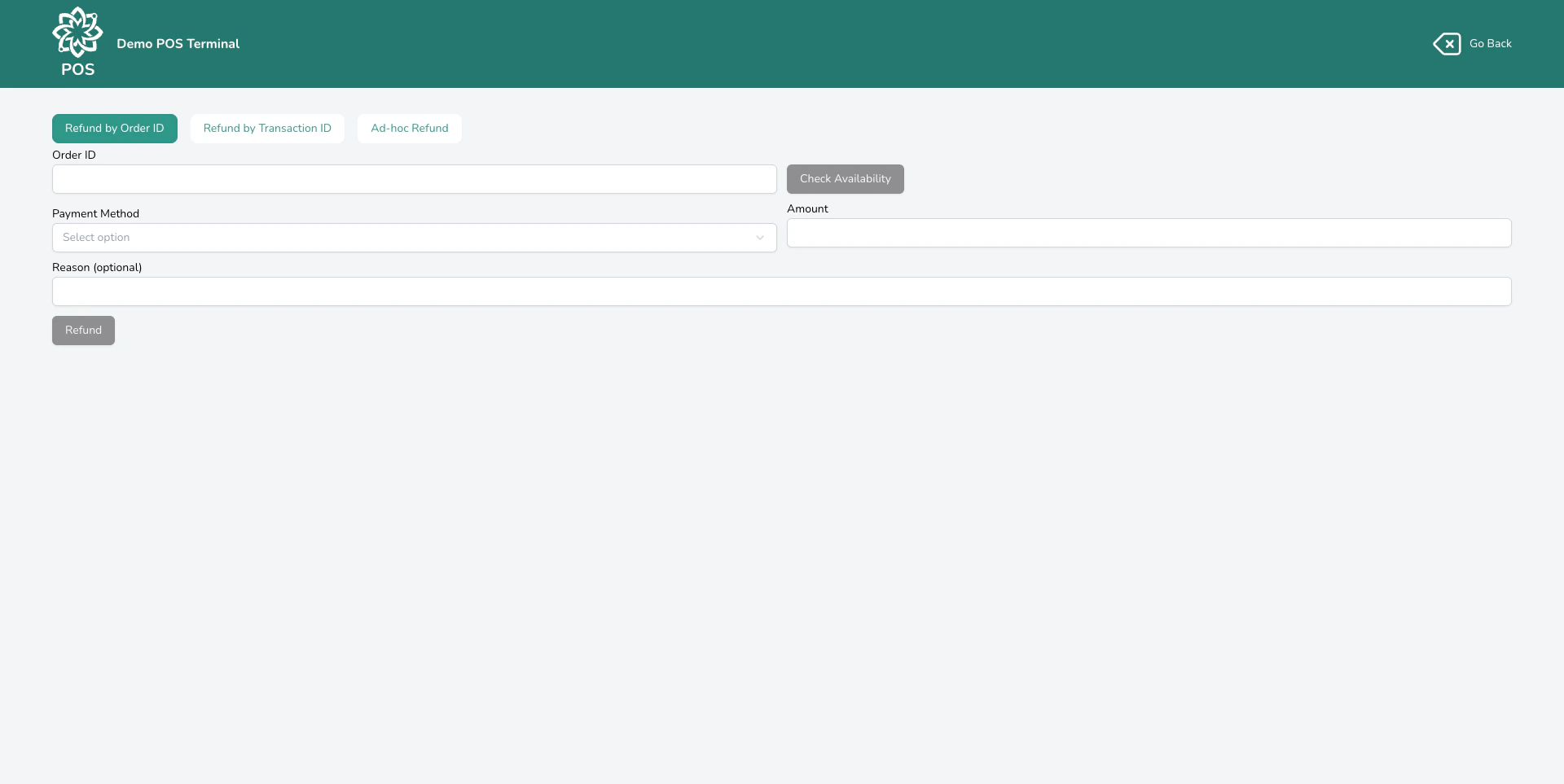
### Refund by Order ID
Use this when you know the **order number**. This is the most common method — a customer brings back flowers or calls about an issue, and you have their order number.
Type the order number into the lookup field. Digital Florists finds the order and shows the payment details.
Your dashboard shows how much was paid and how much has already been refunded, broken down by payment method. You can only refund up to what was originally paid via each method.
Type the amount to refund and choose which payment method to refund to. Add a **reason** so there's a clear record of why the refund was issued.
Review the details and confirm. The refund is recorded against the original order.
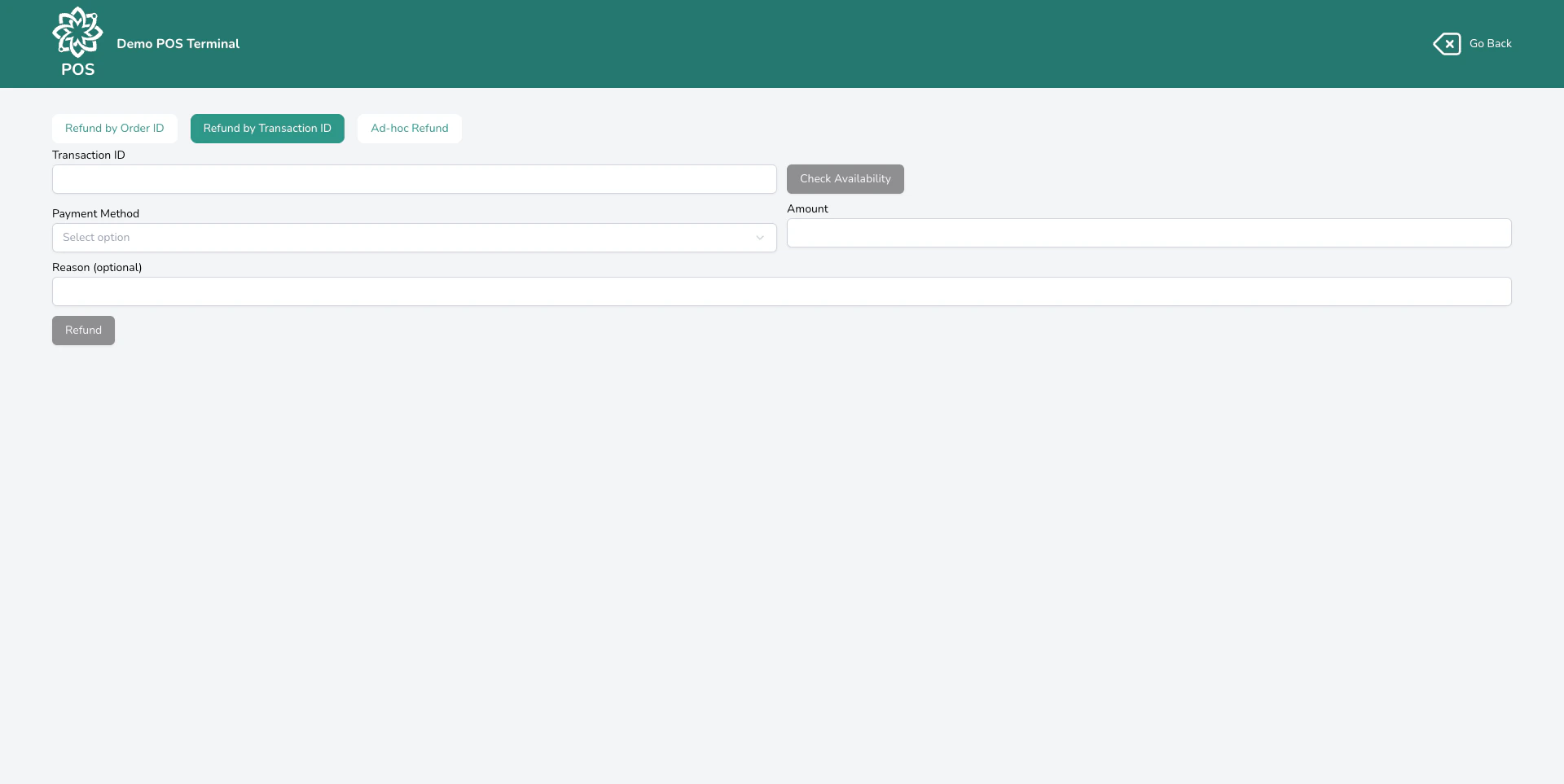
### Refund by Transaction ID
Use this when you have the **transaction ID** rather than an order number. This is useful for POS sales where you might not have an order number handy, or when a single transaction covered multiple orders.
Type the transaction ID into the lookup field.
Your dashboard shows the paid and refunded amounts per payment method. Each method has a **refund cap** — you can't refund more than was paid via that method.
Choose the payment method, enter the amount, and provide a reason.
Review and confirm the refund.
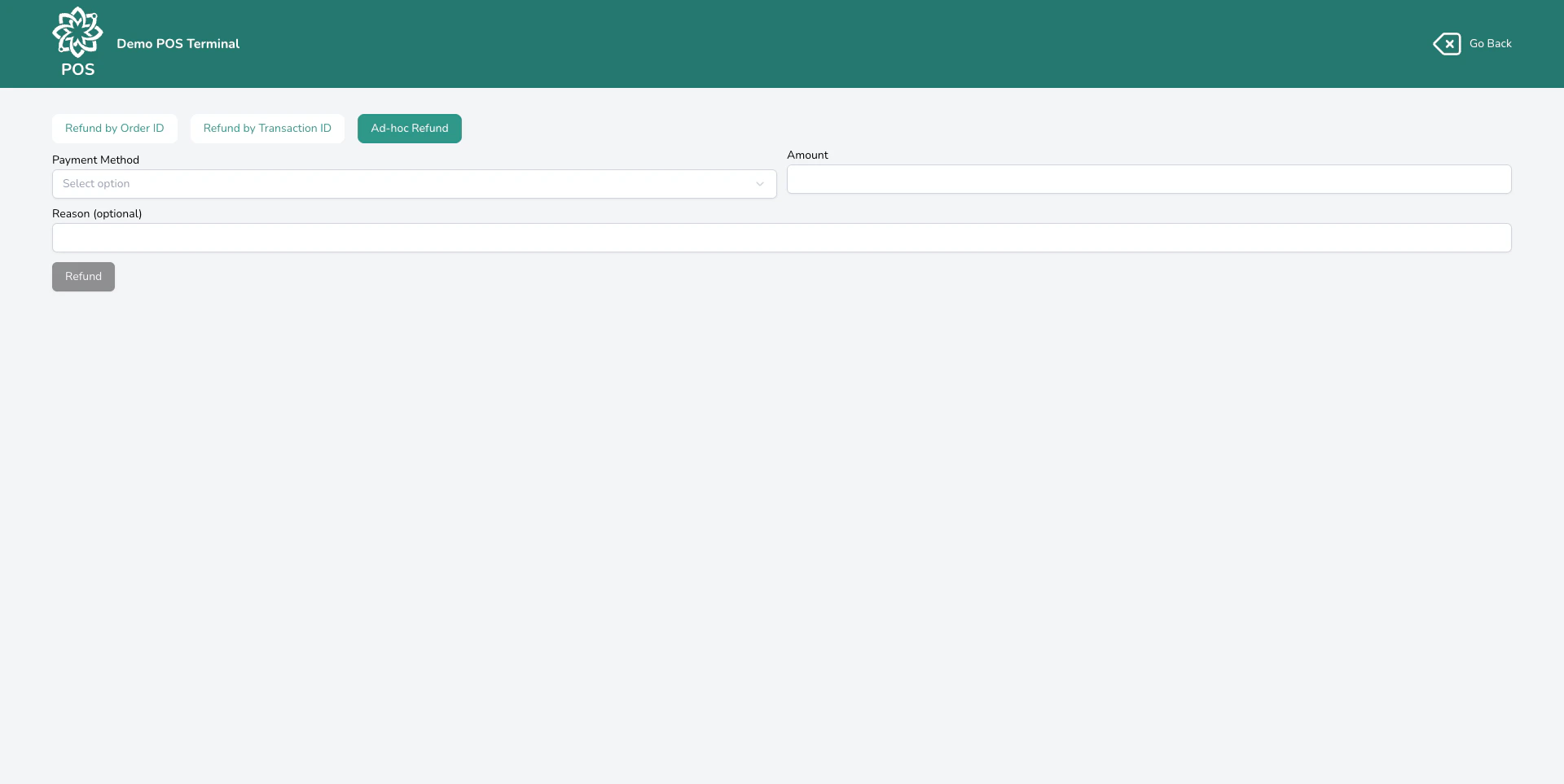
### Ad-hoc refund
Use this when you can't find the original transaction, or when you need to process a standalone **ad-hoc refund** (like a goodwill gesture or a correction from a previous day).
Select the **Ad-hoc Refund** tab in the adjustments panel.
Enter the refund amount, choose the payment method, and write a reason. The reason is required because ad-hoc refunds aren't linked to an original sale.
Review and confirm. A standalone refund transaction is created.
Ad-hoc refunds aren't linked to an original sale, so they're harder to audit. Always try **Refund by Order ID** or **Refund by Transaction ID** first.
## Refunding when cancelling an order
When you cancel an order from the dashboard, you're asked how you'd like to handle the refund:
* **Full refund** — returns all payments automatically, split across the original payment methods
* **Custom refund** — lets you choose specific amounts per payment method
* **No refund** — cancels the order without returning any money (the transaction is voided if unpaid)
Cancellation refunds follow the same per-method caps as POS refunds — Digital Florists can only return up to what was originally paid via each method.
If a customer redeemed loyalty points or a punchcard reward on the cancelled order, those points or punches are automatically returned to their balance. Loyalty isn't returned for standalone POS refunds — only when the order itself is cancelled.
**Fulfilled orders can't be cancelled directly.** To cancel a fulfilled order, you have to reopen it first (which sets it back to Confirmed) — then the cancel-refund flow works as above. You can still issue a refund against the original transaction without cancelling — use the **Refund by Order ID** or **Refund by Transaction ID** flow above. See [Order statuses](/daily-operations/orders#order-statuses) for the reopen path.
## How refunds affect your till
| Payment method | What happens on refund |
| ----------------------------------------------------- | ------------------------------------------------------------------------------------------------------------------------------------------------------------------------------------------------------- |
| **Cash** | Reduces the expected cash in your drawer. Factored into your [End of Day](/daily-operations/pos-end-of-day) count so the numbers still balance. |
| **Integrated payment methods** (e.g. card via Stripe) | The refund is **recorded in Digital Florists, not sent to the payment provider automatically.** You need to issue the matching refund in the provider's dashboard separately. Reconciliation is on you. |
| **Account** | Credits the customer's account balance — settled later via invoicing. |
| **Gift card** | Credits the refunded amount back to the original gift card or cards. Inactive, expired, or void cards cannot be re-credited, so refund the customer another way. |
Refunds appear in your [End of Day](/daily-operations/pos-end-of-day) report, financial reports, and exports. Whether a refund lands against the active till session depends on your **POS payment session tagging** setting — when that's on, refunds taken at the till are tagged to the current session; when off, refunds aren't session-bound.
Refunds against an integrated payment method (such as card via Stripe) do **not** trigger a refund with the provider. The Digital Florists record updates immediately, but the customer won't be credited until you issue the corresponding refund in the provider's dashboard. Build it into your refund routine: refund here, then refund with the provider.
## Common questions
Yes. Enter any amount up to the original payment. You don't have to refund the full sale.
Yes. You can choose any available refund method regardless of how the customer originally paid. For example, if they paid by card but want cash back, that's fine — both are recorded for your records.
If the customer was assigned to the original sale, the refund appears in their order history. Ad-hoc refunds without a customer assignment won't be linked to anyone.
For order and transaction refunds, you can only refund up to the amount originally paid via each payment method. Ad-hoc refunds don't have this limit since they aren't linked to an original payment.
If you refund the full amount, the status changes to **Refunded**. If you refund part of it, it changes to **Partially Refunded**. See [Transaction Statuses](/daily-operations/transactions#payment-statuses) for the full list.
## What's next?
Back to the main POS guide.
Close your till and review the day's takings.
How transactions and payment statuses work.
Export refund data for your records.
 ### Refund by Order ID
Use this when you know the **order number**. This is the most common method — a customer brings back flowers or calls about an issue, and you have their order number.
### Refund by Order ID
Use this when you know the **order number**. This is the most common method — a customer brings back flowers or calls about an issue, and you have their order number.