> ## Documentation Index
> Fetch the complete documentation index at: https://docs.florists.digital/llms.txt
> Use this file to discover all available pages before exploring further.
# Tasks
> Keep your team organised with a shared task list.
**Tasks** help you keep track of everything that needs doing around the shop — flower prep, admin jobs, cleaning, phone calls, and anything else. Create tasks, assign them to team members, set due dates and priorities, and track progress with checklists.
Tasks appear on your [Dashboard](/daily-operations/dashboard) alongside orders, so your team can see their work for the day in one place. For jobs that happen on a regular schedule, set them up as [recurring tasks](/daily-operations/repeat-tasks).
## Viewing tasks
You can view tasks in three ways:
* **On the Dashboard** — tasks show alongside orders in the main table and in the dedicated **Tasks** tab. Use the date filters to see tasks due today, tomorrow, or any date you choose.
* **In the Tasks calendar** — a monthly or daily overview of all tasks across your team.
* **On the Digital Florists App** — your team can view tasks on their phone, with filters to focus on tasks assigned to them. See the [florist app guide](/get-started/app-florists).
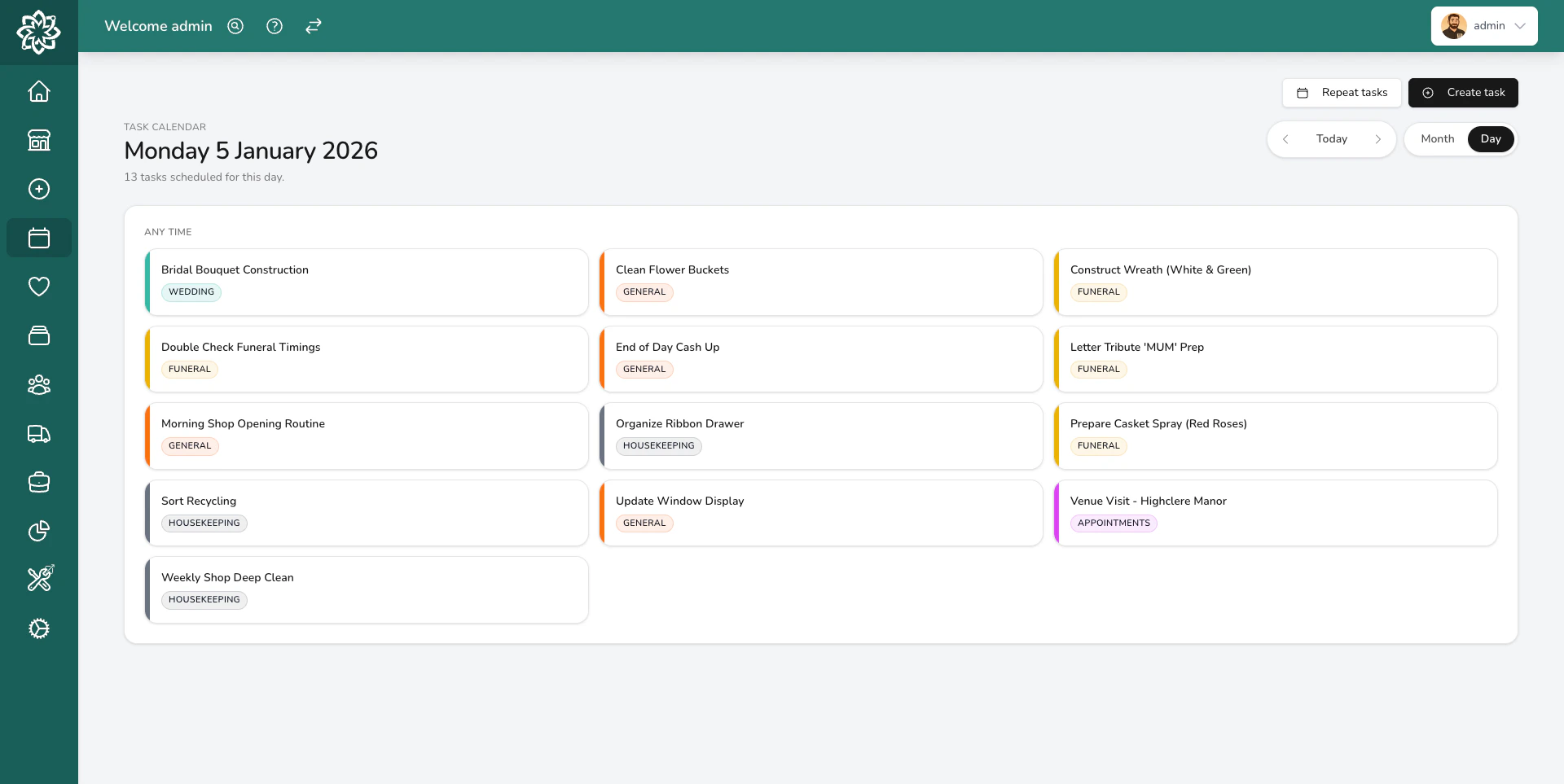
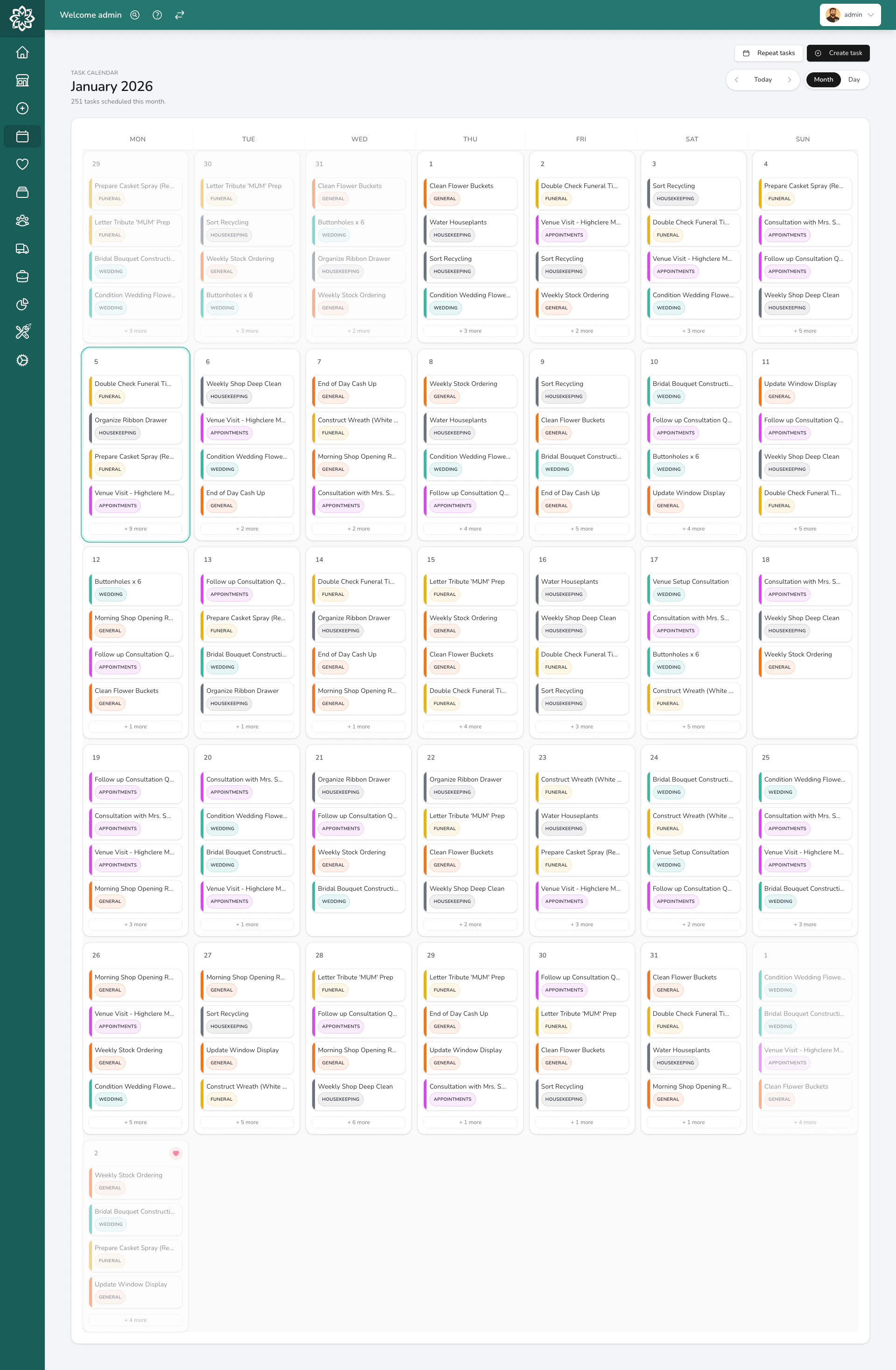 Switch to the daily view to see individual tasks with their details, priority, and assignees.
 ## Creating a task
Creating, editing, assigning, and deleting tasks requires the **Tasks (Manage)** permission. Managers and Admins have this by default; your administrator can adjust who has it in [Settings > Team](/settings/team).
## Creating a task
Creating, editing, assigning, and deleting tasks requires the **Tasks (Manage)** permission. Managers and Admins have this by default; your administrator can adjust who has it in [Settings > Team](/settings/team).
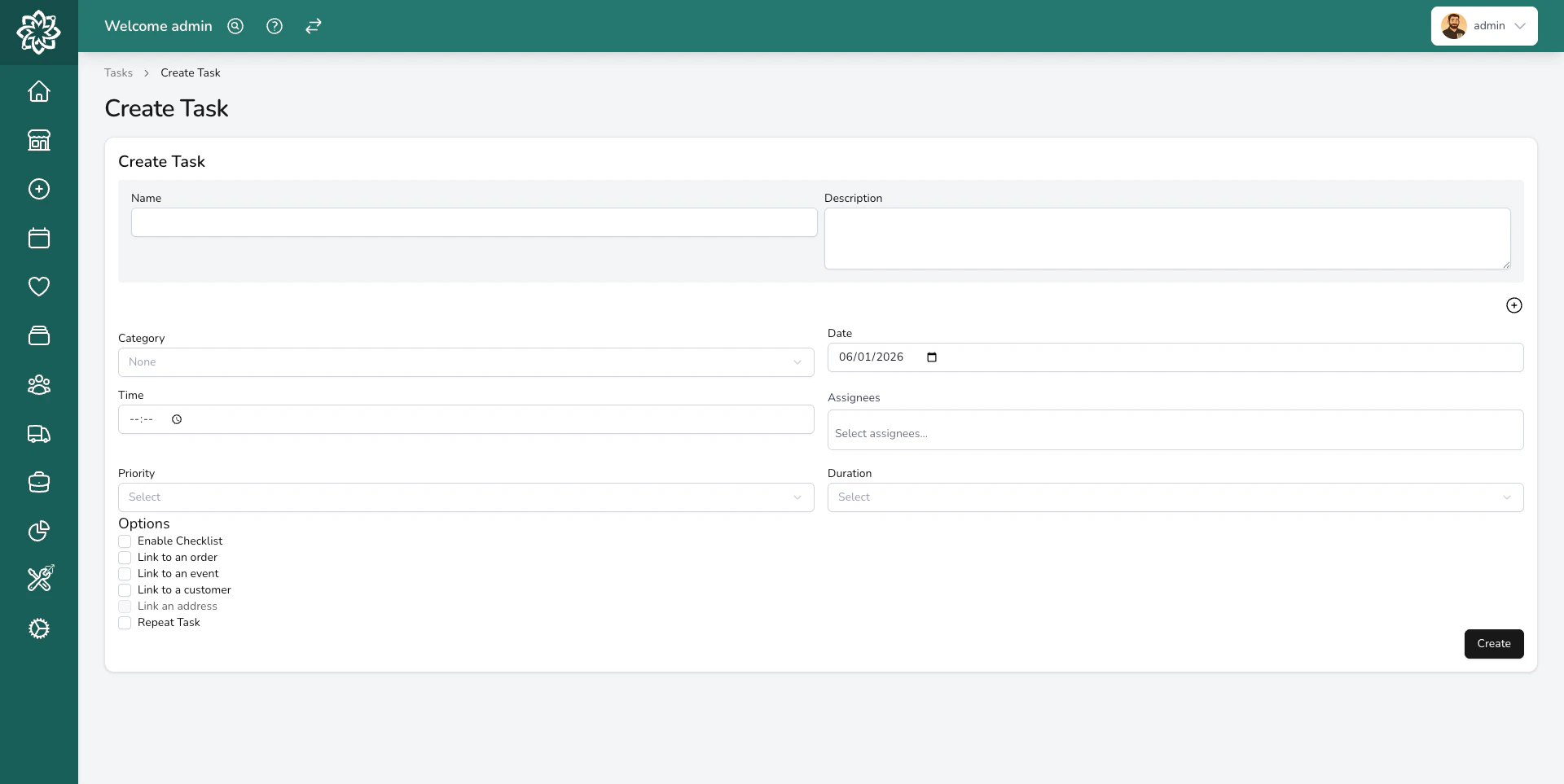 Give the task a **name** (what needs doing), a **due date** and optional **time**. Set a priority — Urgent down to Low — to help your team see what to grab first.
You can also set a **duration** if you want to track how long the task should take (from 5 minutes up to 6 hours).
Choose one or more team members to be responsible for the task. You can assign multiple people — for example, two florists working on a large wedding order together. Leave it unassigned if anyone on the team can pick it up.
Choose a category — Digital Florists comes with five defaults (General, Funeral, Wedding, Housekeeping, Appointments) that you can rename and recolour. Manage them in **Settings** > **Tasks**.
Add a **description** for extra context. For bigger jobs, enable the **checklist** to break it into smaller steps.
Give the task a **name** (what needs doing), a **due date** and optional **time**. Set a priority — Urgent down to Low — to help your team see what to grab first.
You can also set a **duration** if you want to track how long the task should take (from 5 minutes up to 6 hours).
Choose one or more team members to be responsible for the task. You can assign multiple people — for example, two florists working on a large wedding order together. Leave it unassigned if anyone on the team can pick it up.
Choose a category — Digital Florists comes with five defaults (General, Funeral, Wedding, Housekeeping, Appointments) that you can rename and recolour. Manage them in **Settings** > **Tasks**.
Add a **description** for extra context. For bigger jobs, enable the **checklist** to break it into smaller steps.
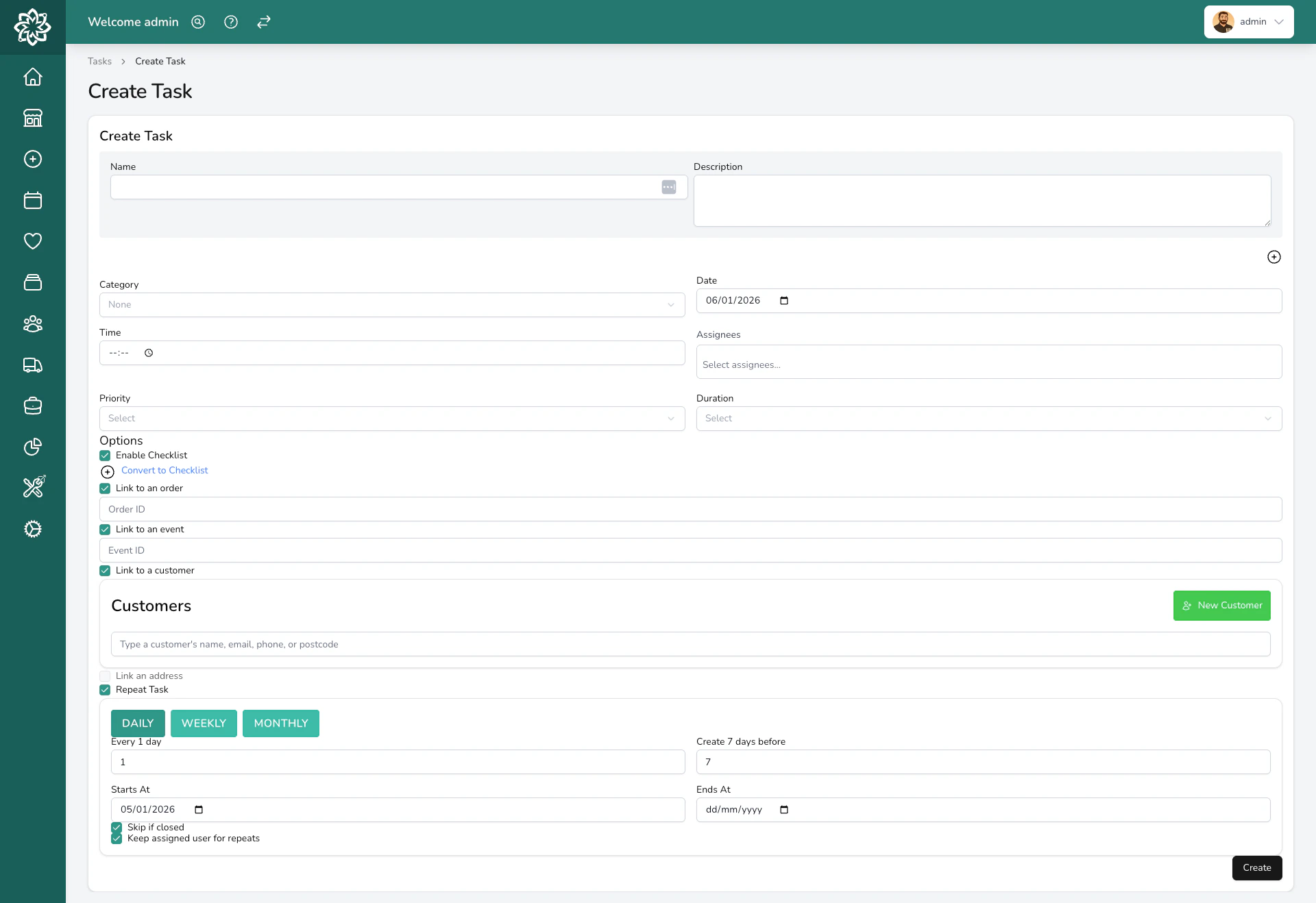 Link the task to an **order**, **customer**, **event**, or **address** so your team can jump straight to the related item. This is optional — tasks work fine on their own.
You can create multiple tasks at once. Click the **+** button on the task name field to add more tasks — they'll all share the same due date, category, and assignees.
## Task statuses
Every task moves through these statuses:
| Status | What it means |
| --------------- | -------------------------------------------------------------------------------------------- |
| **Pending** | Not started yet. This is the default when a task is created. |
| **In Progress** | Someone has started working on it. |
| **Completed** | Done. The task records who completed it and when. |
| **Cancelled** | The task has been cancelled — for example, automatically when its linked order is cancelled. |
You can change a task's status from the dashboard, the task detail view, or the mobile app. On the dashboard, use the **Start** and **Done** buttons for quick status changes.
If you complete a task that hasn't been started or assigned, Digital Florists records you as the person who did it.
## Overdue tasks
Tasks past their due date that haven't been completed are flagged as overdue on your dashboard, so nothing slips through the cracks.
## Quick actions on a task
Click or tap any task on your dashboard to open it. From there, quick actions let you make changes without going into the full task editor:
| Action | What it does |
| --------------------- | ------------------------------------------------------ |
| **Reassign** | Change who the task is assigned to. |
| **Change status** | Move it to In Progress, Completed, or back to Pending. |
| **Change priority** | Bump it up or down. |
| **Move to tomorrow** | Roll the due date forward by one day. |
| **Move to next week** | Roll the due date forward by seven days. |
| **Delete** | Remove the task entirely. |
## Bulk actions on checklists
Within a single task's **checklist**, you can tick off multiple items at once — useful for closing out a long checklist at the end of a busy day.
Bulk checklist actions need the **Tasks (Manage)** permission.
## Checklists
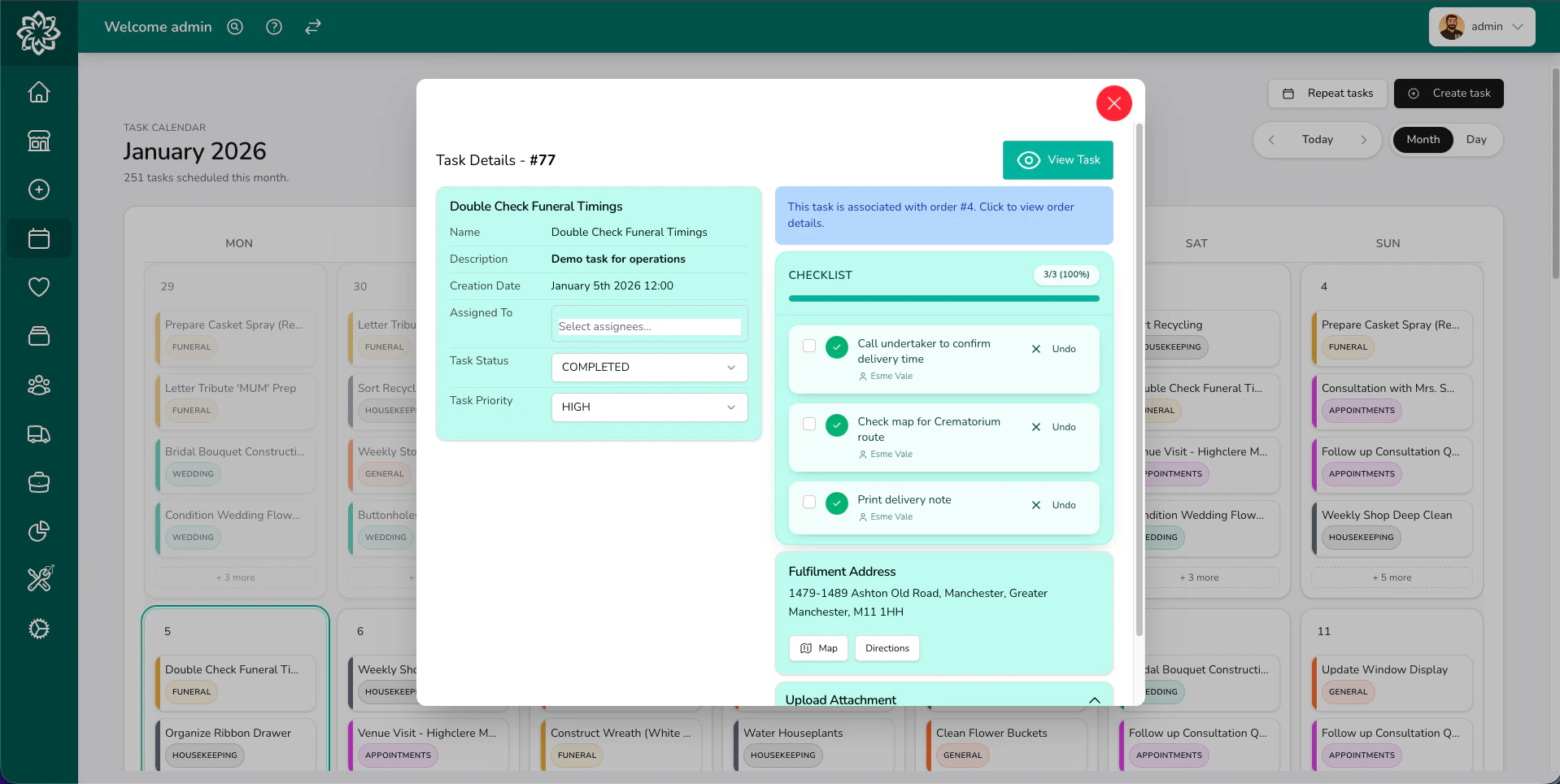
For tasks with multiple steps, enable the **checklist**. Each item can be ticked off individually, and you'll see a progress bar showing how far through the list you are.
Link the task to an **order**, **customer**, **event**, or **address** so your team can jump straight to the related item. This is optional — tasks work fine on their own.
You can create multiple tasks at once. Click the **+** button on the task name field to add more tasks — they'll all share the same due date, category, and assignees.
## Task statuses
Every task moves through these statuses:
| Status | What it means |
| --------------- | -------------------------------------------------------------------------------------------- |
| **Pending** | Not started yet. This is the default when a task is created. |
| **In Progress** | Someone has started working on it. |
| **Completed** | Done. The task records who completed it and when. |
| **Cancelled** | The task has been cancelled — for example, automatically when its linked order is cancelled. |
You can change a task's status from the dashboard, the task detail view, or the mobile app. On the dashboard, use the **Start** and **Done** buttons for quick status changes.
If you complete a task that hasn't been started or assigned, Digital Florists records you as the person who did it.
## Overdue tasks
Tasks past their due date that haven't been completed are flagged as overdue on your dashboard, so nothing slips through the cracks.
## Quick actions on a task
Click or tap any task on your dashboard to open it. From there, quick actions let you make changes without going into the full task editor:
| Action | What it does |
| --------------------- | ------------------------------------------------------ |
| **Reassign** | Change who the task is assigned to. |
| **Change status** | Move it to In Progress, Completed, or back to Pending. |
| **Change priority** | Bump it up or down. |
| **Move to tomorrow** | Roll the due date forward by one day. |
| **Move to next week** | Roll the due date forward by seven days. |
| **Delete** | Remove the task entirely. |
## Bulk actions on checklists
Within a single task's **checklist**, you can tick off multiple items at once — useful for closing out a long checklist at the end of a busy day.
Bulk checklist actions need the **Tasks (Manage)** permission.
## Checklists
For tasks with multiple steps, enable the **checklist**. Each item can be ticked off individually, and you'll see a progress bar showing how far through the list you are.
 This is useful for things like:
* "Set up shop floor" — displays, signage, stock replenishment
* "Prepare for wedding consultation" — samples, portfolio, quote template
* "End of day" — cleaning, stock check, cash up, lock up
Each checklist item tracks **who completed it**, so you know which team member did what. You can also bulk-assign checklist items to a specific person.
Completing all checklist items doesn't automatically mark the task as done — you still need to close the task itself.
## Linking tasks
Tasks can be linked to other parts of Digital Florists, so your team can jump straight to the related work:
| Link type | Example |
| ----------------- | ------------------------------------------------------------------------------------------------------------------------------------------ |
| **Orders** | "Check delivery address for order DF-1234" — when the order is cancelled, the linked task is cancelled too. |
| **Customers** | "Call Jane Doe about her account" |
| **Events** | "Finalise flowers for the Doe wedding" |
| **Addresses** | "Deliver samples to the venue" |
| **Delivery runs** | A task can be attached to a delivery run so drivers see it alongside their stops. Marking it complete on the run records the stop arrival. |
Linked tasks show a badge with the related item.
## Attachments
You can upload images to a task — reference photos, inspiration images, or photos of completed work. Supported formats are JPEG, PNG, and WebP (up to 20MB each), and each upload takes a short caption. Once a task is marked as Completed, no further attachments can be added.
## Activity log
Every task keeps a record of what happened to it — when it was created, status changes, priority changes, date changes, and who it was assigned to or unassigned from. Open the task to see its history.
## Automations
Tasks can be created automatically using [Automations](/settings/automations). For example, an automation can create a "Prepare order" task every time an order is confirmed, with a checklist item for each product in the order.
This is especially useful for items you may wish to prepare in advance, such as **Funeral** or **Event** orders.
Tasks don't send email or SMS, and task events don't fire automations — only orders and events do. Assignees see new tasks on their dashboard and in the [Companion App](/get-started/companion-app).
## Tasks on the mobile app
Your team can view and manage tasks from the **Digital Florists App** on their phone — see [the florist app guide](/get-started/app-florists) for the full mobile flow, or [the driver app guide](/get-started/app-drivers) if you're working a delivery run.
## Repeat tasks
For jobs that happen regularly, set up a **repeat task**. Digital Florists automatically creates a new task on your chosen schedule — daily, weekly, or monthly — so it doesn't slip.
[Learn more about repeat tasks →](/daily-operations/repeat-tasks)
## Common questions
Yes. On the dashboard, use the **Assigned To** filter to show only tasks assigned to you. You can also view tasks on the [Digital Florists App](/get-started/app-florists) and filter or restrict the view to only tasks assigned to you.
No. Tasks are completely standalone. Linking to an order, customer, or event is optional — it just makes it easier to find related information.
Yes. Drivers see tasks assigned to them and tasks linked to their delivery run, and they can mark tasks complete or tick off checklist items. Creating new tasks requires the **Tasks (Manage)** permission, which Managers and Admins have by default; your administrator can adjust who has it in [Settings > Team](/settings/team).
Any tasks linked to that order are automatically cancelled too.
You can set an expected **duration** when creating a task (from 5 minutes to 6 hours). Digital Florists records when tasks are completed, so you can compare expected vs actual time in [Task Analytics](/analytics/overview).
Go to **Settings** > **Tasks** to create, rename, or recolour your task categories. You can choose from 24 colours.
## What's next?
Set up tasks that create themselves on a schedule.
See tasks and orders together on your daily screen.
Automatically create tasks when orders are confirmed.
Manage tasks from your phone.
This is useful for things like:
* "Set up shop floor" — displays, signage, stock replenishment
* "Prepare for wedding consultation" — samples, portfolio, quote template
* "End of day" — cleaning, stock check, cash up, lock up
Each checklist item tracks **who completed it**, so you know which team member did what. You can also bulk-assign checklist items to a specific person.
Completing all checklist items doesn't automatically mark the task as done — you still need to close the task itself.
## Linking tasks
Tasks can be linked to other parts of Digital Florists, so your team can jump straight to the related work:
| Link type | Example |
| ----------------- | ------------------------------------------------------------------------------------------------------------------------------------------ |
| **Orders** | "Check delivery address for order DF-1234" — when the order is cancelled, the linked task is cancelled too. |
| **Customers** | "Call Jane Doe about her account" |
| **Events** | "Finalise flowers for the Doe wedding" |
| **Addresses** | "Deliver samples to the venue" |
| **Delivery runs** | A task can be attached to a delivery run so drivers see it alongside their stops. Marking it complete on the run records the stop arrival. |
Linked tasks show a badge with the related item.
## Attachments
You can upload images to a task — reference photos, inspiration images, or photos of completed work. Supported formats are JPEG, PNG, and WebP (up to 20MB each), and each upload takes a short caption. Once a task is marked as Completed, no further attachments can be added.
## Activity log
Every task keeps a record of what happened to it — when it was created, status changes, priority changes, date changes, and who it was assigned to or unassigned from. Open the task to see its history.
## Automations
Tasks can be created automatically using [Automations](/settings/automations). For example, an automation can create a "Prepare order" task every time an order is confirmed, with a checklist item for each product in the order.
This is especially useful for items you may wish to prepare in advance, such as **Funeral** or **Event** orders.
Tasks don't send email or SMS, and task events don't fire automations — only orders and events do. Assignees see new tasks on their dashboard and in the [Companion App](/get-started/companion-app).
## Tasks on the mobile app
Your team can view and manage tasks from the **Digital Florists App** on their phone — see [the florist app guide](/get-started/app-florists) for the full mobile flow, or [the driver app guide](/get-started/app-drivers) if you're working a delivery run.
## Repeat tasks
For jobs that happen regularly, set up a **repeat task**. Digital Florists automatically creates a new task on your chosen schedule — daily, weekly, or monthly — so it doesn't slip.
[Learn more about repeat tasks →](/daily-operations/repeat-tasks)
## Common questions
Yes. On the dashboard, use the **Assigned To** filter to show only tasks assigned to you. You can also view tasks on the [Digital Florists App](/get-started/app-florists) and filter or restrict the view to only tasks assigned to you.
No. Tasks are completely standalone. Linking to an order, customer, or event is optional — it just makes it easier to find related information.
Yes. Drivers see tasks assigned to them and tasks linked to their delivery run, and they can mark tasks complete or tick off checklist items. Creating new tasks requires the **Tasks (Manage)** permission, which Managers and Admins have by default; your administrator can adjust who has it in [Settings > Team](/settings/team).
Any tasks linked to that order are automatically cancelled too.
You can set an expected **duration** when creating a task (from 5 minutes to 6 hours). Digital Florists records when tasks are completed, so you can compare expected vs actual time in [Task Analytics](/analytics/overview).
Go to **Settings** > **Tasks** to create, rename, or recolour your task categories. You can choose from 24 colours.
## What's next?
Set up tasks that create themselves on a schedule.
See tasks and orders together on your daily screen.
Automatically create tasks when orders are confirmed.
Manage tasks from your phone.