> ## Documentation Index
> Fetch the complete documentation index at: https://docs.florists.digital/llms.txt
> Use this file to discover all available pages before exploring further.
# Events calendar
> See every event on one calendar so you can plan and check availability.
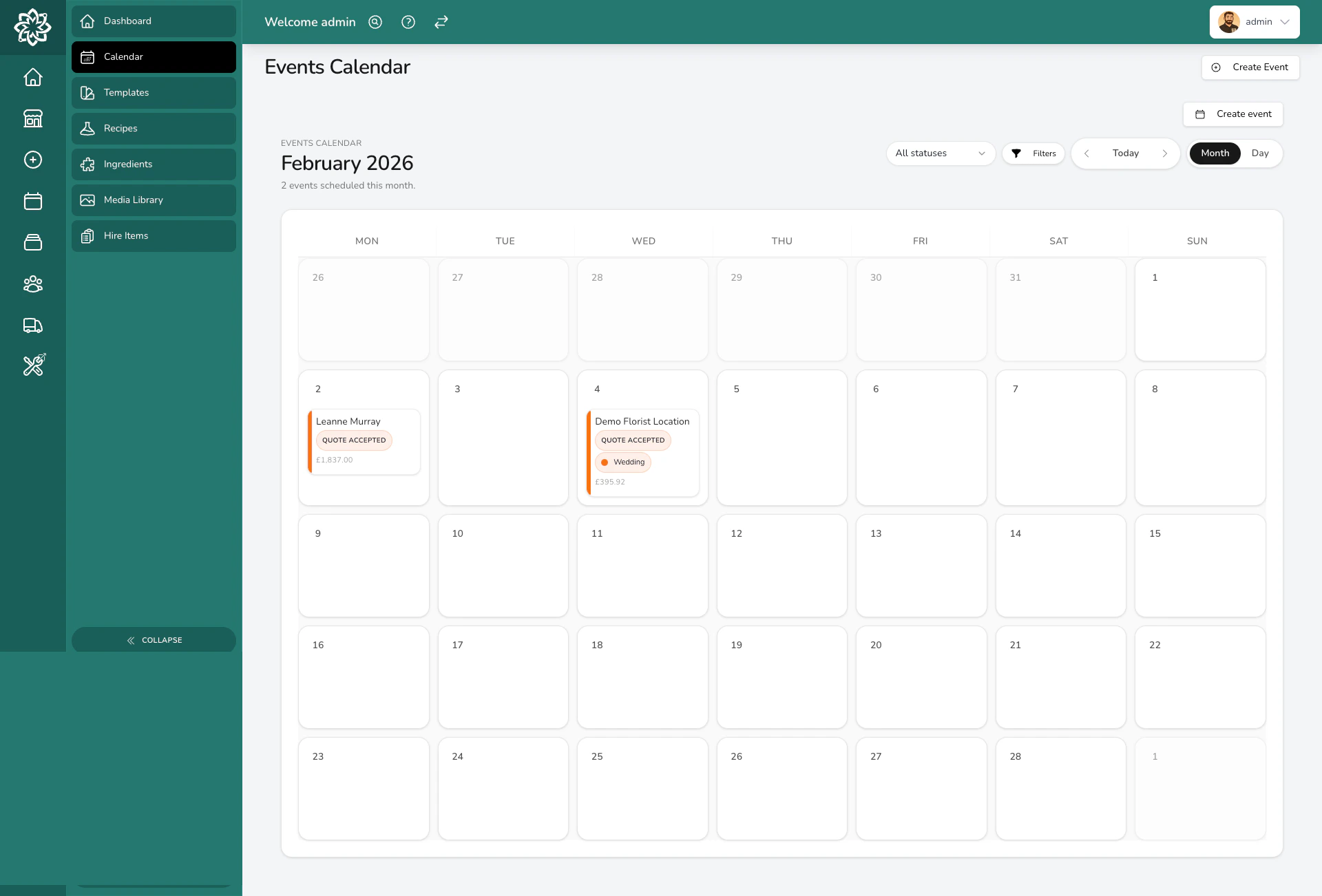
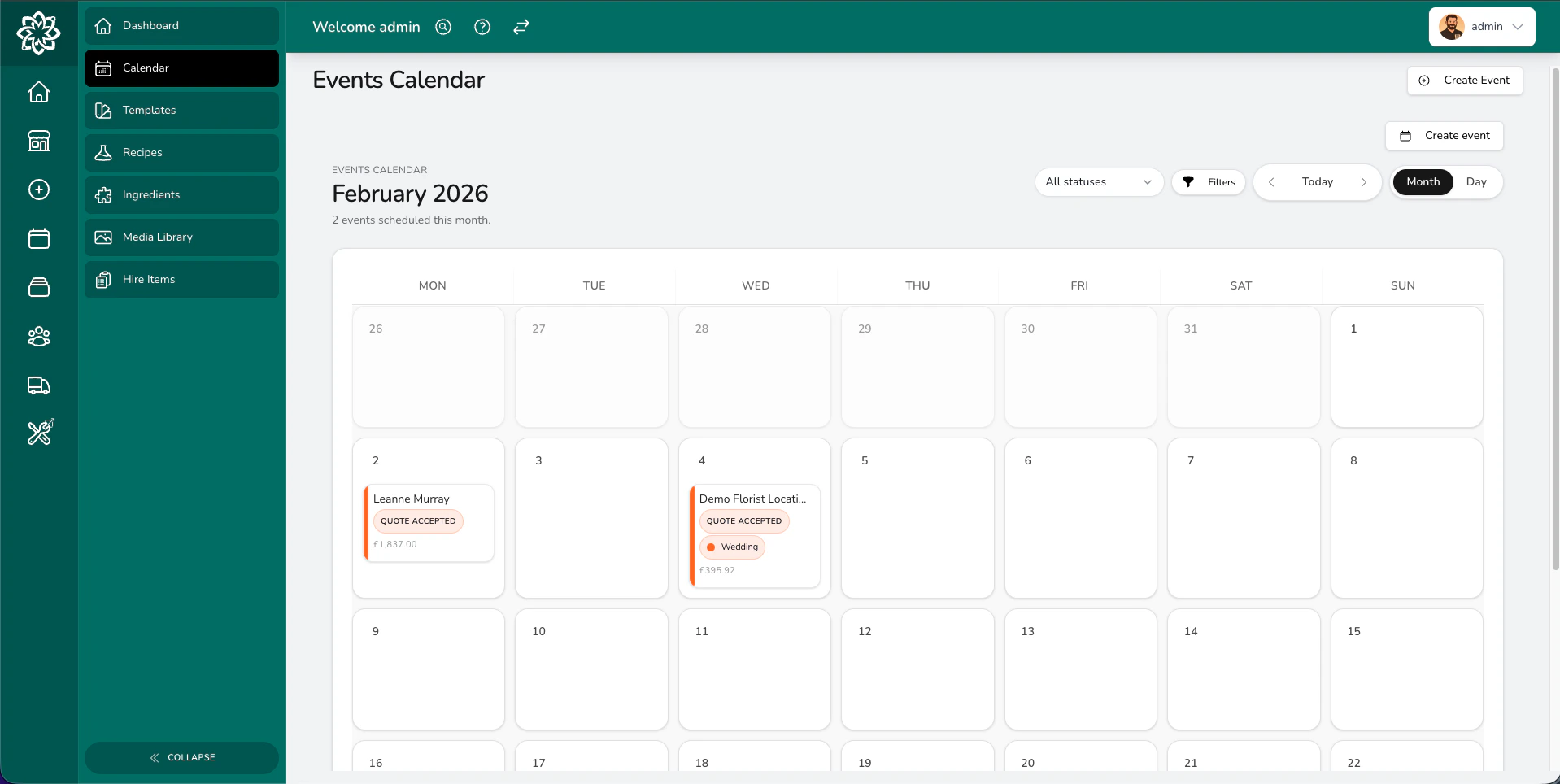
**The Events Calendar shows every event on one screen, grouped by date.** Use it to plan the weeks ahead, check availability for a new enquiry, and jump straight into an event's details.
 ## Calendar views
The calendar offers two views:
* **Month** — the full grid for the month ahead, so you can spot busy weekends or quiet patches at a glance.
* **Day** — every event scheduled for a single day, listed in order.
Use the **Month** / **Day** toggle at the top of the calendar to switch between them, and the arrows either side to move forward or back. The **Today** button jumps back to the current day or month.
## How events are colour-coded
Each event on the calendar shows two pieces of colour information:
* A **status badge** (Draft, Quote Sent, Quote Accepted, Order Created, Completed, and so on). The badge colour is fixed per status, so you can see at a glance where each event is in its journey.
* A **left-hand accent stripe and event-type pill** that picks up the colour you've assigned to the event type (Wedding, Funeral, Corporate, or your own custom types). Event types without a colour set show in neutral grey.
To assign colours to your event types, edit them in event settings — the colour you choose there is what appears on the calendar.
Use the event-type colour to scan your mix of work (how many weddings, how many funerals), and the status badge to see what stage each one is at.
## Clicking a date
Click the date number on any day in the month view to switch to **Day view** for that date. You'll see every event scheduled, listed in order — which is the quickest way to answer "are you free on the 15th of August?" when a customer calls.
## Clicking an event
Click any event tile to jump straight to its full details page. From there you can review the brief, change the status, update notes, or anything else, without searching through menus.
## Filtering your calendar
By default, the calendar shows events in active operational stages plus completed events. To narrow it down further, use the **status** dropdown and the **Filters** popover at the top of the calendar. You can filter by:
* **Status** — Draft, Quote Sent, Follow Up, Quote Accepted, Order Finalisation, Order Created, Completed, Cancelled, or Archived. Pick one to see only events at that stage (for example, Draft to chase up unconfirmed enquiries).
* **Event type** — any event type you've set up (Wedding, Funeral, Corporate, or your own custom types). Useful for planning stock or counting how many of a certain type you have coming up.
* **Team member** — events assigned to a specific person on your team.
* **Payment status** — Pending, Paid, or Overdue. Quickly find events where the deposit or balance hasn't come in yet.
* **Proposal status** — Draft, Published, Expired, Accepted, or None. Useful for spotting proposals that have been sitting with a client too long.
Check the calendar at the start of each week to see what events are coming up. This gives you time to prepare samples, order stock, confirm details with clients, and adjust your staffing before the week gets busy.
## Common questions
Yes. Change the event date from the event's details page, and the calendar updates automatically. You don't need to delete and re-create anything.
No. The Events Calendar only shows events. Your daily orders and deliveries live on the [Dashboard](/daily-operations/dashboard).
The calendar shows one view at a time, month or day. Use the arrows either side of the date to move forward or back.
Each event type's colour is set when you create or edit it in your event settings. If an event type hasn't had a colour assigned, the accent stripe shows in neutral grey. The status badge still appears in its own fixed colour.
## What's next?
Get the big picture on how events work in Digital Florists.
Learn how to set up a new event from scratch.
Follow an event from first enquiry through to completion.
See your daily orders, tasks, and what needs attention today.
## Calendar views
The calendar offers two views:
* **Month** — the full grid for the month ahead, so you can spot busy weekends or quiet patches at a glance.
* **Day** — every event scheduled for a single day, listed in order.
Use the **Month** / **Day** toggle at the top of the calendar to switch between them, and the arrows either side to move forward or back. The **Today** button jumps back to the current day or month.
## How events are colour-coded
Each event on the calendar shows two pieces of colour information:
* A **status badge** (Draft, Quote Sent, Quote Accepted, Order Created, Completed, and so on). The badge colour is fixed per status, so you can see at a glance where each event is in its journey.
* A **left-hand accent stripe and event-type pill** that picks up the colour you've assigned to the event type (Wedding, Funeral, Corporate, or your own custom types). Event types without a colour set show in neutral grey.
To assign colours to your event types, edit them in event settings — the colour you choose there is what appears on the calendar.
Use the event-type colour to scan your mix of work (how many weddings, how many funerals), and the status badge to see what stage each one is at.
## Clicking a date
Click the date number on any day in the month view to switch to **Day view** for that date. You'll see every event scheduled, listed in order — which is the quickest way to answer "are you free on the 15th of August?" when a customer calls.
## Clicking an event
Click any event tile to jump straight to its full details page. From there you can review the brief, change the status, update notes, or anything else, without searching through menus.
## Filtering your calendar
By default, the calendar shows events in active operational stages plus completed events. To narrow it down further, use the **status** dropdown and the **Filters** popover at the top of the calendar. You can filter by:
* **Status** — Draft, Quote Sent, Follow Up, Quote Accepted, Order Finalisation, Order Created, Completed, Cancelled, or Archived. Pick one to see only events at that stage (for example, Draft to chase up unconfirmed enquiries).
* **Event type** — any event type you've set up (Wedding, Funeral, Corporate, or your own custom types). Useful for planning stock or counting how many of a certain type you have coming up.
* **Team member** — events assigned to a specific person on your team.
* **Payment status** — Pending, Paid, or Overdue. Quickly find events where the deposit or balance hasn't come in yet.
* **Proposal status** — Draft, Published, Expired, Accepted, or None. Useful for spotting proposals that have been sitting with a client too long.
Check the calendar at the start of each week to see what events are coming up. This gives you time to prepare samples, order stock, confirm details with clients, and adjust your staffing before the week gets busy.
## Common questions
Yes. Change the event date from the event's details page, and the calendar updates automatically. You don't need to delete and re-create anything.
No. The Events Calendar only shows events. Your daily orders and deliveries live on the [Dashboard](/daily-operations/dashboard).
The calendar shows one view at a time, month or day. Use the arrows either side of the date to move forward or back.
Each event type's colour is set when you create or edit it in your event settings. If an event type hasn't had a colour assigned, the accent stripe shows in neutral grey. The status badge still appears in its own fixed colour.
## What's next?
Get the big picture on how events work in Digital Florists.
Learn how to set up a new event from scratch.
Follow an event from first enquiry through to completion.
See your daily orders, tasks, and what needs attention today.