> ## Documentation Index
> Fetch the complete documentation index at: https://docs.florists.digital/llms.txt
> Use this file to discover all available pages before exploring further.
# Hire Items
> Track reusable equipment and prevent double-booking.
**Hire items are reusable pieces of equipment that you rent out for events — vases, arches, plinths, candelabras, and table accessories.** Unlike flowers that are bought fresh and used once, hire items go out, come back, and go out again. Digital Florists tracks how many you own and how many are reserved on a given date, so you can spot conflicts before they turn into a problem on the day.
**This page covers features gated by Manager-tier permissions.** Managers and Admins have these by default; your administrator can adjust who has them in [Settings > Team](/settings/team).
 ## What are hire items?
Think of hire items as any physical item your business owns and lends out for events. Common examples include:
* **Ceremony pieces** — arches, plinths, pedestals, aisle markers
* **Table accessories** — candelabras, lanterns, vase collections, table runners
* **Vessels** — glass cylinder vases, urns, compote bowls, terracotta pots
* **Structural items** — flower walls, backdrops, stands, frames
Because you own a fixed number of each item, Digital Florists needs to know exactly how many you have so it can flag conflicts before you overcommit.
## How hire items work
Hire items are a type of ingredient with a stock count and per-date availability tracking. When you mark an ingredient as a hire item:
* You set how many you own (the stock quantity).
* Events with a status of **Quote Accepted**, **Order Finalisation**, **Order Created**, or **Completed** reserve their hire stock for the event date.
* Earlier statuses (draft, quote sent, follow up) and later ones (cancelled, archived) don't reserve stock.
You add hire items to your quotations the same way you add any other ingredient — search for it, pick it, and adjust the quantity in the recipe.
## Setting up a hire item
Hire items are created from the **Ingredients** list. Open **Events > Ingredients** and click **+ New Ingredient**:
Use a clear, specific name — e.g. "Gold Arch" or "Glass Cylinder Vase, Large".
In the **Pricing & Unit** section, tick the **Hire item** checkbox. This reveals the stock fields.
Type the number you own into the **Stock** field. If you have 4 glass cylinder vases, enter 4.
Leave **Enforce** ticked to block status changes that would overbook the item. Untick it if you'd rather see warnings without a hard block (useful when you regularly sub-hire from another supplier).
Upload a picture under **Photo** so your team can identify it quickly.
Click **Create**. The item is now available across every event.
The stock quantity is the field that drives every availability check from that point forward, so make sure it matches what's physically on your shelves.
Hire items have stock limits. Unlike flowers, where you can ring your supplier and order more, hire items are limited to what you physically own (or can sub-hire). Set your stock quantity accurately before you start quoting.
## Availability checking
Digital Florists checks hire availability by date. For any given event date, it adds up how many of each hire item are reserved across every event in a reserving status, then compares that to your total stock.
### When stock gets reserved
An event reserves hire stock when its status is one of:
* **Quote Accepted**
* **Order Finalisation**
* **Order Created**
* **Completed**
Drafts, sent quotes, follow-ups, cancelled events, and archived events don't reserve anything. So you can send several draft quotes for the same date without worrying about clashes — the count only changes when one of those quotes is accepted.
### Hire stock blocks on status change
When you move an event into one of the reserving statuses above, Digital Florists checks whether every hire item on the quotation has enough stock available on the event date. If anything is short, the status change is rejected and the error names which items are overbooked, by how many, and the total stock for each.
Items with **Enforce** turned off in the ingredient settings are skipped from this check — useful when you regularly sub-hire from another supplier and don't want a hard block.
### The Hire Items page
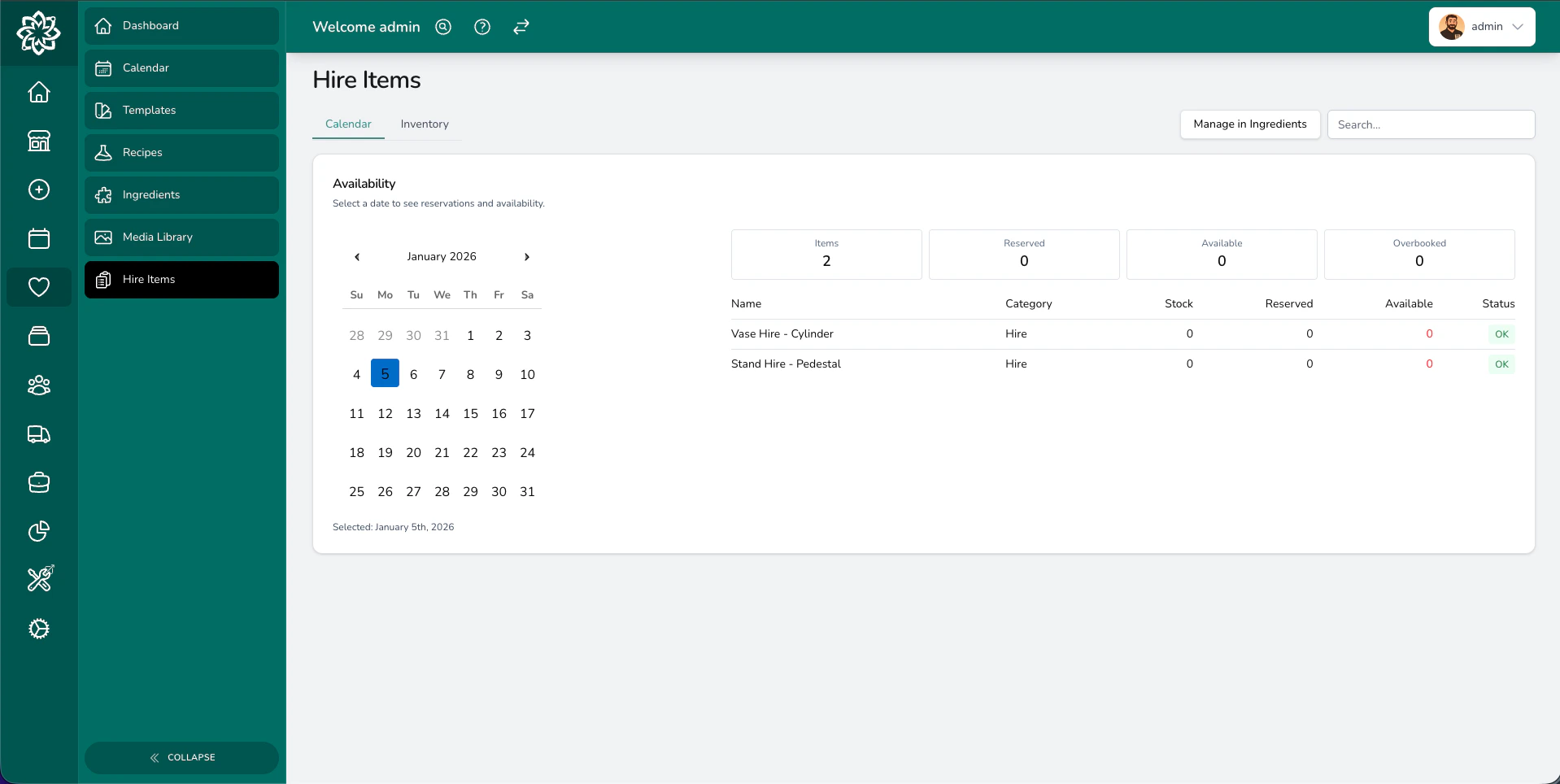
Open **Events > Hire Items** to see a date-by-date view of your hire inventory:
* **Calendar tab** — pick any date to see how many of each item are reserved, available, and overbooked on that day. The summary tiles at the top show item counts, total reserved, total available, and overbooked items.
* **Inventory tab** — a flat list of every hire ingredient with its stock quantity and enforcement status.
Use this view before you accept a quote to spot conflicts a few weeks out, especially around busy weekends.
## Adding hire items to quotations
Hire items appear in the ingredient picker alongside flowers and sundries. Open the quotation builder, find the item by name, add it to the relevant recipe, and set the quantity.
Because hire items are ingredients, they flow through to your recipes, costings, and pick lists just like flowers and sundries.
## Overbooking
Sometimes you know you can borrow or sub-hire from another supplier, or you're confident one event will cancel before the date. To allow overbooking on a specific item, edit the ingredient and untick **Enforce**. Status changes will then go through even when stock is short, and the responsibility for sourcing the extras sits with you.
## Tracking returns after events
Getting your hire items back in good condition is just as important as sending them out. After each event, run through this checklist:
1. **Check every item against the event's hire list** — make sure everything came back
2. **Inspect for damage** — scratches, chips, dents, missing parts
3. **Update your stock level** if an item is permanently damaged and can't be reused
4. **Invoice the client** for any lost or damaged items if your terms allow it
Staying on top of returns keeps your stock levels accurate and prevents you from quoting items that are sitting broken in a cupboard.
Get into the habit of auditing your hire stock after busy weekends. A quick count of your most popular items (arches, vases, candelabras) catches any discrepancies before they cause problems on the next event.
## Common questions
Yes. Availability checking is date-based, so the same arch can be used at a Saturday wedding and a Tuesday corporate event without any conflict. A problem is only flagged when two events on the same date both need the item.
Reduce your stock level so future availability checks are accurate, and add a replacement charge to the client's invoice if your terms allow it.
It depends on whether you track them separately. If you have 6 small glass vases and 4 large ones, create two ingredients with their own stock quantities. If size doesn't matter for availability, a single ingredient with a combined stock count works fine.
Archive it instead of deleting it. Archiving removes the item from your active ingredient list but keeps it on any existing quotations and past events. You can restore it later if needed.
If the status change is rejected with a hire stock error, one or more hire items on the quotation are overbooked for the event date. The message names the items, the shortfall, and the total stock. Either reduce the quantity, swap for an alternative, raise the stock quantity if it's wrong, or untick **Enforce** on that ingredient if you'll sub-hire to cover it.
## What's next?
Add and manage the ingredients that power your recipes and quotes.
Build detailed quotations that include hire items alongside flowers and sundries.
Understand how events move through each stage from draft to completed.
Get a high-level look at how events work in Digital Florists.
## What are hire items?
Think of hire items as any physical item your business owns and lends out for events. Common examples include:
* **Ceremony pieces** — arches, plinths, pedestals, aisle markers
* **Table accessories** — candelabras, lanterns, vase collections, table runners
* **Vessels** — glass cylinder vases, urns, compote bowls, terracotta pots
* **Structural items** — flower walls, backdrops, stands, frames
Because you own a fixed number of each item, Digital Florists needs to know exactly how many you have so it can flag conflicts before you overcommit.
## How hire items work
Hire items are a type of ingredient with a stock count and per-date availability tracking. When you mark an ingredient as a hire item:
* You set how many you own (the stock quantity).
* Events with a status of **Quote Accepted**, **Order Finalisation**, **Order Created**, or **Completed** reserve their hire stock for the event date.
* Earlier statuses (draft, quote sent, follow up) and later ones (cancelled, archived) don't reserve stock.
You add hire items to your quotations the same way you add any other ingredient — search for it, pick it, and adjust the quantity in the recipe.
## Setting up a hire item
Hire items are created from the **Ingredients** list. Open **Events > Ingredients** and click **+ New Ingredient**:
Use a clear, specific name — e.g. "Gold Arch" or "Glass Cylinder Vase, Large".
In the **Pricing & Unit** section, tick the **Hire item** checkbox. This reveals the stock fields.
Type the number you own into the **Stock** field. If you have 4 glass cylinder vases, enter 4.
Leave **Enforce** ticked to block status changes that would overbook the item. Untick it if you'd rather see warnings without a hard block (useful when you regularly sub-hire from another supplier).
Upload a picture under **Photo** so your team can identify it quickly.
Click **Create**. The item is now available across every event.
The stock quantity is the field that drives every availability check from that point forward, so make sure it matches what's physically on your shelves.
Hire items have stock limits. Unlike flowers, where you can ring your supplier and order more, hire items are limited to what you physically own (or can sub-hire). Set your stock quantity accurately before you start quoting.
## Availability checking
Digital Florists checks hire availability by date. For any given event date, it adds up how many of each hire item are reserved across every event in a reserving status, then compares that to your total stock.
### When stock gets reserved
An event reserves hire stock when its status is one of:
* **Quote Accepted**
* **Order Finalisation**
* **Order Created**
* **Completed**
Drafts, sent quotes, follow-ups, cancelled events, and archived events don't reserve anything. So you can send several draft quotes for the same date without worrying about clashes — the count only changes when one of those quotes is accepted.
### Hire stock blocks on status change
When you move an event into one of the reserving statuses above, Digital Florists checks whether every hire item on the quotation has enough stock available on the event date. If anything is short, the status change is rejected and the error names which items are overbooked, by how many, and the total stock for each.
Items with **Enforce** turned off in the ingredient settings are skipped from this check — useful when you regularly sub-hire from another supplier and don't want a hard block.
### The Hire Items page
Open **Events > Hire Items** to see a date-by-date view of your hire inventory:
* **Calendar tab** — pick any date to see how many of each item are reserved, available, and overbooked on that day. The summary tiles at the top show item counts, total reserved, total available, and overbooked items.
* **Inventory tab** — a flat list of every hire ingredient with its stock quantity and enforcement status.
Use this view before you accept a quote to spot conflicts a few weeks out, especially around busy weekends.
## Adding hire items to quotations
Hire items appear in the ingredient picker alongside flowers and sundries. Open the quotation builder, find the item by name, add it to the relevant recipe, and set the quantity.
Because hire items are ingredients, they flow through to your recipes, costings, and pick lists just like flowers and sundries.
## Overbooking
Sometimes you know you can borrow or sub-hire from another supplier, or you're confident one event will cancel before the date. To allow overbooking on a specific item, edit the ingredient and untick **Enforce**. Status changes will then go through even when stock is short, and the responsibility for sourcing the extras sits with you.
## Tracking returns after events
Getting your hire items back in good condition is just as important as sending them out. After each event, run through this checklist:
1. **Check every item against the event's hire list** — make sure everything came back
2. **Inspect for damage** — scratches, chips, dents, missing parts
3. **Update your stock level** if an item is permanently damaged and can't be reused
4. **Invoice the client** for any lost or damaged items if your terms allow it
Staying on top of returns keeps your stock levels accurate and prevents you from quoting items that are sitting broken in a cupboard.
Get into the habit of auditing your hire stock after busy weekends. A quick count of your most popular items (arches, vases, candelabras) catches any discrepancies before they cause problems on the next event.
## Common questions
Yes. Availability checking is date-based, so the same arch can be used at a Saturday wedding and a Tuesday corporate event without any conflict. A problem is only flagged when two events on the same date both need the item.
Reduce your stock level so future availability checks are accurate, and add a replacement charge to the client's invoice if your terms allow it.
It depends on whether you track them separately. If you have 6 small glass vases and 4 large ones, create two ingredients with their own stock quantities. If size doesn't matter for availability, a single ingredient with a combined stock count works fine.
Archive it instead of deleting it. Archiving removes the item from your active ingredient list but keeps it on any existing quotations and past events. You can restore it later if needed.
If the status change is rejected with a hire stock error, one or more hire items on the quotation are overbooked for the event date. The message names the items, the shortfall, and the total stock. Either reduce the quantity, swap for an alternative, raise the stock quantity if it's wrong, or untick **Enforce** on that ingredient if you'll sub-hire to cover it.
## What's next?
Add and manage the ingredients that power your recipes and quotes.
Build detailed quotations that include hire items alongside flowers and sundries.
Understand how events move through each stage from draft to completed.
Get a high-level look at how events work in Digital Florists.