> ## Documentation Index
> Fetch the complete documentation index at: https://docs.florists.digital/llms.txt
> Use this file to discover all available pages before exploring further.
# Ingredient library
> Add ingredients, set costs, and track price changes across your recipes.
**Your ingredients list is the catalogue of everything you use to make arrangements — flowers, foliage, sundries, and materials.** Keep it accurate and your recipes, costing, and margins all stay on track. Every ingredient you add here flows through to recipes on your products and event quotations.
**This page covers features gated by Manager-tier permissions.** Managers and Admins have these by default; your administrator can adjust who has them in [Settings > Team](/settings/team).
 ## The ingredient library
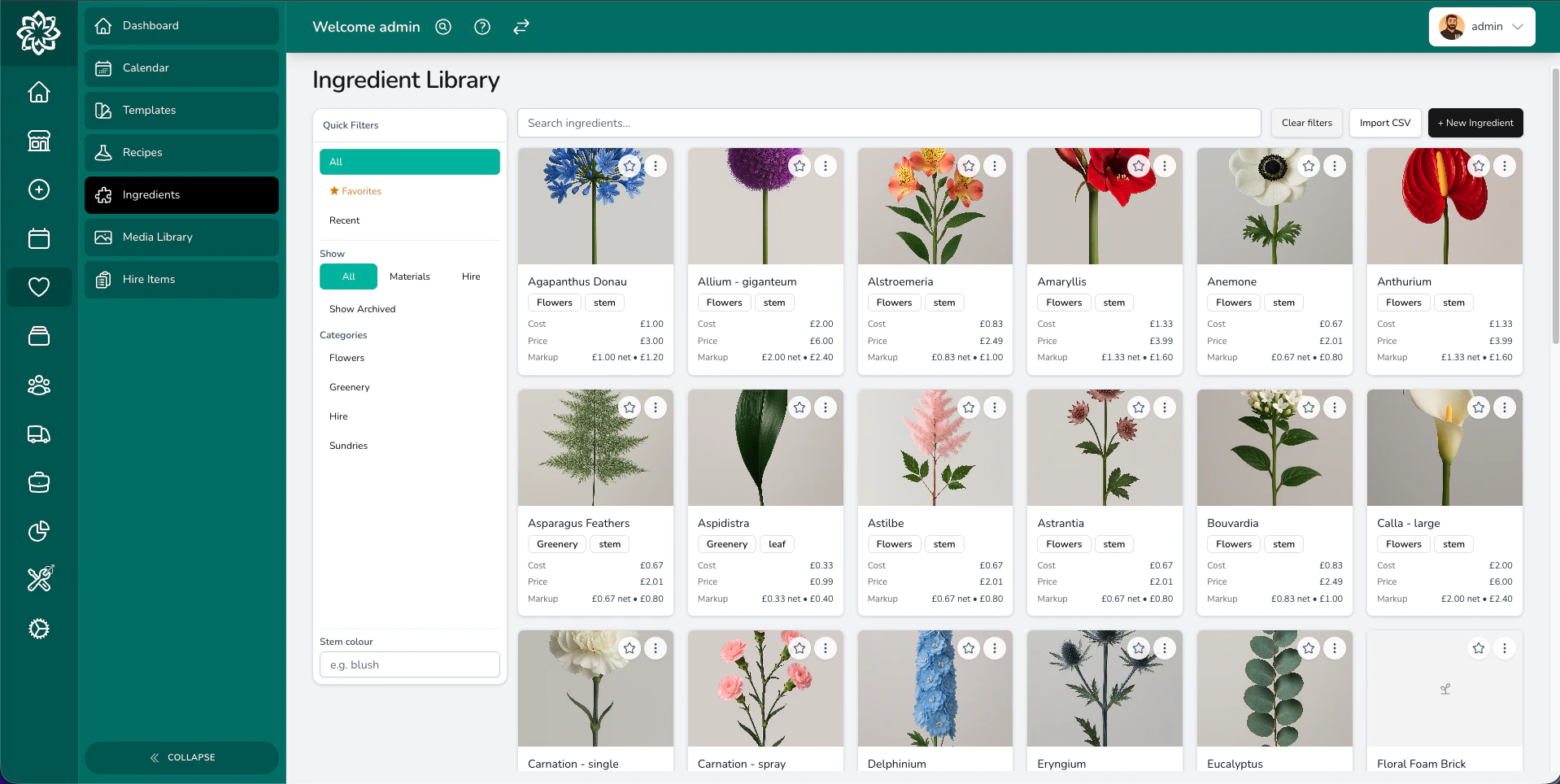
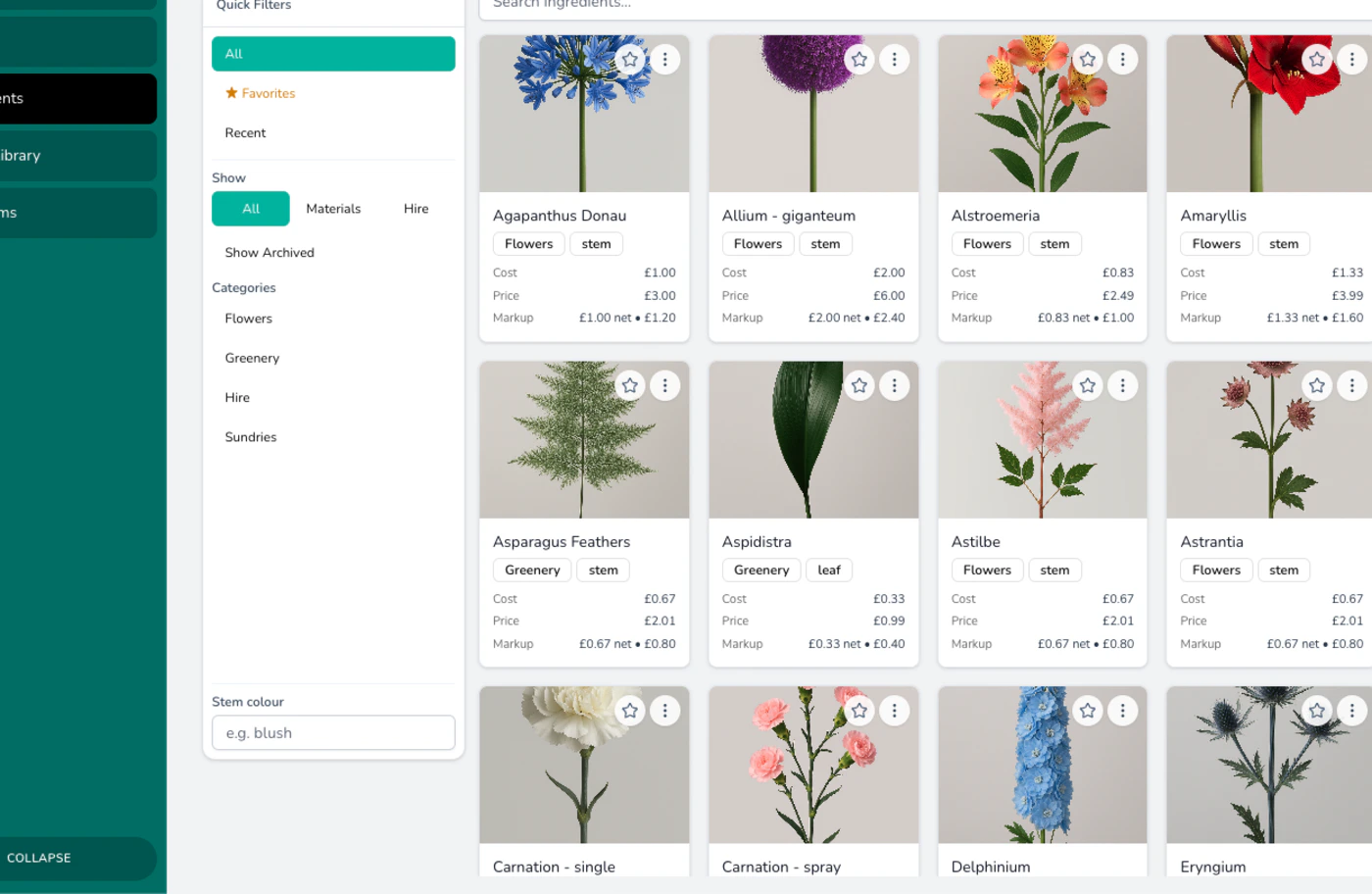
This is your stock book. Every stem, sundry, and material your shop uses lives here. You can search, filter by category or colour, and switch between **All**, **Favorites**, and **Recent** tabs. You can also narrow to **Materials** or **Hire** only, and toggle archived items in and out of view.
## The ingredient library
This is your stock book. Every stem, sundry, and material your shop uses lives here. You can search, filter by category or colour, and switch between **All**, **Favorites**, and **Recent** tabs. You can also narrow to **Materials** or **Hire** only, and toggle archived items in and out of view.
 ## Adding a new ingredient
Open the ingredients page and click **+ New Ingredient**. A few fields are worth thinking about:
* **Name and category** — what you call it and how it's grouped.
* **Cost, markup, and selling price** — type a cost and a markup multiplier and Digital Florists works out the selling price for you. You can override the selling price manually if you'd rather set it directly.
* **Unit** — tick **Stem** if you count this ingredient one at a time (per rose, per ribbon), or **Bunch** if you buy it bundled. When you pick Bunch, set the **Stems per bunch** so per-stem costing stays accurate.
* **Colours** — list the colour options for the same base ingredient (for example, a rose available in blush, ivory, and red). These appear when staff are building a recipe so they can pick the right colour without you creating a separate ingredient for each one.
* **Supplier and product code** — optional. Useful when you reorder or trace an item back to your wholesaler.
* **Photo** — a JPEG or PNG up to 20 MB.
You can also add an ingredient mid-flow. When you're picking ingredients for a recipe or quotation and the one you need isn't there yet, choose **Create Ingredient** in the picker. The ingredient is created and selected in one step, so you can carry on building.
## Ingredient categories
Categories help you organise your library by type — Roses, Foliage, Fillers, Sundries, Ribbons, or whatever fits your shop. You can rename, reorder, and archive categories as your range changes.
## Price history
When you update a cost or selling price, Digital Florists records the change. You can look back and see:
* When a price changed
* What the old and new prices were
* How much the price went up or down in percentage terms
This is useful when a supplier raises prices and you need to decide whether to absorb the cost or adjust your retail pricing.
Keep your cost prices up to date. New recipes pull in the current ingredient prices, while existing event quotations keep the prices they were saved with. Updating a cost won't change a quote you've already sent.
## Hire items
Items you rent out and get back (vases, arches, plinths, candelabra) live in the same library as your ingredients. Tick **Hire item** when you add one, set a stock quantity, and Digital Florists tracks availability against your event dates.
See [Hire Items](/events/hire-items) for the full breakdown of availability checks, returns, and stock conflicts.
## Importing and updating ingredients in bulk
If you have a long list to add, or you're moving from another system, you can import ingredients from a CSV or Excel file. Click **Import CSV** on the ingredients page, fill in the template, and bring everything in at once.
It's also the quickest way to change a lot of prices at once. Choose the **My ingredients** option to download a spreadsheet of your current ingredients, update the costs or prices, and upload it again. Each row is matched back to the ingredient you already have, so your prices are updated rather than duplicated, and every change is added to your price history just as if you'd edited it by hand. Tick **Dry run** first to preview what would change before you save.
See [Importing ingredients](/storefront/imports#importing-ingredients) for the template options, the full column list, and how matching works.
## Archiving ingredients
When you stop using an ingredient, archive it instead of deleting it. Archiving removes the item from your active list but keeps it in any existing recipes and past quotes. Toggle **Show Archived** in the sidebar to view archived items, then restore any you need to bring back.
## Common questions
Only add ingredients you want to cost accurately. If you use a stem occasionally and don't need to track its price, you can leave it out. For your core flowers and materials, having them in Digital Florists keeps your recipes and quotes accurate.
New recipes use the updated price. Event quotations you've already saved keep their original prices, so there's no risk of changing a price mid-negotiation.
Each ingredient belongs to one category. If you need the same stem in two places, consider whether your categories need restructuring, or create the ingredient once under the most fitting category.
The **Colours** field lets you list every colour you stock for the same base ingredient — a rose in blush, ivory, and red, for example. When someone's building a recipe they can pick the colour they need rather than searching for a separately named ingredient.
Tax is applied when an ingredient is used in a product variant or event quotation, not on the ingredient itself. This keeps the same ingredient usable across products and events that may have different tax treatments.
## What's next?
Use your ingredients to build and cost recipes for arrangements.
Track reusable items like vases, arches, and plinths.
Manage your storefront product catalogue and pricing.
Bring in ingredients or products from a spreadsheet.
## Adding a new ingredient
Open the ingredients page and click **+ New Ingredient**. A few fields are worth thinking about:
* **Name and category** — what you call it and how it's grouped.
* **Cost, markup, and selling price** — type a cost and a markup multiplier and Digital Florists works out the selling price for you. You can override the selling price manually if you'd rather set it directly.
* **Unit** — tick **Stem** if you count this ingredient one at a time (per rose, per ribbon), or **Bunch** if you buy it bundled. When you pick Bunch, set the **Stems per bunch** so per-stem costing stays accurate.
* **Colours** — list the colour options for the same base ingredient (for example, a rose available in blush, ivory, and red). These appear when staff are building a recipe so they can pick the right colour without you creating a separate ingredient for each one.
* **Supplier and product code** — optional. Useful when you reorder or trace an item back to your wholesaler.
* **Photo** — a JPEG or PNG up to 20 MB.
You can also add an ingredient mid-flow. When you're picking ingredients for a recipe or quotation and the one you need isn't there yet, choose **Create Ingredient** in the picker. The ingredient is created and selected in one step, so you can carry on building.
## Ingredient categories
Categories help you organise your library by type — Roses, Foliage, Fillers, Sundries, Ribbons, or whatever fits your shop. You can rename, reorder, and archive categories as your range changes.
## Price history
When you update a cost or selling price, Digital Florists records the change. You can look back and see:
* When a price changed
* What the old and new prices were
* How much the price went up or down in percentage terms
This is useful when a supplier raises prices and you need to decide whether to absorb the cost or adjust your retail pricing.
Keep your cost prices up to date. New recipes pull in the current ingredient prices, while existing event quotations keep the prices they were saved with. Updating a cost won't change a quote you've already sent.
## Hire items
Items you rent out and get back (vases, arches, plinths, candelabra) live in the same library as your ingredients. Tick **Hire item** when you add one, set a stock quantity, and Digital Florists tracks availability against your event dates.
See [Hire Items](/events/hire-items) for the full breakdown of availability checks, returns, and stock conflicts.
## Importing and updating ingredients in bulk
If you have a long list to add, or you're moving from another system, you can import ingredients from a CSV or Excel file. Click **Import CSV** on the ingredients page, fill in the template, and bring everything in at once.
It's also the quickest way to change a lot of prices at once. Choose the **My ingredients** option to download a spreadsheet of your current ingredients, update the costs or prices, and upload it again. Each row is matched back to the ingredient you already have, so your prices are updated rather than duplicated, and every change is added to your price history just as if you'd edited it by hand. Tick **Dry run** first to preview what would change before you save.
See [Importing ingredients](/storefront/imports#importing-ingredients) for the template options, the full column list, and how matching works.
## Archiving ingredients
When you stop using an ingredient, archive it instead of deleting it. Archiving removes the item from your active list but keeps it in any existing recipes and past quotes. Toggle **Show Archived** in the sidebar to view archived items, then restore any you need to bring back.
## Common questions
Only add ingredients you want to cost accurately. If you use a stem occasionally and don't need to track its price, you can leave it out. For your core flowers and materials, having them in Digital Florists keeps your recipes and quotes accurate.
New recipes use the updated price. Event quotations you've already saved keep their original prices, so there's no risk of changing a price mid-negotiation.
Each ingredient belongs to one category. If you need the same stem in two places, consider whether your categories need restructuring, or create the ingredient once under the most fitting category.
The **Colours** field lets you list every colour you stock for the same base ingredient — a rose in blush, ivory, and red, for example. When someone's building a recipe they can pick the colour they need rather than searching for a separately named ingredient.
Tax is applied when an ingredient is used in a product variant or event quotation, not on the ingredient itself. This keeps the same ingredient usable across products and events that may have different tax treatments.
## What's next?
Use your ingredients to build and cost recipes for arrangements.
Track reusable items like vases, arches, and plinths.
Manage your storefront product catalogue and pricing.
Bring in ingredients or products from a spreadsheet.