> ## Documentation Index
> Fetch the complete documentation index at: https://docs.florists.digital/llms.txt
> Use this file to discover all available pages before exploring further.
# Events overview
> Manage weddings, corporate events, and large bookings from enquiry to delivery.
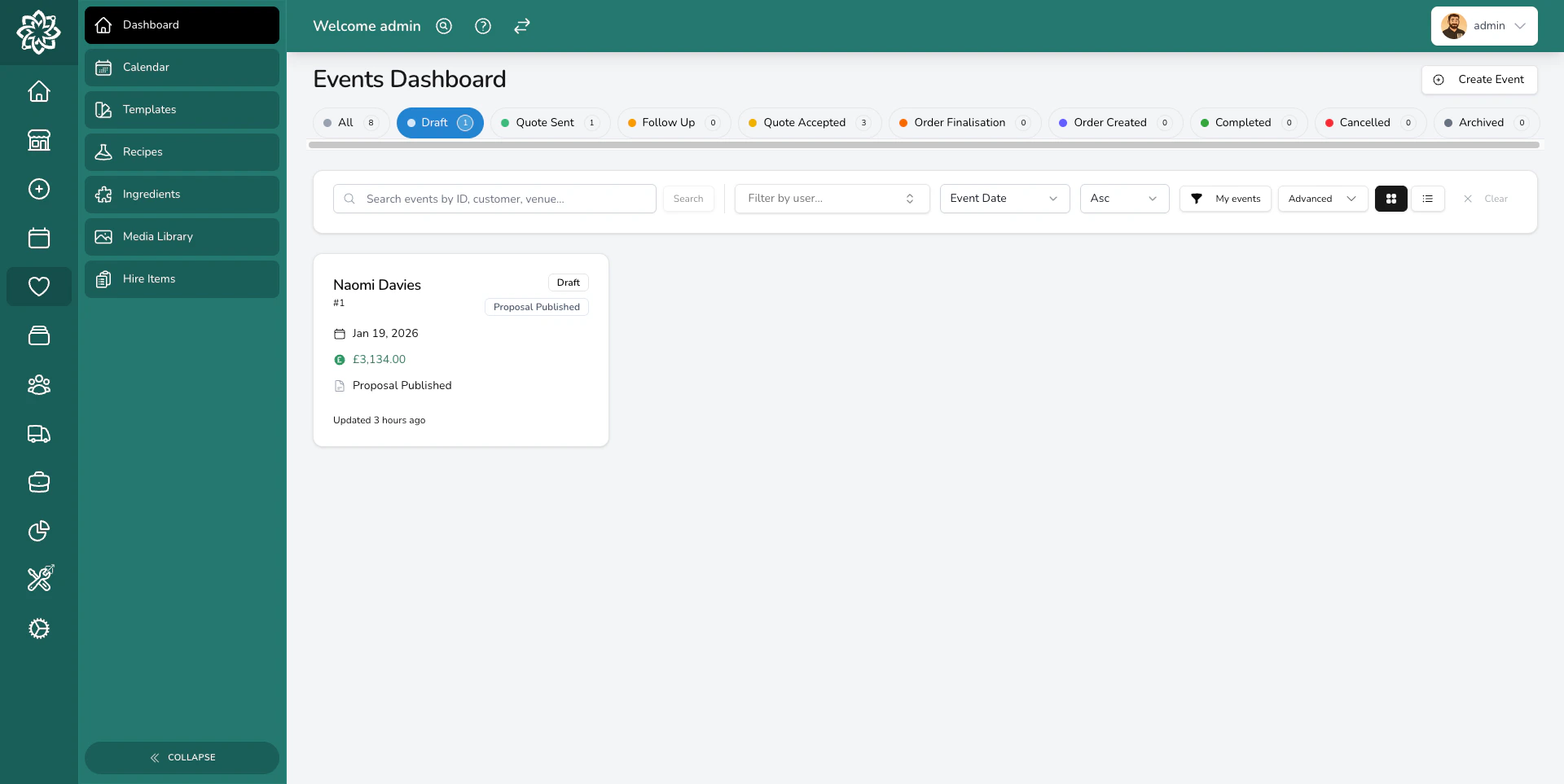
The **Events** section is where you manage weddings, corporate functions, and any large booking that needs a consultation, a proposal, and careful planning. Unlike everyday orders, events have longer timelines and usually involve multiple conversations with the client before the day itself.
 ## Events plans and everyday orders
Events and Enterprise Events include the complete event workflow. You can manage enquiries, quotations, proposals, payments, event production orders, tasks, delivery, and the reports used to run your events.
Event-linked production orders are created from the parent event. They don't use your everyday-order allowance, regardless of how many orders an event needs.
They also include five manually entered everyday orders per calendar month for each licensed location:
| Work | What's included on an Events plan |
| ------------------------------------------------------------------ | -------------------------------------------------------------------------------------------------- |
| **Event-linked production orders** | Create them from the event. They don't use the everyday-order allowance. |
| **Manually entered everyday orders** | Create up to five per calendar month for each licensed location. |
| **Repeat orders, website, relay and courier integrations** | Require the full Orders product. Choose Complete to add Orders alongside Events. |
| **Product catalogue management and higher everyday-order volumes** | Require the full Orders product. Use Custom Items for the five manual orders included with Events. |
| **Point of sale** | Can be added only when your plan includes Orders. |
The manual allowance resets on the first day of each calendar month in your shop's timezone. Unused orders don't roll over. Once an everyday order is created, it counts even if you later cancel or void it. Drafts don't count until you create the order.
You can continue viewing and managing existing everyday orders after using the monthly allowance. The Orders screens show the remaining allowance and link to **Explore Orders**. Administrators can see full usage and the reset date under [**Settings** > **About**](/settings/about).
Events includes the reports you need to run events: event sales and payment, event customer, ingredient, and fulfilment and delivery, plus financial and accounting exports.
Retail order sales, customer marketing feeds, stock reporting, Insights, peaks, and areas require Orders. End-of-day reporting requires point of sale.
## How events work
Every event follows a journey from the first enquiry through to the event day. Here's what that looks like:
A customer gets in touch about their wedding, corporate function, or special event. You [create an event](/events/creating-an-event) to start tracking it.
You meet the client to discuss their vision, colours, style, and budget. Record their colour notes, [moodboard images](/events/media-library), and any other details on the event.
Use the [quotation builder](/events/quotation-builder) to create a detailed, itemised breakdown. Add [recipes](/events/recipes) (with their labour) and any [adjustments](/events/adjustments) for discounts or surcharges.
Design a beautiful [proposal](/events/proposals) and [send it](/events/sending-proposals) to the client via their [Client Portal](/events/client-portal). They can review everything online at their own pace.
The client accepts the proposal, agrees to your terms, and pays their [deposit](/events/payments-and-deposits). Move the event to **Quote Accepted** to confirm the booking — this reserves any [hire items](/events/hire-items) for the event date.
Move the event to **Order Finalisation** in the weeks before the date. Confirm final numbers, make any last changes to the flowers, and collect the [final balance](/events/payments-and-deposits).
[Create orders](/events/event-orders) from your quotation items. These appear on your dashboard so your team can prepare them as part of their normal workflow.
Your team prepares the arrangements, loads the van, and delivers everything to the venue. Once complete, close the event.
For a detailed breakdown of every status an event passes through, see [Event Lifecycle](/events/event-lifecycle).
## Event details
Each event has a details page where you can see and manage everything about the booking.
## Events plans and everyday orders
Events and Enterprise Events include the complete event workflow. You can manage enquiries, quotations, proposals, payments, event production orders, tasks, delivery, and the reports used to run your events.
Event-linked production orders are created from the parent event. They don't use your everyday-order allowance, regardless of how many orders an event needs.
They also include five manually entered everyday orders per calendar month for each licensed location:
| Work | What's included on an Events plan |
| ------------------------------------------------------------------ | -------------------------------------------------------------------------------------------------- |
| **Event-linked production orders** | Create them from the event. They don't use the everyday-order allowance. |
| **Manually entered everyday orders** | Create up to five per calendar month for each licensed location. |
| **Repeat orders, website, relay and courier integrations** | Require the full Orders product. Choose Complete to add Orders alongside Events. |
| **Product catalogue management and higher everyday-order volumes** | Require the full Orders product. Use Custom Items for the five manual orders included with Events. |
| **Point of sale** | Can be added only when your plan includes Orders. |
The manual allowance resets on the first day of each calendar month in your shop's timezone. Unused orders don't roll over. Once an everyday order is created, it counts even if you later cancel or void it. Drafts don't count until you create the order.
You can continue viewing and managing existing everyday orders after using the monthly allowance. The Orders screens show the remaining allowance and link to **Explore Orders**. Administrators can see full usage and the reset date under [**Settings** > **About**](/settings/about).
Events includes the reports you need to run events: event sales and payment, event customer, ingredient, and fulfilment and delivery, plus financial and accounting exports.
Retail order sales, customer marketing feeds, stock reporting, Insights, peaks, and areas require Orders. End-of-day reporting requires point of sale.
## How events work
Every event follows a journey from the first enquiry through to the event day. Here's what that looks like:
A customer gets in touch about their wedding, corporate function, or special event. You [create an event](/events/creating-an-event) to start tracking it.
You meet the client to discuss their vision, colours, style, and budget. Record their colour notes, [moodboard images](/events/media-library), and any other details on the event.
Use the [quotation builder](/events/quotation-builder) to create a detailed, itemised breakdown. Add [recipes](/events/recipes) (with their labour) and any [adjustments](/events/adjustments) for discounts or surcharges.
Design a beautiful [proposal](/events/proposals) and [send it](/events/sending-proposals) to the client via their [Client Portal](/events/client-portal). They can review everything online at their own pace.
The client accepts the proposal, agrees to your terms, and pays their [deposit](/events/payments-and-deposits). Move the event to **Quote Accepted** to confirm the booking — this reserves any [hire items](/events/hire-items) for the event date.
Move the event to **Order Finalisation** in the weeks before the date. Confirm final numbers, make any last changes to the flowers, and collect the [final balance](/events/payments-and-deposits).
[Create orders](/events/event-orders) from your quotation items. These appear on your dashboard so your team can prepare them as part of their normal workflow.
Your team prepares the arrangements, loads the van, and delivers everything to the venue. Once complete, close the event.
For a detailed breakdown of every status an event passes through, see [Event Lifecycle](/events/event-lifecycle).
## Event details
Each event has a details page where you can see and manage everything about the booking.
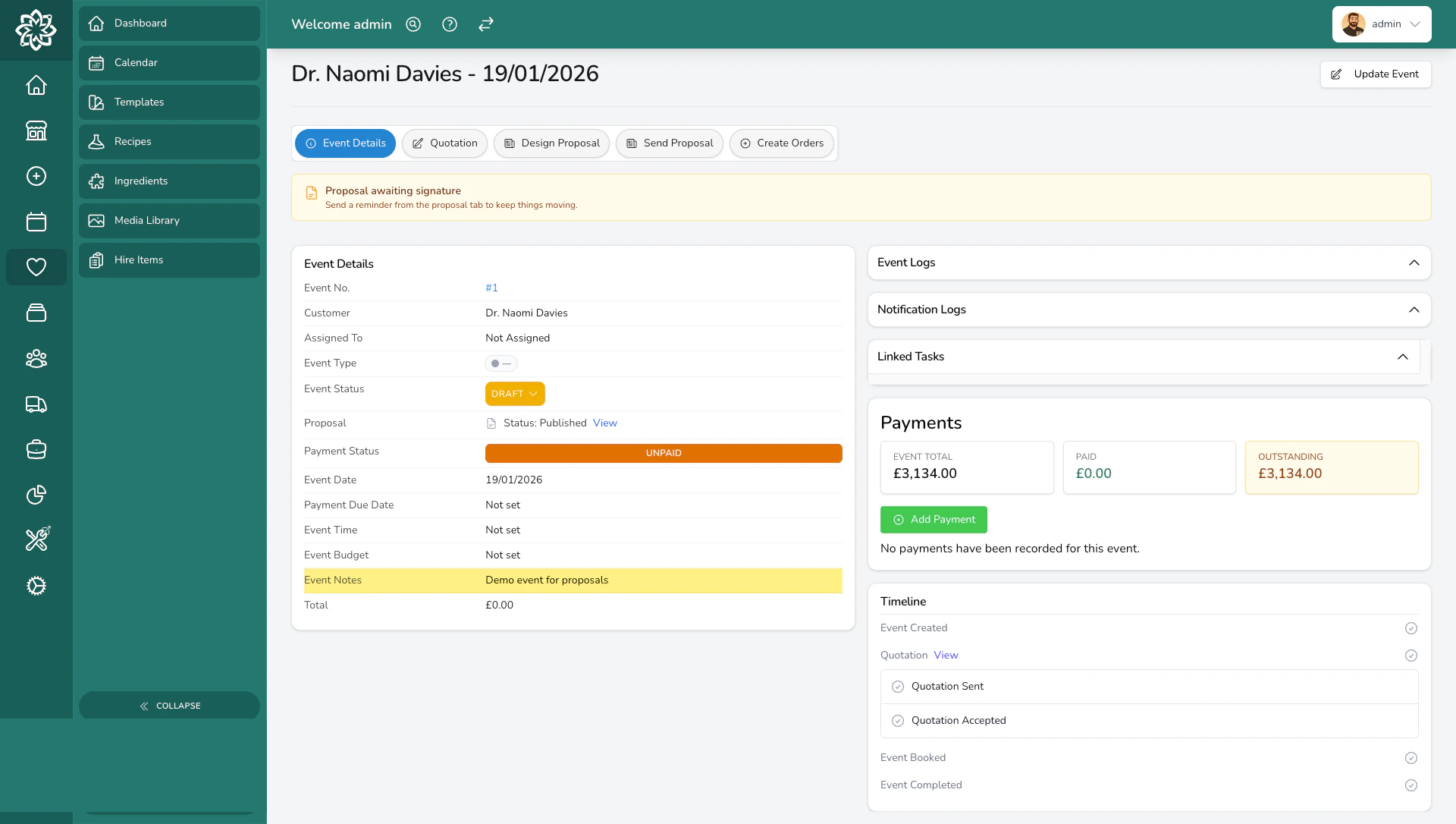 From here you can:
* View and update the **client's contact details** and **venue information**
* Set the **event date** and **event time**
* Record **colour notes** and a budget for the booking
* Add **event notes** and **event logs** from consultations and conversations
* Jump to the linked **quotation**, **proposal**, and **orders** via the workflow tabs
* See **payments**, **notification history**, **form submissions**, and **tasks** in one place
## Event types
Events are categorised by type so you can track different kinds of bookings. Every Digital Florists instance comes with three defaults:
* **Wedding** — ceremonies, receptions, and full bridal packages
* **Funeral** — for larger tribute work that needs planning. Smaller tributes are typically handled as regular orders.
* **Corporate** — conferences, office flowers, recurring corporate contracts
You can add your own event types in **Settings → General** and give each one a colour that shows as an accent on the [calendar](/events/calendar).
## Common questions
Yes. Smaller tributes are typically handled as individual orders, but larger funeral commissions with multiple arrangements benefit from the quotation and proposal workflow. The **Funeral** event type is included by default.
Yes. Record later changes on the event quotation and adjust the balance as needed. The accepted proposal stays frozen, so contact the client separately to confirm the change. When the change adds production work, create the extra orders from the event's [Orders tab](/events/event-orders).
Each event tracks payments separately. See [Payments & Deposits](/events/payments-and-deposits) for the full guide.
Everyday orders are for day-to-day sales such as walk-ins and phone orders. Events are for larger bookings that need consultations, detailed quotations, proposals, and longer planning timelines. [See how the two fit together](#events-plans-and-everyday-orders).
## What's next?
Step-by-step guide to creating your first event.
Every status explained, from draft to completed.
Build detailed, itemised quotations.
Design and send proposals that win bookings.
Turn quotation items into production orders.
View all events and check availability.
From here you can:
* View and update the **client's contact details** and **venue information**
* Set the **event date** and **event time**
* Record **colour notes** and a budget for the booking
* Add **event notes** and **event logs** from consultations and conversations
* Jump to the linked **quotation**, **proposal**, and **orders** via the workflow tabs
* See **payments**, **notification history**, **form submissions**, and **tasks** in one place
## Event types
Events are categorised by type so you can track different kinds of bookings. Every Digital Florists instance comes with three defaults:
* **Wedding** — ceremonies, receptions, and full bridal packages
* **Funeral** — for larger tribute work that needs planning. Smaller tributes are typically handled as regular orders.
* **Corporate** — conferences, office flowers, recurring corporate contracts
You can add your own event types in **Settings → General** and give each one a colour that shows as an accent on the [calendar](/events/calendar).
## Common questions
Yes. Smaller tributes are typically handled as individual orders, but larger funeral commissions with multiple arrangements benefit from the quotation and proposal workflow. The **Funeral** event type is included by default.
Yes. Record later changes on the event quotation and adjust the balance as needed. The accepted proposal stays frozen, so contact the client separately to confirm the change. When the change adds production work, create the extra orders from the event's [Orders tab](/events/event-orders).
Each event tracks payments separately. See [Payments & Deposits](/events/payments-and-deposits) for the full guide.
Everyday orders are for day-to-day sales such as walk-ins and phone orders. Events are for larger bookings that need consultations, detailed quotations, proposals, and longer planning timelines. [See how the two fit together](#events-plans-and-everyday-orders).
## What's next?
Step-by-step guide to creating your first event.
Every status explained, from draft to completed.
Build detailed, itemised quotations.
Design and send proposals that win bookings.
Turn quotation items into production orders.
View all events and check availability.