> ## Documentation Index
> Fetch the complete documentation index at: https://docs.florists.digital/llms.txt
> Use this file to discover all available pages before exploring further.
# Sending a Proposal
> Publish your proposal, share the Client Portal link, and send it by email or SMS.
**Once your proposal is ready, publish it to generate a shareable link, then send your client an email or SMS with the link to their Client Portal.** From there, your client can review everything, accept the quote, and pay their deposit.
**This page covers features gated by Manager-tier permissions.** Managers and Admins have these by default; your administrator can adjust who has them in [Settings > Team](/settings/team).
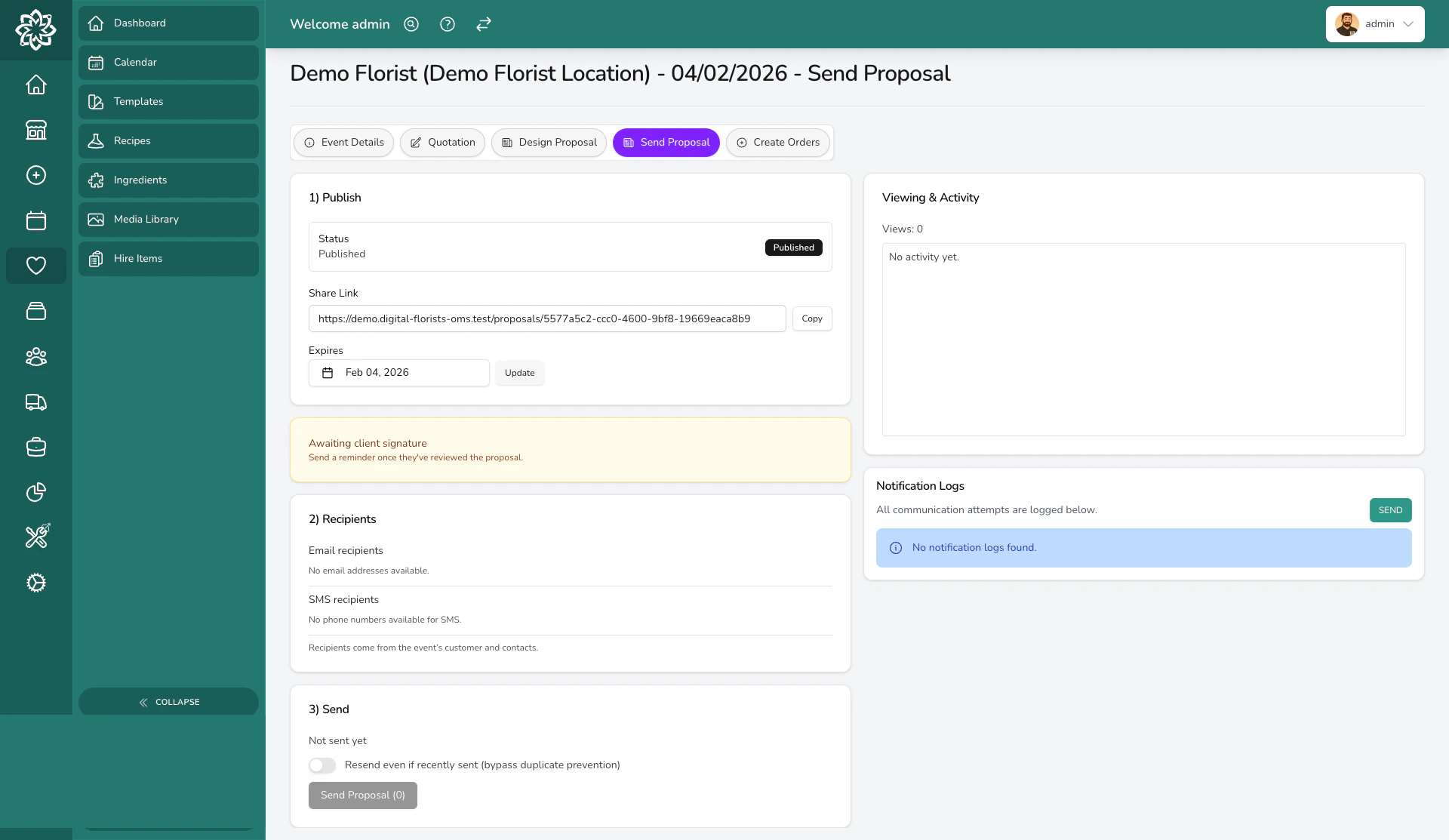 ## Publish first, send second
Sending a proposal is a two-step flow.
1. **Publish** the proposal to freeze the current quotation into a snapshot and generate a shareable link. The Sending screen shows a **Publish Proposal** button until you've done this.
2. **Send** the link to your client by email, SMS, or both.
If you make changes after publishing, your client keeps seeing the published version. You can republish while the proposal hasn't been accepted or signed. Once accepted or signed, the snapshot is permanent and can't be republished or unpublished. For more on snapshots, see [Proposals](/events/proposals).
## Choosing recipients
The Sending screen lists every email address and phone number it can find on the event — the main customer and any contacts you've added. Tick the boxes next to the people you want to send to.
If the person you want to send to isn't listed, add them as an event contact first (with their email or phone), then come back to this screen.
## Sending by email
Email is the most common way to share a proposal.
1. Tick the email addresses you want to send to.
2. Click **Send Proposal**. Each recipient gets an email with a link to their Client Portal.
You can send to as many recipients as you need in one go.
## Sending by SMS
Some clients prefer a text message, especially if they're on the go.
1. Tick the phone numbers you want to send to.
2. Click **Send Proposal**. The client receives a short text with a link straight to their Client Portal.
You can send by email and SMS at the same time. The email gives them the full details, and the text gives them a quick nudge.
## What happens when you send
A few things happen as soon as you send a proposal:
* **The event status changes to "Quote Sent"** so you can see at a glance which proposals are out with clients.
* **An entry is added to the proposal activity log** recording when the proposal was sent and to whom.
* **Any automations linked to event status changes will fire.** For example, you could set up an automation that creates a follow-up task three days after the status changes to **Quote Sent**.
## Setting an expiry date
Every proposal has an expiry date to encourage your client to make a decision. You set this when publishing. While the proposal is still published and unaccepted, you can update it from the **Publish & Share** card on the Sending screen.
The default is 30 days, but your administrator can change the default in your proposal settings.
Once a proposal expires, your client can no longer accept it through the portal. This protects you from price changes and stops bookings sitting in limbo forever.
## Copying the share link
Once a proposal is published, the Sending screen shows a **Share Link** you can copy and send through your own channel — WhatsApp, a follow-up email, or anywhere else. If you set an access code on the proposal, the screen shows that too so you can share it alongside the link.
## Sending a one-off message with quote details
Sometimes the standard proposal email isn't the right fit. You might be quoting a few options, following up after a phone call, or nudging a client in your own words. Send a one-off email or SMS from the event instead, and drop the quote details in with placeholders.
1. Open the event, expand **Notification Logs**, and click **Send**.
2. Write your email or SMS as normal.
3. Click **Insert placeholder** above the message box and pick what you need, like the quote link, access code, or event date.
4. Send. The placeholders are swapped for the real values as the message goes out, and the message is logged on the event.
Placeholders cover the quote (link, access code, expiry date, total, and deposit), the event (date, time, type, and venues), the customer's name, and payments (amount paid, balance due, due date, and bank details).
The quote placeholders take their values from the event's proposal. If there's no proposal yet they'll be blank, and the link only works for your client once the proposal is published.
## Downloading as a PDF
Not every client wants to view things online. Click **Download PDF** on the Sending screen to generate an A4 PDF of the proposal.
* Download it yourself and attach it to an email or print it for a consultation.
* Your client can also download the PDF from their Client Portal.
This is handy for clients who like to print things out, or if you need to include the proposal in a physical welcome pack.
## Resending a proposal
Made changes after sending an unaccepted proposal? Republish first so the new version becomes the snapshot your client sees, then come back to the Sending screen and send again. Accepted or signed proposals are frozen and can't be republished.
If you've already sent the proposal recently, turn on **Send again even if already sent recently** before clicking send. This skips the safeguard that prevents duplicate sends.
## Tracking activity
The **Viewing & Activity** card on the Sending screen shows view count, signature status, and a list of activity events (sent, viewed, accepted, signed). If your client has opened the proposal but hasn't responded, that's a good sign to follow up.
The notification log below it shows every email and SMS the event has triggered, with delivery status from your provider.
## Common questions
Not directly from the Sending screen — recipients come from the event's customer and contacts. Add the person as an event contact first (with their email or phone number), then come back to send. As a workaround, copy the **Share Link** from the Publish & Share card and send it through your own email or messaging app.
If it hasn't been accepted or signed, republish to update the snapshot, then come back to the Sending screen and send again. If it has been accepted or signed, the snapshot is a permanent record and can't be republished or unpublished. Record later changes on the event and contact the client separately.
No. The link in the email or text takes them straight to the Client Portal. If you've set an access code, they enter that — no account needed.
Yes. The Viewing & Activity card shows view count and a timeline of when the proposal was viewed, so you know whether to follow up or give them more time.
## What's next?
Learn how to build, publish, and republish your proposals.
See what your client experiences when they open the link.
Understand how events move from draft to completed.
Set up rules to send follow-ups and reminders automatically.
## Publish first, send second
Sending a proposal is a two-step flow.
1. **Publish** the proposal to freeze the current quotation into a snapshot and generate a shareable link. The Sending screen shows a **Publish Proposal** button until you've done this.
2. **Send** the link to your client by email, SMS, or both.
If you make changes after publishing, your client keeps seeing the published version. You can republish while the proposal hasn't been accepted or signed. Once accepted or signed, the snapshot is permanent and can't be republished or unpublished. For more on snapshots, see [Proposals](/events/proposals).
## Choosing recipients
The Sending screen lists every email address and phone number it can find on the event — the main customer and any contacts you've added. Tick the boxes next to the people you want to send to.
If the person you want to send to isn't listed, add them as an event contact first (with their email or phone), then come back to this screen.
## Sending by email
Email is the most common way to share a proposal.
1. Tick the email addresses you want to send to.
2. Click **Send Proposal**. Each recipient gets an email with a link to their Client Portal.
You can send to as many recipients as you need in one go.
## Sending by SMS
Some clients prefer a text message, especially if they're on the go.
1. Tick the phone numbers you want to send to.
2. Click **Send Proposal**. The client receives a short text with a link straight to their Client Portal.
You can send by email and SMS at the same time. The email gives them the full details, and the text gives them a quick nudge.
## What happens when you send
A few things happen as soon as you send a proposal:
* **The event status changes to "Quote Sent"** so you can see at a glance which proposals are out with clients.
* **An entry is added to the proposal activity log** recording when the proposal was sent and to whom.
* **Any automations linked to event status changes will fire.** For example, you could set up an automation that creates a follow-up task three days after the status changes to **Quote Sent**.
## Setting an expiry date
Every proposal has an expiry date to encourage your client to make a decision. You set this when publishing. While the proposal is still published and unaccepted, you can update it from the **Publish & Share** card on the Sending screen.
The default is 30 days, but your administrator can change the default in your proposal settings.
Once a proposal expires, your client can no longer accept it through the portal. This protects you from price changes and stops bookings sitting in limbo forever.
## Copying the share link
Once a proposal is published, the Sending screen shows a **Share Link** you can copy and send through your own channel — WhatsApp, a follow-up email, or anywhere else. If you set an access code on the proposal, the screen shows that too so you can share it alongside the link.
## Sending a one-off message with quote details
Sometimes the standard proposal email isn't the right fit. You might be quoting a few options, following up after a phone call, or nudging a client in your own words. Send a one-off email or SMS from the event instead, and drop the quote details in with placeholders.
1. Open the event, expand **Notification Logs**, and click **Send**.
2. Write your email or SMS as normal.
3. Click **Insert placeholder** above the message box and pick what you need, like the quote link, access code, or event date.
4. Send. The placeholders are swapped for the real values as the message goes out, and the message is logged on the event.
Placeholders cover the quote (link, access code, expiry date, total, and deposit), the event (date, time, type, and venues), the customer's name, and payments (amount paid, balance due, due date, and bank details).
The quote placeholders take their values from the event's proposal. If there's no proposal yet they'll be blank, and the link only works for your client once the proposal is published.
## Downloading as a PDF
Not every client wants to view things online. Click **Download PDF** on the Sending screen to generate an A4 PDF of the proposal.
* Download it yourself and attach it to an email or print it for a consultation.
* Your client can also download the PDF from their Client Portal.
This is handy for clients who like to print things out, or if you need to include the proposal in a physical welcome pack.
## Resending a proposal
Made changes after sending an unaccepted proposal? Republish first so the new version becomes the snapshot your client sees, then come back to the Sending screen and send again. Accepted or signed proposals are frozen and can't be republished.
If you've already sent the proposal recently, turn on **Send again even if already sent recently** before clicking send. This skips the safeguard that prevents duplicate sends.
## Tracking activity
The **Viewing & Activity** card on the Sending screen shows view count, signature status, and a list of activity events (sent, viewed, accepted, signed). If your client has opened the proposal but hasn't responded, that's a good sign to follow up.
The notification log below it shows every email and SMS the event has triggered, with delivery status from your provider.
## Common questions
Not directly from the Sending screen — recipients come from the event's customer and contacts. Add the person as an event contact first (with their email or phone number), then come back to send. As a workaround, copy the **Share Link** from the Publish & Share card and send it through your own email or messaging app.
If it hasn't been accepted or signed, republish to update the snapshot, then come back to the Sending screen and send again. If it has been accepted or signed, the snapshot is a permanent record and can't be republished or unpublished. Record later changes on the event and contact the client separately.
No. The link in the email or text takes them straight to the Client Portal. If you've set an access code, they enter that — no account needed.
Yes. The Viewing & Activity card shows view count and a timeline of when the proposal was viewed, so you know whether to follow up or give them more time.
## What's next?
Learn how to build, publish, and republish your proposals.
See what your client experiences when they open the link.
Understand how events move from draft to completed.
Set up rules to send follow-ups and reminders automatically.