> ## Documentation Index
> Fetch the complete documentation index at: https://docs.florists.digital/llms.txt
> Use this file to discover all available pages before exploring further.
# Automations
> Set up rules that send emails, texts, and create tasks automatically when things happen in your shop.
**Automations** save you from doing the same thing manually every time. You create a rule once, and Digital Florists runs it for you whenever the right conditions are met — like sending a confirmation email when an order is placed, or texting a customer when their delivery is on its way.
**This page covers features gated by Admin-tier permissions** — typically Settings access. Admins have these by default; your administrator can adjust who has them in [Settings > Team](/settings/team).
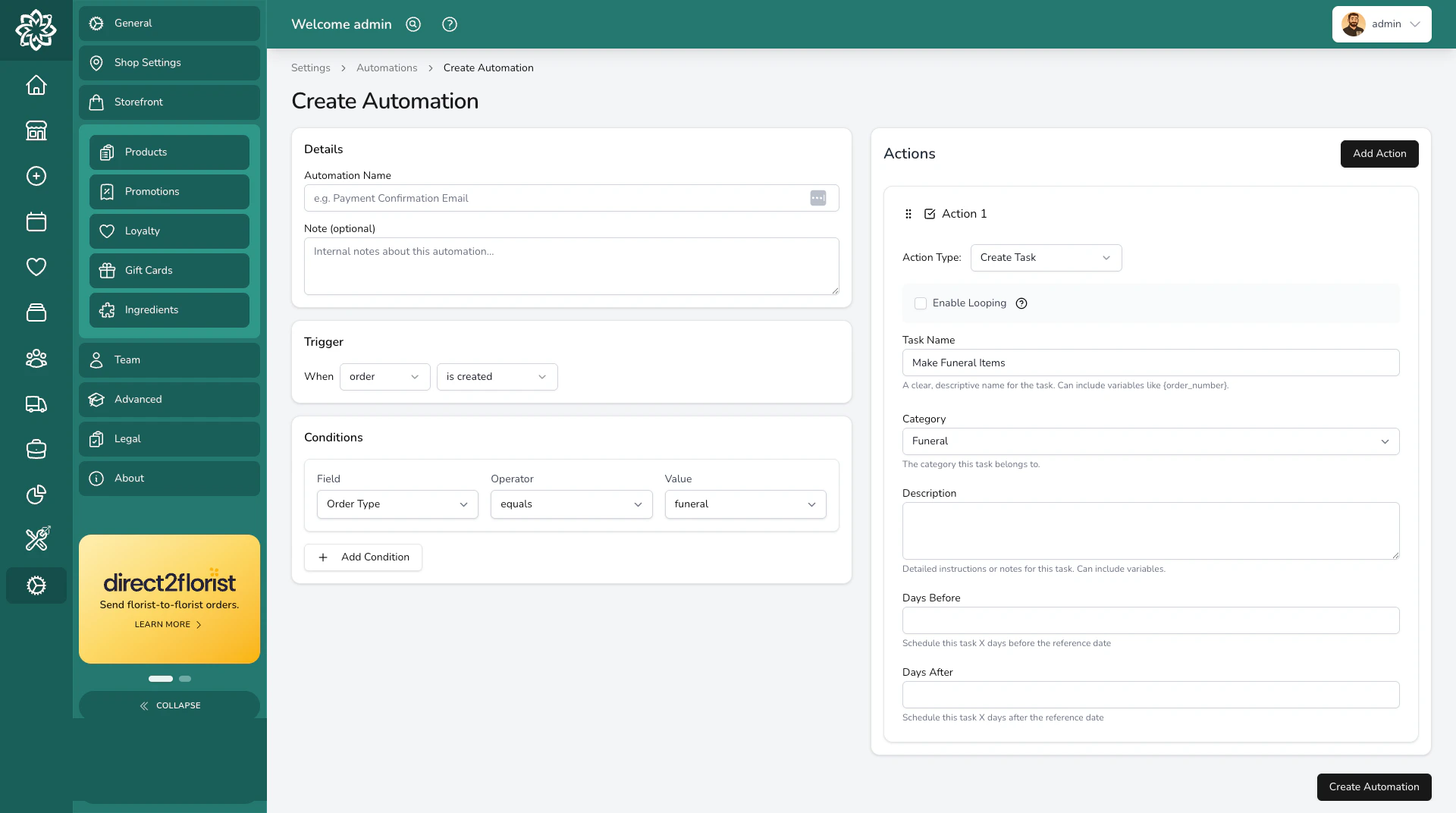 ## How automations work
Every automation has three parts:
| Part | What it does | Example |
| -------------- | ---------------------------------------------------------- | ------------------------------- |
| **Trigger** | The event that starts the automation | "When an order is created" |
| **Conditions** | Optional filters that narrow when it fires | "Only if it's a delivery order" |
| **Action** | What happens when the trigger fires and conditions are met | "Send a confirmation email" |
You can think of it as: **When** this happens, **if** these things are true, **then** do this.
Automations work with two types of records:
* **Orders** — triggered when orders are created, when their status changes (e.g. Confirmed, Picked, Fulfilled), or when their payment status changes (e.g. Paid, Refunded)
* **Events** — triggered when events are created, when their status changes (e.g. Quote accepted, Completed), or when their payment status changes
## What automations can do
There are three actions an automation can perform:
* **Send an email** — to the customer on the order or event, sent when the automation fires.
* **Send a text message (SMS)** — to the customer's phone number on the order or event.
* **Create a task** — with a title, description, and optional checklist. You can set its due date a number of days before or after the order's fulfilment date or the event date (like a prep task 7 days before).
See [Actions](/settings/automations-actions) for the full guide on setting up each action, including scheduled tasks and template variables.
## Creating an automation
Go to **Settings** > **Automations** and click **Create**.
Not sure where to start? The **Start from a preset** dropdown at the top of the Create Automation page loads a ready-made automation — funeral production timeline, quote follow-up, booking confirmation, ask-for-review, and more — into the form for you to review and adjust before saving.
Select whether the automation applies to **Orders** or **Events**. This determines which triggers and condition fields are available.
Choose what event starts the automation — when a record is created, when its status changes, or when its payment status changes. See [Triggers & Conditions](/settings/automations-triggers) for the full list.
Add one or more conditions to control when the automation fires. For example, you might only want it to fire for delivery orders, or only for orders from a specific account. All conditions must be true for the automation to run.
Choose what should happen — send an email, send an SMS, or create a task. Fill in the details like the email subject and body, the SMS message, or the task name.
Give the automation a clear name so you can find it later (e.g. "Send confirmation email on new delivery order"). Toggle it on when you're ready.
Start simple. Set up one or two automations for your most repetitive tasks — like a confirmation email or a delivery reminder — then add more as you get comfortable.
## Example automations
Here are some common automations florists set up:
| Automation | Trigger | Conditions | Action |
| ------------------- | ---------------------------- | ------------------------- | -------------------------------------------------- |
| Refund confirmation | Order payment status changed | Payment status = Refunded | Send the customer an email confirming their refund |
| Payment thank-you | Order payment status changed | Payment status = Paid | Send a thank-you email to the customer |
| Delivery prep task | Order created | Delivery orders only | Create a task due 1 day before the fulfilment date |
| Event follow-up | Event status changed | Status = Completed | Send thank-you email to client |
| Prep task | Order status changed | Status = Confirmed | Create task "Prepare arrangement" with checklist |
## Enabling and disabling
Each automation can be toggled on or off at any time from the automations list. Disabling an automation doesn't delete it — you can turn it back on whenever you need it.
Automations only fire going forward. Enabling an automation won't retroactively process orders or events that already exist — so if you turn one on mid-day expecting it to email customers from earlier orders, those orders are skipped.
## Common questions
Your shop starts with no automations running, but you don't have to build from scratch: the **Start from a preset** dropdown on the Create Automation page loads a ready-made automation into the form for you to review, adjust, and save.
Yes. You can have as many automations as you like, even if they share the same trigger. Each one is evaluated independently.
The automation is logged with the error details. Your order or event isn't affected — a failed automation doesn't block anything. Check the [Logs](/settings/automations-logs) to see what went wrong.
Zapier is included with Enterprise Orders and Enterprise Complete. It is connected as a separate website integration in **Settings** > **Advanced** > **Integrations**. Once it's set up, Zapier receives webhooks for the events you've enabled — it isn't configured from this Automations page.
Yes. POS sales create orders, so any order-based automation will fire for POS transactions too.
## What's next?
All the triggers and condition fields you can use.
Send emails, texts, and create tasks automatically.
Check what your automations have done and fix issues.
Set up the email and SMS templates your automations use.
## How automations work
Every automation has three parts:
| Part | What it does | Example |
| -------------- | ---------------------------------------------------------- | ------------------------------- |
| **Trigger** | The event that starts the automation | "When an order is created" |
| **Conditions** | Optional filters that narrow when it fires | "Only if it's a delivery order" |
| **Action** | What happens when the trigger fires and conditions are met | "Send a confirmation email" |
You can think of it as: **When** this happens, **if** these things are true, **then** do this.
Automations work with two types of records:
* **Orders** — triggered when orders are created, when their status changes (e.g. Confirmed, Picked, Fulfilled), or when their payment status changes (e.g. Paid, Refunded)
* **Events** — triggered when events are created, when their status changes (e.g. Quote accepted, Completed), or when their payment status changes
## What automations can do
There are three actions an automation can perform:
* **Send an email** — to the customer on the order or event, sent when the automation fires.
* **Send a text message (SMS)** — to the customer's phone number on the order or event.
* **Create a task** — with a title, description, and optional checklist. You can set its due date a number of days before or after the order's fulfilment date or the event date (like a prep task 7 days before).
See [Actions](/settings/automations-actions) for the full guide on setting up each action, including scheduled tasks and template variables.
## Creating an automation
Go to **Settings** > **Automations** and click **Create**.
Not sure where to start? The **Start from a preset** dropdown at the top of the Create Automation page loads a ready-made automation — funeral production timeline, quote follow-up, booking confirmation, ask-for-review, and more — into the form for you to review and adjust before saving.
Select whether the automation applies to **Orders** or **Events**. This determines which triggers and condition fields are available.
Choose what event starts the automation — when a record is created, when its status changes, or when its payment status changes. See [Triggers & Conditions](/settings/automations-triggers) for the full list.
Add one or more conditions to control when the automation fires. For example, you might only want it to fire for delivery orders, or only for orders from a specific account. All conditions must be true for the automation to run.
Choose what should happen — send an email, send an SMS, or create a task. Fill in the details like the email subject and body, the SMS message, or the task name.
Give the automation a clear name so you can find it later (e.g. "Send confirmation email on new delivery order"). Toggle it on when you're ready.
Start simple. Set up one or two automations for your most repetitive tasks — like a confirmation email or a delivery reminder — then add more as you get comfortable.
## Example automations
Here are some common automations florists set up:
| Automation | Trigger | Conditions | Action |
| ------------------- | ---------------------------- | ------------------------- | -------------------------------------------------- |
| Refund confirmation | Order payment status changed | Payment status = Refunded | Send the customer an email confirming their refund |
| Payment thank-you | Order payment status changed | Payment status = Paid | Send a thank-you email to the customer |
| Delivery prep task | Order created | Delivery orders only | Create a task due 1 day before the fulfilment date |
| Event follow-up | Event status changed | Status = Completed | Send thank-you email to client |
| Prep task | Order status changed | Status = Confirmed | Create task "Prepare arrangement" with checklist |
## Enabling and disabling
Each automation can be toggled on or off at any time from the automations list. Disabling an automation doesn't delete it — you can turn it back on whenever you need it.
Automations only fire going forward. Enabling an automation won't retroactively process orders or events that already exist — so if you turn one on mid-day expecting it to email customers from earlier orders, those orders are skipped.
## Common questions
Your shop starts with no automations running, but you don't have to build from scratch: the **Start from a preset** dropdown on the Create Automation page loads a ready-made automation into the form for you to review, adjust, and save.
Yes. You can have as many automations as you like, even if they share the same trigger. Each one is evaluated independently.
The automation is logged with the error details. Your order or event isn't affected — a failed automation doesn't block anything. Check the [Logs](/settings/automations-logs) to see what went wrong.
Zapier is included with Enterprise Orders and Enterprise Complete. It is connected as a separate website integration in **Settings** > **Advanced** > **Integrations**. Once it's set up, Zapier receives webhooks for the events you've enabled — it isn't configured from this Automations page.
Yes. POS sales create orders, so any order-based automation will fire for POS transactions too.
## What's next?
All the triggers and condition fields you can use.
Send emails, texts, and create tasks automatically.
Check what your automations have done and fix issues.
Set up the email and SMS templates your automations use.