> ## Documentation Index
> Fetch the complete documentation index at: https://docs.florists.digital/llms.txt
> Use this file to discover all available pages before exploring further.
# Categories
> Keep the lists your team picks from across Digital Florists: task categories, order sources, stock adjustment reasons, event and design types, recipe, media and petty cash categories.
The **Categories** tab holds the short lists your team picks from elsewhere in Digital Florists, from the category on a task to the reason for a stock adjustment.
**This page covers features gated by Admin-tier permissions** — typically Settings access. Admins have these by default; your administrator can adjust who has them in [Settings > Team](/settings/team).
Go to **Settings** > **General** and open the **Categories** tab. Pick a list on the left and its entries appear on the right, with a count beside each list so you can see what's filled in. Lists for Events or point of sale only appear when your plan includes them.
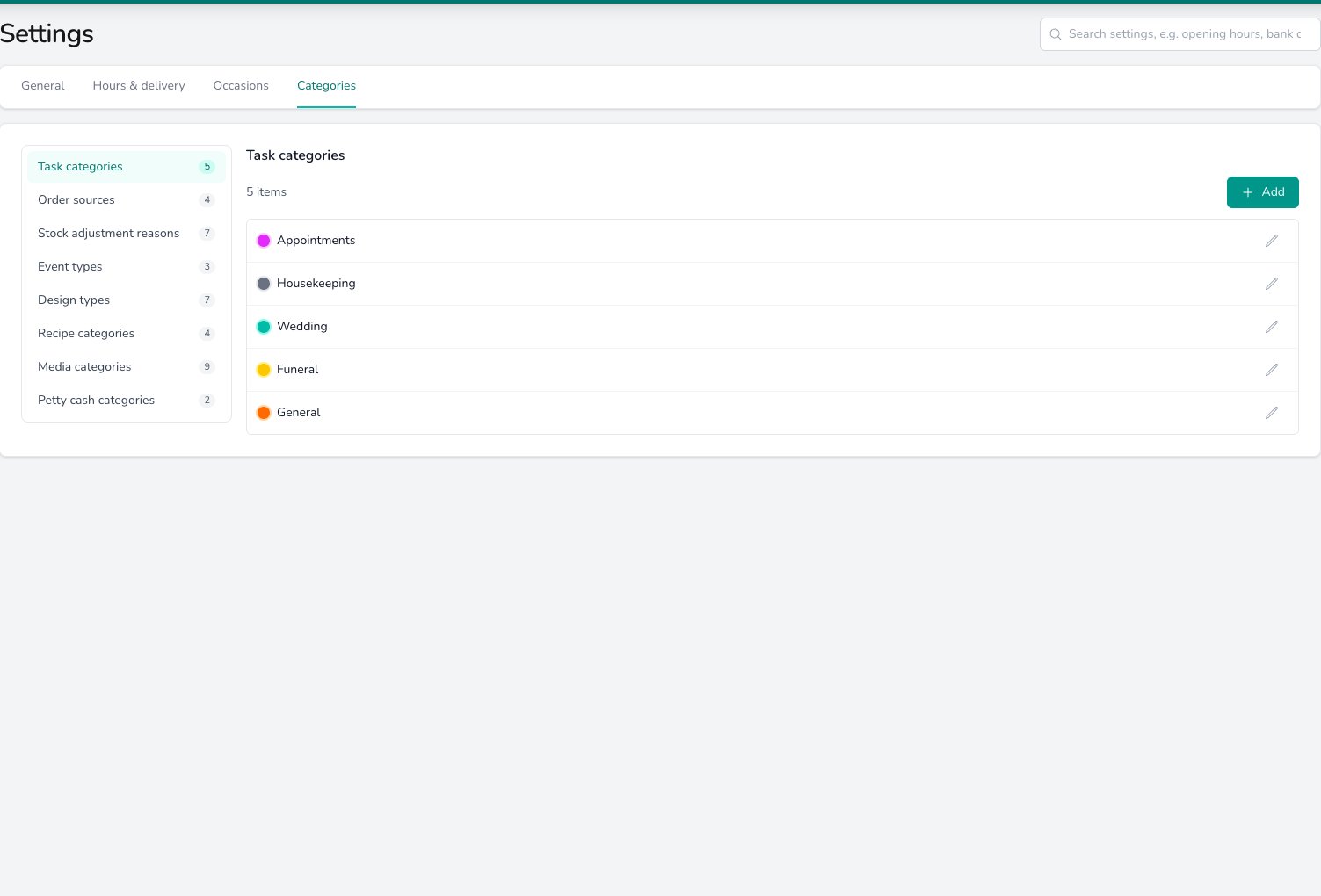 Every list works the same way. Click **Add**, fill in the fields and click **Create**. Click the edit icon on a row to change it, then **Save**. Where a list allows it, the delete icon on the row removes the entry after you confirm.
## Task categories
Your team picks a task category when they create a task, and the colour marks it in the task list. Give each category a **Name**, an optional **Description** and a **Colour**.
Task categories can be renamed and recoloured but not deleted, so rename one you've stopped using rather than leaving it empty. See [Tasks](/daily-operations/tasks#creating-a-task).
## Order sources
An order source records how the order reached you, such as Walk In, Phone or Website. Your team picks one on the order form, and [Insights](/analytics/insights) and the Order Sales report break sales down by it.
Each source needs only a **Name**. Drag the handle at the left of a row to change the order they appear in on the order form. See [Creating an order](/daily-operations/creating-an-order).
## Stock adjustment reasons
When someone changes the stock level of a product by hand, they pick a reason, such as Delivery Received or Damaged. Give each reason a **Label** and an optional **Description**.
Untick **Is visible** to keep a reason out of the list your team picks from, without deleting it. A hidden reason shows a **Hidden** tag in this list, and past adjustments that used it are unchanged. See [Adjusting stock](/storefront/inventory#adjusting-stock).
## Event types
Every event has a type, such as Wedding, Funeral or Corporate, chosen when the event is created. Give each type a **Name**, an optional **Description** and a **Colour**, and the colour marks the event on your calendar.
This list appears when your plan includes Events. See [Creating an event](/events/creating-an-event).
## Design types
A design type is a label such as Bouquet or Table Centre that you put on a recipe. Give each one a **Name**, an optional **Description** and, if you want labour costed for you, a **Labour %**.
The percentage is the share of a recipe's price set aside for make-up labour, and it shows as a tag beside the type in this list. This list appears when your plan includes Events. See [Design types](/events/recipes#design-types).
## Recipe categories
Recipe categories group your recipe library so your team can find a design quickly. Each one needs only a **Name**.
This list appears when your plan includes Events. See [Recipe categories](/events/recipes#recipe-categories).
## Media categories
Media categories group the images in your media library, by style, season or venue. Each one needs only a **Name**, and you pick a category for each image you upload.
This list appears when your plan includes Events. See [Media library](/events/media-library#categories).
## Petty cash categories
When someone records a petty cash movement at the till, they pick a category for it, such as Milk or Postage. Each one needs only a **Name**, and you can drag the handle at the left of a row to change the order they're offered in.
This list appears when your plan includes point of sale. See [Petty cash](/daily-operations/pos-end-of-day#petty-cash).
## What's next?
The occasions your team picks on an order, and which ones send reminders.
Create tasks and pick a category for each one.
Adjust stock and record the reason.
Recipe categories, design types and labour.
Every list works the same way. Click **Add**, fill in the fields and click **Create**. Click the edit icon on a row to change it, then **Save**. Where a list allows it, the delete icon on the row removes the entry after you confirm.
## Task categories
Your team picks a task category when they create a task, and the colour marks it in the task list. Give each category a **Name**, an optional **Description** and a **Colour**.
Task categories can be renamed and recoloured but not deleted, so rename one you've stopped using rather than leaving it empty. See [Tasks](/daily-operations/tasks#creating-a-task).
## Order sources
An order source records how the order reached you, such as Walk In, Phone or Website. Your team picks one on the order form, and [Insights](/analytics/insights) and the Order Sales report break sales down by it.
Each source needs only a **Name**. Drag the handle at the left of a row to change the order they appear in on the order form. See [Creating an order](/daily-operations/creating-an-order).
## Stock adjustment reasons
When someone changes the stock level of a product by hand, they pick a reason, such as Delivery Received or Damaged. Give each reason a **Label** and an optional **Description**.
Untick **Is visible** to keep a reason out of the list your team picks from, without deleting it. A hidden reason shows a **Hidden** tag in this list, and past adjustments that used it are unchanged. See [Adjusting stock](/storefront/inventory#adjusting-stock).
## Event types
Every event has a type, such as Wedding, Funeral or Corporate, chosen when the event is created. Give each type a **Name**, an optional **Description** and a **Colour**, and the colour marks the event on your calendar.
This list appears when your plan includes Events. See [Creating an event](/events/creating-an-event).
## Design types
A design type is a label such as Bouquet or Table Centre that you put on a recipe. Give each one a **Name**, an optional **Description** and, if you want labour costed for you, a **Labour %**.
The percentage is the share of a recipe's price set aside for make-up labour, and it shows as a tag beside the type in this list. This list appears when your plan includes Events. See [Design types](/events/recipes#design-types).
## Recipe categories
Recipe categories group your recipe library so your team can find a design quickly. Each one needs only a **Name**.
This list appears when your plan includes Events. See [Recipe categories](/events/recipes#recipe-categories).
## Media categories
Media categories group the images in your media library, by style, season or venue. Each one needs only a **Name**, and you pick a category for each image you upload.
This list appears when your plan includes Events. See [Media library](/events/media-library#categories).
## Petty cash categories
When someone records a petty cash movement at the till, they pick a category for it, such as Milk or Postage. Each one needs only a **Name**, and you can drag the handle at the left of a row to change the order they're offered in.
This list appears when your plan includes point of sale. See [Petty cash](/daily-operations/pos-end-of-day#petty-cash).
## What's next?
The occasions your team picks on an order, and which ones send reminders.
Create tasks and pick a category for each one.
Adjust stock and record the reason.
Recipe categories, design types and labour.