> ## Documentation Index
> Fetch the complete documentation index at: https://docs.florists.digital/llms.txt
> Use this file to discover all available pages before exploring further.
# Shop setup
> Set up your shop details, regional defaults, and operational rules.
**Configuration** covers the tenant-wide settings that shape how Digital Florists behaves for your shop — your business name and logo, currency and timezone, default tax rate, and the wider defaults that affect order creation, printing, and the dashboard.
**This page covers features gated by Admin-tier permissions** — typically Settings access. Admins have these by default; your administrator can adjust who has them in [Settings > Team](/settings/team).
 ## Where these settings live
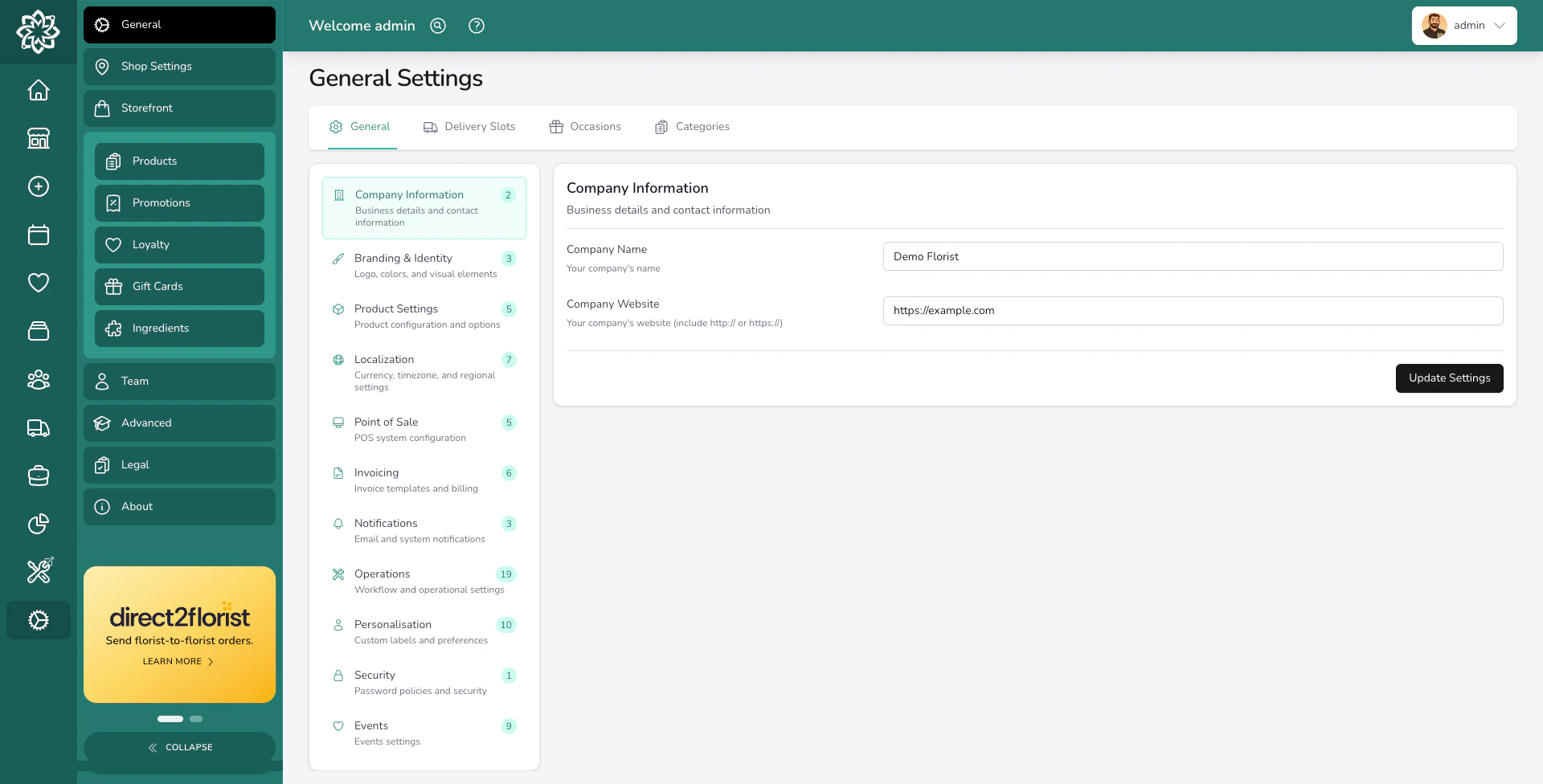
Go to **Settings** > **General Settings**. The page has four top-level tabs:
* **General** — the main settings page, grouped into sections like Your Business, Order Defaults, Delivery, Printing, Invoicing, Notifications, Features, and Regional and Access.
* **Delivery Slots** — set up your delivery time windows. See [Delivery Slots](/settings/delivery-slots).
* **Occasions** — manage the occasions customers can pick from (birthday, anniversary, sympathy, and so on).
* **Categories** — set up product, ingredient, task, event, and order-source categories.
Per-location settings (address, opening hours, fulfilment methods, location email) live separately under [Locations](/settings/locations).
## Your business
Open the **Your Business** group on the General tab to set:
## Where these settings live
Go to **Settings** > **General Settings**. The page has four top-level tabs:
* **General** — the main settings page, grouped into sections like Your Business, Order Defaults, Delivery, Printing, Invoicing, Notifications, Features, and Regional and Access.
* **Delivery Slots** — set up your delivery time windows. See [Delivery Slots](/settings/delivery-slots).
* **Occasions** — manage the occasions customers can pick from (birthday, anniversary, sympathy, and so on).
* **Categories** — set up product, ingredient, task, event, and order-source categories.
Per-location settings (address, opening hours, fulfilment methods, location email) live separately under [Locations](/settings/locations).
## Your business
Open the **Your Business** group on the General tab to set:
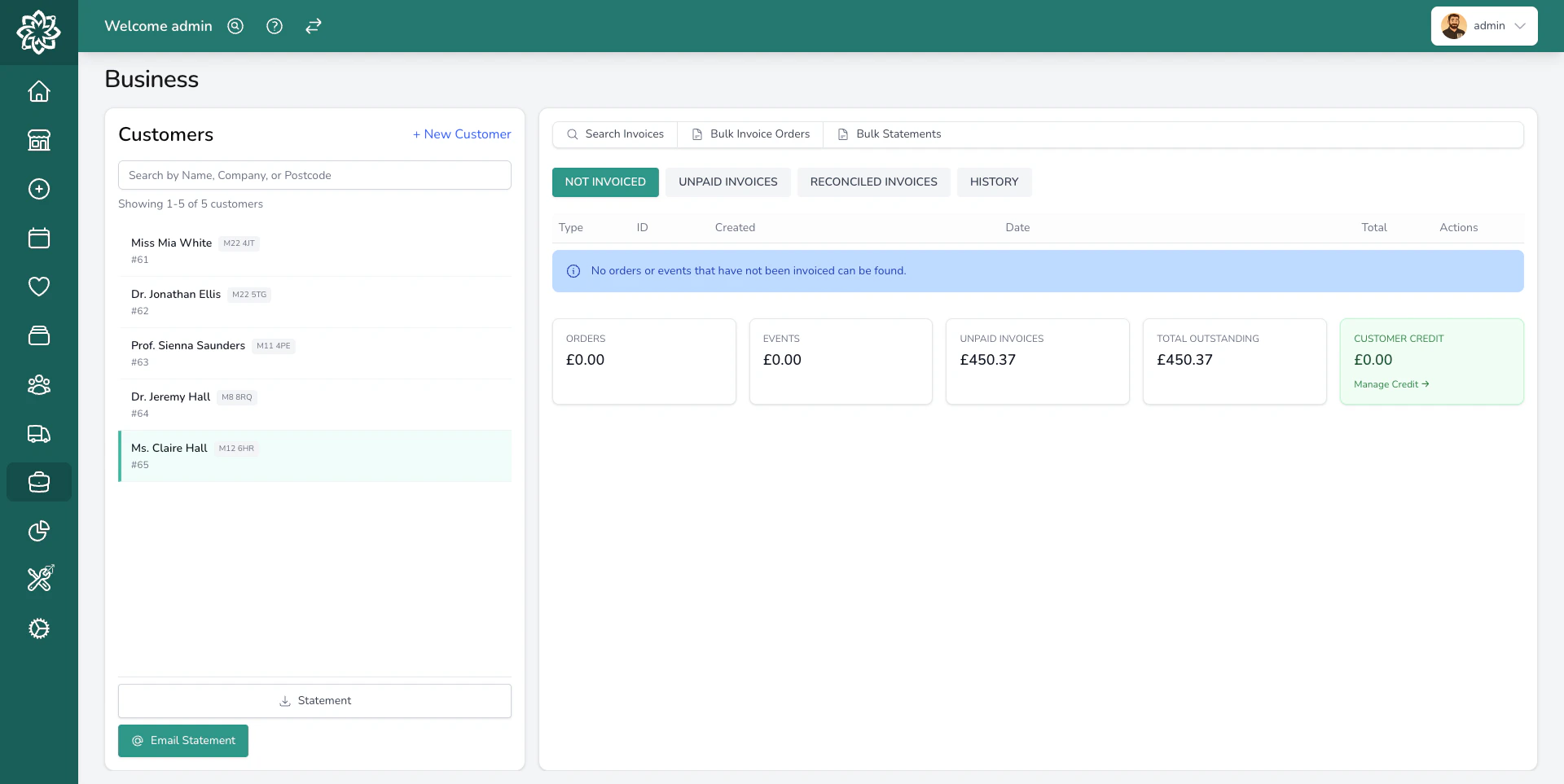 * **Company Name** — appears on receipts, invoices, and notification emails.
* **Company Website** — used in customer-facing communications.
* **Logo** and **Icon** — used on receipts, invoices, and notification emails.
* **Company Name** — appears on receipts, invoices, and notification emails.
* **Company Website** — used in customer-facing communications.
* **Logo** and **Icon** — used on receipts, invoices, and notification emails.
 The customer-facing phone number, email, and address are set **per location** rather than tenant-wide, so a multi-shop business shows the right contact details for each shop. See [Locations](/settings/locations).
## Regional and access
Open the **Regional and Access** group on the General tab to set:
* **Timezone** — controls how dates and times are interpreted across the shop.
* **Currency** — the currency used for prices, transactions, invoices, and reports.
* **Country** — drives default postcode handling, phone formatting, and tax behaviour.
* **Phone display format** — national, international, or E.164.
* **Unit of measure** — miles, kilometres, or feet for delivery distances.
Set these correctly before you start taking orders. Changing currency after you've been trading can leave historical records using one currency and new orders using another.
## Default tax rate
Open the **Invoicing** group on the General tab to set the **default tax rate** used when creating new products. You can set up multiple tax rates (for example, Standard 20%, Reduced 5%, Zero 0%) and assign different rates to individual product variants from the product editor.
## Order defaults
The **Order Defaults** group controls behaviour when staff create an order — for example, the default order status (Unconfirmed, Confirmed, or Ready for fulfilment) when saving a new order. Adjust these to match how your shop works day to day.
## Printing
The **Printing** group controls how worksheets and address labels print. A few settings worth knowing:
* **Address Label Copies** — print one address label per product line (the default), per item, or per order. When an order prints more than one label, the set is numbered.
* **Show Product Descriptions on Worksheets** — on by default. Shows each product's catalogue description on the worksheet.
## Order cut-offs
Cut-off times are set **per delivery slot**, not tenant-wide. Open **Settings** > **General Settings** > **Delivery Slots**, edit a slot, and set its **Same Day Cutoff Time** to control how late customers can book that slot for today. See [Delivery Slots](/settings/delivery-slots) for the full setup.
## Fulfilment methods
The customer-facing phone number, email, and address are set **per location** rather than tenant-wide, so a multi-shop business shows the right contact details for each shop. See [Locations](/settings/locations).
## Regional and access
Open the **Regional and Access** group on the General tab to set:
* **Timezone** — controls how dates and times are interpreted across the shop.
* **Currency** — the currency used for prices, transactions, invoices, and reports.
* **Country** — drives default postcode handling, phone formatting, and tax behaviour.
* **Phone display format** — national, international, or E.164.
* **Unit of measure** — miles, kilometres, or feet for delivery distances.
Set these correctly before you start taking orders. Changing currency after you've been trading can leave historical records using one currency and new orders using another.
## Default tax rate
Open the **Invoicing** group on the General tab to set the **default tax rate** used when creating new products. You can set up multiple tax rates (for example, Standard 20%, Reduced 5%, Zero 0%) and assign different rates to individual product variants from the product editor.
## Order defaults
The **Order Defaults** group controls behaviour when staff create an order — for example, the default order status (Unconfirmed, Confirmed, or Ready for fulfilment) when saving a new order. Adjust these to match how your shop works day to day.
## Printing
The **Printing** group controls how worksheets and address labels print. A few settings worth knowing:
* **Address Label Copies** — print one address label per product line (the default), per item, or per order. When an order prints more than one label, the set is numbered.
* **Show Product Descriptions on Worksheets** — on by default. Shows each product's catalogue description on the worksheet.
## Order cut-offs
Cut-off times are set **per delivery slot**, not tenant-wide. Open **Settings** > **General Settings** > **Delivery Slots**, edit a slot, and set its **Same Day Cutoff Time** to control how late customers can book that slot for today. See [Delivery Slots](/settings/delivery-slots) for the full setup.
## Fulfilment methods
 Which fulfilment methods a location offers (delivery, collection, relay, courier) is set **per location**. Open the location under [Locations](/settings/locations) and choose the methods that apply.
## What's next?
Set up shop addresses, opening hours, and per-location fulfilment.
Configure delivery windows, charges, and same-day cut-offs.
Add team members and set permissions.
Connect your website, couriers, payment providers, and relay networks.
Which fulfilment methods a location offers (delivery, collection, relay, courier) is set **per location**. Open the location under [Locations](/settings/locations) and choose the methods that apply.
## What's next?
Set up shop addresses, opening hours, and per-location fulfilment.
Configure delivery windows, charges, and same-day cut-offs.
Add team members and set permissions.
Connect your website, couriers, payment providers, and relay networks.