> ## Documentation Index
> Fetch the complete documentation index at: https://docs.florists.digital/llms.txt
> Use this file to discover all available pages before exploring further.
# Delivery areas & prices
> Price delivery from the recipient's address using postcode areas or distance bands, and set what happens for every other address.
When your team types the recipient's address, Digital Florists matches it to one of your delivery areas and takes that area's charge.
**This page covers features gated by Admin-tier permissions** — typically Settings access. Admins have these by default; your administrator can adjust who has them in [Settings > Team](/settings/team).
Go to **Settings** > **General**, open the **Hours & delivery** tab and choose **Delivery areas & prices**.
## Drawing your areas
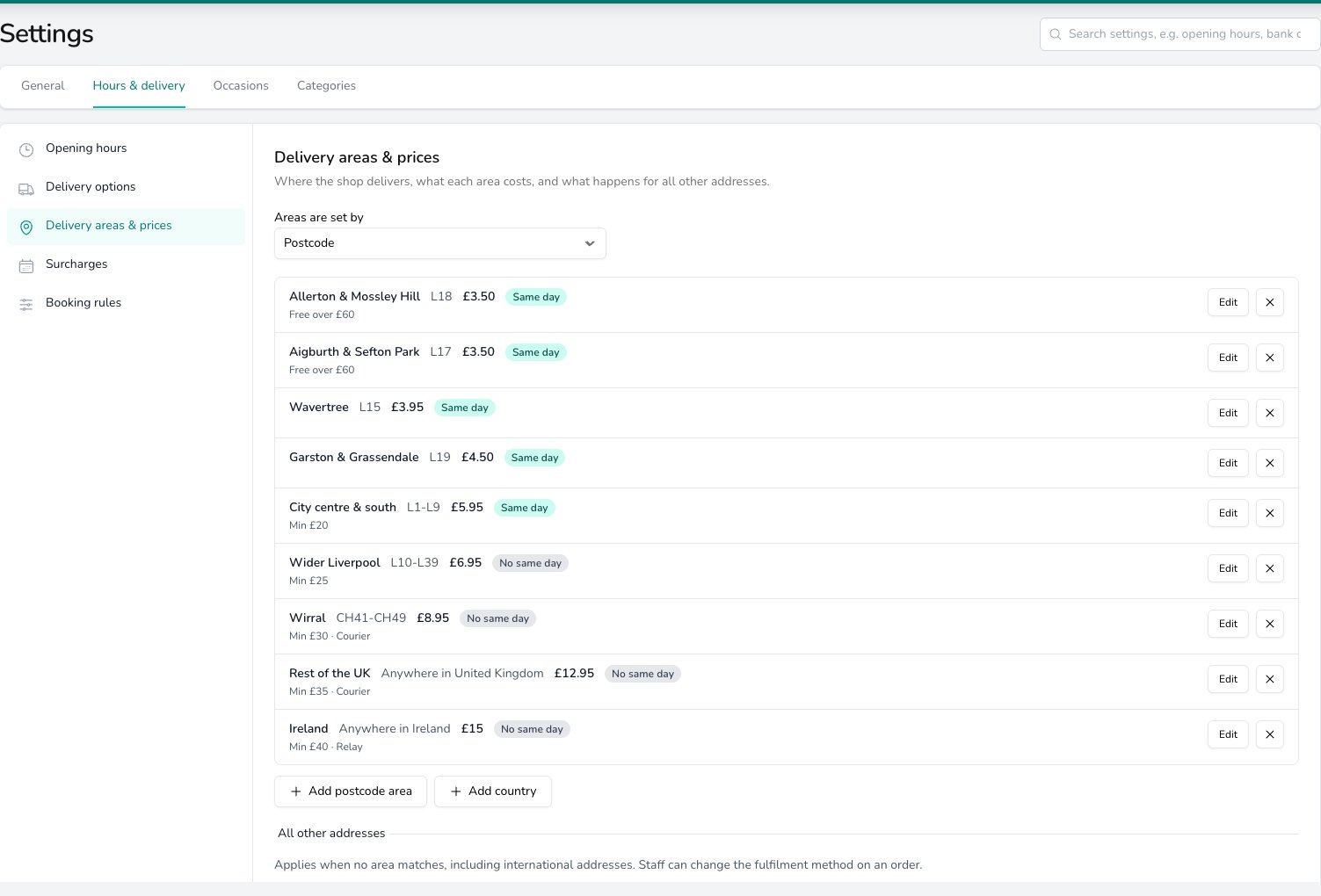
Each area is a piece of the map you have priced: a group of postcodes, a ring around the shop, or a whole country. Areas belong to the shop, so pick the shop in the **Set per shop** band before you edit them.
Choose how you draw them in **Areas are set by**.
* **Postcode** matches on what the postcode starts with. In the UK you can enter a single prefix such as `L18`, a narrower one such as `LL35 6`, or a district range such as `CH41-CH49`. In Ireland the same field takes the first three characters of an Eircode; in the US it takes a full ZIP or its first digits.
* **Distance from the shop** matches on how far the address is, measured in a straight line from your shop address. Give each band a **From** and an **Up to**.
Press **Add postcode area** or **Add distance band** for each area you deliver to. Press **Add country** to price everywhere else in a country as one area.
 ## What each area holds
Press **Edit** on a row to change it. Anything you have not priced yet shows **Not priced** in amber.
## What each area holds
Press **Edit** on a row to change it. Anything you have not priced yet shows **Not priced** in amber.
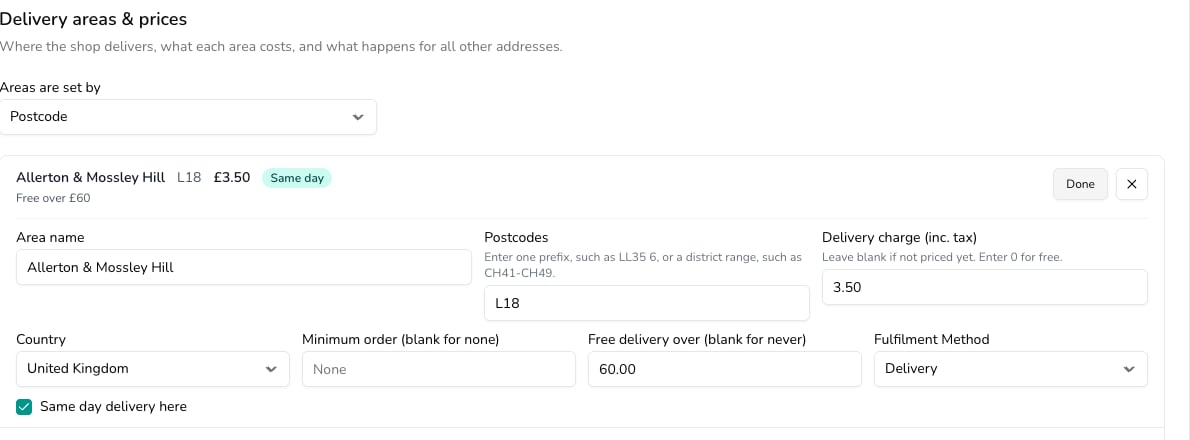 Every area carries the same settings.
| Setting | What it controls |
| ---------------------------------------- | ------------------------------------------------------------------------------------------- |
| **Area name** | What you call it, such as Mossley Hill or Up to 5 miles |
| **Postcodes**, or **From** and **Up to** | The postcode prefixes or the distance band the area covers |
| **Delivery charge (inc. tax)** | What this area costs. Enter 0 for free delivery, or leave it blank until you have priced it |
| **Country** | The country the area belongs to |
| **Minimum order (blank for none)** | The smallest order value this area accepts |
| **Free delivery over (blank for never)** | The order value at which delivery stops being charged here |
| **Fulfilment Method** | Who serves the area: **Delivery**, **Courier** or **Relay** |
| **Same day delivery here** | Whether today's deliveries reach this area |
### Who serves each area
When you mark an area **Courier** or **Relay** and your team enters an address inside it, the order takes that method as soon as the address goes in. Your team can change the method on the order whenever they need to. An order that arrives this way waits for someone to confirm it, which is covered in [Orders](/daily-operations/orders#confirming-a-relay-or-courier-order).
## Addresses no area covers
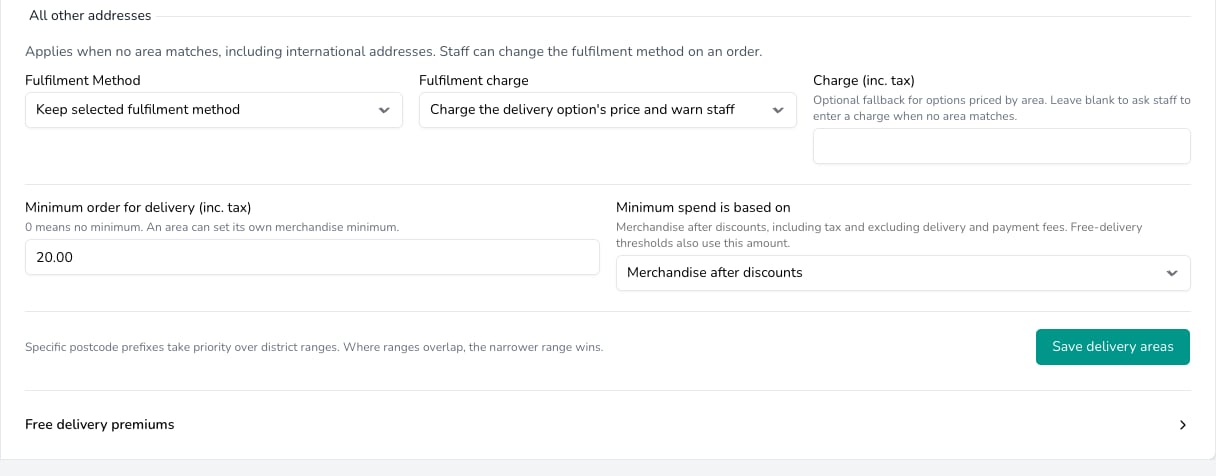
Under **All other addresses**, set one rule for every address that matches none of your areas, international addresses included. **Fulfilment Method** decides whether those orders stay on the method your team chose or become a delivery, courier or relay order. **Fulfilment charge** decides the money.
* **Charge the delivery option's price and warn staff** prices the order from the option and flags it for your team.
* **Charge a fixed amount** uses the amount you enter in **Charge (inc. tax)**.
* **Ask staff to enter a charge** leaves the charge blank for someone to type in.
* **Do not offer online** stops the order being priced automatically.
Every area carries the same settings.
| Setting | What it controls |
| ---------------------------------------- | ------------------------------------------------------------------------------------------- |
| **Area name** | What you call it, such as Mossley Hill or Up to 5 miles |
| **Postcodes**, or **From** and **Up to** | The postcode prefixes or the distance band the area covers |
| **Delivery charge (inc. tax)** | What this area costs. Enter 0 for free delivery, or leave it blank until you have priced it |
| **Country** | The country the area belongs to |
| **Minimum order (blank for none)** | The smallest order value this area accepts |
| **Free delivery over (blank for never)** | The order value at which delivery stops being charged here |
| **Fulfilment Method** | Who serves the area: **Delivery**, **Courier** or **Relay** |
| **Same day delivery here** | Whether today's deliveries reach this area |
### Who serves each area
When you mark an area **Courier** or **Relay** and your team enters an address inside it, the order takes that method as soon as the address goes in. Your team can change the method on the order whenever they need to. An order that arrives this way waits for someone to confirm it, which is covered in [Orders](/daily-operations/orders#confirming-a-relay-or-courier-order).
## Addresses no area covers
Under **All other addresses**, set one rule for every address that matches none of your areas, international addresses included. **Fulfilment Method** decides whether those orders stay on the method your team chose or become a delivery, courier or relay order. **Fulfilment charge** decides the money.
* **Charge the delivery option's price and warn staff** prices the order from the option and flags it for your team.
* **Charge a fixed amount** uses the amount you enter in **Charge (inc. tax)**.
* **Ask staff to enter a charge** leaves the charge blank for someone to type in.
* **Do not offer online** stops the order being priced automatically.
 Options priced by delivery area need at least one area before they can price an order.
## Minimum order and free delivery
Set **Minimum order for delivery (inc. tax)** to put a floor under every delivery from this shop. Leave it at 0 for no minimum. Give an area its own **Minimum order** where it needs a higher one.
**Minimum spend is based on** shows what the minimum is measured against: your merchandise after discounts, including tax and excluding delivery and payment fees. Free delivery thresholds use the same amount.
**A minimum warns your team rather than stopping them.** An order below it shows a warning your team can carry on past. Choose **Cannot take the order** in [Booking rules](/settings/delivery/booking-rules) if you want it stopped instead.
Open **Free delivery premiums** to decide what happens when an order reaches an area's **Free delivery over** amount. Leave **Free-delivery threshold also waives option premiums** off and the extra on an area-priced option is still charged. Switch it on and that extra is waived too. Same day and busy day extras are charged either way.
## Common questions
Yes. Areas, their charges and the shop minimum belong to the shop, so switch shop in the **Set per shop** band before you edit them. **Free delivery premiums** is one choice that applies to every shop.
Nothing changes on them. A saved order keeps the charge you agreed with the customer until someone opens it and chooses **Update delivery price**. See [Orders](/daily-operations/orders#the-agreed-delivery-charge).
## What's next?
The hours you work, separate delivery hours, and the days you close.
The options your team offers, their prices and your default option.
Busy day extras, same day orders and your order-by time.
Notice, how far ahead orders go, daily limits and the services each shop offers.
See the charge and the address warnings as you take an order.
Options priced by delivery area need at least one area before they can price an order.
## Minimum order and free delivery
Set **Minimum order for delivery (inc. tax)** to put a floor under every delivery from this shop. Leave it at 0 for no minimum. Give an area its own **Minimum order** where it needs a higher one.
**Minimum spend is based on** shows what the minimum is measured against: your merchandise after discounts, including tax and excluding delivery and payment fees. Free delivery thresholds use the same amount.
**A minimum warns your team rather than stopping them.** An order below it shows a warning your team can carry on past. Choose **Cannot take the order** in [Booking rules](/settings/delivery/booking-rules) if you want it stopped instead.
Open **Free delivery premiums** to decide what happens when an order reaches an area's **Free delivery over** amount. Leave **Free-delivery threshold also waives option premiums** off and the extra on an area-priced option is still charged. Switch it on and that extra is waived too. Same day and busy day extras are charged either way.
## Common questions
Yes. Areas, their charges and the shop minimum belong to the shop, so switch shop in the **Set per shop** band before you edit them. **Free delivery premiums** is one choice that applies to every shop.
Nothing changes on them. A saved order keeps the charge you agreed with the customer until someone opens it and chooses **Update delivery price**. See [Orders](/daily-operations/orders#the-agreed-delivery-charge).
## What's next?
The hours you work, separate delivery hours, and the days you close.
The options your team offers, their prices and your default option.
Busy day extras, same day orders and your order-by time.
Notice, how far ahead orders go, daily limits and the services each shop offers.
See the charge and the address warnings as you take an order.