> ## Documentation Index
> Fetch the complete documentation index at: https://docs.florists.digital/llms.txt
> Use this file to discover all available pages before exploring further.
# Opening hours
> Set the hours your shop works each week, the days you close or open differently, and the opening hours message customers read.
Your weekly hours decide which days and times your team can book a delivery or a collection for.
**This page covers features gated by Admin-tier permissions** — typically Settings access. Admins have these by default; your administrator can adjust who has them in [Settings > Team](/settings/team).
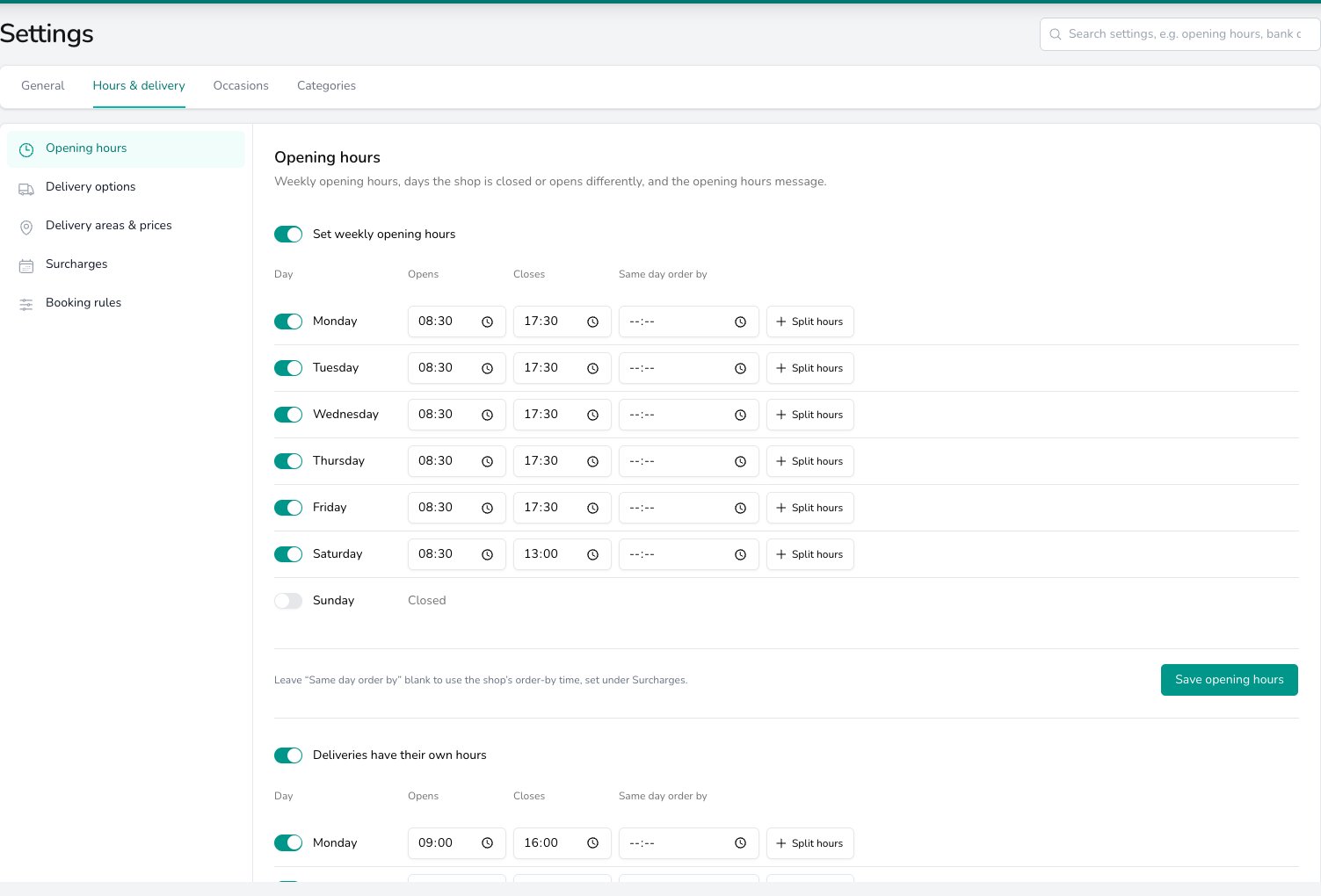
Go to **Settings** > **General**, open the **Hours & delivery** tab and choose **Opening hours**.
## Your weekly hours
Switch on **Set weekly opening hours**, then switch on each day you open and set when it **Opens** and **Closes**. Deliveries and collections both follow these hours. Press **Save opening hours** when you're done.
Leave the switch off and your team can book an order for any day of the week.
Press **Split hours** on a day to add a second pair of times, which is how you record a lunchtime closure.
 ### Hours for deliveries only
If your deliveries stop earlier than the shop does, switch on **Deliveries have their own hours** underneath and set them. Press **Copy opening hours** to start from the hours above and adjust from there, then press **Save delivery hours**. Collections keep following the opening hours whatever you set here.
### The same day order by column
Once you accept same day orders, each weekday gains a **Same day order by** column. Put a time against a day to give it its own deadline, such as a Saturday you close early on. Leave it blank and the day uses the shop's **Order by** time, set under [Surcharges](/settings/delivery/surcharges).
## Closed days and different hours
Add your one-off dates in **Closed days & different hours**, such as bank holidays, the Christmas break or a half day. Select a day on the calendar, or drag across several, then choose **Close the shop** or **Open different hours**. **Add dates** gives you a blank row to type into instead.
### Hours for deliveries only
If your deliveries stop earlier than the shop does, switch on **Deliveries have their own hours** underneath and set them. Press **Copy opening hours** to start from the hours above and adjust from there, then press **Save delivery hours**. Collections keep following the opening hours whatever you set here.
### The same day order by column
Once you accept same day orders, each weekday gains a **Same day order by** column. Put a time against a day to give it its own deadline, such as a Saturday you close early on. Leave it blank and the day uses the shop's **Order by** time, set under [Surcharges](/settings/delivery/surcharges).
## Closed days and different hours
Add your one-off dates in **Closed days & different hours**, such as bank holidays, the Christmas break or a half day. Select a day on the calendar, or drag across several, then choose **Close the shop** or **Open different hours**. **Add dates** gives you a blank row to type into instead.
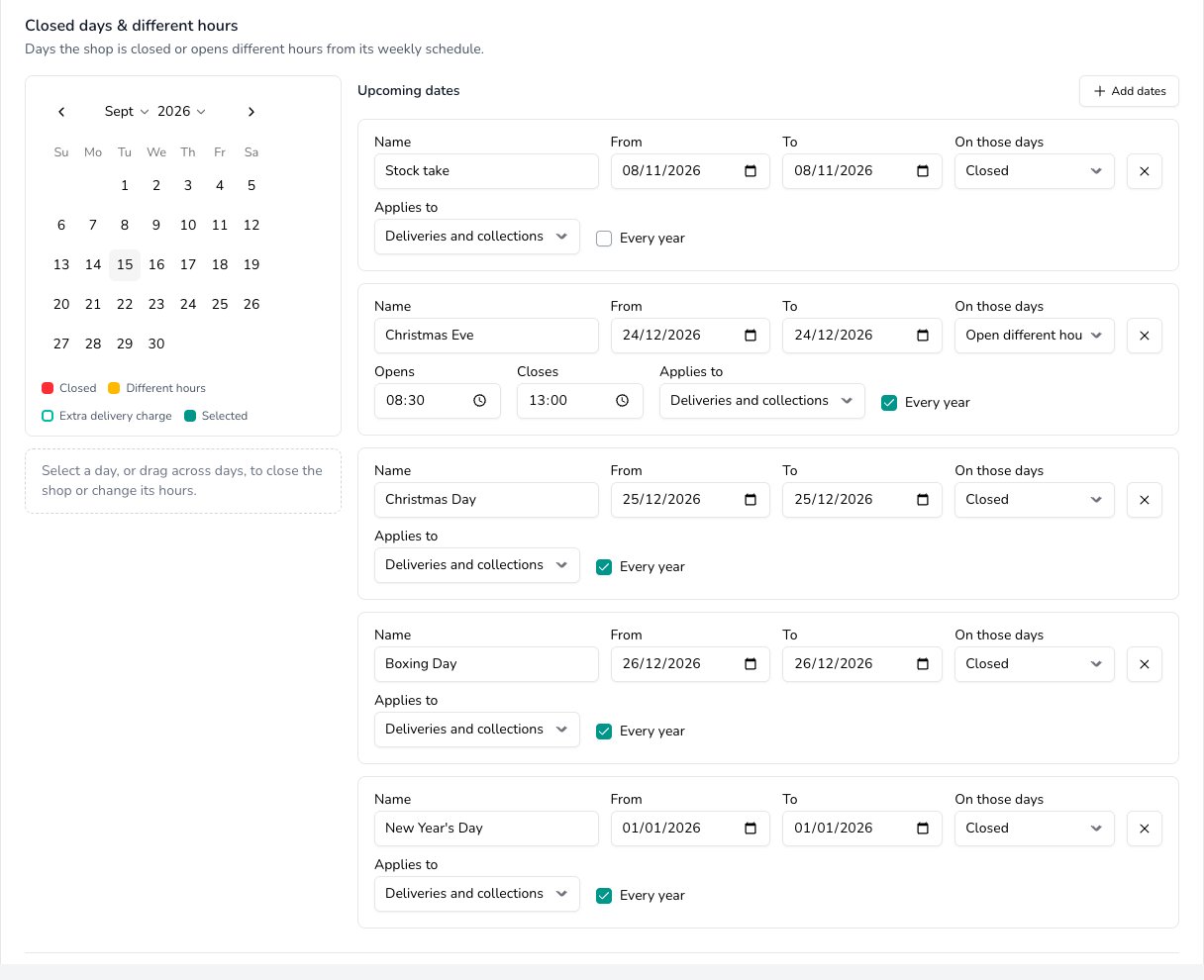 Name each row so your team recognises it, then set the **From** and **To** dates. Under **On those days**, pick **Closed** or **Open different hours**. Different hours ask for the **Opens** and **Closes** times to use on those dates.
Use **Applies to** if the date only affects deliveries or only affects collections. Tick **Every year** and the date repeats, so you set Christmas Day up once.
Dates that have passed move into a list of their own, so you can clear them out when the calendar gets crowded.
### What a closed day does on the order form
Closed dates are marked on the order form's date picker. What your team can do with one is the choice you make in [Booking rules](/settings/delivery/booking-rules). With **See a warning and can continue** the date stays pickable and a line under the picker says the shop is closed that day. With **Cannot take the order** the date is struck through and the order won't save for it.
**Check your saved closed dates before the next holiday.** A date left over from last year still closes the shop if it was set to repeat, and a break you haven't added yet is bookable.
## The opening hours message
When you save your hours, Digital Florists writes an opening hours message from them, and you can read it under **Opening hours message**. Any customer message that mentions your opening hours uses that wording. When you'd rather say it your own way, type your wording under **Use your own wording instead**. Clear that box to go back to the message written from your hours.
## Common questions
Yes. Weekly hours, delivery hours and closed days all belong to the shop, and you switch shop in the **Set per shop** band.
It appears once **Accept same day delivery orders** is switched on under [Surcharges](/settings/delivery/surcharges).
No. Collections follow the weekly opening hours. **Deliveries have their own hours** changes deliveries alone.
## What's next?
The options your team offers and what each one costs.
Where you deliver and what each area costs.
Busy day extras and your same day deadline.
Notice, how far ahead orders go, and what a broken rule does.
See the hours and warnings as you take an order.
Name each row so your team recognises it, then set the **From** and **To** dates. Under **On those days**, pick **Closed** or **Open different hours**. Different hours ask for the **Opens** and **Closes** times to use on those dates.
Use **Applies to** if the date only affects deliveries or only affects collections. Tick **Every year** and the date repeats, so you set Christmas Day up once.
Dates that have passed move into a list of their own, so you can clear them out when the calendar gets crowded.
### What a closed day does on the order form
Closed dates are marked on the order form's date picker. What your team can do with one is the choice you make in [Booking rules](/settings/delivery/booking-rules). With **See a warning and can continue** the date stays pickable and a line under the picker says the shop is closed that day. With **Cannot take the order** the date is struck through and the order won't save for it.
**Check your saved closed dates before the next holiday.** A date left over from last year still closes the shop if it was set to repeat, and a break you haven't added yet is bookable.
## The opening hours message
When you save your hours, Digital Florists writes an opening hours message from them, and you can read it under **Opening hours message**. Any customer message that mentions your opening hours uses that wording. When you'd rather say it your own way, type your wording under **Use your own wording instead**. Clear that box to go back to the message written from your hours.
## Common questions
Yes. Weekly hours, delivery hours and closed days all belong to the shop, and you switch shop in the **Set per shop** band.
It appears once **Accept same day delivery orders** is switched on under [Surcharges](/settings/delivery/surcharges).
No. Collections follow the weekly opening hours. **Deliveries have their own hours** changes deliveries alone.
## What's next?
The options your team offers and what each one costs.
Where you deliver and what each area costs.
Busy day extras and your same day deadline.
Notice, how far ahead orders go, and what a broken rule does.
See the hours and warnings as you take an order.