> ## Documentation Index
> Fetch the complete documentation index at: https://docs.florists.digital/llms.txt
> Use this file to discover all available pages before exploring further.
# Shop details
> Set the shop name, website, contact details, logo and regional defaults that appear on your receipts, emails and proposals.
**Shop details** holds the name, contact details and logo your customers see, and the regional settings the rest of Digital Florists works from.
**This page covers features gated by Admin-tier permissions** — typically Settings access. Admins have these by default; your administrator can adjust who has them in [Settings > Team](/settings/team).
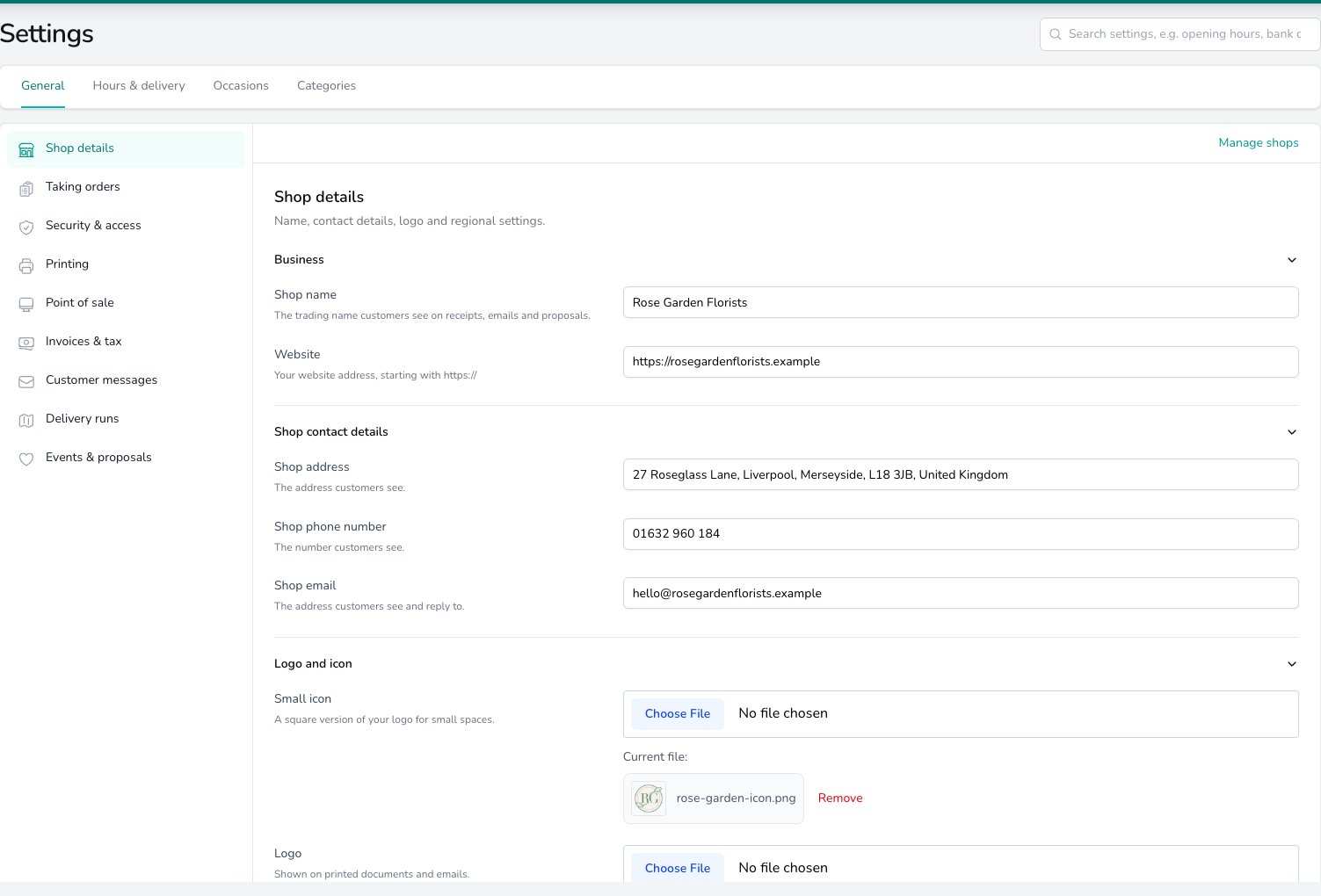
Go to **Settings** > **General** > **Shop details**. Change what you need, then click **Save shop details** once.
 ## Business
Type your trading name into **Shop name**. It appears on receipts, emails and proposals, so use the name your customers know you by.
Put your website address into **Website**, starting with `https://`. It's printed on your documents and used in customer emails.
## Shop contact details
Enter the **Shop address**, **Shop phone number** and **Shop email** your customers see. Replies to your customer emails go to the email address you enter here.
These three belong to each shop. If you run more than one, pick the shop in the **Set per shop** band before you edit them, and each shop's paperwork carries its own details.
## Your shops
When you have more than one shop, a **Your shops** card lists every shop with its address. Click **Edit** next to a shop to switch to its settings.
To add a shop, rename one or change its address, click **Manage shops** at the top of the page. See [Locations](/settings/locations).
## Logo and icon
Choose a file for **Logo** and it appears on your printed documents and emails. Choose a square version for **Small icon**, which is used where there's only room for a small mark.
Click **Remove** to take one off, or choose a new file to replace it.
## Regional
Open **Regional** at the bottom of the page. These settings are shared by every shop.
* **Time zone**. Times throughout Digital Florists follow this.
* **Currency**. Prices and payments use this currency.
* **Country**. Sets the address format, how postcodes are read, and which public holidays you're offered when you name a closed day.
* **Distances**. Miles or kilometres, for delivery distances and routes.
* **Phone Number Display Format**. How phone numbers are written across Digital Florists.
**Set your currency before you start trading.** Changing it later leaves your older records in one currency and new orders in another.
## What's next?
Add a shop, change its address, and see what each shop sets for itself.
Tax rates, invoice layout and the VAT number printed on each shop's paperwork.
Weekly hours, closed days and the opening hours message.
## Business
Type your trading name into **Shop name**. It appears on receipts, emails and proposals, so use the name your customers know you by.
Put your website address into **Website**, starting with `https://`. It's printed on your documents and used in customer emails.
## Shop contact details
Enter the **Shop address**, **Shop phone number** and **Shop email** your customers see. Replies to your customer emails go to the email address you enter here.
These three belong to each shop. If you run more than one, pick the shop in the **Set per shop** band before you edit them, and each shop's paperwork carries its own details.
## Your shops
When you have more than one shop, a **Your shops** card lists every shop with its address. Click **Edit** next to a shop to switch to its settings.
To add a shop, rename one or change its address, click **Manage shops** at the top of the page. See [Locations](/settings/locations).
## Logo and icon
Choose a file for **Logo** and it appears on your printed documents and emails. Choose a square version for **Small icon**, which is used where there's only room for a small mark.
Click **Remove** to take one off, or choose a new file to replace it.
## Regional
Open **Regional** at the bottom of the page. These settings are shared by every shop.
* **Time zone**. Times throughout Digital Florists follow this.
* **Currency**. Prices and payments use this currency.
* **Country**. Sets the address format, how postcodes are read, and which public holidays you're offered when you name a closed day.
* **Distances**. Miles or kilometres, for delivery distances and routes.
* **Phone Number Display Format**. How phone numbers are written across Digital Florists.
**Set your currency before you start trading.** Changing it later leaves your older records in one currency and new orders in another.
## What's next?
Add a shop, change its address, and see what each shop sets for itself.
Tax rates, invoice layout and the VAT number printed on each shop's paperwork.
Weekly hours, closed days and the opening hours message.