> ## Documentation Index
> Fetch the complete documentation index at: https://docs.florists.digital/llms.txt
> Use this file to discover all available pages before exploring further.
# Events & proposals
> Set the booking deposit, balance due date and recipe markup every event starts with, and the look, expiry, access code and terms your proposals use.
Set the defaults every new event and proposal starts with, so your team quotes the same deposit, markup and terms without being asked each time.
**This page covers features gated by Admin-tier permissions** — typically Settings access. Admins have these by default; your administrator can adjust who has them in [Settings > Team](/settings/team).
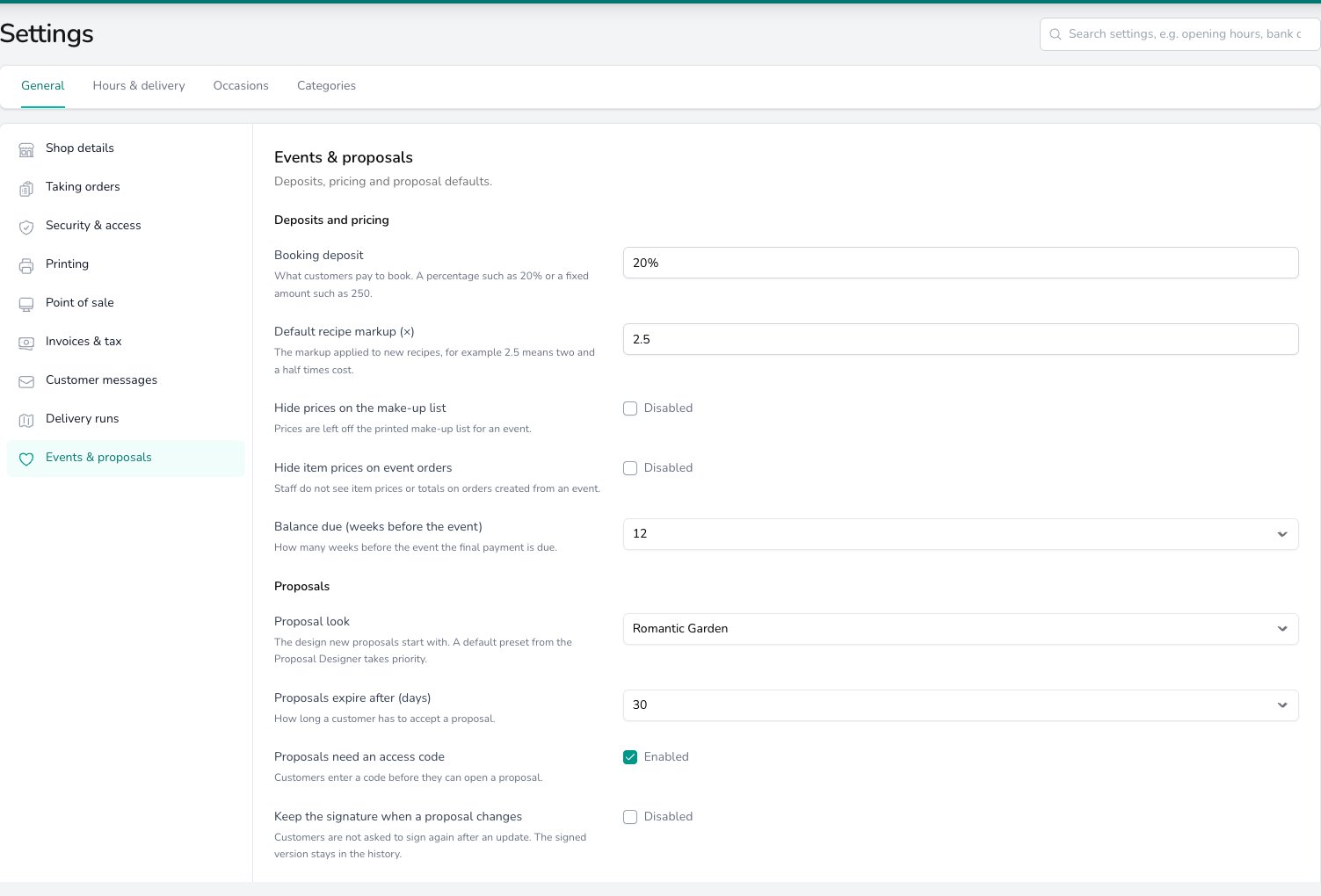
Go to **Settings** > **General** and choose **Events & proposals**. Make your changes and click **Save events & proposals**. Events must be included in your plan for the group to appear.
 Everything on this page is shared by all your shops.
## Deposits and pricing
Type the **Booking deposit** customers pay to secure a date, either as a percentage such as 20% or a fixed amount such as 250. It fills in the deposit shown in your terms and in the messages sent with a proposal, worked out from that proposal's total. See [Payments & Deposits](/events/payments-and-deposits#deposits) for recording the deposit when it arrives.
**Default recipe markup (×)** is the markup a new recipe starts with. 2.5 means two and a half times the cost of the ingredients. Change it on any recipe once you're in the recipe editor. See [The markup multiplier](/events/recipes#the-markup-multiplier).
Turn on **Hide prices on the make-up list** and the printed make-up list for an event leaves prices off, so your workroom sees what to make and nothing else. What you see on screen isn't affected. See [Printing the make-up list](/events/event-day#printing-the-make-up-list).
Turn on **Hide item prices on event orders** and your team doesn't see item prices or totals on orders created from an event. See [Event orders](/events/event-orders).
**Balance due (weeks before the event)** sets the payment due date suggested on a new event, counted back from the event date. Change it on an event whose booking needs a different deadline. See [Payment due dates](/events/payments-and-deposits#payment-due-dates).
## Proposals
**Proposal look** is the design a new proposal starts with. If you've saved a style preset in the proposal designer and made it your default, that preset is used instead. See [Proposal Themes](/events/proposal-themes).
**Proposals expire after (days)** is how long a customer has to accept a proposal, counted from when you publish it. You can change the date on an individual proposal before you send it. See [Setting an expiry date](/events/sending-proposals#setting-an-expiry-date).
Leave **Proposals need an access code** on and a customer enters a code before they can open a proposal. The code is shown beside the link on the Sending screen, ready to share separately. See [Client Portal](/events/client-portal).
Turn on **Keep the signature when a proposal changes** and a customer who has already signed isn't asked to sign again after you update the proposal. The signed version stays in the proposal's history. Leave it off and each update asks for a fresh signature.
**Quotes are held for (days)** is how long a quote's prices are held before it expires. It fills in the validity in your terms and in the message sent with a proposal.
**Terms and conditions** are shown on every proposal. Read them through before you send your first one, and change anything that doesn't match how you work. Type `%BOOKING_DEPOSIT%`, `%PAYMENT_DUE_WEEKS%` or `%QUOTE_VALIDITY_DAYS%` into the text and the figures from this page are filled in, so the terms stay right when you change a setting.
Spell out the deposit, the balance due date and how long a quote is held in your terms. A client agrees to them when they accept a proposal, so having it in writing protects both sides.
## Common questions
No. An event keeps the payment due date it was created with and a recipe keeps its markup, so change those on the event or the recipe. A proposal already published keeps the terms and deposit it was published with. New events, recipes and proposals pick up the defaults from this page.
Yes. This page sets what a new proposal starts with. You can turn the access code on or off for an individual proposal from its settings. See [Client Portal](/events/client-portal).
## What's next?
Deposits, due dates and balances on an event.
The built-in looks and how to save your own preset.
Publish, share the link and set the expiry date.
Cost each arrangement and apply the markup.
Everything on this page is shared by all your shops.
## Deposits and pricing
Type the **Booking deposit** customers pay to secure a date, either as a percentage such as 20% or a fixed amount such as 250. It fills in the deposit shown in your terms and in the messages sent with a proposal, worked out from that proposal's total. See [Payments & Deposits](/events/payments-and-deposits#deposits) for recording the deposit when it arrives.
**Default recipe markup (×)** is the markup a new recipe starts with. 2.5 means two and a half times the cost of the ingredients. Change it on any recipe once you're in the recipe editor. See [The markup multiplier](/events/recipes#the-markup-multiplier).
Turn on **Hide prices on the make-up list** and the printed make-up list for an event leaves prices off, so your workroom sees what to make and nothing else. What you see on screen isn't affected. See [Printing the make-up list](/events/event-day#printing-the-make-up-list).
Turn on **Hide item prices on event orders** and your team doesn't see item prices or totals on orders created from an event. See [Event orders](/events/event-orders).
**Balance due (weeks before the event)** sets the payment due date suggested on a new event, counted back from the event date. Change it on an event whose booking needs a different deadline. See [Payment due dates](/events/payments-and-deposits#payment-due-dates).
## Proposals
**Proposal look** is the design a new proposal starts with. If you've saved a style preset in the proposal designer and made it your default, that preset is used instead. See [Proposal Themes](/events/proposal-themes).
**Proposals expire after (days)** is how long a customer has to accept a proposal, counted from when you publish it. You can change the date on an individual proposal before you send it. See [Setting an expiry date](/events/sending-proposals#setting-an-expiry-date).
Leave **Proposals need an access code** on and a customer enters a code before they can open a proposal. The code is shown beside the link on the Sending screen, ready to share separately. See [Client Portal](/events/client-portal).
Turn on **Keep the signature when a proposal changes** and a customer who has already signed isn't asked to sign again after you update the proposal. The signed version stays in the proposal's history. Leave it off and each update asks for a fresh signature.
**Quotes are held for (days)** is how long a quote's prices are held before it expires. It fills in the validity in your terms and in the message sent with a proposal.
**Terms and conditions** are shown on every proposal. Read them through before you send your first one, and change anything that doesn't match how you work. Type `%BOOKING_DEPOSIT%`, `%PAYMENT_DUE_WEEKS%` or `%QUOTE_VALIDITY_DAYS%` into the text and the figures from this page are filled in, so the terms stay right when you change a setting.
Spell out the deposit, the balance due date and how long a quote is held in your terms. A client agrees to them when they accept a proposal, so having it in writing protects both sides.
## Common questions
No. An event keeps the payment due date it was created with and a recipe keeps its markup, so change those on the event or the recipe. A proposal already published keeps the terms and deposit it was published with. New events, recipes and proposals pick up the defaults from this page.
Yes. This page sets what a new proposal starts with. You can turn the access code on or off for an individual proposal from its settings. See [Client Portal](/events/client-portal).
## What's next?
Deposits, due dates and balances on an event.
The built-in looks and how to save your own preset.
Publish, share the link and set the expiry date.
Cost each arrangement and apply the markup.