> ## Documentation Index
> Fetch the complete documentation index at: https://docs.florists.digital/llms.txt
> Use this file to discover all available pages before exploring further.
# Printing
> Choose whether each order prints a label or a worksheet, send labels straight to a printer through Connect, and tune your address labels, card messages and worksheets.
Choose what comes out of the printer for each order, then tune the labels and worksheets your team works from.
**This page covers features gated by Admin-tier permissions** — typically Settings access. Admins have these by default; your administrator can adjust who has them in [Settings > Team](/settings/team).
Go to **Settings** > **General** and choose **Printing**. Open a section, make your changes and click **Save printing**.
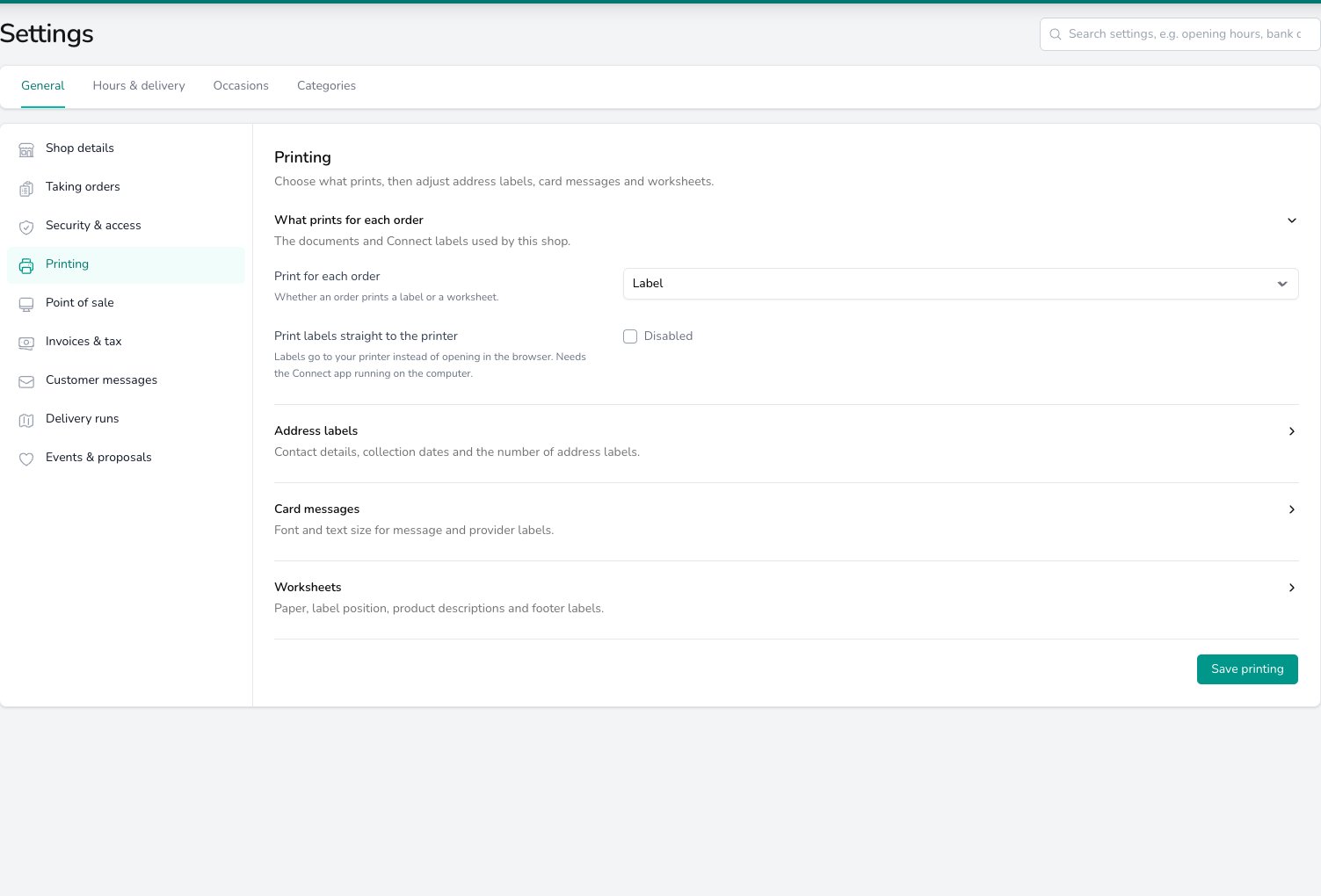 ## What prints for each order
These two settings belong to each shop, so choose the shop in the **Set per shop** band first if you run more than one.
Set **Print for each order** to **Label** or **Worksheet** to choose what the dashboard's **Print** button produces. The dropdown beside the button offers the other one, so your team can still print a worksheet for a tricky order when labels are the default. See [Printing from the dashboard](/daily-operations/dashboard#printing).
Switch on **Print labels straight to the printer** and labels go to your label printer instead of opening in a browser tab. It needs [Digital Florists Connect](/get-started/connect) running on that computer with a label printer set up. See [Label printers](/get-started/connect-label-printers) for the printers that work and how to connect one.
## Address labels
Choose **Address labels per order** to set how many address labels an order prints. **One label per product line** is the default. **One label per item unit** prints one for every item, so three of the same bouquet give three labels.
**One label per order** prints one however many items there are. When an order prints more than one label, each is numbered, such as 1 of 3, so a driver can check nothing has been left behind.
Switch on **Phone number on labels** to print your shop phone number on each label. Switch on **Shop details at the foot of address labels** to add your address, phone number and website to the bottom of the label as well.
Switch on **Collection date on labels** to show the collection date on address labels printed from the browser. Switch on **Address labels only** to skip the card message labels and print addresses alone.
## Card messages
Choose **Label Message Font** and **Label Message Font Size** to set the font and text size used for message labels. Address labels printed through Connect keep the standard layout whatever you choose here.
## Worksheets
Set **Worksheet paper** to the sheet your worksheets print on.
Set **Labels on worksheets** to match where the labels sit on that sheet: **Top**, **Bottom** or **Bottom courier**. Print one test order before a batch, because label sheet brands differ slightly. See [Configuring your worksheet style](/daily-operations/dashboard#configuring-your-worksheet-style).
Leave **Product descriptions on worksheets** on and each product's description prints under its name. Switch it off if your worksheets are getting crowded.
Choose **Worksheet Footer Fonts** and **Worksheet Footer Font Size** to set the font and text size of the labels at the foot of the worksheet. Switch on **Date on worksheet footer labels** to print the delivery or collection date on those labels too.
## Common questions
Change **Print for each order** to **Label**. The **Print** button follows this setting, and the dropdown beside it still offers a worksheet when you need one.
Switch on **Print labels straight to the printer** and make sure Connect is running on that computer with a label printer chosen. Without Connect, labels open in the browser for you to print from there.
**What prints for each order** belongs to each shop. Address labels, card messages and worksheets are shared by all your shops.
## What's next?
Register your tills and the printers attached to each one.
Receipt printers, label printers, cash drawers and scanners that work with Connect.
Download every label and worksheet for a day when your printing stops working.
How the order form behaves for your team.
## What prints for each order
These two settings belong to each shop, so choose the shop in the **Set per shop** band first if you run more than one.
Set **Print for each order** to **Label** or **Worksheet** to choose what the dashboard's **Print** button produces. The dropdown beside the button offers the other one, so your team can still print a worksheet for a tricky order when labels are the default. See [Printing from the dashboard](/daily-operations/dashboard#printing).
Switch on **Print labels straight to the printer** and labels go to your label printer instead of opening in a browser tab. It needs [Digital Florists Connect](/get-started/connect) running on that computer with a label printer set up. See [Label printers](/get-started/connect-label-printers) for the printers that work and how to connect one.
## Address labels
Choose **Address labels per order** to set how many address labels an order prints. **One label per product line** is the default. **One label per item unit** prints one for every item, so three of the same bouquet give three labels.
**One label per order** prints one however many items there are. When an order prints more than one label, each is numbered, such as 1 of 3, so a driver can check nothing has been left behind.
Switch on **Phone number on labels** to print your shop phone number on each label. Switch on **Shop details at the foot of address labels** to add your address, phone number and website to the bottom of the label as well.
Switch on **Collection date on labels** to show the collection date on address labels printed from the browser. Switch on **Address labels only** to skip the card message labels and print addresses alone.
## Card messages
Choose **Label Message Font** and **Label Message Font Size** to set the font and text size used for message labels. Address labels printed through Connect keep the standard layout whatever you choose here.
## Worksheets
Set **Worksheet paper** to the sheet your worksheets print on.
Set **Labels on worksheets** to match where the labels sit on that sheet: **Top**, **Bottom** or **Bottom courier**. Print one test order before a batch, because label sheet brands differ slightly. See [Configuring your worksheet style](/daily-operations/dashboard#configuring-your-worksheet-style).
Leave **Product descriptions on worksheets** on and each product's description prints under its name. Switch it off if your worksheets are getting crowded.
Choose **Worksheet Footer Fonts** and **Worksheet Footer Font Size** to set the font and text size of the labels at the foot of the worksheet. Switch on **Date on worksheet footer labels** to print the delivery or collection date on those labels too.
## Common questions
Change **Print for each order** to **Label**. The **Print** button follows this setting, and the dropdown beside it still offers a worksheet when you need one.
Switch on **Print labels straight to the printer** and make sure Connect is running on that computer with a label printer chosen. Without Connect, labels open in the browser for you to print from there.
**What prints for each order** belongs to each shop. Address labels, card messages and worksheets are shared by all your shops.
## What's next?
Register your tills and the printers attached to each one.
Receipt printers, label printers, cash drawers and scanners that work with Connect.
Download every label and worksheet for a day when your printing stops working.
How the order form behaves for your team.