> ## Documentation Index
> Fetch the complete documentation index at: https://docs.florists.digital/llms.txt
> Use this file to discover all available pages before exploring further.
# Point of sale
> Choose the walk-in customer, how tills are opened and cashed up, and how each shop's till sessions count payments and send receipts.
Set how the till behaves for your team, from who a walk-in sale is recorded against to how each shop's till sessions are counted at the end of the day.
**This page covers features gated by Admin-tier permissions** — typically Settings access. Admins have these by default; your administrator can adjust who has them in [Settings > Team](/settings/team).
Go to **Settings** > **General** and choose **Point of sale**. Make your changes and click **Save point of sale**. Point of sale must be included in your plan for the group to appear.
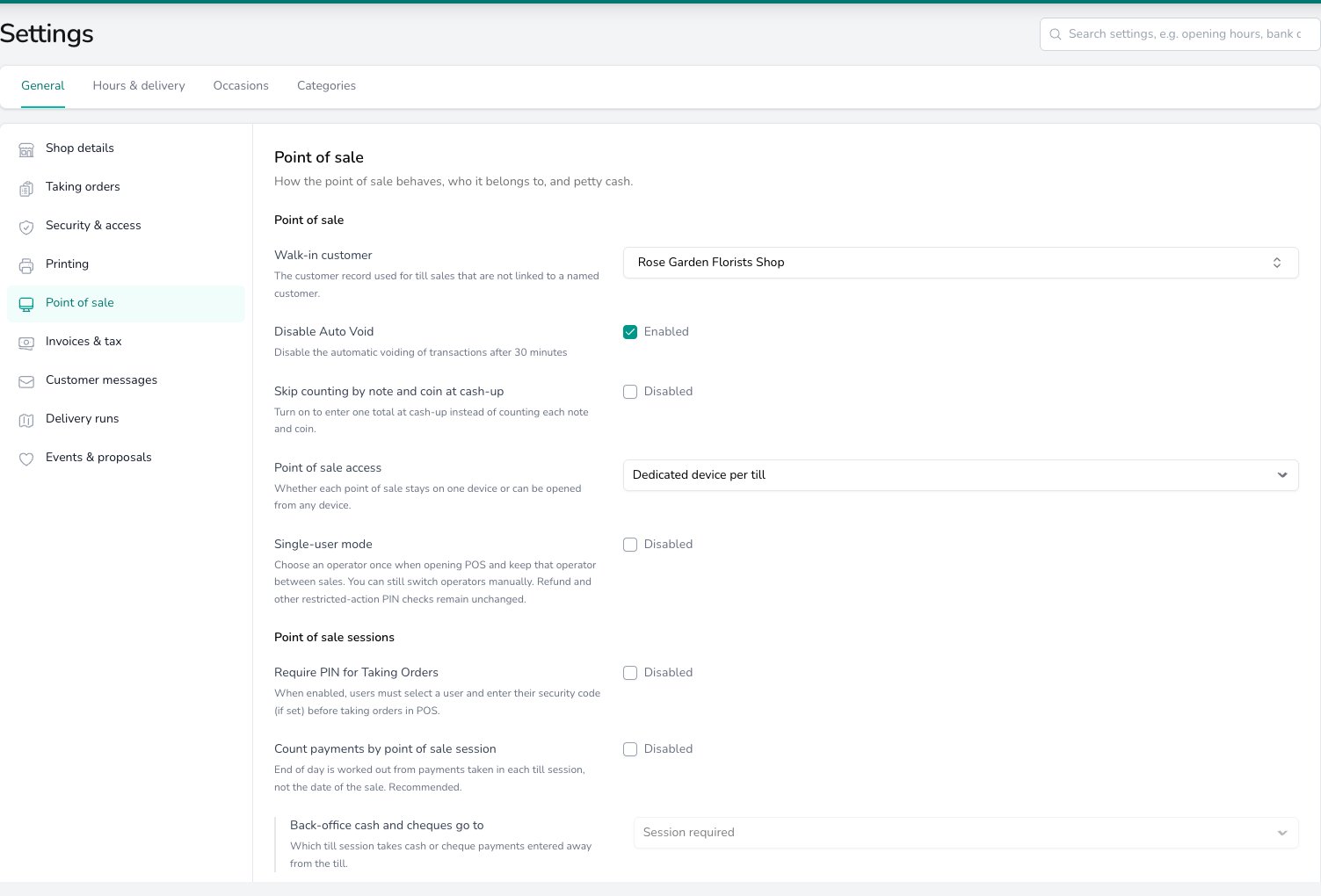 The **Point of sale** card is shared by every shop. The **Point of sale sessions** card belongs to each shop, so pick the shop you're editing in the **Set per shop** band if you run more than one.
## Point of sale
Pick a **Walk-in customer** and every till sale that isn't linked to a named customer is recorded against that record.
Leave **Disable Auto Void** on and an unpaid till sale stays open until your team voids it. Turn it off and a sale left unpaid for 30 minutes is voided on its own.
Turn on **Skip counting by note and coin at cash-up** and your team types one cash total when they open and close the till. Leave it off and they count each note and coin, and the total is worked out for them. See [End of Day](/daily-operations/pos-end-of-day).
**Point of sale access** decides which device can open a till. **Dedicated device per till** keeps each till on the device it was registered on, and other devices see it greyed out. **Allow any device to use any till** lets any device open any till. See [Devices](/settings/devices) for registering a till.
Turn on **Single-user mode** and your team chooses the operator once when they open the till and keeps them for every sale. They can still switch operator by hand, and PIN checks for refunds and other restricted actions still apply. See [Point of Sale](/daily-operations/pos#single-user-mode).
## Point of sale sessions
Turn on **Require PIN for Taking Orders** and your team picks their name and enters their security code, if they have one, before taking an order at the till.
Turn on **Count payments by point of sale session** and End of Day is worked out from the payments taken in each till session, not the date of the sale. Three more choices then apply.
* **Back-office cash and cheques go to** decides where a cash or cheque payment recorded away from the till lands. **Session required** keeps it out of every till session, so cash and cheques only count towards a session when they're taken at the till. **Auto if single** adds it to the one open session, as long as only one is open at that shop. **Auto to primary** adds it to the session open on your main point of sale.
* **Main point of sale** is the till that back-office cash and cheques are counted against at cash-up.
* **Take payments with no point of sale session open** lets your team take a payment by order number when no till session is open. The payment is added to the next session.
Turn on **Email receipts automatically** and a receipt is emailed as soon as a till sale is paid in full, provided the customer has an email address. See [After the sale](/daily-operations/pos#after-the-sale) for who is skipped.
Whether staff can record petty cash is set on the till itself, under **Petty cash on this device** in [Devices](/settings/devices#petty-cash).
## Common questions
**Point of sale access** is set to **Dedicated device per till**, so each till only opens on the device it was registered on. Switch to **Allow any device to use any till** if your team moves between devices, or register the second device as its own till under [Devices](/settings/devices).
The **Point of sale** card does. The **Point of sale sessions** card is set per shop, so a shop with one till can send back-office cash to it automatically while another with three keeps **Session required**.
## What's next?
Opening the till, building a sale and taking payment.
Closing the till, counting cash and reviewing the day's takings.
Register tills, set their printers and petty cash, and run several tills in one shop.
What each payment method does at the till and on an order.
The **Point of sale** card is shared by every shop. The **Point of sale sessions** card belongs to each shop, so pick the shop you're editing in the **Set per shop** band if you run more than one.
## Point of sale
Pick a **Walk-in customer** and every till sale that isn't linked to a named customer is recorded against that record.
Leave **Disable Auto Void** on and an unpaid till sale stays open until your team voids it. Turn it off and a sale left unpaid for 30 minutes is voided on its own.
Turn on **Skip counting by note and coin at cash-up** and your team types one cash total when they open and close the till. Leave it off and they count each note and coin, and the total is worked out for them. See [End of Day](/daily-operations/pos-end-of-day).
**Point of sale access** decides which device can open a till. **Dedicated device per till** keeps each till on the device it was registered on, and other devices see it greyed out. **Allow any device to use any till** lets any device open any till. See [Devices](/settings/devices) for registering a till.
Turn on **Single-user mode** and your team chooses the operator once when they open the till and keeps them for every sale. They can still switch operator by hand, and PIN checks for refunds and other restricted actions still apply. See [Point of Sale](/daily-operations/pos#single-user-mode).
## Point of sale sessions
Turn on **Require PIN for Taking Orders** and your team picks their name and enters their security code, if they have one, before taking an order at the till.
Turn on **Count payments by point of sale session** and End of Day is worked out from the payments taken in each till session, not the date of the sale. Three more choices then apply.
* **Back-office cash and cheques go to** decides where a cash or cheque payment recorded away from the till lands. **Session required** keeps it out of every till session, so cash and cheques only count towards a session when they're taken at the till. **Auto if single** adds it to the one open session, as long as only one is open at that shop. **Auto to primary** adds it to the session open on your main point of sale.
* **Main point of sale** is the till that back-office cash and cheques are counted against at cash-up.
* **Take payments with no point of sale session open** lets your team take a payment by order number when no till session is open. The payment is added to the next session.
Turn on **Email receipts automatically** and a receipt is emailed as soon as a till sale is paid in full, provided the customer has an email address. See [After the sale](/daily-operations/pos#after-the-sale) for who is skipped.
Whether staff can record petty cash is set on the till itself, under **Petty cash on this device** in [Devices](/settings/devices#petty-cash).
## Common questions
**Point of sale access** is set to **Dedicated device per till**, so each till only opens on the device it was registered on. Switch to **Allow any device to use any till** if your team moves between devices, or register the second device as its own till under [Devices](/settings/devices).
The **Point of sale** card does. The **Point of sale sessions** card is set per shop, so a shop with one till can send back-office cash to it automatically while another with three keeps **Session required**.
## What's next?
Opening the till, building a sale and taking payment.
Closing the till, counting cash and reviewing the day's takings.
Register tills, set their printers and petty cash, and run several tills in one shop.
What each payment method does at the till and on an order.