> ## Documentation Index
> Fetch the complete documentation index at: https://docs.florists.digital/llms.txt
> Use this file to discover all available pages before exploring further.
# Gift Cards
> Set up, issue, print, redeem, and manage gift cards across your shop.
**Gift cards** let customers buy credit that can be spent on a future order. Each card has its own code, PIN, balance, status, and expiry date.
**This page covers features gated by Admin-tier permissions** — typically Settings access. Admins have these by default; your administrator can adjust who has them in [Settings > Team](/settings/team).
 ## Where to find it
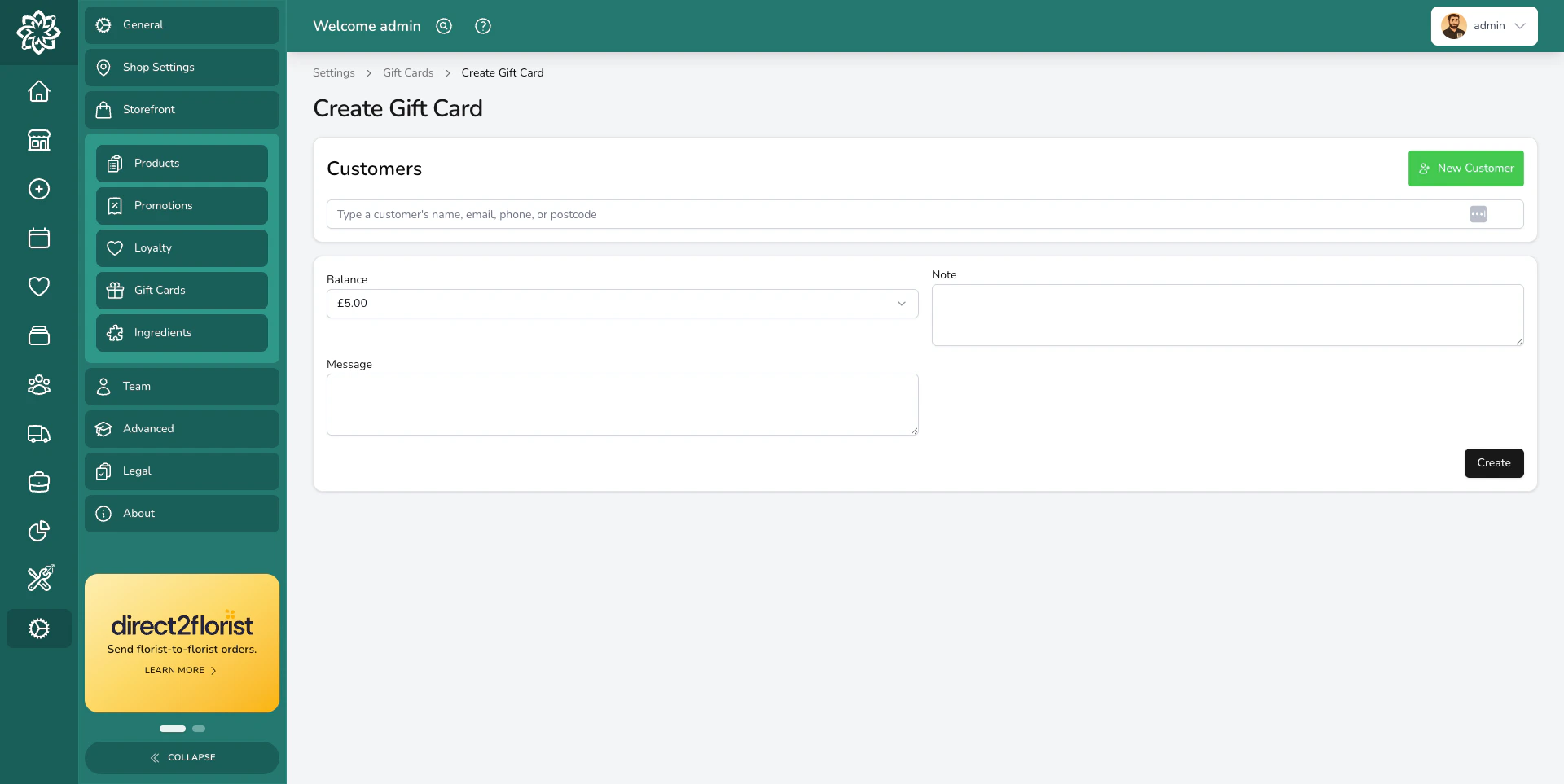
Go to **Settings** > **Gift Cards** to see every gift card issued by your shop. Open a card to view its balance, expiry date, history, message, and internal note.
## Setting up a gift card product
Gift cards can be sold through an order or at the point of sale (POS), like any other product.
Go to **Settings** > **Products**, then create a product or open an existing one.
Find **Product type** on the product form. Select **Gift card** instead of **Standard product**.
Finish the product details, variants, and prices, then save your changes.
When a sale containing that product is paid, Digital Florists issues one gift card per unit sold. Each card starts with the price paid for that unit, even if it differs from the current catalogue price.
### Flagging products in bulk
Use the optional **Product Kind** column in the [product import](/storefront/imports#product-import-columns) to update several products at once. Enter `gift_card` to mark a product as a gift card. Once a product has been sold its type is locked, so duplicate the product if you need to change it.
When updating products, leave the cell blank to keep its current value. Enter `__CLEAR__` to remove the gift card setting, matching the behaviour of other optional import columns.
### Issuing a card manually
Click **Create Gift Card** on the Gift Cards page to issue a card without a sale. Choose a preset balance or **Custom**, then optionally attach a customer, internal note, and personal message.
Every card has a unique 16-character code, displayed as `XXXX-XXXX-XXXX-XXXX`, and a 4-digit PIN. The customer needs both to redeem it.
## Setting the expiry period
Go to **Settings** > **General** and find **Gift Card Expiry** under products. Enter the number of days that new cards should remain valid.
The default is 365 days. Enter `0` or leave the setting blank to issue cards without an expiry date. Changing this setting does not change cards that have already been issued.
## Redeeming a gift card
Gift cards can be used for payments at the POS and on orders in the dashboard.
Start the payment and choose **Gift Card** as the payment method.
Scan or type the 16-character code, then enter the 4-digit PIN. Dashes in the code are optional.
Check the balance and apply the amount the customer wants to redeem.
A successful lookup unlocks that card for one payment on that till. The unlock expires after 15 minutes, so look the card up again if the payment is not completed in time.
You can take a partial payment from the card. The amount used is deducted from its balance, and the remainder stays available for another order.
### Refunding a gift card payment
Refunding a gift card payment credits the refunded amount back to the original card. If several gift cards funded the payment, Digital Florists allocates the refund across those original cards.
Inactive, expired, or void cards cannot be re-credited. If an original card cannot accept the credit, refund the customer another way.
## Managing the card lifecycle
You can manage these statuses from the card's details page.
| Status | What it means |
| ------------ | ------------------------------------------------------------------------ |
| **Active** | The card can be redeemed while it has a balance and has not expired. |
| **Inactive** | The card is temporarily blocked. You can change it back to active later. |
| **Void** | The card is permanently blocked and cannot be restored or re-credited. |
When an active card passes its expiry date, it shows as **Expired (automatic)**. Expiry is enforced during redemption, so an expired card cannot be used even if the page has not been refreshed.
The card's history records issuances, deductions, credits, and status changes. You can also update its internal note from the details page.
## Printing gift cards
Print a card from the Gift Cards page, or include issued cards when you print an order's labels or worksheet. If one order contains several gift cards, each print is numbered **1 of N**, **2 of N**, and so on.
When [Digital Florists Connect](/get-started/connect) is running, you can send the card directly to your configured receipt or label printer.
Physical gift card printing uses an at-least-once approach. Connect can retry a job, so more than one copy may print, and a success message only confirms that the job was queued. A reprint shows the card's current remaining balance.
## Selling gift cards on your website
Website orders can only issue gift cards automatically when the integration matches the website item to a real Digital Florists product, as Shopify does. Orders that arrive as custom items, including Florist Touch orders, cannot issue Digital Florists gift cards. Shopify's **Gift card** or **Add a card** checkout option adds a greeting-card message, not a gift card product.
## Common questions
Yes. Take only the amount needed for the current payment. Any remaining balance stays on the card for another order.
It shows as **Expired (automatic)** and cannot be redeemed. Expired cards also cannot accept a refund credit.
Print cards issued from a paid order with the order's labels or worksheet. For a manually issued card, print it from the Gift Cards page.
Yes, when your website integration matches the item to the gift card product in Digital Florists. Shopify supports this when the product codes match.
## What's next?
Create and manage the products you sell as gift cards.
Sell and redeem gift cards at the till.
## Where to find it
Go to **Settings** > **Gift Cards** to see every gift card issued by your shop. Open a card to view its balance, expiry date, history, message, and internal note.
## Setting up a gift card product
Gift cards can be sold through an order or at the point of sale (POS), like any other product.
Go to **Settings** > **Products**, then create a product or open an existing one.
Find **Product type** on the product form. Select **Gift card** instead of **Standard product**.
Finish the product details, variants, and prices, then save your changes.
When a sale containing that product is paid, Digital Florists issues one gift card per unit sold. Each card starts with the price paid for that unit, even if it differs from the current catalogue price.
### Flagging products in bulk
Use the optional **Product Kind** column in the [product import](/storefront/imports#product-import-columns) to update several products at once. Enter `gift_card` to mark a product as a gift card. Once a product has been sold its type is locked, so duplicate the product if you need to change it.
When updating products, leave the cell blank to keep its current value. Enter `__CLEAR__` to remove the gift card setting, matching the behaviour of other optional import columns.
### Issuing a card manually
Click **Create Gift Card** on the Gift Cards page to issue a card without a sale. Choose a preset balance or **Custom**, then optionally attach a customer, internal note, and personal message.
Every card has a unique 16-character code, displayed as `XXXX-XXXX-XXXX-XXXX`, and a 4-digit PIN. The customer needs both to redeem it.
## Setting the expiry period
Go to **Settings** > **General** and find **Gift Card Expiry** under products. Enter the number of days that new cards should remain valid.
The default is 365 days. Enter `0` or leave the setting blank to issue cards without an expiry date. Changing this setting does not change cards that have already been issued.
## Redeeming a gift card
Gift cards can be used for payments at the POS and on orders in the dashboard.
Start the payment and choose **Gift Card** as the payment method.
Scan or type the 16-character code, then enter the 4-digit PIN. Dashes in the code are optional.
Check the balance and apply the amount the customer wants to redeem.
A successful lookup unlocks that card for one payment on that till. The unlock expires after 15 minutes, so look the card up again if the payment is not completed in time.
You can take a partial payment from the card. The amount used is deducted from its balance, and the remainder stays available for another order.
### Refunding a gift card payment
Refunding a gift card payment credits the refunded amount back to the original card. If several gift cards funded the payment, Digital Florists allocates the refund across those original cards.
Inactive, expired, or void cards cannot be re-credited. If an original card cannot accept the credit, refund the customer another way.
## Managing the card lifecycle
You can manage these statuses from the card's details page.
| Status | What it means |
| ------------ | ------------------------------------------------------------------------ |
| **Active** | The card can be redeemed while it has a balance and has not expired. |
| **Inactive** | The card is temporarily blocked. You can change it back to active later. |
| **Void** | The card is permanently blocked and cannot be restored or re-credited. |
When an active card passes its expiry date, it shows as **Expired (automatic)**. Expiry is enforced during redemption, so an expired card cannot be used even if the page has not been refreshed.
The card's history records issuances, deductions, credits, and status changes. You can also update its internal note from the details page.
## Printing gift cards
Print a card from the Gift Cards page, or include issued cards when you print an order's labels or worksheet. If one order contains several gift cards, each print is numbered **1 of N**, **2 of N**, and so on.
When [Digital Florists Connect](/get-started/connect) is running, you can send the card directly to your configured receipt or label printer.
Physical gift card printing uses an at-least-once approach. Connect can retry a job, so more than one copy may print, and a success message only confirms that the job was queued. A reprint shows the card's current remaining balance.
## Selling gift cards on your website
Website orders can only issue gift cards automatically when the integration matches the website item to a real Digital Florists product, as Shopify does. Orders that arrive as custom items, including Florist Touch orders, cannot issue Digital Florists gift cards. Shopify's **Gift card** or **Add a card** checkout option adds a greeting-card message, not a gift card product.
## Common questions
Yes. Take only the amount needed for the current payment. Any remaining balance stays on the card for another order.
It shows as **Expired (automatic)** and cannot be redeemed. Expired cards also cannot accept a refund credit.
Print cards issued from a paid order with the order's labels or worksheet. For a manually issued card, print it from the Gift Cards page.
Yes, when your website integration matches the item to the gift card product in Digital Florists. Shopify supports this when the product codes match.
## What's next?
Create and manage the products you sell as gift cards.
Sell and redeem gift cards at the till.