> ## Documentation Index
> Fetch the complete documentation index at: https://docs.florists.digital/llms.txt
> Use this file to discover all available pages before exploring further.
# Team
> Add team members, assign roles, and control what each person can see and do.
The **Team** section is where you add staff members, assign roles, and control what each person can see and do in Digital Florists.
**This page covers features gated by Admin-tier permissions** — typically Settings access. Admins have these by default; your administrator can adjust who has them in [Settings > Team](/settings/team).
 ## Adding a team member
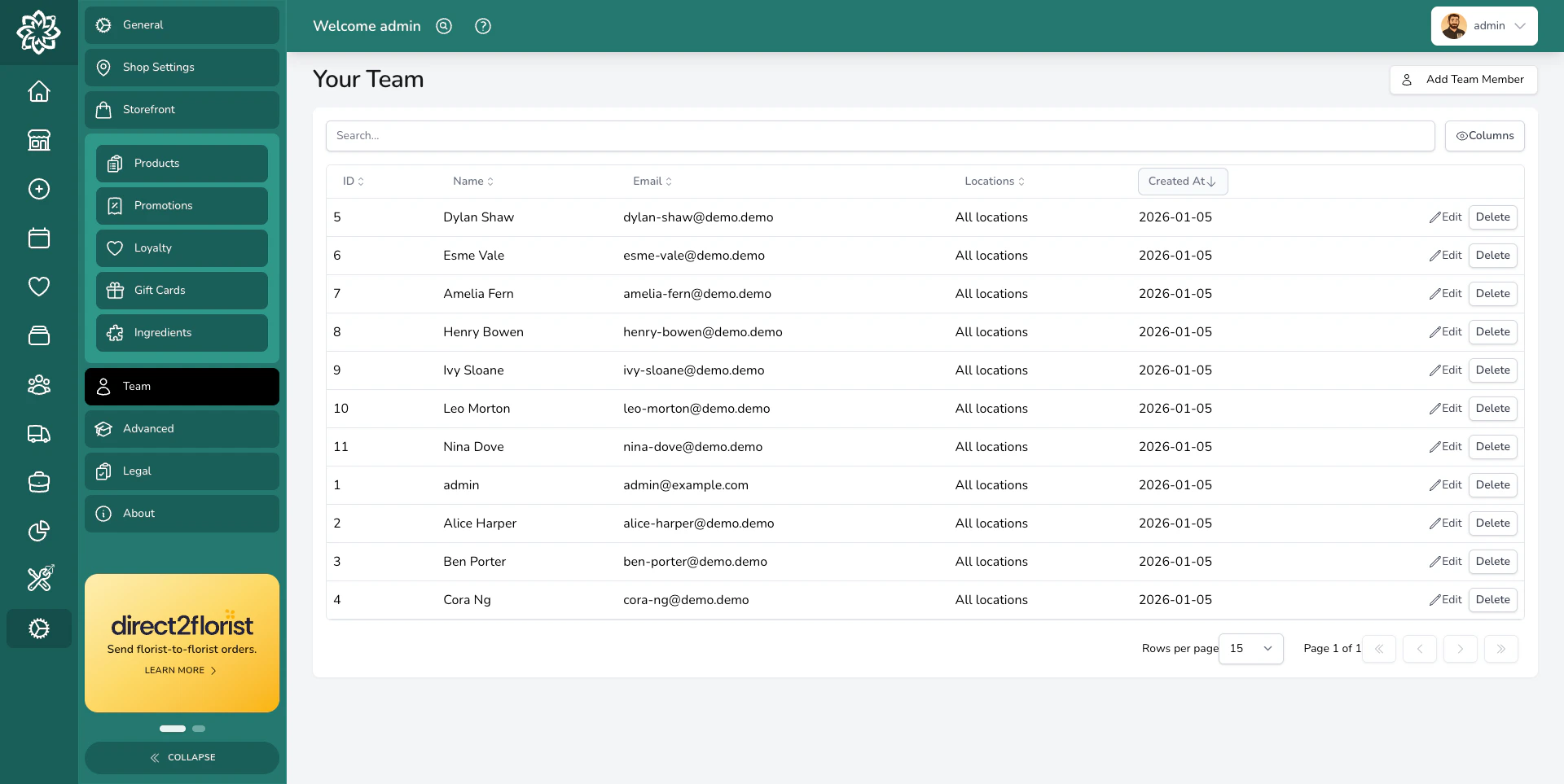
Go to **Settings** > **Team** and click **Add Team Member**.
## Adding a team member
Go to **Settings** > **Team** and click **Add Team Member**.
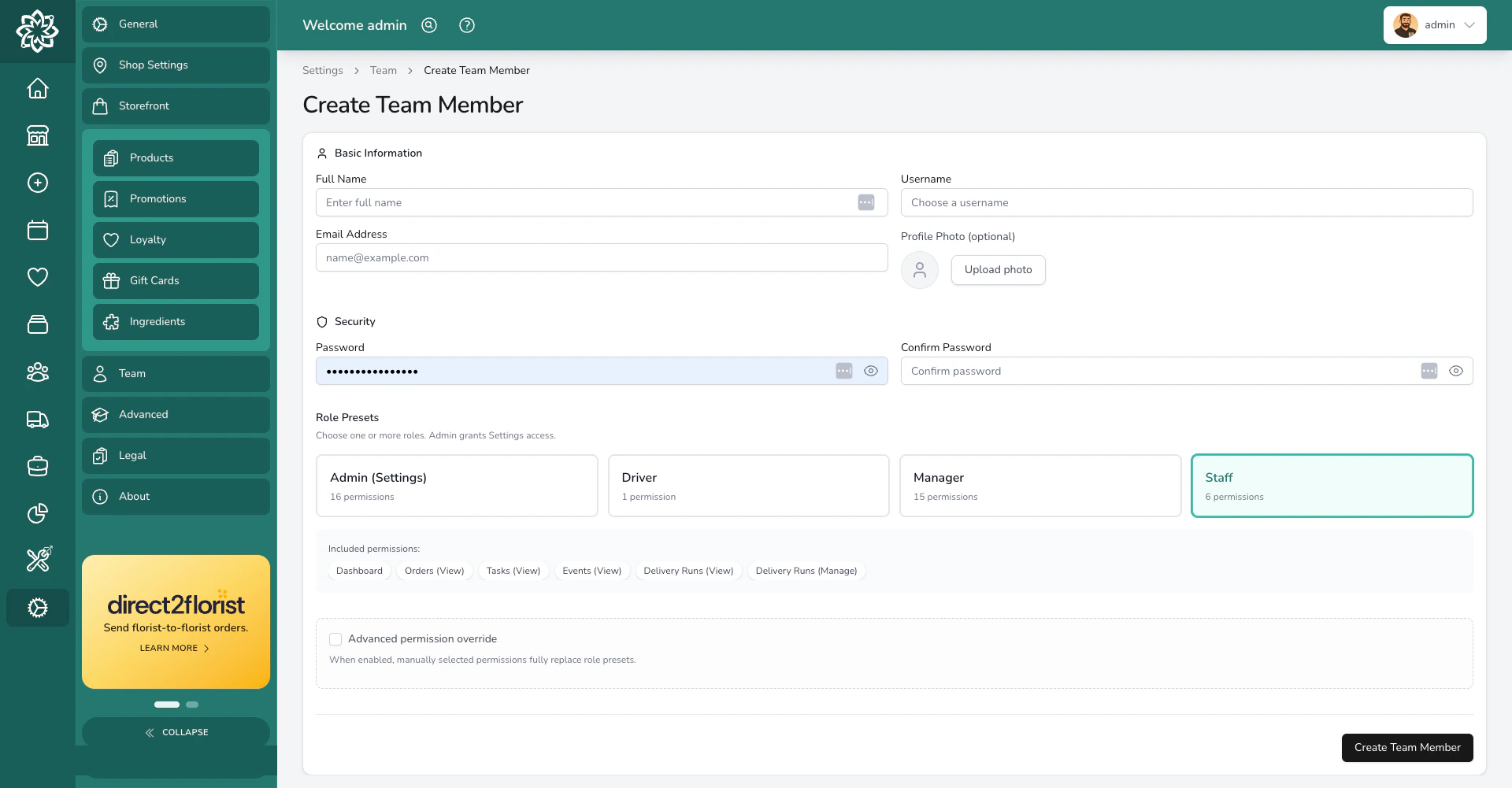 Fill in their details:
* **Full name** — how they'll appear in Digital Florists
* **Username** — what they'll use to log in (must be unique)
* **Email address** — optional, but needed if they'll receive email notifications
* **Password** — must be at least 10 characters, and can't be one that's appeared in a known data breach
* **Profile photo** — optional
Then assign their role, permissions, and location access (covered below).
If a password is rejected even though it meets the length rule, it's probably been seen in a public breach. Pick a fresh phrase rather than reusing one from another login.
## Roles
Roles are the quickest way to set up a team member's access. Each role is a bundle of permissions — pick the one that matches what the person does, and they'll get the right access automatically.
You can assign **more than one role** to a person. For example, a florist who also does deliveries can be both Staff and Driver.
| Role | What it includes |
| ----------- | ------------------------------------------------------------------------------------------------ |
| **Admin** | Everything a Manager can do, plus full access to settings and team management |
| **Manager** | Orders, deliveries, tasks, events, analytics, reports, refunds, invoices, and transactions |
| **Staff** | Day-to-day work — viewing and managing orders, viewing tasks and events, and managing deliveries |
| **Driver** | Access to the mobile app for delivery runs only |
### What each role can do in detail
If you need to know exactly which permissions each role includes:
* **Dashboard**
* **Orders (View)** and **Orders (Manage)**
* **Tasks (View)**
* **Events (View)**
* **Delivery Runs (View)** and **Delivery Runs (Manage)**
Everything in Staff, plus:
* **Orders (Refund)**
* **Tasks (Manage)**
* **Analytics (View)**
* **Exports: Financial**
* **Exports: End of Day**
* **Invoices (Manage)**
* **Transactions (Manage)**
* **Events (Manage)**
Everything in Manager, plus:
* **Settings (Admin)** — full access to shop configuration
* **Analytics Snapshot** — the Manager Snapshot screen in the Digital Florists App, a daily-overview summary of takings and orders for managers on the go
* **Driver App Access** only — no dashboard or web access. Drivers don't inherit any Staff permissions; they're a standalone preset for the mobile app.
## Permissions and your plan
Permissions control which team members can use features included with your plan. They don't change the plan or its allowances.
For example, **Orders (Manage)** lets someone manage Orders only when Orders is also included with your plan. Both conditions must be true: the plan includes the feature, and the team member has the relevant permission.
Check [**Settings** > **About**](/settings/about) for your plan and current allowances.
## Overriding permissions
Sometimes a role doesn't quite fit. You might want a staff member to view analytics without having full Manager access, or a Manager who handles events but not invoices.
**Permission overrides** let you customise exactly what a team member can do, regardless of their assigned role.
### How it works
1. Open a team member's profile and scroll to the permissions section
2. Tick **Advanced permission override**
3. You'll see a grid of every individual permission — toggle each one on or off
4. If the override no longer matches the selected roles, your dashboard lists the **added** permissions (green) and **removed** permissions (amber) so you can see at a glance what the override has changed
When an override is saved, it **completely replaces** the role's permissions. Digital Florists uses your custom selection instead of the role defaults. If you later change their role, the override stays in place until you remove it.
### Removing an override
To go back to the standard role permissions, either:
* Click **Reset to selected roles** to copy the role defaults back into the override
* Untick **Advanced permission override** to drop the override entirely
### Available permissions
The override grid lets you toggle individual capabilities across dashboard, orders, tasks, events, deliveries, financial exports, transactions, and settings access. Most shops never need to leave the role defaults.
**Common override examples:**
* Give a senior florist analytics access without making them a full Manager — assign Staff role, then override to add **Analytics (View)**
* Let a part-timer manage tasks but not orders — assign Staff role, then override to add **Tasks (Manage)** and remove **Orders (Manage)**
* Restrict a driver to only see their own deliveries — assign Driver role and add **App: Assigned Items Only**
## Security codes
A team member needs a **security code** (a 4-6 character PIN) when they hold any permission that's in the Manager or Admin presets by default but not in Staff. This includes Managers, Admins, and Staff who've been granted those permissions via an override.
The security code is used for:
* **Switching users at the POS**. When a Manager takes over the till, they enter their PIN to confirm it's them.
* **Accessing protected areas of the dashboard**. Analytics, settings, refunds, invoices, and financial exports prompt for the PIN before opening.
Digital Florists tells you if a code is required when you save the team member.
## Location access
If you have more than one shop location, you can control which locations each team member can access.
* **Access all locations** — the team member can see orders, deliveries, and data from every location. New locations are included automatically.
* **Specific locations only** — the team member can only see data for the locations you select. They won't see orders, runs, or reports from other locations.
This is useful for businesses with multiple shops where staff only work at one branch. A florist at your Manchester shop won't see orders destined for your Leeds shop.
Location access is independent of permissions. A team member with every permission but no location access sees nothing — and a Manager restricted to one location keeps every Manager capability, but only for that location's data.
## Editing a team member
Open a team member's profile to change any of their details. You can update their:
* Name, username, email, and profile photo
* Password (leave blank to keep the current one)
* Roles and permission overrides
* Security code
* Location access
Changes take effect immediately.
## Removing a team member
Removing a team member **deactivates their account** — they can no longer log in. Their name still appears on historical orders, activity logs, and reports so your records stay intact.
## Common questions
Open their profile in **Settings** > **Team** and set a new password for them. Managers and Admins with an email address on their profile can also reset their own from the sign-in screen — see [Password Resets](/daily-operations/password-resets).
Yes. Roles stack — a team member with both Staff and Driver gets all the permissions from both. This is common for florists who also do deliveries.
Roles are pre-set bundles of permissions — pick one and you're done. Overrides let you customise the exact permissions for a specific person. Most teams only need roles. Use overrides when a role doesn't quite fit.
Only if they have the **Analytics (View)** or **Exports: Financial** permission. Managers and Admins have both by default; your administrator can grant either to a Staff member via an override.
The override stays in place. Changing the role updates the "base" permissions, but the override still replaces them. To use the new role's defaults, click **Reset to selected roles** or remove the override.
Certain permissions (like analytics, settings, refunds, and invoice management) require a security code for the team member. Digital Florists will prompt you to set one if the role or override includes these capabilities.
Yes. Open their profile and look at the permissions section. It shows their effective permissions — whether from a role or an override. If an override is active, you'll see the diff showing what's been added or removed.
## What's next?
The full onboarding guide for setting up your shop and team.
Set up your shop details and business rules.
Assign orders to team members from the dashboard.
Set up the mobile app for your drivers and florists.
Fill in their details:
* **Full name** — how they'll appear in Digital Florists
* **Username** — what they'll use to log in (must be unique)
* **Email address** — optional, but needed if they'll receive email notifications
* **Password** — must be at least 10 characters, and can't be one that's appeared in a known data breach
* **Profile photo** — optional
Then assign their role, permissions, and location access (covered below).
If a password is rejected even though it meets the length rule, it's probably been seen in a public breach. Pick a fresh phrase rather than reusing one from another login.
## Roles
Roles are the quickest way to set up a team member's access. Each role is a bundle of permissions — pick the one that matches what the person does, and they'll get the right access automatically.
You can assign **more than one role** to a person. For example, a florist who also does deliveries can be both Staff and Driver.
| Role | What it includes |
| ----------- | ------------------------------------------------------------------------------------------------ |
| **Admin** | Everything a Manager can do, plus full access to settings and team management |
| **Manager** | Orders, deliveries, tasks, events, analytics, reports, refunds, invoices, and transactions |
| **Staff** | Day-to-day work — viewing and managing orders, viewing tasks and events, and managing deliveries |
| **Driver** | Access to the mobile app for delivery runs only |
### What each role can do in detail
If you need to know exactly which permissions each role includes:
* **Dashboard**
* **Orders (View)** and **Orders (Manage)**
* **Tasks (View)**
* **Events (View)**
* **Delivery Runs (View)** and **Delivery Runs (Manage)**
Everything in Staff, plus:
* **Orders (Refund)**
* **Tasks (Manage)**
* **Analytics (View)**
* **Exports: Financial**
* **Exports: End of Day**
* **Invoices (Manage)**
* **Transactions (Manage)**
* **Events (Manage)**
Everything in Manager, plus:
* **Settings (Admin)** — full access to shop configuration
* **Analytics Snapshot** — the Manager Snapshot screen in the Digital Florists App, a daily-overview summary of takings and orders for managers on the go
* **Driver App Access** only — no dashboard or web access. Drivers don't inherit any Staff permissions; they're a standalone preset for the mobile app.
## Permissions and your plan
Permissions control which team members can use features included with your plan. They don't change the plan or its allowances.
For example, **Orders (Manage)** lets someone manage Orders only when Orders is also included with your plan. Both conditions must be true: the plan includes the feature, and the team member has the relevant permission.
Check [**Settings** > **About**](/settings/about) for your plan and current allowances.
## Overriding permissions
Sometimes a role doesn't quite fit. You might want a staff member to view analytics without having full Manager access, or a Manager who handles events but not invoices.
**Permission overrides** let you customise exactly what a team member can do, regardless of their assigned role.
### How it works
1. Open a team member's profile and scroll to the permissions section
2. Tick **Advanced permission override**
3. You'll see a grid of every individual permission — toggle each one on or off
4. If the override no longer matches the selected roles, your dashboard lists the **added** permissions (green) and **removed** permissions (amber) so you can see at a glance what the override has changed
When an override is saved, it **completely replaces** the role's permissions. Digital Florists uses your custom selection instead of the role defaults. If you later change their role, the override stays in place until you remove it.
### Removing an override
To go back to the standard role permissions, either:
* Click **Reset to selected roles** to copy the role defaults back into the override
* Untick **Advanced permission override** to drop the override entirely
### Available permissions
The override grid lets you toggle individual capabilities across dashboard, orders, tasks, events, deliveries, financial exports, transactions, and settings access. Most shops never need to leave the role defaults.
**Common override examples:**
* Give a senior florist analytics access without making them a full Manager — assign Staff role, then override to add **Analytics (View)**
* Let a part-timer manage tasks but not orders — assign Staff role, then override to add **Tasks (Manage)** and remove **Orders (Manage)**
* Restrict a driver to only see their own deliveries — assign Driver role and add **App: Assigned Items Only**
## Security codes
A team member needs a **security code** (a 4-6 character PIN) when they hold any permission that's in the Manager or Admin presets by default but not in Staff. This includes Managers, Admins, and Staff who've been granted those permissions via an override.
The security code is used for:
* **Switching users at the POS**. When a Manager takes over the till, they enter their PIN to confirm it's them.
* **Accessing protected areas of the dashboard**. Analytics, settings, refunds, invoices, and financial exports prompt for the PIN before opening.
Digital Florists tells you if a code is required when you save the team member.
## Location access
If you have more than one shop location, you can control which locations each team member can access.
* **Access all locations** — the team member can see orders, deliveries, and data from every location. New locations are included automatically.
* **Specific locations only** — the team member can only see data for the locations you select. They won't see orders, runs, or reports from other locations.
This is useful for businesses with multiple shops where staff only work at one branch. A florist at your Manchester shop won't see orders destined for your Leeds shop.
Location access is independent of permissions. A team member with every permission but no location access sees nothing — and a Manager restricted to one location keeps every Manager capability, but only for that location's data.
## Editing a team member
Open a team member's profile to change any of their details. You can update their:
* Name, username, email, and profile photo
* Password (leave blank to keep the current one)
* Roles and permission overrides
* Security code
* Location access
Changes take effect immediately.
## Removing a team member
Removing a team member **deactivates their account** — they can no longer log in. Their name still appears on historical orders, activity logs, and reports so your records stay intact.
## Common questions
Open their profile in **Settings** > **Team** and set a new password for them. Managers and Admins with an email address on their profile can also reset their own from the sign-in screen — see [Password Resets](/daily-operations/password-resets).
Yes. Roles stack — a team member with both Staff and Driver gets all the permissions from both. This is common for florists who also do deliveries.
Roles are pre-set bundles of permissions — pick one and you're done. Overrides let you customise the exact permissions for a specific person. Most teams only need roles. Use overrides when a role doesn't quite fit.
Only if they have the **Analytics (View)** or **Exports: Financial** permission. Managers and Admins have both by default; your administrator can grant either to a Staff member via an override.
The override stays in place. Changing the role updates the "base" permissions, but the override still replaces them. To use the new role's defaults, click **Reset to selected roles** or remove the override.
Certain permissions (like analytics, settings, refunds, and invoice management) require a security code for the team member. Digital Florists will prompt you to set one if the role or override includes these capabilities.
Yes. Open their profile and look at the permissions section. It shows their effective permissions — whether from a role or an override. If an override is active, you'll see the diff showing what's been added or removed.
## What's next?
The full onboarding guide for setting up your shop and team.
Set up your shop details and business rules.
Assign orders to team members from the dashboard.
Set up the mobile app for your drivers and florists.