> ## Documentation Index
> Fetch the complete documentation index at: https://docs.florists.digital/llms.txt
> Use this file to discover all available pages before exploring further.
# Promotions
> Create discount codes and run campaigns.
**Promotions** let you create discount codes your team can apply to orders. Run them for seasonal campaigns, loyalty rewards, or quieter trading periods.
**This page covers features gated by Admin-tier permissions** — typically Settings access. Admins have these by default; your administrator can adjust who has them in [Settings > Team](/settings/team).
 ## Creating a discount code
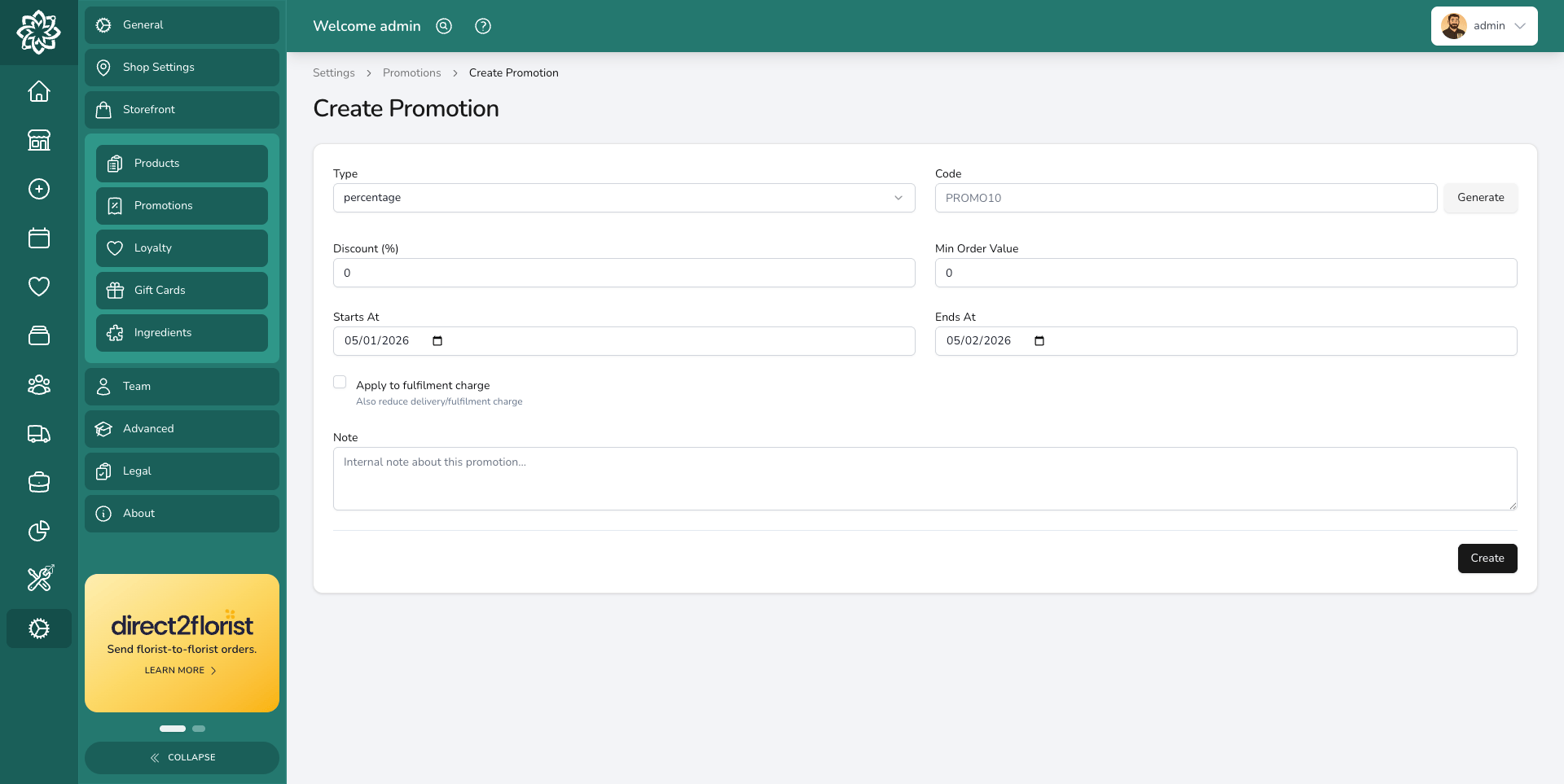
Go to **Settings** > **Promotions** and click **Create Promotion**.
Enter a memorable code your team can apply to an order, for example SPRING20, WELCOME10, or VDAY25. You can also click **Generate** for a random code.
Pick how the discount works.
* **Percentage** takes a percentage off the order (e.g. 20% off)
* **Fixed** takes a set amount off (e.g. £10 off)
* **Product** adds a specific product variant to the order at no charge
Control when the code can be used.
* **Min Order Value** (e.g. only valid on orders over £40)
* **Starts At** / **Ends At** (e.g. 1 to 14 February for Valentine's)
* **Free Product Variant** (for Product promotions, choose which product variant is added to the order)
* **Apply to fulfilment charge** (also reduces the delivery charge as well as the product price)
## Managing promotions
Promotions are controlled by their **date range**.
* If the current date is between **Starts At** and **Ends At** (or no dates are set), the code is **active** and can be applied
* If **Ends At** has passed, the code is **expired** and is no longer valid
* To remove a promotion early, delete it from the list
Once a promotion has been used on an order, you can no longer change its type, code, discount, product, minimum order value, or whether it applies to the fulfilment charge. You can still edit the date range and the internal note — extend or end a live campaign by updating those fields.
Use [Reports](/analytics/reports) to pull a customer list when you're sending a code out by email.
## Common questions
Only one discount code can be applied per order. If you want to offer a combined deal, create a single code that covers everything.
When creating an order from the dashboard or POS, scroll down to the **Payments** section at the bottom of the order and click **Add a promotion**. Pick the active code from the list. See [Creating an order](/daily-operations/creating-an-order).
The applied code and the discount amount appear in the order summary on the order detail page, alongside the subtotal and fulfilment charge. See [Orders](/daily-operations/orders) for the full breakdown.
## What's next?
Manage your product catalogue and pricing.
See how discounts appear on orders.
## Creating a discount code
Go to **Settings** > **Promotions** and click **Create Promotion**.
Enter a memorable code your team can apply to an order, for example SPRING20, WELCOME10, or VDAY25. You can also click **Generate** for a random code.
Pick how the discount works.
* **Percentage** takes a percentage off the order (e.g. 20% off)
* **Fixed** takes a set amount off (e.g. £10 off)
* **Product** adds a specific product variant to the order at no charge
Control when the code can be used.
* **Min Order Value** (e.g. only valid on orders over £40)
* **Starts At** / **Ends At** (e.g. 1 to 14 February for Valentine's)
* **Free Product Variant** (for Product promotions, choose which product variant is added to the order)
* **Apply to fulfilment charge** (also reduces the delivery charge as well as the product price)
## Managing promotions
Promotions are controlled by their **date range**.
* If the current date is between **Starts At** and **Ends At** (or no dates are set), the code is **active** and can be applied
* If **Ends At** has passed, the code is **expired** and is no longer valid
* To remove a promotion early, delete it from the list
Once a promotion has been used on an order, you can no longer change its type, code, discount, product, minimum order value, or whether it applies to the fulfilment charge. You can still edit the date range and the internal note — extend or end a live campaign by updating those fields.
Use [Reports](/analytics/reports) to pull a customer list when you're sending a code out by email.
## Common questions
Only one discount code can be applied per order. If you want to offer a combined deal, create a single code that covers everything.
When creating an order from the dashboard or POS, scroll down to the **Payments** section at the bottom of the order and click **Add a promotion**. Pick the active code from the list. See [Creating an order](/daily-operations/creating-an-order).
The applied code and the discount amount appear in the order summary on the order detail page, alongside the subtotal and fulfilment charge. See [Orders](/daily-operations/orders) for the full breakdown.
## What's next?
Manage your product catalogue and pricing.
See how discounts appear on orders.