

This page covers features gated by Manager-tier permissions. Managers and Admins have these by default; your administrator can adjust who has them in Settings > Team.
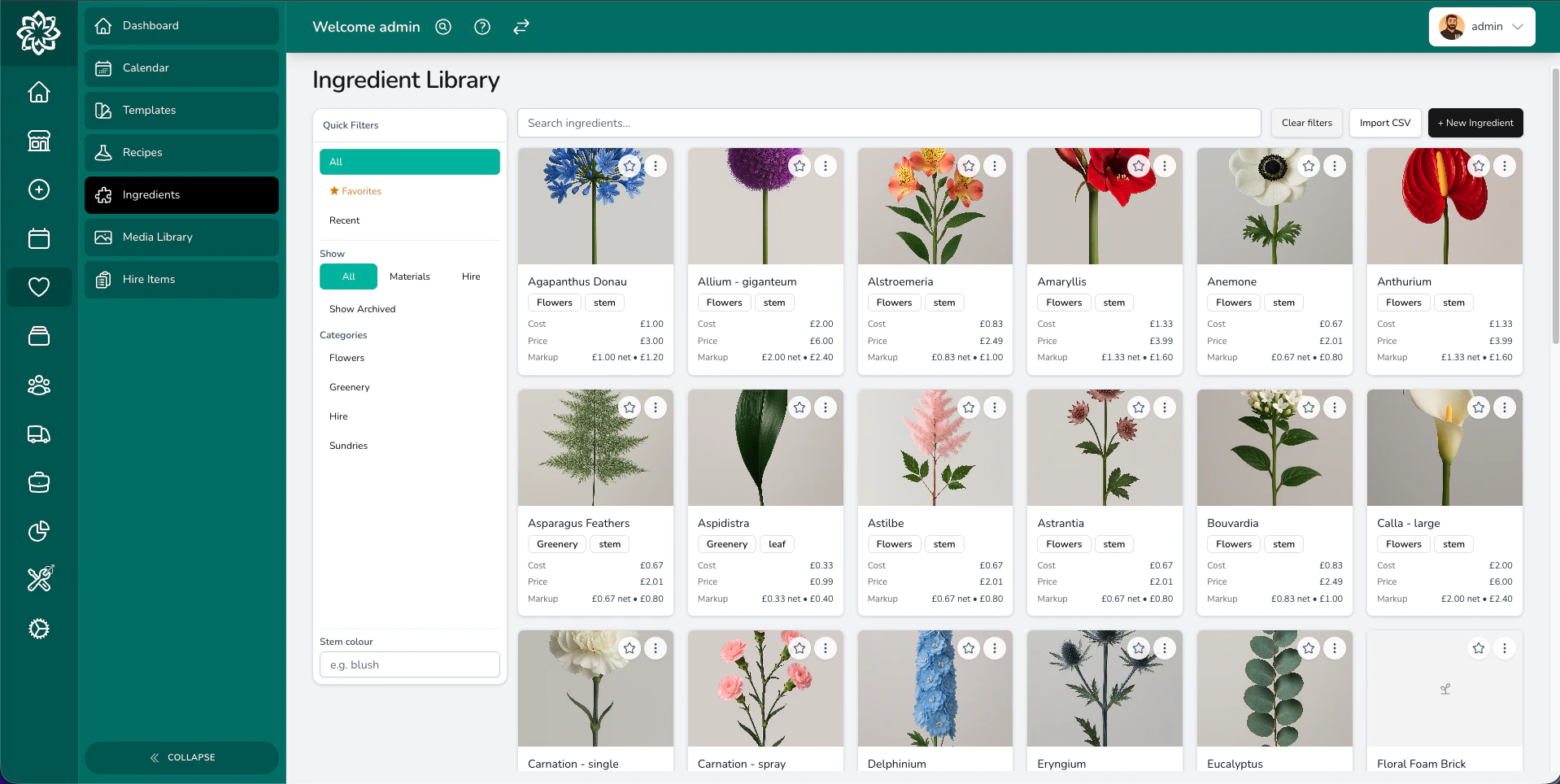
Ingredients list showing stems and materials with costs
What is a recipe?
A recipe is simply a list of ingredients that make up one arrangement. Think of it like a cooking recipe — instead of flour and eggs, you have stems, foliage, and sundries. For example, a “Bridal Bouquet” recipe might include:- 10× White O’Hara Roses
- 5× Eucalyptus
- 3× White Lisianthus
- 1× Ribbon
- 1× Bouquet Wrap
Adding ingredients to a recipe
When you build or edit a recipe, you pick ingredients from the library you have already set up and enter how many you need.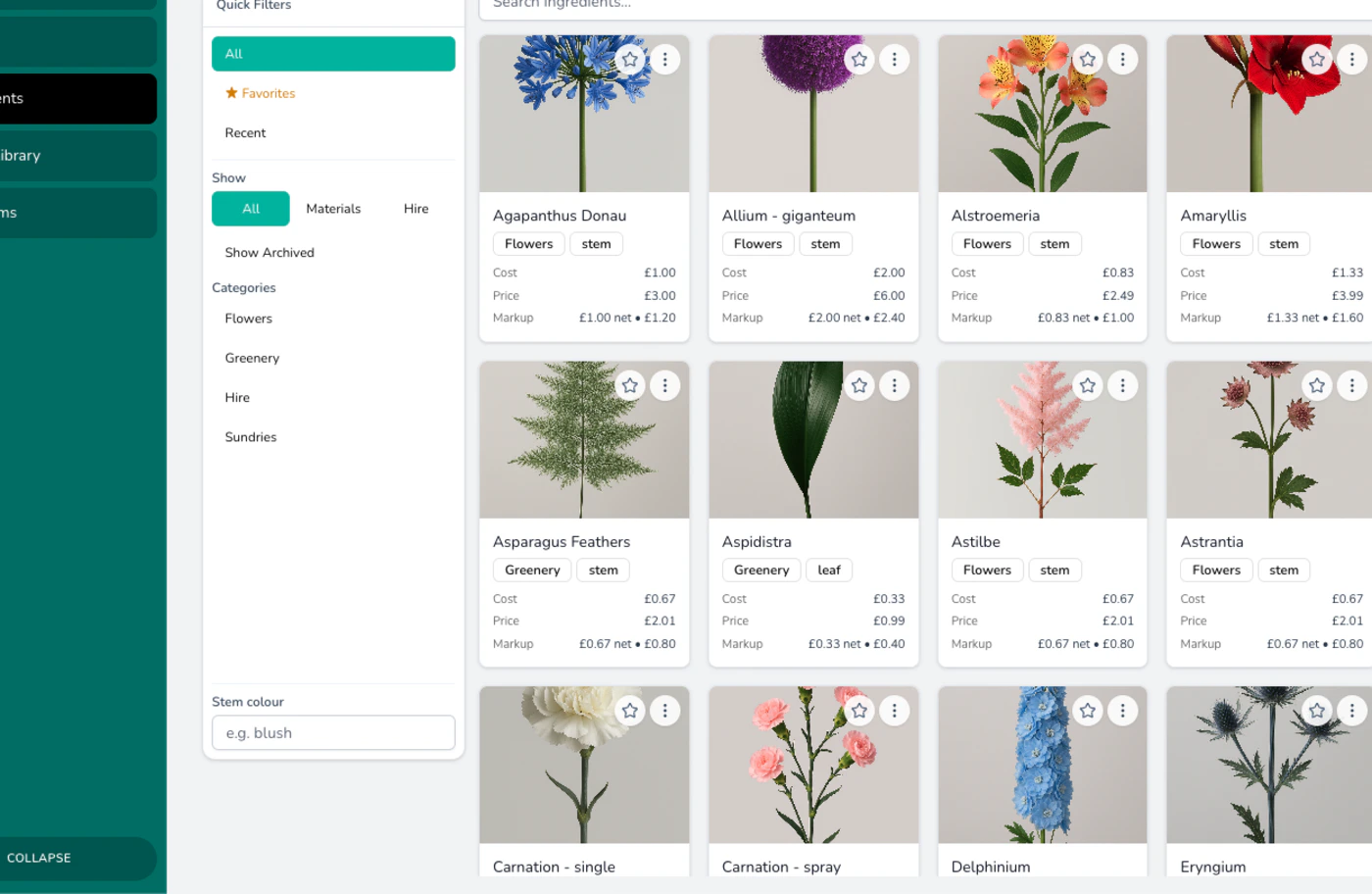
Focused view of ingredient items showing names, costs, and units
1
Search the ingredient library
Start typing the name of a flower, foliage, or sundry. Your full ingredient list is searched as you type.
2
Select the ingredient
Click the ingredient you want to add. It appears in the recipe straight away.
3
Set the quantity
Enter how many of that ingredient you need — for example, 10 stems of a rose or 2 blocks of oasis.
4
Pick a colour
If the ingredient has colour options (like Red, Pink, or White), pick the one that matches the arrangement you are building.
Ingredient snapshots
When you add an ingredient to a recipe, Digital Florists captures its cost and price at that moment. This is called a snapshot. If you later update the master ingredient (because your supplier changed their price, for example), existing quotes that already use that ingredient stay the same. The quote keeps the price that was correct at the time you built it. This stops old quotes from changing unexpectedly.Bringing recipes up to date
Changing an ingredient’s cost doesn’t reach the recipes already built from it. When some of your recipes have fallen behind, a notice appears at the top of the Recipes list — for example, 3 recipes still use older ingredient prices. Click Review what would change and you get the affected recipes listed with today’s figures beside the new ones: the ingredient cost as it stands and as it would become, and the same for the price. Nothing changes until you click Update these recipes. Any recipe you priced yourself shows Set by hand, left alone in the price column. Its ingredient costs are refreshed so your cost figures are right, and the price you typed stays exactly as you set it.Quotations you have already saved aren’t affected. Updating brings the recipes forward only — an event you quoted last month keeps the prices it was saved with.
Cost price vs retail price
Every ingredient has two prices:- Cost price — what you pay your supplier for the ingredient.
- Retail price — what you charge your client for the ingredient.
The markup multiplier
The markup multiplier is the number Digital Florists uses to turn your cost into a retail price. It is simpler than it sounds. Worked example: Your ingredients cost £15 and your markup is set to 3×. The materials retail total becomes £15 × 3 = £45. On the recipe screen this figure appears as Net (with markup) — it is the price before any tax is added. You can also choose your pricing basis, whether the markup applies to the cost price or the retail price. This gives you flexibility depending on how your business works out its margins.Markup and tax are separate steps. The markup gives you the Net (with markup) figure shown above. If a tax rate (such as VAT) applies to the recipe, Digital Florists adds it on top of that figure to work out the final price your client pays. Digital Florists doesn’t decide which rate is right for your products. That rate is set on the recipe, and your accountant is the person to confirm it.
Setting a price by hand
Under Selling Price (Gross) the recipe form normally tells you the figure is worked out from the ingredients, your markup and labour. Type your own figure over it and a Set by hand badge appears, with a link reading Use the calculated price of £45.00 to go back to the worked-out figure. A hand-set price is held steady. It stays where you put it when ingredient costs move, and when the recipe is added to a quotation the price you typed is carried across rather than worked out again from the ingredients. To let a recipe follow its ingredients again, click the Use the calculated price of… link. Changing the ingredient lines or their quantities also drops the recipe back to the calculated price.Recipe categories
You can group your recipes into categories so they are easy to find and manage. Common categories include:- Bouquets
- Table Centres
- Pedestals
- Ceremony Flowers
- Buttonholes & Corsages
Design types
A design type is a label like “Bouquet”, “Table Centre”, or “Pedestal” that you assign to a recipe. Each design type carries a default labour percentage that Digital Florists uses to calculate labour costs automatically. For example, if the “Bouquet” design type has a default labour rate of 25%, Digital Florists adds 25% labour to every bouquet recipe — unless you override it.Labour
Labour covers the time and skill that goes into building each arrangement. It’s a recipe-level mechanic, set per recipe, and Digital Florists gives you three ways to calculate it.Labour modes
- Percentage of retail — labour scales with what you charge the client.
- Percentage of cost — labour scales with what the ingredients cost you.
- Fixed amount — a flat figure per item, regardless of price.
Default labour from design types
When you set up your design types (like “Bouquet”, “Table Centre”, or “Pedestal”), you can assign a default labour percentage to each one. When you add an item with that design type to your quotation, the labour is filled in automatically. You can still override the labour on any individual recipe item if a particular arrangement needs more or less work than the default.The price you see in the library
Open a recipe in the library and the selling price you see is the one it brings into a quotation. A recipe on Percentage of retail works its labour out from the recipe’s own saved price wherever you look at it, so the library figure and the quotation figure agree.Open a recipe on Percentage of retail and its selling price may read differently to how you remember it. The library figure now matches what the same recipe prices at on a quotation. Quotations you’ve already saved keep the prices they were saved with.
Categorise your labour
If you’d rather add labour as a line-item ingredient (instead of using a labour mode on the recipe), tag the ingredient with the Labour category. Digital Florists uses ingredient categories to break down your costs at the end of an event, so you can see how much of your total went on labour, flowers, foliage, and so on. Untagged ingredients appear as unclassified items. To see these totals rolled up across the whole event, open the Options menu on the quotation builder and choose Quotation Menu. It adds up every ingredient across all your recipes so you know exactly what to buy.Build labour into your templates
If you use quotation templates, set the labour mode and percentage on each recipe in the template. When you load the template for a new event, the labour is already in place. Include setup and teardown time too, especially for items like pew ends or arches that take significant effort to install on site.Protecting your margins
Supplier prices change — that is the reality of working with fresh flowers. When an ingredient price goes up, you can:- Raise the recipe’s retail price to keep your margin the same.
- Swap in a different ingredient if a cheaper alternative works just as well.
- Absorb the increase if the change is small enough to accept.
Common questions
Do I need a recipe for every arrangement?
Do I need a recipe for every arrangement?
No. Recipes are optional, and you can always set a manual price on any item. That said, recipes give you accurate costing and protect your margins, so they are well worth the effort for any arrangement you make regularly.
What happens if I change a master ingredient's price?
What happens if I change a master ingredient's price?
Existing quotes are not affected — they keep the snapshot price from when the recipe was added. New quotes will use the updated price.
Can I reuse recipes across different events?
Can I reuse recipes across different events?
Yes. Once you save a recipe, you can pull it into any future event or quotation. This saves time and keeps your pricing consistent.
How do I choose between auto and manual labour?
How do I choose between auto and manual labour?
Start with auto mode and the default percentage from your design type. If a particular arrangement takes noticeably more or less time than others in that category, switch to a manual percentage or a fixed amount for that recipe only.
Can I set different labour rates for different items in the same group?
Can I set different labour rates for different items in the same group?
Yes. The design type provides a default percentage, but you can override the labour on any individual recipe. This lets you charge more labour for complex arrangements and less for simpler ones, even within the same group.
Where's the Shopping List?
Where's the Shopping List?
Open the Options menu on the quotation builder and choose Quotation Menu. The Ingredients tab totals every ingredient across all the recipes in the event, so you can see what to buy, create a task from it, or print it.
What’s next?
Managing Ingredients
Set up and maintain your ingredient library with costs and categories.
Quotation Builder
Use your recipes to build accurate, professional quotations.
Adjustments
Discounts, surcharges, and seating configuration on your quotes.
Proposals
Turn your quotation into a polished proposal and send it to the client.