

This page covers features gated by Manager-tier permissions. Managers and Admins have these by default; your administrator can adjust who has them in Settings > Team.
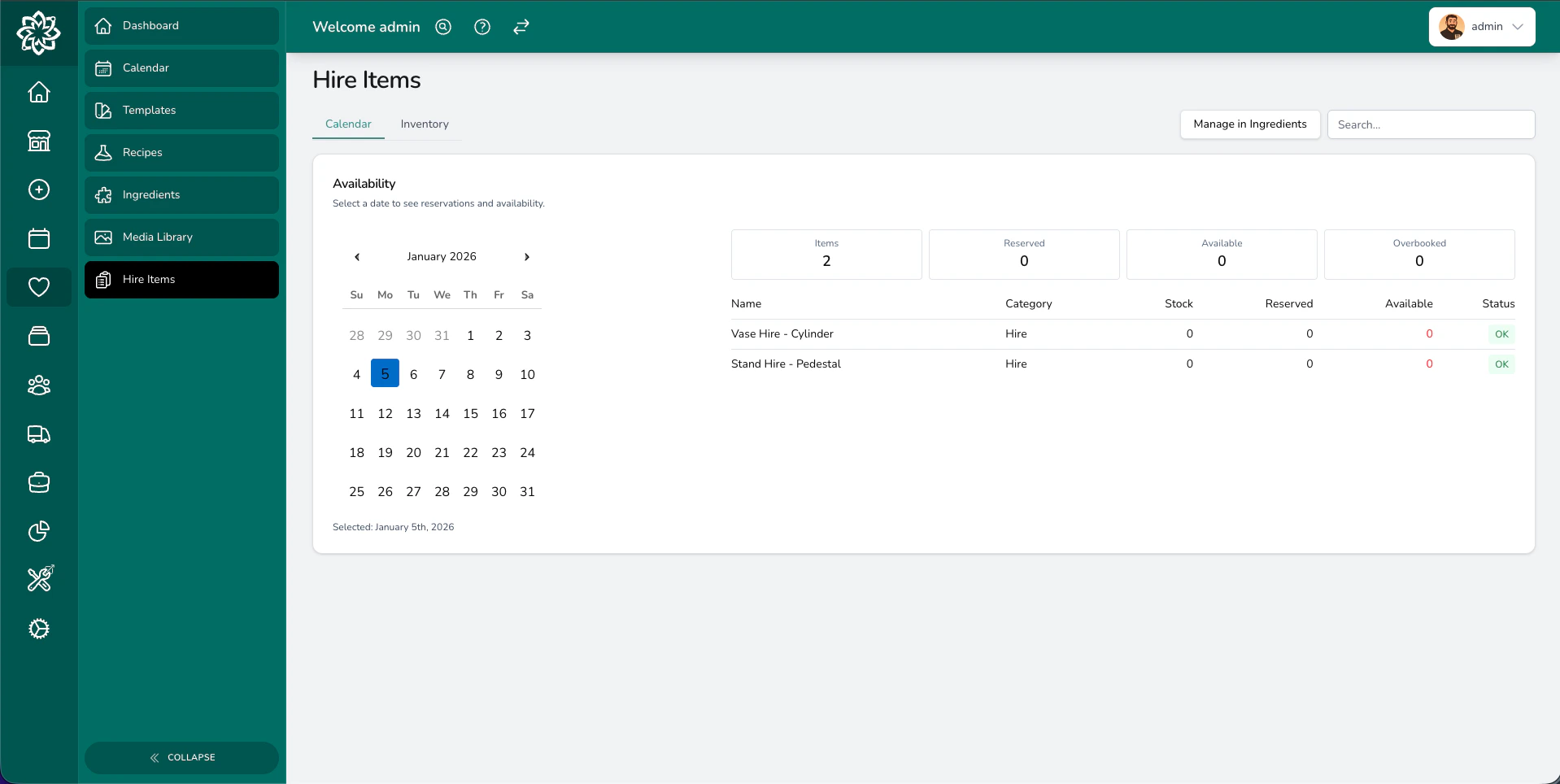
Your hire items inventory with stock levels and availability
What are hire items?
Think of hire items as any physical item your business owns and lends out for events. Common examples include:- Ceremony pieces — arches, plinths, pedestals, aisle markers
- Table accessories — candelabras, lanterns, vase collections, table runners
- Vessels — glass cylinder vases, urns, compote bowls, terracotta pots
- Structural items — flower walls, backdrops, stands, frames
How hire items work
Hire items are a type of ingredient with a stock count and per-date availability tracking. When you mark an ingredient as a hire item:- You set how many you own (the stock quantity).
- Events with a status of Quote Accepted, Order Finalisation, Order Created, or Completed reserve their hire stock for the event date.
- Earlier statuses (draft, quote sent, follow up) and later ones (cancelled, archived) don’t reserve stock.
Setting up a hire item
Hire items are created from the Ingredients list. Open Events > Ingredients and click + New Ingredient:1
Name the item
Use a clear, specific name — e.g. “Gold Arch” or “Glass Cylinder Vase, Large”.
2
Tick Hire item
In the Pricing & Unit section, tick the Hire item checkbox. This reveals the stock fields.
3
Enter the stock quantity
Type the number you own into the Stock field. If you have 4 glass cylinder vases, enter 4.
4
Decide whether to enforce stock
Leave Enforce ticked to block status changes that would overbook the item. Untick it if you’d rather see warnings without a hard block (useful when you regularly sub-hire from another supplier).
5
Add a photo (optional)
Upload a picture under Photo so your team can identify it quickly.
6
Create the ingredient
Click Create. The item is now available across every event.
Availability checking
Digital Florists checks hire availability by date. For any given event date, it adds up how many of each hire item are reserved across every event in a reserving status, then compares that to your total stock.When stock gets reserved
An event reserves hire stock when its status is one of:- Quote Accepted
- Order Finalisation
- Order Created
- Completed
Hire stock blocks on status change
When you move an event into one of the reserving statuses above, Digital Florists checks whether every hire item on the quotation has enough stock available on the event date. If anything is short, the status change is rejected and the error names which items are overbooked, by how many, and the total stock for each. Items with Enforce turned off in the ingredient settings are skipped from this check — useful when you regularly sub-hire from another supplier and don’t want a hard block.The Hire Items page
Open Events > Hire Items to see a date-by-date view of your hire inventory:- Calendar tab — pick any date to see how many of each item are reserved, available, and overbooked on that day. The summary tiles at the top show item counts, total reserved, total available, and overbooked items.
- Inventory tab — a flat list of every hire ingredient with its stock quantity and enforcement status.
Adding hire items to quotations
Hire items appear in the ingredient picker alongside flowers and sundries. Open the quotation builder, find the item by name, add it to the relevant recipe, and set the quantity. Because hire items are ingredients, they flow through to your recipes, costings, and pick lists just like flowers and sundries.Overbooking
Sometimes you know you can borrow or sub-hire from another supplier, or you’re confident one event will cancel before the date. To allow overbooking on a specific item, edit the ingredient and untick Enforce. Status changes will then go through even when stock is short, and the responsibility for sourcing the extras sits with you.Tracking returns after events
Getting your hire items back in good condition is just as important as sending them out. After each event, run through this checklist:- Check every item against the event’s hire list — make sure everything came back
- Inspect for damage — scratches, chips, dents, missing parts
- Update your stock level if an item is permanently damaged and can’t be reused
- Invoice the client for any lost or damaged items if your terms allow it
Common questions
Can I hire out the same item to two events on different days?
Can I hire out the same item to two events on different days?
Yes. Availability checking is date-based, so the same arch can be used at a Saturday wedding and a Tuesday corporate event without any conflict. A problem is only flagged when two events on the same date both need the item.
What if a client doesn't return a hire item?
What if a client doesn't return a hire item?
Reduce your stock level so future availability checks are accurate, and add a replacement charge to the client’s invoice if your terms allow it.
Do I need to create a separate ingredient for each colour or size?
Do I need to create a separate ingredient for each colour or size?
It depends on whether you track them separately. If you have 6 small glass vases and 4 large ones, create two ingredients with their own stock quantities. If size doesn’t matter for availability, a single ingredient with a combined stock count works fine.
What happens if I delete a hire item that's on existing quotes?
What happens if I delete a hire item that's on existing quotes?
Archive it instead of deleting it. Archiving removes the item from your active ingredient list but keeps it on any existing quotations and past events. You can restore it later if needed.
Why can't I move an event into Quote Accepted?
Why can't I move an event into Quote Accepted?
If the status change is rejected with a hire stock error, one or more hire items on the quotation are overbooked for the event date. The message names the items, the shortfall, and the total stock. Either reduce the quantity, swap for an alternative, raise the stock quantity if it’s wrong, or untick Enforce on that ingredient if you’ll sub-hire to cover it.
What’s next?
Recipes
Add and manage the ingredients that power your recipes and quotes.
Quotation Builder
Build detailed quotations that include hire items alongside flowers and sundries.
Event Lifecycle
Understand how events move through each stage from draft to completed.
Events Overview
Get a high-level look at how events work in Digital Florists.