See everything that needs your attention today, all in one place.
Your Dashboard is where you start each day. It shows today’s orders, upcoming deliveries, things that need your attention, and your team’s tasks, all in one place.
A two-minute check each morning keeps everything running smoothly.
1
Check your alerts
Look at the top of your dashboard. Any red or amber alert cards? Deal with them first — unfulfilled orders from yesterday or unpaid orders need attention. Failed repeat orders or integration failures are rare backup alerts, but action them if they appear.
2
Confirm new orders
Check the Unconfirmed Orders section (highlighted in green). These came in overnight from your website or relay networks. Review each one — orders from your website may carry a red note sticker flagging important information you need to check before confirming.
3
Review today's orders
Click Today above the orders table and scan through your list. Watch for special requests or funeral orders that need priority.
4
Open your pick list
If you use product recipes, open your digital worksheet on the dashboard or in the app to see what stems and materials you need. Pick stock from the cooler ready to be made up.
5
Glance at tomorrow
Click Tomorrow to see what’s coming. This gives you time to order stock or adjust staffing if tomorrow is busier than expected.
If something needs your attention, the dashboard surfaces it at the top of the screen, above your orders.
Don’t ignore these — they need action:
Unfulfilled Orders — orders from past days that haven’t been marked as fulfilled. Today’s unfulfilled orders aren’t here yet. Check whether they were delivered or collected and update them.
Failed Repeat Orders — a recurring order didn’t generate. Rare, but open it to see what went wrong.
Integration Failures — an order didn’t send to a connected service, such as a relay network. Rare, but the panel shows why it was rejected and lets you resend it without opening the order.
Partner PDF Imports — a make-up sheet sent over from a partner couldn’t be turned into an order. Rare, but the order won’t exist until someone looks. Click Review failed imports to see the reason and either download the original, retry it, or dismiss it. See Relay integrations.
Worth reviewing:
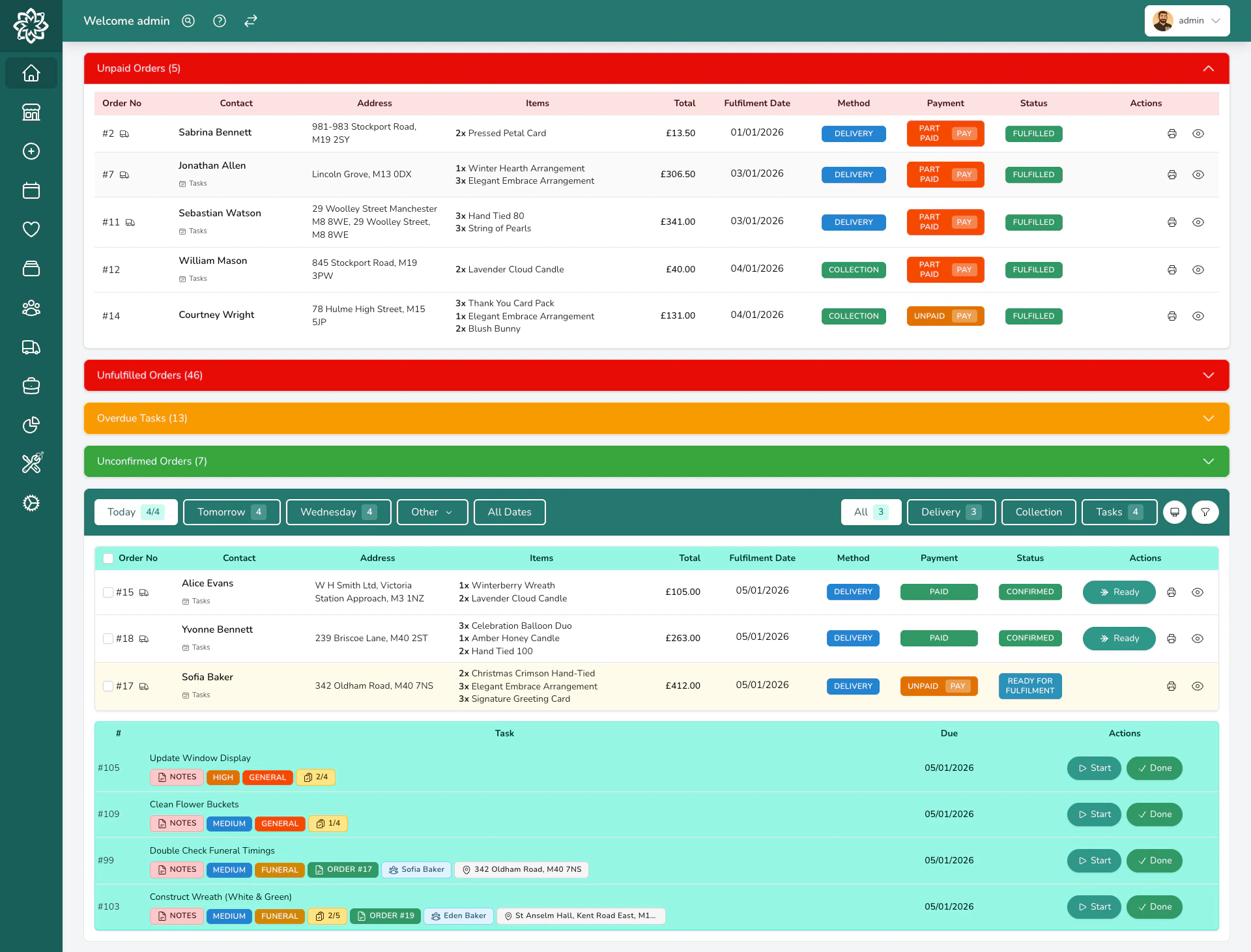
Unpaid Orders — fulfilled orders that still haven’t been paid in full. Pre-fulfilment unpaid orders aren’t surfaced here.
Overdue Events — past events that haven’t been closed or reconciled.
Overdue Tasks — tasks past their due date that haven’t been completed.
Orders from your website can arrive with a red note sticker flagging important information you need to review before confirming. Check the note first — the onus is on you to action it. Examples include:
The delivery address is outside your usual area, so you may need to put it through relay
A mismatch between products that needs clarifying
A customer note added when placing the order
Unpaid orders alert showing orders that still need payment
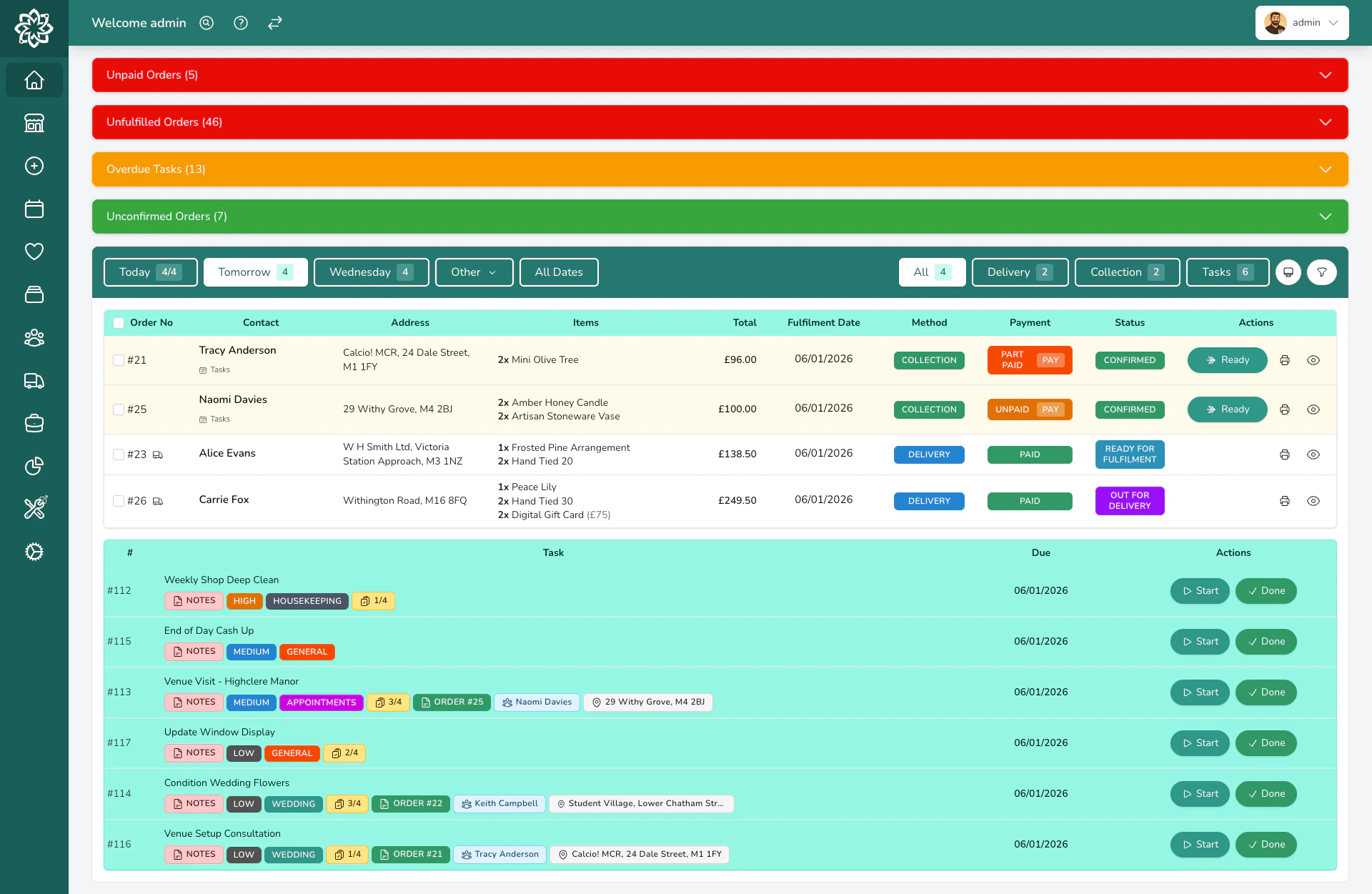
Above the orders table, you’ll see date chips: Today, Tomorrow, the next weekday, Other, and All Dates. Click Other to open a calendar showing order counts on each day — dates with scheduled events show a small heart icon, so you can see weddings and event days at a glance.
When you pick a date in the past, an amber banner appears reminding you that you’re viewing old orders. This is your cue to be careful — actions you take here apply to historical orders.
When today’s date has scheduled events, a rose-coloured Event Highlights banner appears above your orders, deep-linking straight to each event’s details.
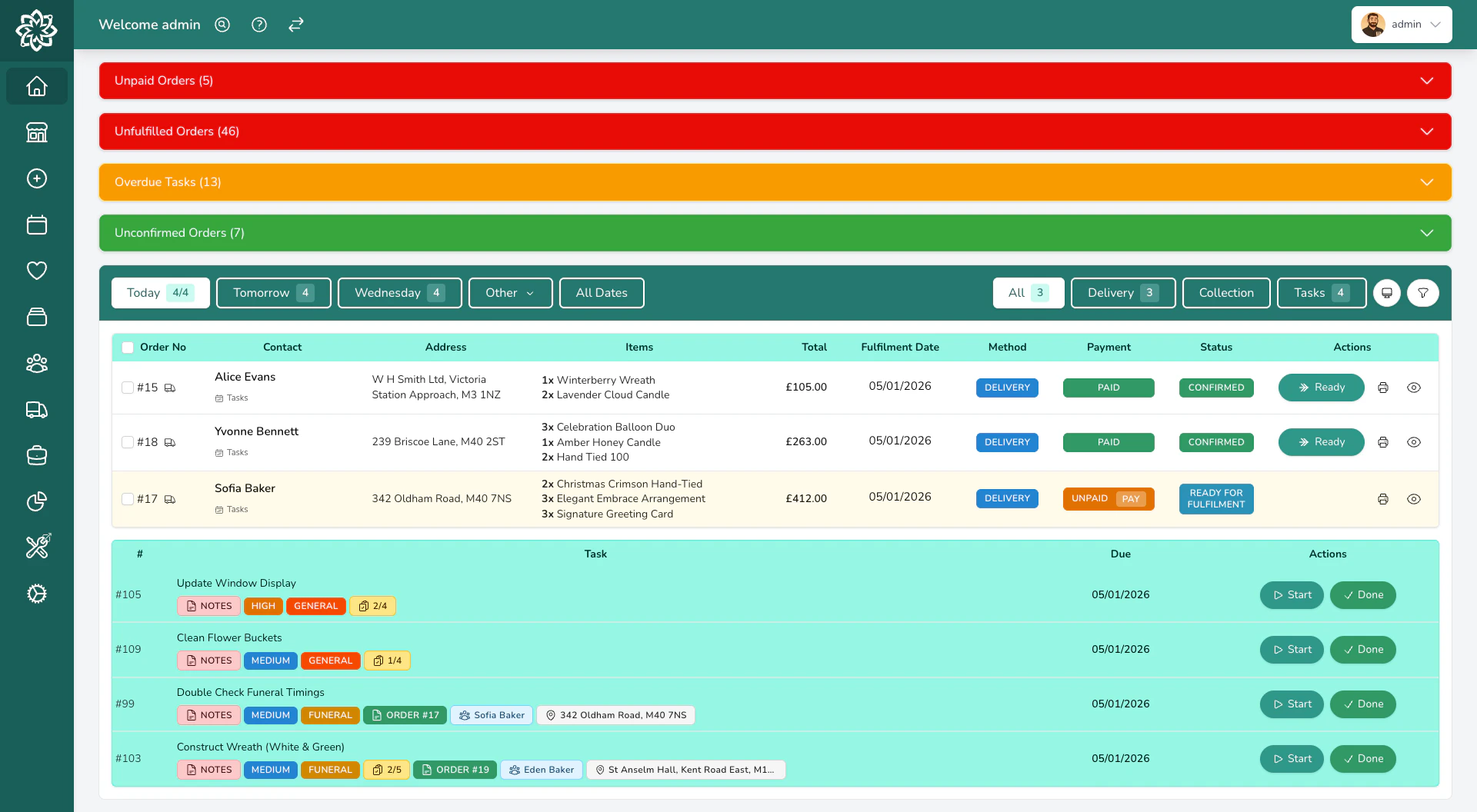
The main section of your dashboard shows your orders for the selected date. Use the tabs at the top of the orders table to filter:
All — every order for the day, plus tasks in the same date range
Delivery — orders going out for delivery (including courier orders)
Collection — orders being picked up in-store
Tasks — your team’s task list
Each tab shows a count badge so you can see at a glance how many items are in each view.
Your orders list with filtering tabs
If your shop has more than one location, an extra Location column appears on the orders table when you’re viewing All Locations. Switch to a specific location from the header selector to hide it.
Scroll to the bottom of the orders table and you’ll find the page controls. The line on the left tells you where you are, reading something like Showing 1–100 of 243 orders, and Page 1 of 3 sits beside the Previous and Next buttons. Up to 100 orders are shown at a time, so on a big day your list runs across several pages.Tick Select All in the table header and it selects the orders on the page you’re looking at. Move to the next page and start a fresh selection there.
Filter first, then work through the pages. Filtering by Only show orders with no print handoff recorded after a rush usually brings the whole job back onto one page.
Click the filter icon to narrow down what you see. You can filter by:
Integration — where the order came from
Assigned To — only orders assigned to you or a specific team member
Order Type — Gift, Funeral, Event, Corporate
Order Status — Confirmed, Picked, Ready For Fulfilment, With Courier, Out For Delivery, Fulfilled
Delivery time — Morning (AM), Afternoon (PM) or Evening
Product Name — type part of a product name to find the orders containing it
Only show orders with no print handoff recorded — the orders nobody has sent to a printer yet
A badge appears on the filter icon showing how many filters are active. Filters are personal to each team member — your view doesn’t change anyone else’s. Click Clear to remove all filters.
Click a column heading to sort the list by it, and click again to reverse the order. Order No, Total and Date all sort this way, and your choice carries through to the pages and to the Bulk (Slim) PDF. Sorting by Total needs you to be looking at a single day, and the heading says so when you aren’t.Leave the headings alone and your orders come up in the order set for your shop. The default is Curated, which puts the most urgent work first:
Funeral orders with specific times — these can’t be late
AM deliveries that need to go out first
Standard deliveries sorted by time
Collections for customers picking up in-store
To change that order for everyone, go to Settings > General > Taking orders > Dashboard and set Order of jobs on the dashboard.
When new orders come in (from your website or a relay network), they appear in the Unconfirmed Orders section at the top with a green highlight. You need to confirm them before they move to your main order list.To confirm a single order, click on it and change its status. To confirm several at once, tick the checkboxes and use the Confirm button in the toolbar, or Confirm & Send to Courier to confirm and book courier collection in one step.Where the delivery address sends an order out to a courier or a relay florist, the row offers both choices side by side, so you can pick Deliver, Courier, Relay or Send to a named relay partner in one click. See Managing Orders for what each choice does to the order.
The Confirm button can grey out for specific orders, for example a Send-to-a-Friend order or a relay-network order. The button’s tooltip tells you why.
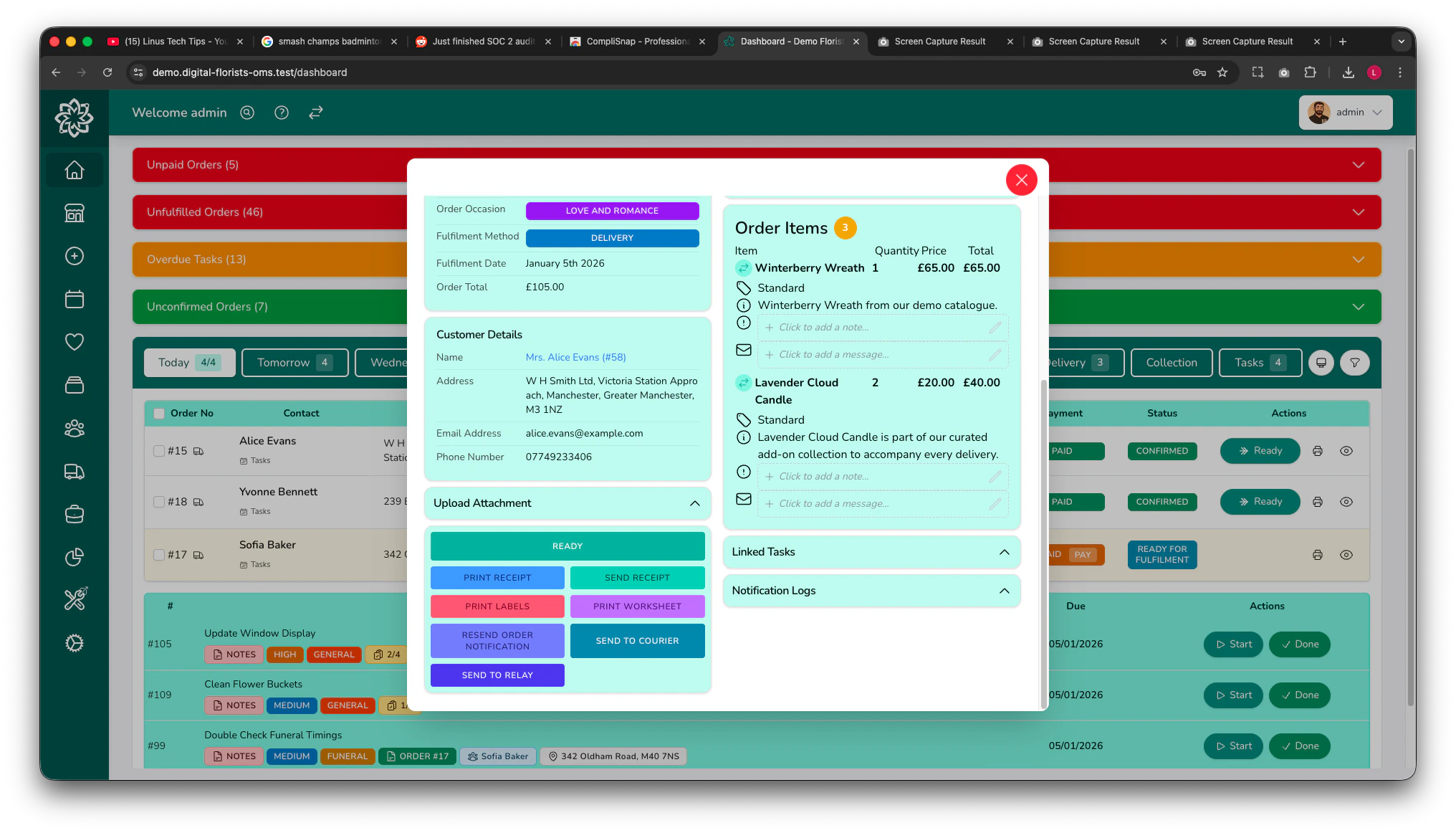
Click any order to open its digital worksheet. From there you can:
View the customer’s name, address, card message, and any special notes
Edit the customer message and add notes to a product
Change the status through Confirmed, Ready, Out for Delivery, Fulfilled
Print a worksheet, label, or order card
Assign the order to a team member
To edit the delivery address or order contents, click the eye icon on the right-hand side (or use View Order) to open the full order edit screen.You can confirm an order and mark it as ready or collected using the buttons directly on the dashboard, the button panel on the digital worksheet, or from inside the edit order screen.
Marking a delivery order as fulfilled from the dashboard or worksheet still sends the customer’s delivery notification, but it doesn’t capture a proof-of-delivery photo or GPS location. The driver app captures both when the driver marks the stop delivered, which is the usual route for deliveries.
For everything you can do from the order edit screen, see Managing Orders.
During busy periods, work with multiple orders at once. Tick the checkboxes next to the orders you want, then use the toolbar that appears:
Confirm — accept multiple new orders at once
Ready — mark several orders as ready
With Courier — move ready courier orders to “with courier” status
Send to Courier — book courier collection for eligible orders
Assign — assign a batch of orders to a team member
Print — print worksheets or labels for all selected orders
Bulk Fulfilled is available for Collection orders (from Ready) and Relay orders (from Confirmed). Delivery orders can’t be marked fulfilled in bulk from the dashboard. Mark each delivery from its worksheet, or let the driver app handle it on the run.
Use the Select All checkbox in the table header to tick every order on the page you’re looking at. Combined with filters, it’s the fastest way to catch up after a rush of new orders.
Tick the orders you want and each job takes up to its own number at a time.
What you’re doing
Orders per batch
Changing status in bulk
200
Printing labels
200
Printing worksheets
50
Bulk (Slim) PDF
100
Tick your way up to 200 orders and the remaining rows stop responding to a tick. A line appears above the list telling you you’ve reached the limit and to finish or clear the batch first.Select more than a smaller job takes and that same line tells you how many to untick before it will run. Work through the batch, click Clear, then carry on with the next one.
Print worksheets for an order with gift cards on it and each gift card prints a copy of its own. Those copies count towards the batch, so that order uses up more of it than a plain one.
Print directly from the dashboard. Choose between:
Worksheets — detailed sheets showing the recipe, card message, and delivery details
Labels — smaller labels to attach to arrangements
Bulk (Slim) — a compact PDF of your selected orders
Click Print and a new tab opens straight away, showing a spinner while your paperwork is put together. Leave it open until your documents appear in it.
If your browser blocks that tab, the dashboard tells you so and asks you to allow pop-ups for Digital Florists. Nothing was printed and nothing was ticked off, so allow them and click Print again.
Choose Bulk (Slim) and the PDF follows the view you’re looking at. It takes the tab, the filters and the sort order you have on screen, so the orders come out in the same order as the list in front of you.That means it includes whatever your view includes. If your list is showing fulfilled or cancelled orders, they come out in the PDF too.
Your default print format (worksheets or labels) is set in Settings > General > Printing under Print for each order. The Print button uses your default; the dropdown beside it offers the other format.
Once someone has sent an order to a printer, a small green tick appears on that order’s print button, so you can see at a glance what’s been done. Hover over it and it confirms a print handoff has been recorded.To catch up after a rush, open the filters and turn on Only show orders with no print handoff recorded. You’re left with the orders nobody has printed yet.
If you use worksheets with integrated labels, choose the layout that matches your label sheets in Settings > General > Printing under Worksheets. Set Worksheet paper to your sheet type and Labels on worksheets to match where the labels sit. Most shops use the default, so print a test order before running a batch.To change the font on message labels, use the Card messages section on the same page.
There can be slight differences between label sheet brands, so testing is normal. If the default layout doesn’t line up, try one of the alternatives.
By default, orders that have been delivered or collected disappear from the dashboard, so the board clears down by the end of the day. If you need to see completed orders (to check a delivery or reprint a label), open the Other date popover and toggle Include fulfilled orders today. This toggle is only available when you’re viewing today’s date.
The Displays button (computer-monitor icon above the orders table) opens a menu of alternative views: Order Board, Production, and Shopping List. Use whichever fits the moment.
The Order Board is a live wall display for a TV in your workroom, styled after the order screens in restaurant kitchens: a status rail with counts for every stage, big make-up tickets for orders still to prepare, and a compact strip for orders that are ready, out, or fulfilled. It’s designed to be read from across the room and left alone — see the dedicated Order Board page for what’s on screen and how to set up the TV.
Pair the Order Board with the Digital Florists App. Put the board on a screen in your workshop, and as your florists mark orders as ready on their phones the board follows along within 30 seconds. Shops running paperless through a peak tend to work this way.
Open Production and you get everything you need to make, added up. Each line gives you a product and how many of it, with unit price and total, across your confirmed orders. Tasks aren’t included.The totals cover every order matching the date, tab and filters you have on, not just the page you can see. So a day running across three pages still gives you one set of figures to make to.Toggle Include Ready Orders to count orders already marked as ready, and Show Modifications to see any special requests with their order numbers.
If you’ve set up recipes (see Products), open the Shopping List to see the ingredients your day needs. For each ingredient you’ll see:
Qty — total stems or units across all orders
Buy — how many bunches, packs, rolls, or boxes to order, based on the pack size you’ve set for the ingredient
Orders — how many orders need this ingredient
Retail — total selling price of the orders using it, estimated from your current product pricing
Event work counts here too. Use the All, Orders and Events buttons at the top to switch between everything, your everyday orders on their own, and the production orders behind your events.Pull exactly what you need from the cooler before you start making up.
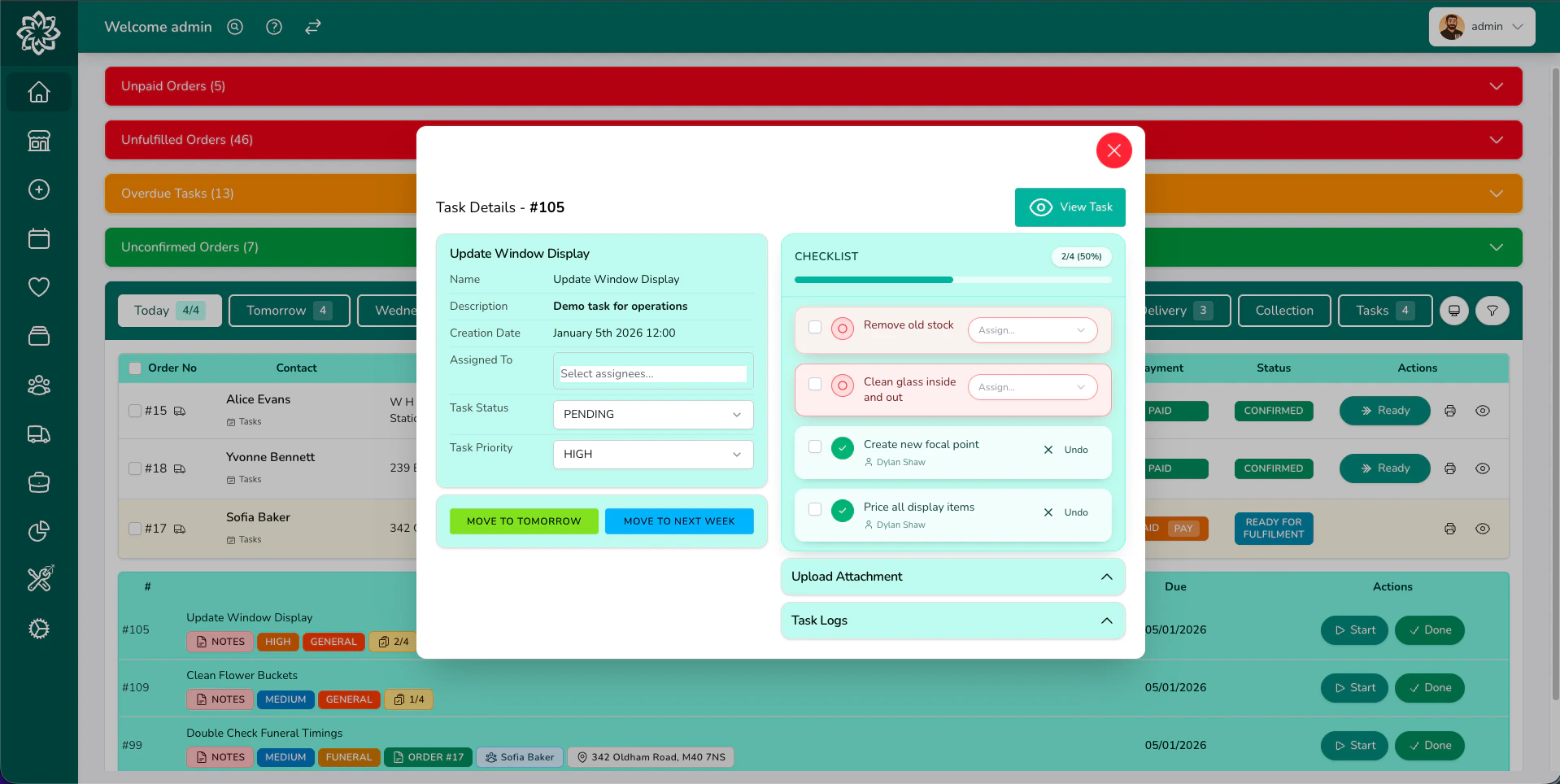
Tasks show up in two places. On the All tab, they appear in a separate section below the orders table for the same date range. On the Tasks tab they’re the primary list. Both views let you filter by assignee, priority, category, and status.
Your team's tasks with checklists
The Tasks tab count includes tasks assigned to any team member, not just you. For everything else on tasks, see Tasks.
Check the date chips above the orders table; you might be looking at tomorrow or a different day. Click Today to return, or All Dates to see everything. Also check the filter icon — if it shows a badge, you have active filters that might be hiding orders.
Where have the rest of my orders gone?
Check the line at the bottom of the table. It reads something like Showing 1–100 of 243 orders, which means the rest are on the following pages. Use Next to move through them, or filter the list down so the orders you want land on one page.
Why can't I tick any more orders?
You’ve reached the 200-order limit for a single batch, and a line above the list says so. Finish what you’ve selected or click Clear, then start the next batch.
What do the coloured badges mean?
Each order has a coloured status badge that changes as the order progresses. Unconfirmed orders are highlighted differently from confirmed ones, and fulfilled orders are visually distinct so you can tell at a glance what stage everything is at.
How often does the dashboard update?
Order counts, alerts, and unconfirmed orders refresh automatically every 20 seconds. The dashboard also updates immediately when you take an action (confirming, printing, changing status). You don’t need to manually refresh.
Can I see orders for a specific date?
Yes. Click Other above the orders table to open a calendar. Pick any date or browse by month; each date shows how many orders are scheduled. All Dates shows everything at once.
Can different staff see different things?
Yes. Each team member can set their own filters (like Assigned To: Me) to see only their work. Filters are personal and don’t affect other users.
Does the dashboard work on a tablet?
Yes. It’s designed to work on tablets and iPads, which is handy for checking orders on the shop floor. For on-the-go use, the Digital Florists App is even better.
Can I leave the dashboard open all day?
Yes. Counts refresh every 20 seconds, so the dashboard stays current without any input. Many shops keep a screen with the dashboard running throughout the day.