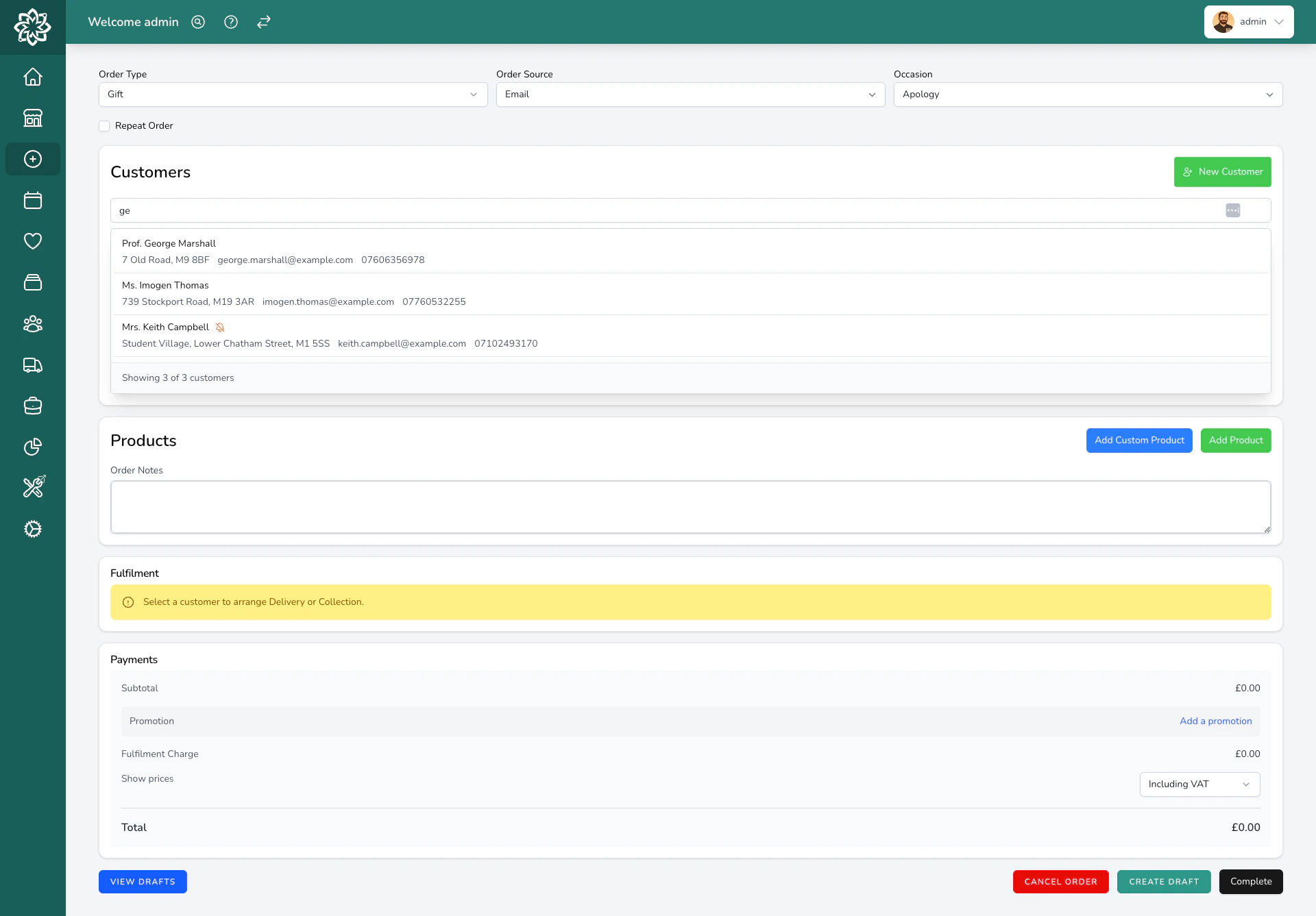
Use Create Order to enter a phone, walk-in, or other everyday order. This guide walks you through each step.
Events includes five manually entered everyday orders per calendar month for each licensed location, and this screen shows how many are left. Event production orders are created from their parent event and don’t use the allowance.
Event orders aren’t created here. They’re generated from the events workflow.You can also set the Occasion (Birthday, Anniversary, Sympathy, etc.) and the Order Source (Walk In, Phone, Email, Website, or Other).
2
Select a customer
Search for an existing customer by name, email, or phone number. If they’re new, you can create a customer record on the spot.
Searching for a customer
If the recipient is different from the person paying, you can set a separate Recipient with their own name and address.
3
Set the fulfilment details
Choose how the order will be :
Delivery for local delivery. Enter or confirm the delivery address, pick the fulfilment date, then pick the Delivery option the customer is buying. Morning, Afternoon, Evening and timed windows show their real clock times beside the choice.
Collection if the customer is picking up. Choose when it should be ready.
to send the order to another florist. Select your relay provider (Direct2Florist, Send to a Friend, or manual). When you select Direct2Florist, a destination picker lets you choose which florist will fulfil it. A relay service charge is added on top of your product total.
Courier to send via a courier service. This requires a courier integration to be set up.
When you enter an address that sits in an area you serve by courier or by relay, the fulfilment method changes to match as soon as the address goes in. Change it back on the order whenever you need to.
For relay orders, delivery notes and general order notes do not go through to the receiving florist. Any instructions for them must go in the florist notes field, otherwise they won’t see them. Relay orders also stay in Unconfirmed on your dashboard until the receiving florist accepts them; you can’t confirm them yourself.
For Funeral orders, you can also set the funeral date and time so the order gets prioritised on your dashboard. When you set the funeral time, Digital Florists suggests a delivery time automatically: by default, 2 hours before the funeral, or the day before for a morning funeral. You can change what counts as a morning funeral, or turn the suggestion off, under Funeral orders in Settings > General > Taking orders.If another funeral order has already been placed for the same day, the funeral director search shows it, complete with the deceased’s name and contact details, so you can link orders together without re-entering anything. Set up your funeral directors first: go to Customers, add each funeral director as a contact, and they’ll appear in the search when you create funeral orders.
4
Add products
Search your catalogue (included with Orders) by name. Select the (size) you need and set the quantity.Add a Custom Item for a bespoke arrangement or anything that isn’t in a retail catalogue. Enter its name and price. This is how you add the five manual everyday orders included with Events.Add a card message if the customer has one, and any internal notes for your team (like “Use pink roses, not red”).
If a product is stock-tracked, Digital Florists will warn you if you’re about to oversell it.
5
Review pricing
The order total is calculated automatically:
Subtotal is the cost of all products
Fulfilment charge is the delivery or courier fee, worked out from the address and the date. See The delivery charge below
Tax is calculated based on your tax rate settings
Total is the final amount
If you have an active promotion, you can apply it here. You can also toggle between Inc VAT and Ex VAT pricing.For corporate or account customers, you can add a Purchase Order Number for their records.
6
Complete the order
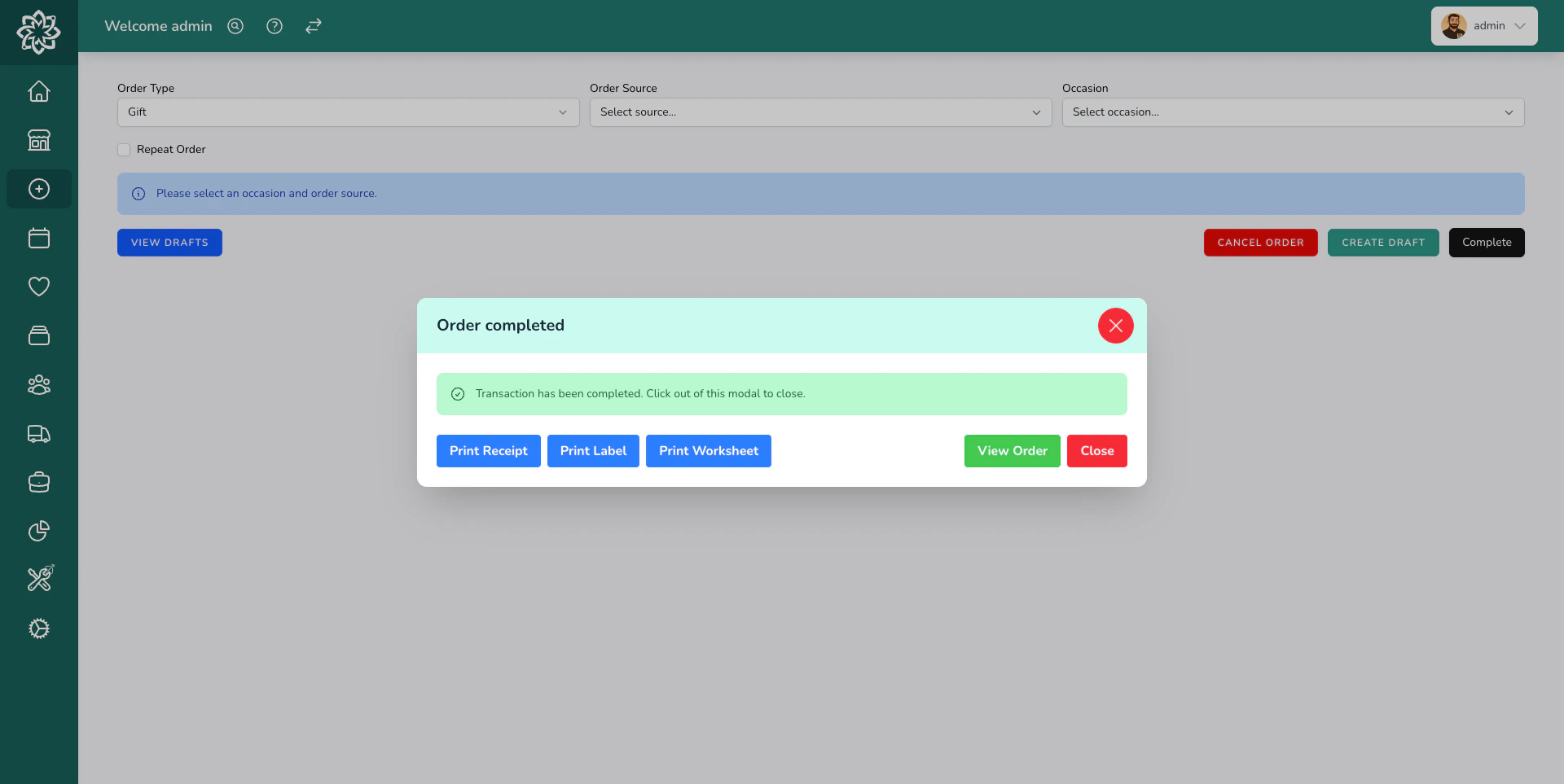
When everything looks right, click Complete to submit the order.
Order created successfully
The order will appear on your Dashboard ready to be worked on.
Once the address, the date and the delivery option are in, the charge appears underneath the picker while you are still on the phone. Where the charge has more than one part, it is itemised so you can read it out, for example Delivery £4.95 · Delivery option supplement £3.00. A busy day extra is listed under the name you gave that date, such as Valentine’s Day.The same line tells your team when something about the date needs a word with the customer.
What you see
What it means
A note in amber
The order can still be saved. The day is past your Order by time, at its daily limit, below your minimum order, or short of the notice you need
A note in red
The date will not take this order. Change the date, the option or the address before saving
Not priced or a request for a charge
The address falls outside your delivery areas and nobody has priced it. Tick Override Fulfilment Charge and type the amount you have agreed
You decide whether a broken rule warns your team or stops the order in Booking rules. Dates you have marked closed are marked on the date picker before your team gets that far.
Clicking Complete while the price is still being checked asks you to wait a moment. The check takes a second or so, and saving then carries the checked charge onto the order.
Not ready to submit yet? Click Create Draft to save the order and come back to it later. You can load your drafts by clicking View Drafts on the order creation screen. Drafts are deleted after 7 days by default. Change Draft orders expire after (days) under Order details & drafts in Settings > General > Taking orders to keep them for longer.Drafts don’t use the monthly everyday-order allowance until you create the order. Cancelled or voided orders still count, and unused allowance doesn’t roll over.During its creation month, you can correct an included everyday order while it’s unpaid, unprinted, and hasn’t entered production. Once you record a payment, print a worksheet or label, or start production, its customer, recipient, fulfilment details, and line items are fixed. The order type and source are fixed too. The same applies when the calendar month changes. Create a new order for different work instead of repurposing it.
Yes, as far ahead as your booking rules allow. The order appears on your dashboard when that date arrives. See Booking rules.
Can I create an order for a past date?
Yes, but you need to turn it on first. Go to Settings > General > Taking orders and switch on Allow past dates on new orders under Order details & drafts. This is useful for entering orders that were taken in person but not recorded at the time.
Why has the delivery option I wanted disappeared?
An option can be limited to one shop, to the till, or to certain dates, and the date or address you have entered can rule one out. The line under the picker gives the reason. See Delivery options.
What if the customer doesn't want to pay now?
Select to complete the order without taking payment now. For corporate customers who pay monthly, you can put the order on their Account.
Can I duplicate an existing order?
Re-order is included with Orders. Search for the customer’s name to see eligible previous orders. It isn’t available for event orders or relay orders routed through another florist. For regular schedules, use a Repeat Order.