

Orders created here stay linked to their parent event and don’t use the everyday-order allowance. Use Create Order for everyday orders instead.
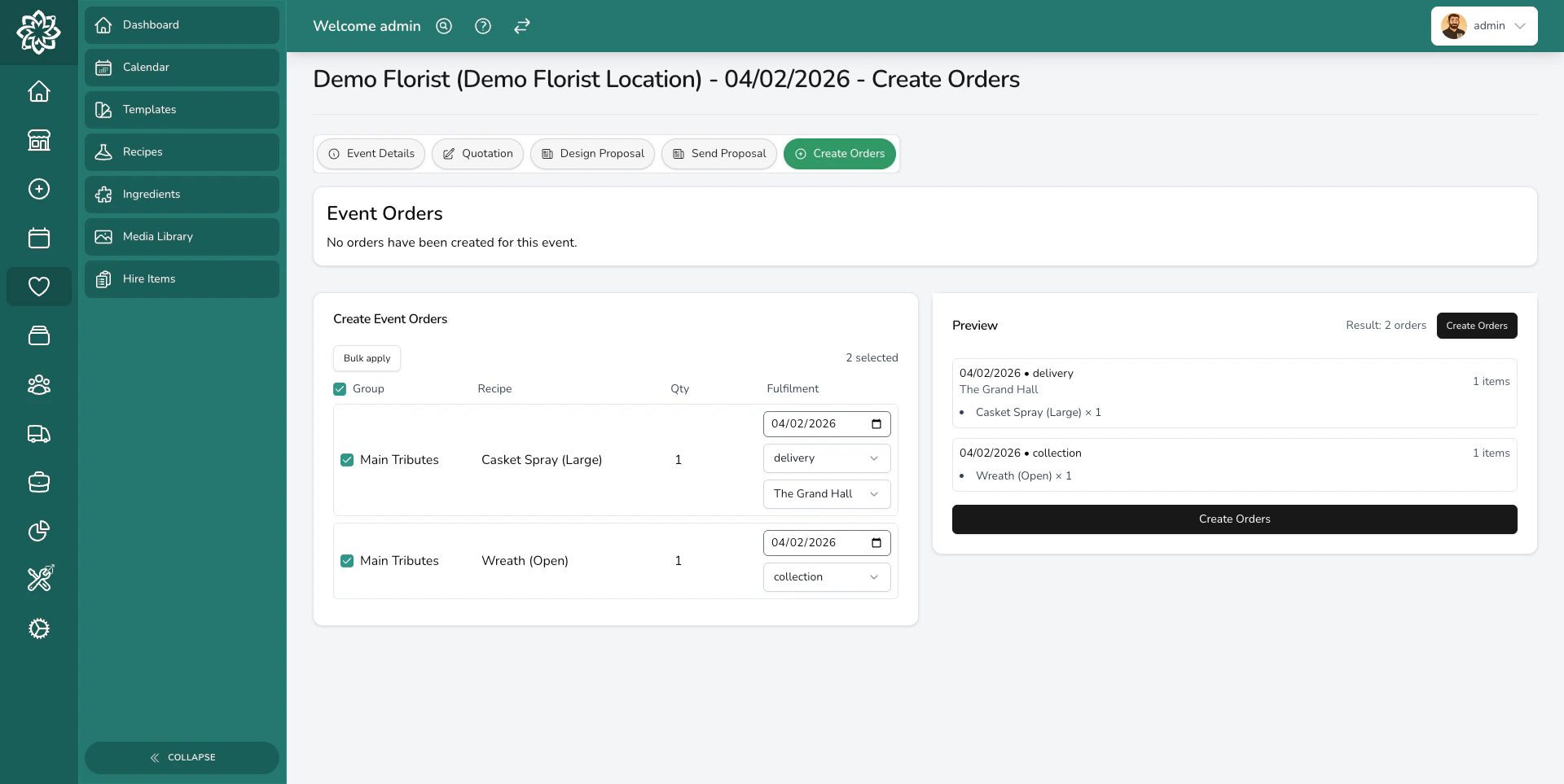
Preview of items ready to be turned into orders
When to create event orders
You’ll typically create orders after the proposal has been accepted and you’re ready to schedule production. There’s no rush — you can wait until closer to the event date when final details are confirmed. The important thing is that your quotation is complete and accurate before you turn it into orders.The order creation workflow
1
Open the event and go to Orders
Navigate to your event and select the Create Orders tab. The tab is renamed to Orders once at least one event order exists.
2
Review the loaded quotation items
All items from the quotation are pulled in automatically. The names, quantities, and details carry over, so you don’t need to re-enter anything.
3
Check the defaults
Each item starts with the event date as the fulfilment date and Collection as the method. Adjust either at the group level when you need to.
4
Spot items already on existing orders
If you’ve already created orders that match a recipe and quantity, those items show an On order badge. They’re hidden by default and can be shown again from the filter banner.
5
Organise items into draft orders
Select items and use Move to new order or Move to existing to group them. Each draft order becomes one real order when you create.
6
Set fulfilment details for each draft order
For each draft, set the fulfilment date, choose Collection or Delivery, and pick a venue when it’s a delivery. The venue list comes from the venues added to the event.
7
Click Create Orders
When everything looks right, click Create Orders. One order is created per unique combination of date, method, and venue.
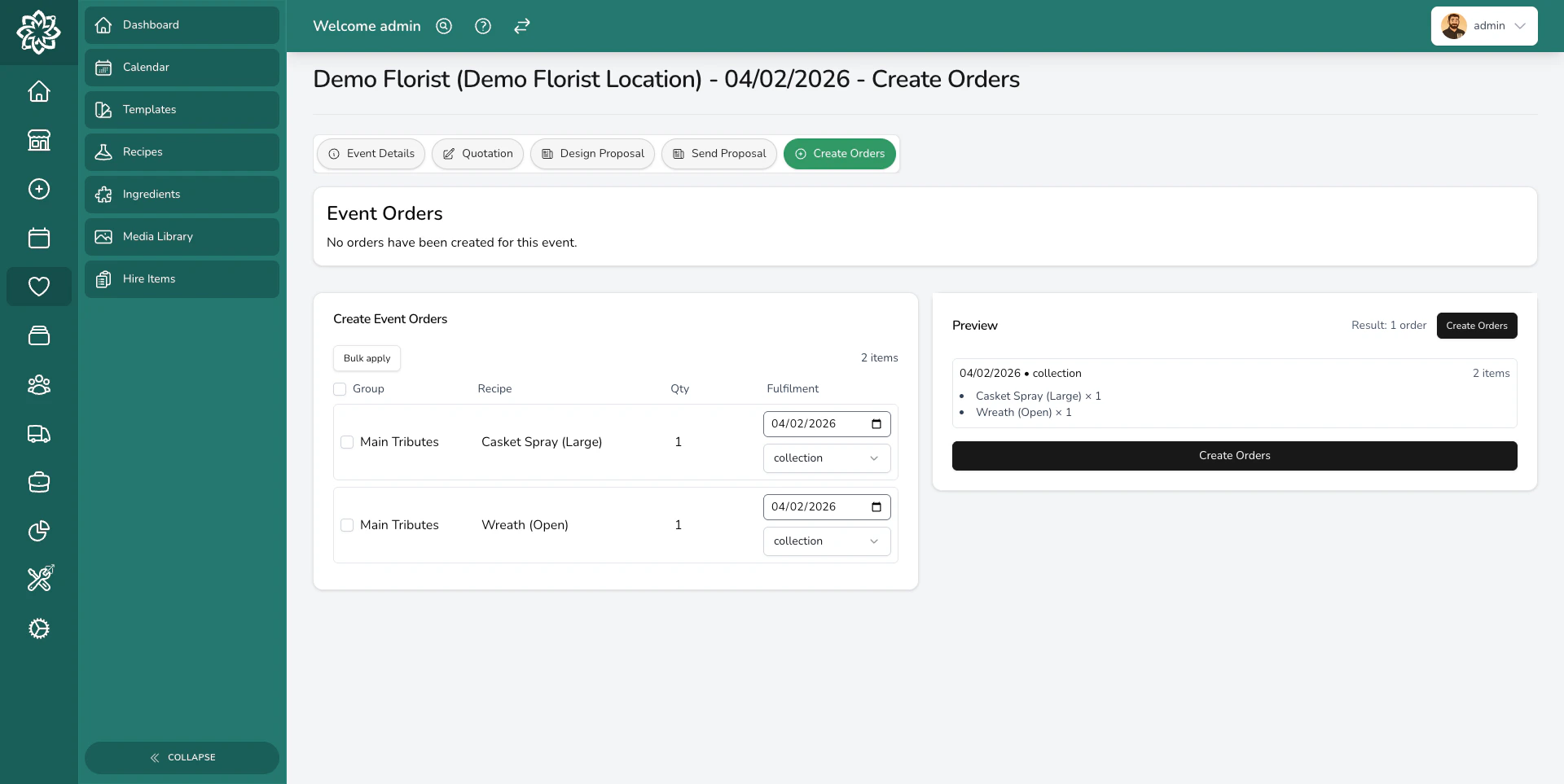
Create Orders screen when no event orders exist yet
Organising items into draft orders
Not everything for an event goes to the same place at the same time. A bride might collect her bouquet from the shop on Saturday morning, while table centres need delivering to the venue on Friday afternoon. Draft orders let you split items by where and when they’re needed. Here’s how grouping works:- Each draft order becomes one real order. Items in the same draft must share the same fulfilment date, method, and venue.
- Split quantities across drafts. If the client ordered 12 table centres but 6 go to the ceremony and 6 to the reception at a different venue, use Split on the row, then move the new rows into a separate draft.
- Move items between drafts by selecting them and using Move to new order or Move to existing. There’s no drag-and-drop.
- Create new drafts whenever you need a different date, method, or venue.
What happens when you create orders
Once you click Create Orders, several things happen:- One order is created per draft. Each unique combination of date, method, and venue becomes its own order.
- Orders start as Unconfirmed so you can review them before committing to production.
- The event status moves to Order Created, so you can see at a glance that production has been scheduled.
- Orders appear on your dashboard alongside your regular daily orders. Your team prepares them as part of their normal workflow.
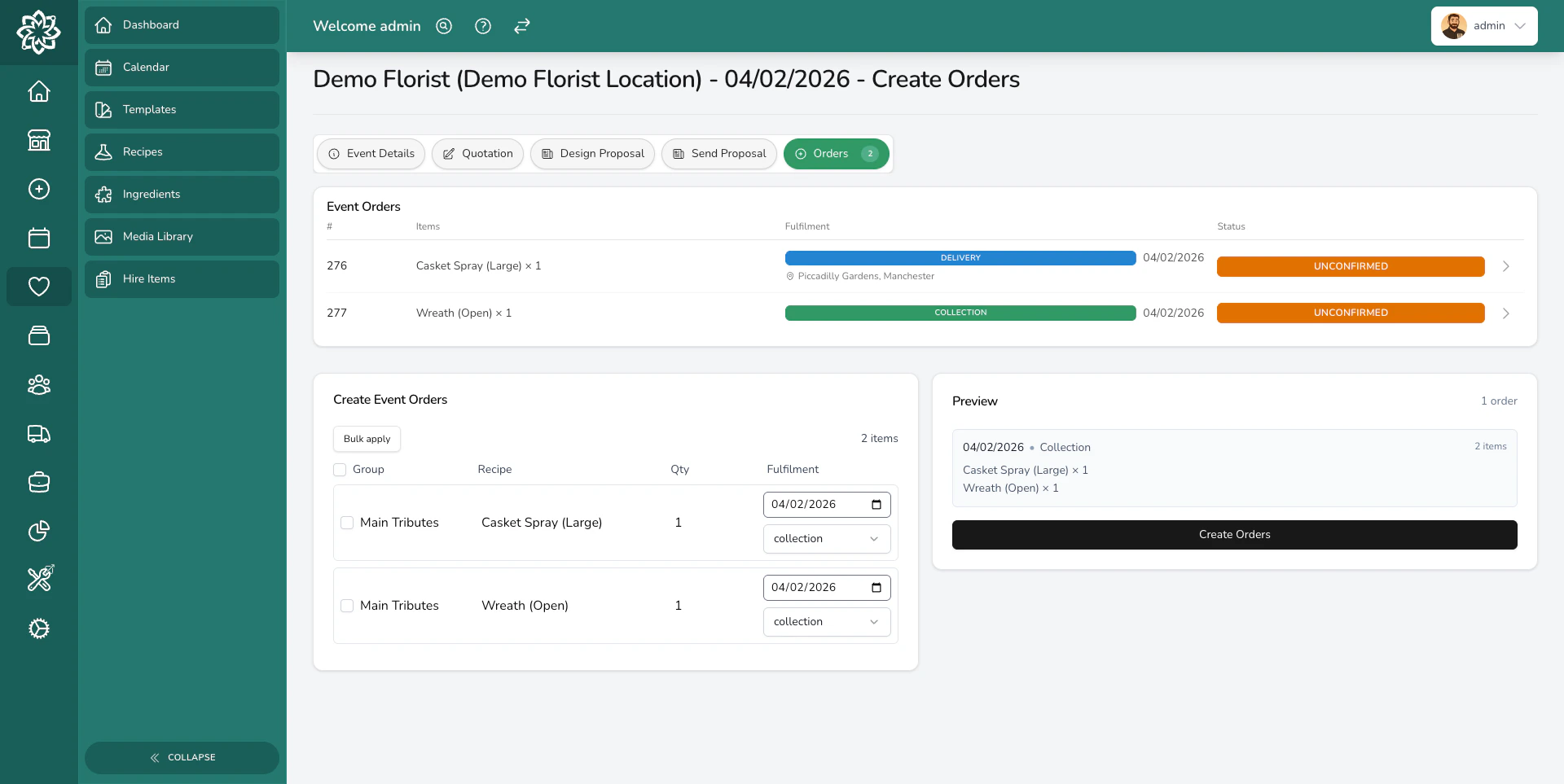
Event orders listed after creation
Adding orders later
Plans change. The client might add extra buttonholes a week before the wedding, or decide they need flowers for the rehearsal dinner too. Come back to the Orders tab at any time and create additional orders for new items. Items already on existing orders show an On order badge and are hidden by default, so you’re only working with what’s new. Use the filter banner to show them again if you need to re-order something.Common questions
Can I edit an order after it's been created?
Can I edit an order after it's been created?
Yes. Orders start as Unconfirmed, so you can open them and make changes before your team begins production. Once an order is confirmed, changes are more limited.
What if I need to split an item across multiple deliveries?
What if I need to split an item across multiple deliveries?
Use Split on the row to break the quantity, then move the new rows into a separate draft. For example, if a client ordered 10 centrepieces, you can split into 6 and 4, then put each draft on a different date or venue.
Do event orders show up in my regular order list?
Do event orders show up in my regular order list?
Yes. Event orders appear on your dashboard and in your daily order list alongside walk-in and online orders. Your team handles them the same way as any other order.
Can I delete an order and start again?
Can I delete an order and start again?
Yes. If something isn’t right, delete the order and return to the Create Orders screen. Items from deleted orders won’t show the On order badge, so they’ll be available to add to new orders.
What’s next?
Event Lifecycle
See how events move through each status from draft to completed.
Quotation Builder
Build itemised quotes with recipe-based pricing.
Orders
Manage your daily orders, including event orders.
Delivery
Plan routes and track deliveries for all your orders.