

How orders work
Every order has three pieces of information that update independently:- Status — where the order is in your workflow (new, confirmed, ready, fulfilled)
- — how it gets to the customer
- Payment status — whether it’s been paid
Order types
When you create an order, you pick a type that helps you organise your work:- Gift — the standard order type for bouquets, arrangements, and plants
- Funeral — for sympathy flowers, tributes, and arrangements going to a funeral director or service. Set a funeral date and time so these get prioritised on your dashboard.
- Corporate — for business clients, often on account terms
- Event — for orders linked to an event or wedding. These are created from the events workflow, not the standard Create Order form.
Fulfilment methods
How the order gets to the customer:- Delivery — your team delivers it locally
- Collection — the customer picks it up from your shop
- — sends the order to another florist to fulfil (via Direct2Florist, Send to a Friend, or manually)
- Courier — sends it through a connected courier integration (Shiptheory or ShipStation). See Courier Orders for the full flow.
Confirming a relay or courier order
Open an order that arrived on relay or courier because of its address and a banner tells you the address sent it that way. Both choices sit side by side underneath, and the order waits until someone picks one.
Confirm who is making the choice when you are asked. The banner then names the choice, the person and the date, so anyone opening the order later can see it was dealt with. If you kept it for your own van, it also says the customer’s charge was kept, and you can change that charge on the order.
Order statuses
Orders move through these statuses as your team works on them:How an order moves through your shop
Changing an order’s status is more than a label change — it triggers stock, notifications, automations, and bookkeeping. Here’s what you should know.Transitions and rules
You can move an order to almost any status from almost any other, with two important exceptions:With Courier is only available for orders whose fulfilment method is Courier. A regular delivery order moves to Out for Delivery automatically when the driver starts the run on the app; it isn’t a status you set from the dashboard.
What happens when you change the status
The system fires off side-effects automatically. The notable ones:- Confirming a new order triggers your auto-assign settings, so the order can land with the right designer or florist if you’ve configured that.
- Cancelling an order returns any reserved stock to your inventory, cancels related tasks, and reverses loyalty points that were accrued.
- Marking Fulfilled stamps the fulfilment time and accrues loyalty points (if loyalty is on).
- Moving back from Out For Delivery to Confirmed removes the order from its delivery run.
- Reopening a cancelled order re-reserves the stock.
Customer notifications by status
If you’ve turned on the matching notification template in Notifications, customers get an automatic message at each step:Ready For Collection notifications are smart about timing. If you mark a collection order Ready For Fulfilment on the day the customer is due to collect, the notification sends immediately. If you mark it ready earlier (the night before, say), the notification is held back and sent automatically at 8am on the collection day.
Payment statuses
Orders track payment separately from fulfilment — Unpaid, Partially Paid, Paid, Refunded, Partially Refunded, and Void. The canonical reference (with what each means and how they’re driven by the transaction) lives in Transactions > Payment statuses.The order details view
When you click an order on your Dashboard, you open the order details view (also called the make-up view). This is where you and your team spend most of your time.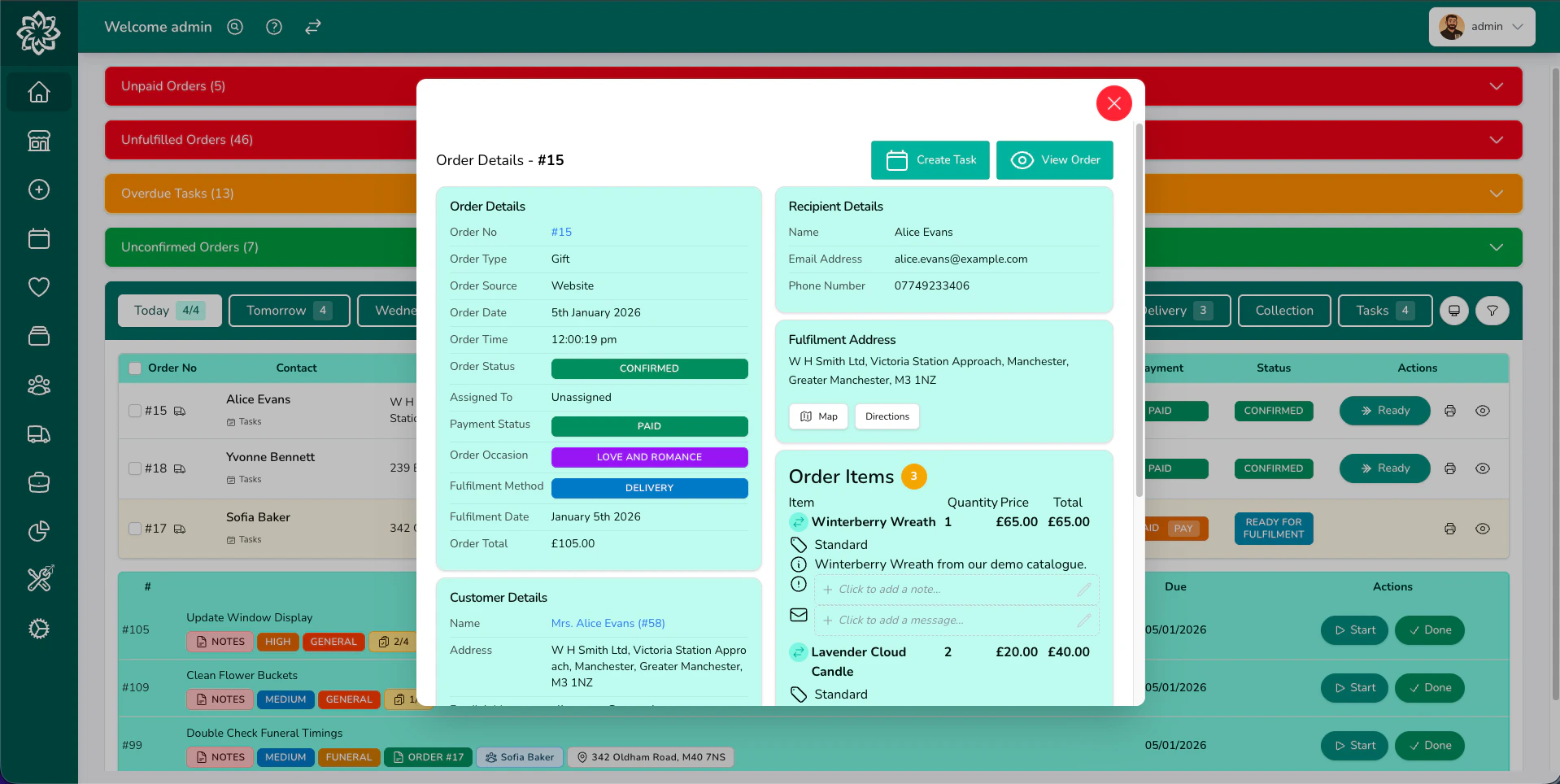
The order details view showing customer info, products, and action buttons
- Customer Details — name, address, email, and phone number
- Order Items — each product with variant, quantity, price, description, notes, and card message fields
- Upload Attachment — for adding photos or documents to the order
- Linked Tasks — any tasks connected to this order
- Notification Logs — what emails or messages have been sent to the customer
What you can do from the details view
- Change the status — move the order to its next stage
- Print Receipt, Print Labels, or Print Worksheet for this order
- Send Receipt to the customer by email
- Resend Order Notification if the customer didn’t receive their confirmation
- Send an ad-hoc email or SMS from the notification logs — useful for following up on a specific order, with a record kept against the order
- Send to Courier to book a courier collection
- Send to Relay to forward the order to another florist
- Upload attachments like reference photos or documents — for example, if a customer shows you a picture of what they want, attach it to the order
- Create a task linked to the order — useful for follow-ups or anything that needs picking up later, kept connected to the order
- Add notes and card messages directly on each product
Editing an order
You can edit an order until it has been fulfilled. Click into the order and update any field, then click Update.The agreed delivery charge
When you reopen a saved order, it keeps the delivery charge you agreed with the customer, so a price change in your settings leaves orders you have already taken alone. The line under the delivery option says the charge is being kept, and offers Update delivery price when you do want today’s figure. Choose Update delivery price and the current price is used the next time you save. Choose Keep agreed price to go back to the agreed figure before you save. Changing the address, the date or the delivery option asks for a fresh price on its own. After an order has been fulfilled, most fields are locked. You can still add notes or attachments, but if you need to change products, prices, or addresses, it’s usually cleaner to create a new order than to edit a fulfilled one.Cancelling an order
To cancel an order, open it and click Cancel Order. You’ll need to:- Enter a cancellation reason for the record
- Choose a refund option: Full Refund, No Refund, or a Custom Amount
Cancelling an order cannot be undone from the cancel screen. If you need to bring it back, you’ll have to reopen it (which sets it back to Confirmed) — and that path has its own implications for stock and notifications. Make sure you’ve chosen the right refund option before confirming.
Order sources
Each order is tagged with where it came from so you can track how customers are finding you:- Walk In — customers who order in person
- Phone — phone orders
- Email — email orders
- Website — orders from your online store
- Other — anything else
Finding past orders
Your dashboard shows today’s and tomorrow’s orders by default. Two ways to find orders from any other date:- From the dashboard — click Other above the orders table to open a calendar. Each date shows the order count; click any date (past or future) to jump straight to its orders.
- From the full orders list — click the Orders icon in the left sidebar, then search by fulfilment date (in YYYY-MM-DD format, e.g. 2025-03-06) to see every order for that date in any status: unconfirmed, confirmed, fulfilled, cancelled, and everything in between.
Repeat orders
For customers who want regular deliveries — weekly reception flowers, monthly office arrangements, fortnightly church displays — set up a Repeat Order. Digital Florists automatically generates a new order on your chosen schedule. Learn more about repeat orders →Common questions
Can I edit an order after it's been fulfilled?
Can I edit an order after it's been fulfilled?
You can add notes and attachments, but most fields (products, prices, addresses) are locked. If you need significant changes, create a new order instead.
How do I cancel a fulfilled order?
How do I cancel a fulfilled order?
Fulfilled orders can’t be cancelled directly. Reopen the order first (which sets it back to Confirmed), then cancel from there. The system handles stock and refund implications correctly when you go via that path.
What happens if an address is outside my delivery areas?
What happens if an address is outside my delivery areas?
You see a note on the order saying the address falls outside your areas. What happens to the charge is the rule you set under All other addresses: priced from the delivery option, charged a fixed amount, or left for your team to price. From there you can send it on as a relay so another florist fulfils it. See Addresses no area covers.
Can I search for a specific order?
Can I search for a specific order?
Yes. You can search by order number, customer name, recipient name, delivery address, postcode, or product name.
How do I handle a substitution?
How do I handle a substitution?
Open the order and use the Substitute option to swap a product or bundle for an alternative.
When does the 'Ready for collection' notification go out?
When does the 'Ready for collection' notification go out?
The Ready For Fulfilment notification only fires for collection orders. If you mark the order ready on the day of collection, it sends immediately. If you mark it ready earlier (e.g. the night before), it’s held back and sent automatically at 8am on the collection day — so the customer isn’t told their flowers are ready before they are.
What’s next?
Create an Order
Step-by-step guide to creating a new order.
Repeat Orders
Automate orders for customers on a regular schedule.
Your Dashboard
Manage all your orders from one screen.
Delivery
Set up delivery runs and track your drivers.