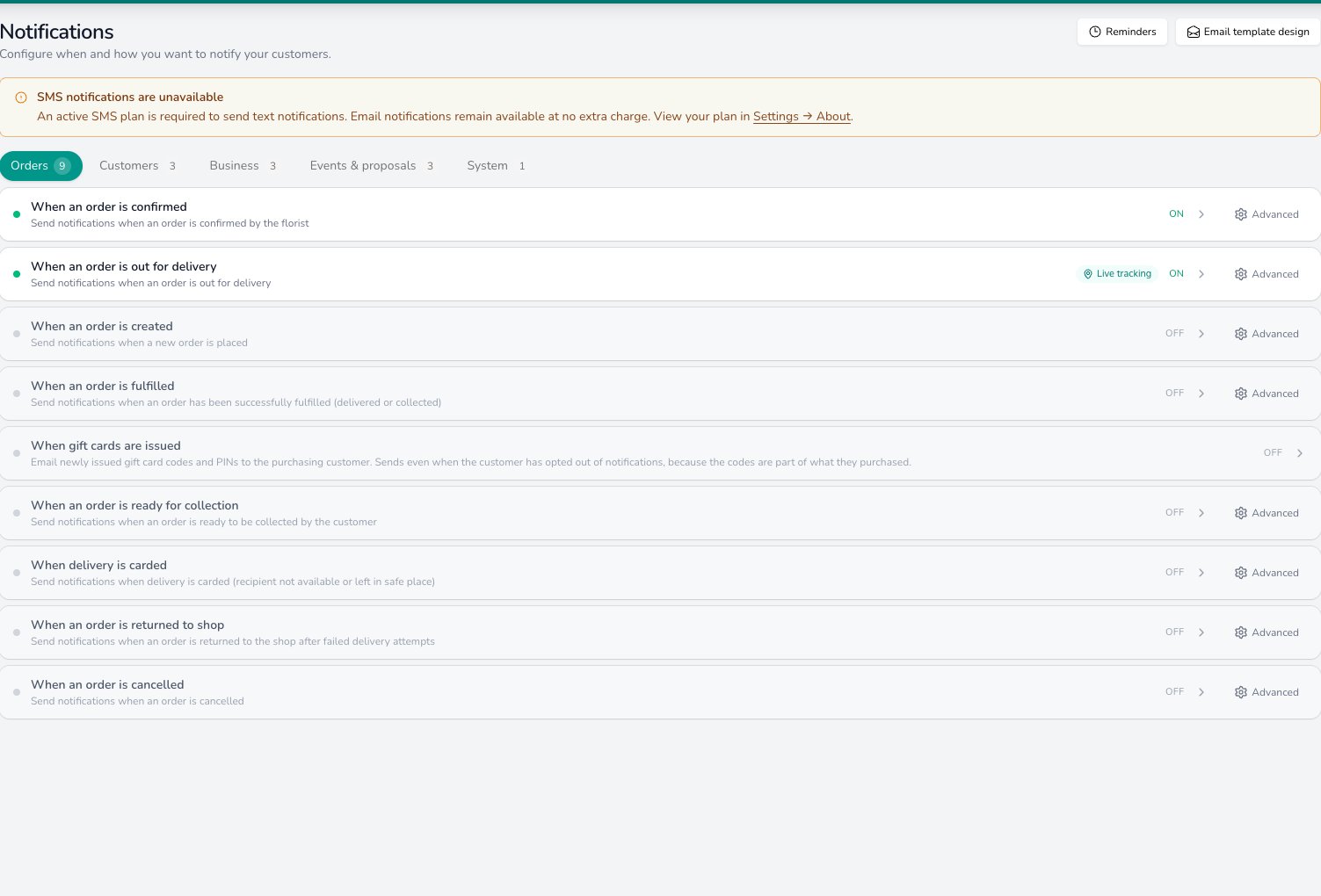
Notifications control what emails and SMS messages are sent to your customers and team when things happen in the system.
Email template editor with layout and content options

How notifications work

Notifications are triggered automatically when certain events happen, such as:
  • A new order is placed (notifies your team)
  • An order is confirmed (notifies the customer)
  • An order is out for delivery (notifies the customer when the driver starts their run)
  • An order is fulfilled (notifies the customer with proof of delivery photos and a review request)
  • An order is ready for collection (notifies the customer so they know to come in)
  • A delivery is carded (notifies the customer where their flowers have been left)
  • An order is returned to shop (notifies the customer that delivery couldn’t be completed)
  • An order is cancelled (notifies the customer)
  • Stock is running low (notifies your buyer)
  • A payment is received (notifies the customer)
Each trigger can be turned on or off individually, and you can choose whether it sends an email, an SMS, or both. You don’t have to use them all — most shops only enable the ones that make sense for their workflow.

Customising email templates

Each notification has an email template that you can customise. Go to Settings > Notifications to:
  • Edit the subject line and body text
  • Add your logo and branding colours
  • Include dynamic fields like the customer’s name, order number, delivery date, and products ordered
  • Preview how the email will look before saving

Branding your email template

Go to Settings > Advanced > Notifications to fully customise the look of your emails. You can change:
  • Header and footer text — the subject variable pulls through automatically, and you can edit the footer message (e.g., “Thank you for your business”)
  • Colours — click any colour swatch to open a colour picker, or enter a hex code directly for an exact match to your brand. You can style the background, header, footer, text, and buttons independently.
  • Company logo — toggle your logo on or off at the top of the email
A live preview updates as you make changes, so you can see exactly how your emails will look before saving.
If you don’t know your brand’s hex codes, try a tool like Canva — upload your logo and use its colour picker to grab the exact values.

Controlling notifications by order type

Each notification trigger has advanced settings where you can control which order types receive it. For example, you might want delivery notifications for gift orders but not for funeral orders — since a delivery confirmation to a bereaved family isn’t always appropriate. Click Advanced on any notification trigger to see checkboxes for each order type (Gift, Funeral, Corporate, Event). Uncheck an order type to stop that notification from being sent for those orders. There’s also an Overrides section at the top that lets you send notifications for specific order types even if the customer has opted out. This is useful for operational messages that must always be delivered.
If you use the Events system for weddings and corporate bookings, consider turning off all order notifications for Event order types. Event orders are generated from quotations and are mainly for your team’s workflow — your clients receive their communications through the event automations and client portal instead.
You can add a promotional banner to the bottom of every email notification. This is a great way to advertise new collections, seasonal offers, or upcoming services to your customers — every order confirmation, delivery update, and receipt becomes a marketing opportunity. Set it up in Settings > General > Notifications:
  • Footer image — upload a graphic (e.g., “Order now for Christmas”, “New spring collection”, or “Wedding consultations available”)
  • Footer link — add a URL so the image links to the relevant page on your website
The banner appears at the bottom of all customer-facing emails. Update it whenever you want to promote something new — swap it for a Christmas graphic in November, a Valentine’s offer in January, and your new collection photos in spring.

Per-fulfilment-type wording

Each notification trigger can have different wording for different fulfilment methods. For example, you might want collection notifications to say “your order is ready to collect” while delivery notifications say “your order is on its way”. Click a notification trigger, then enable a fulfilment method override (Delivery, Collection, Relay, or Carrier). The system copies the default message as a starting point — edit it to say whatever you need. When that notification fires, the system sends the version matching the order’s fulfilment method.
Most shops are fine with the defaults, which already pull in the correct fulfilment details automatically. But if you send orders via courier or relay and want to include specific tracking or handoff instructions, per-fulfilment overrides are the way to do it.

Business notifications

In Settings > Advanced > Notifications, you’ll find a Business Notifications section alongside your customer notifications. This controls the emails that accompany your invoices and statements when sent to account customers. Each has its own editable template — you can change the wording, toggle them on or off, and use the same dynamic fields (customer name, company name, contact details) as your other notifications.

SMS notifications

If you have SMS enabled, you can also send text message notifications for key events like order confirmations and delivery updates. These use shorter, simpler messages suited to the format.

Team notifications

Set up internal notifications so your team knows when things need attention:
  • New order alerts sent to a shared email address (e.g., orders@yourshop.com)
  • Low stock alerts sent to whoever handles buying
  • Failed integration alerts when a relay order fails to send

Disabling notifications per order or customer

Sometimes you need to silence notifications for a specific situation:
  • Per order — when creating or editing an order, tick the Disable notifications checkbox. This stops all notifications for that order only. Useful for surprise gifts where the customer shares an email with the recipient.
  • Per customer — on a customer’s profile, tick Opt out of notifications. This stops delivery notifications for every order placed for that customer going forward. Useful for trade or credit customers who send many orders and don’t want a notification for each one.
There’s also a global funeral switch: in Settings > General > Way of Working, tick Disable funeral order notifications to stop all notifications for funeral orders across the board. This is quicker than disabling funerals on each trigger individually. The per-order override and the per-customer opt-out work independently — you can use either or both.

Automatic occasion reminders

You can set up reminders that automatically nudge customers to reorder for annual occasions like anniversaries, birthdays, and Valentine’s Day.

Setting up reminders

Go to Settings > General > Occasions and click Edit next to the occasion you want. Add one or more reminder offsets — for example, “7 days before” and “3 days before” the next occurrence. Save and the occasion is ready.

Triggering a reminder

When you create an order and select an occasion that has reminders configured, a checkbox appears on the order form. Tick it to schedule the reminders. Once the order is confirmed, the system automatically sends the reminder emails to the customer at the configured offsets the following year.
This works best for recurring occasions (anniversaries, birthdays, Mother’s Day). Skip it for one-off occasions like “Get Well” or “Thank You” where a reminder wouldn’t make sense.

Viewing queued reminders

To see which reminders are scheduled and whether they’ve been sent, go to Settings > Advanced > Notifications and click the Reminders tab. You’ll see reminders grouped by status: Pending, Queued, Sent, and Failed. If a reminder is still pending, you can choose to send it straight away rather than waiting for the scheduled date.

Sending a one-off notification

You can send an ad-hoc email or SMS to a customer directly from an order. Open the order modal (click the i button on your dashboard), go to Notification Logs, and tap Send. Choose email or SMS, write your message, and send it. The message is linked to the order, so you have a full paper trail of all communications in the notification log.

Common questions

Yes. Each notification type can be individually enabled or disabled.
Order-related notifications (like confirmations and delivery updates) are always sent. Marketing notifications respect the customer’s opt-in preferences.
First, check the customer’s email address is correct on their profile. Then check Settings > Notifications to make sure that notification type is enabled. Ask the customer to check their spam or junk folder — automated emails sometimes end up there. You can also check the notification logs in Settings > Notifications > Logs to see if the message was sent and whether delivery failed.

What’s next?

Automations

Set up rules that trigger actions automatically.

Configuration

Manage your shop details and business rules.
Last modified on March 12, 2026