

This page covers features gated by Manager-tier permissions. Managers and Admins have these by default; your administrator can adjust who has them in Settings > Team.
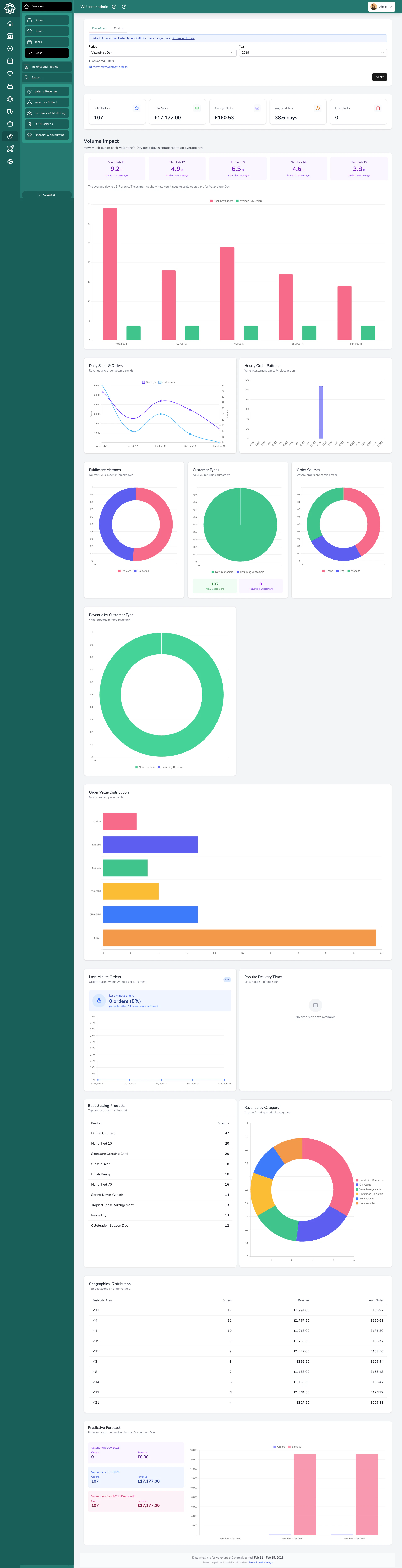
Valentine's Day performance compared year-on-year
How it works
Pick a period to analyse and a comparison to measure it against. The period is either a predefined peak or a custom date range. The comparison is the previous year, the previous period, custom dates, or nothing.Predefined peaks
Select a peak period and a year, and your dashboard shows you everything that happened during that window: orders, revenue, products sold, customer behaviour, and more. It also compares each day against your average daily performance for the rest of the year, so you can see how much busier you were. Covers the major UK and international floral peaks: Valentine’s Day, International Women’s Day, Mother’s Day, International Mother’s Day, Father’s Day, Easter, Thanksgiving, and Christmas. Dates are calculated for you each year.Custom comparison
Pick Custom dates… as the period and set a date range. Then set Compare against to Same dates last year (the default), Previous period, Custom dates, or No comparison. Named peaks can be compared too, with the same options minus Previous period (since the 5 days before a named peak isn’t a useful comparison). This is useful for comparing:- This December vs last December
- A promotional week vs a normal week
- Any two periods you want to measure against each other
What you’ll see
Summary cards
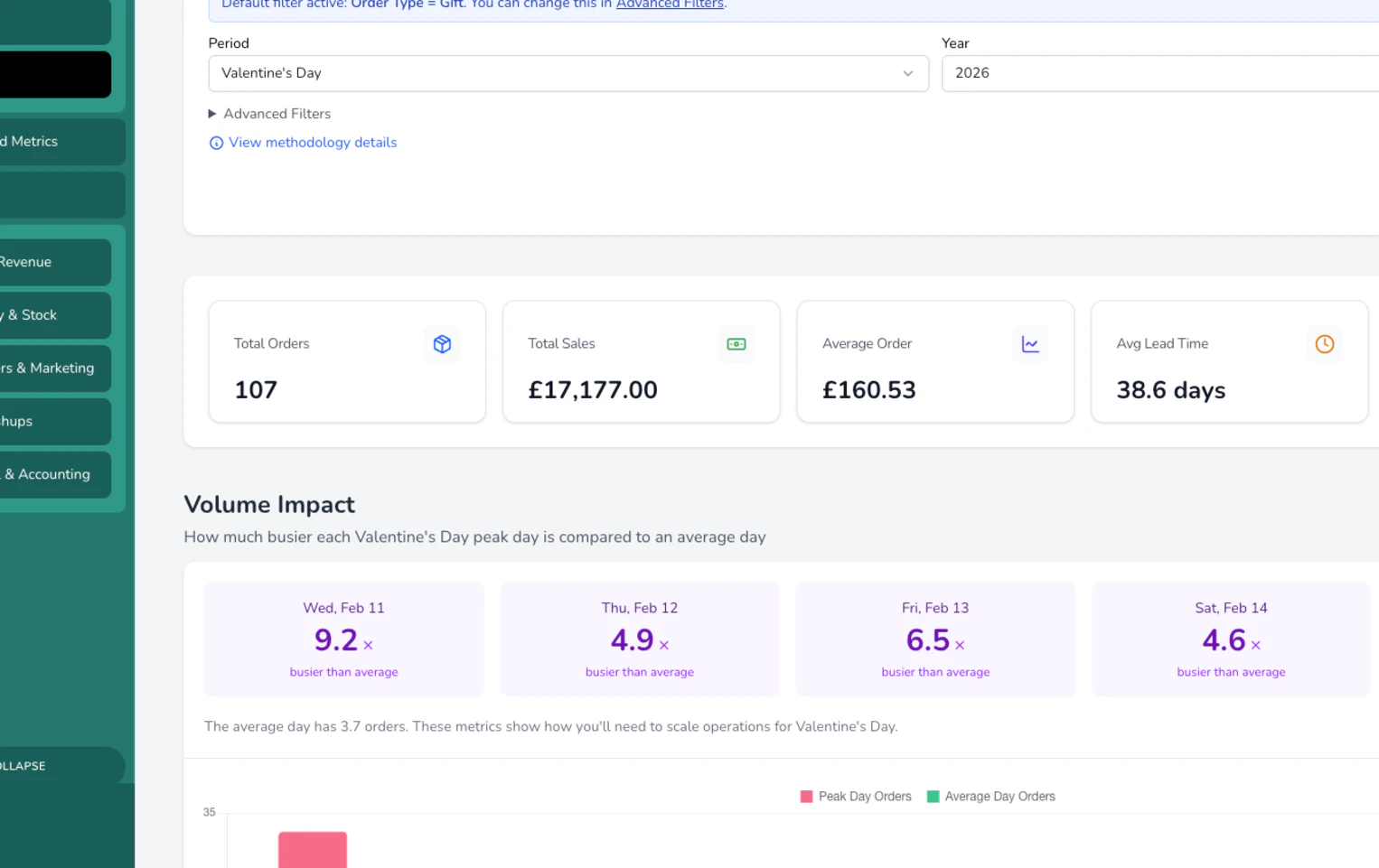
At the top, you get the headline numbers for your selected period.Volume impact
This shows how much busier each day of the peak was compared to a normal day. You’ll see ratios like “2.5x busier than average”, meaning you handled two and a half times your usual daily volume. The average is calculated from the rest of the year, excluding the peak period itself, so peak days are compared against your typical day rather than against themselves.Charts and breakdowns
Peak reporting is split across four tabs. Each tab focuses on a different angle of the same peak window.Overview
Customers & Sales
Products & Workload
Geography & Forecast
Peak period heatmap and trends
Forecasting
For predefined peaks, Digital Florists shows a forecast for the next year based on your year-on-year growth. You’ll see three bars side by side.
The forecast is a deliberately conservative projection based on your own year-on-year trend — a planning guide, not a commitment.
This helps you plan how many stems to order, how many drivers to schedule, and how much stock to carry.
Forecasts only appear on predefined peaks. Custom comparisons don’t include a forecast because arbitrary date ranges don’t have a natural “next year”.
Filtering
You can refine your peak analysis with several filters.Printing
Click Print to get a print-optimised view of the full report, with a header showing the peak name and date range.How the data is calculated
Peak reporting uses fulfilment dates, not order dates. An order placed on February 10 for delivery on February 14 counts as a Valentine’s Day order. Cancelled orders are excluded from every peak calculation. By default, only paid and partially paid orders are included. You can toggle unpaid orders on if needed. The “average day” baseline is calculated from the same year, excluding the peak period itself and applying the same filters you’ve selected.Common questions
Can I compare a peak across more than two years?
Can I compare a peak across more than two years?
The predefined peak view shows one year at a time, but you can switch between years to compare manually. The forecast chart shows three years side by side (previous, current, projected).
What if I don't have data for a peak period?
What if I don't have data for a peak period?
If no orders match the selected period and filters, you’ll see a helpful message with a year selector so you can try a different year.
Why can't I see peak reporting?
Why can't I see peak reporting?
Peak reporting is built on your order history, so it comes with the plans that include Orders. On an events-only plan it isn’t part of Analytics. Get in touch with support if you think it should be there.
Can I add my own peak periods?
Can I add my own peak periods?
The list of predefined peaks is fixed for now, but you can pick Custom dates… as the period to analyse any date range you like.
Why does it use fulfilment dates instead of order dates?
Why does it use fulfilment dates instead of order dates?
Because peak demand is about when flowers need to be ready and delivered, not when the order was placed. A Valentine’s order placed in January still needs to be fulfilled on February 14.
What’s next?
Analytics overview
Back to the analytics overview.
Insights
Drill into staff, product, and customer performance.
Areas
See where your orders are coming from by town, postcode, or county.
Reports
Download detailed reports for any area of your business.