The Reports section lets you generate detailed, downloadable spreadsheets covering sales, inventory, delivery pictures, customers, financials, and end of day summaries. Each report has its own filters so you get the data you need.
This page covers features gated by Manager-tier permissions. Managers and Admins have these by default; your administrator can adjust who has them in Settings > Team.

How reports work

  1. Go to Analytics > Export
  2. Pick a report category (Sales & Revenue, Inventory & Stock, Delivery Pictures, Customers & Marketing, EOD/Cashups, or Financial & Accounting)
  3. Choose the specific report you need
  4. Set your filters (date range, locations, statuses, etc.)
  5. Click Generate and download the file
Most reports download as Excel files (XLSX) with multiple sheets: an overview sheet plus detailed breakdowns and an info sheet recording the filters you applied. Delivery Pictures downloads as a ZIP of photos.

Formats at a glance

FormatWhere it’s usedOpens in
XLSX (Excel)Most reports from Analytics > ExportExcel, Google Sheets, Numbers
CSVMailing list (when CSV is selected), bulk customer/order/product exports from Settings > Advanced > Disaster Recovery, ingredient template exportsExcel, Google Sheets, any spreadsheet tool
PDFOrder worksheets, order list, delivery run sheetsAny PDF viewer
ZIPDelivery Pictures (bundle of delivery photos)Any unzip tool

Exporting from other pages

A few other places let you export without going through Analytics > Export:
PageWhat you can export
OrdersOrder worksheets and order list as PDF
DeliveryDelivery run sheets as PDF
Settings > IngredientsIngredient list as CSV (blank template or with data)
Settings > Advanced > Disaster RecoveryCustomer list, order list, orders by fulfilment date, and product catalogue as CSV
The Digital Florists App doesn’t include export tools — everything runs from the dashboard.

Sales & Revenue

Sales report with filters and data preview
Five reports covering your sales from different angles:
ReportWhat it answers
Order SalesHow much have you sold? Breaks down by date, occasion, product, category, source, and payment method. Covers more dimensions than the other sales reports.
Event SalesHow are weddings and events tracking? Totals, paid-to-date, and outstanding balances per event, with breakdowns by event type, payment status, and invoicing state.
Customer OrdersWhat has a specific customer ordered? Shows their full purchase history and order frequency.
Orders by PaymentHow are customers paying? Groups revenue by card, cash, account, and other methods.
Event Payments by MethodHow are event customers paying? Same breakdown, for weddings and events.
The Order Sales report is the most flexible. You can filter by:
  • Date type (order date, fulfilment date, or payment date)
  • Order and payment status
  • Order sources and integrations
  • Locations
  • Fulfilment methods (delivery, collection, relay)
  • Order type
  • Product categories and occasions
  • Individual team members
  • Till filter (All Orders, Till Only, or Without Till) for point of sale (POS) analysis
It generates a multi-sheet Excel file. Sheets included depend on what your filters return, but typically cover Overview, Occasions, Orders, Products, Product Details, Products By Category, Custom Products, Custom Product Details, Adjustments, and Events. A final Info sheet records the filters you applied.
Want to see just your till sales? Set the Till Filter to Till Only and pick which till devices to include. This is useful if you want to drill down to individual order level and understand what’s making up your point of sale (POS) figures. If you have multiple POS devices, only tick the ones you want; the report pulls from every device ticked.

Inventory & Stock

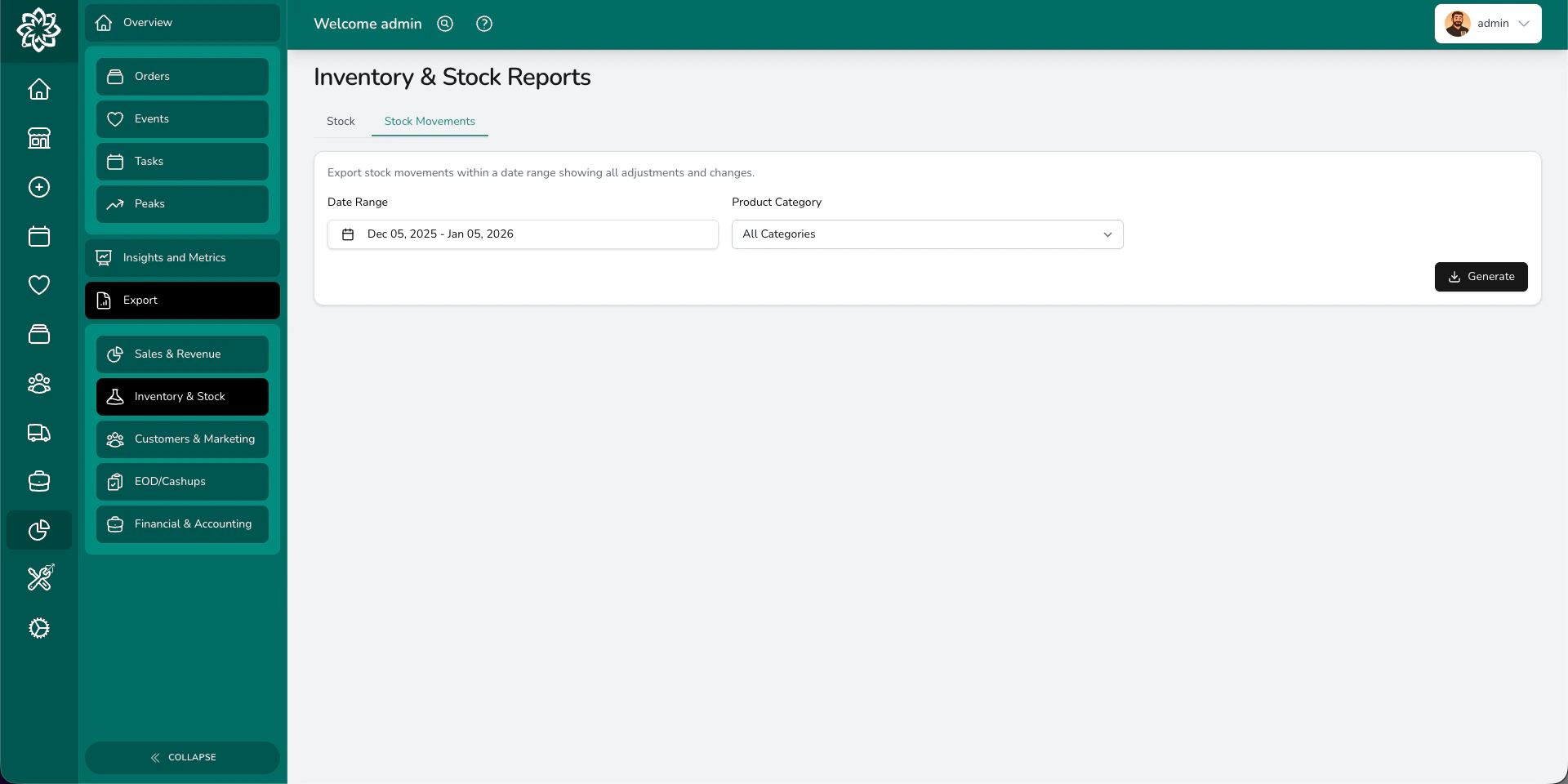
Inventory report showing stock levels and movement options
Four reports for managing your stock:
ReportWhat it answers
StockWhat do we have right now? Current stock levels with cost and retail prices for every product with stock control enabled.
Stock MovementsWhat changed and when? A full history of every stock adjustment, including sales, manual corrections, imports, and returns.
Ingredient SummaryWhat do you need to order? Total ingredient demand across your orders, grouped by ingredient. Use this when sending stem counts to your wholesaler.
Ingredient BreakdownWhich orders need which ingredients? A per-order, per-product breakdown of ingredient requirements.
Ingredient Summary and Ingredient Breakdown are only available if you’ve set up ingredient recipes on your product variants.
The ingredient reports let you filter by fulfilment date range, order status, and fulfilment method, so you can generate a shopping list for just this week’s deliveries, just funeral work, or just confirmed orders.

Customers & Marketing

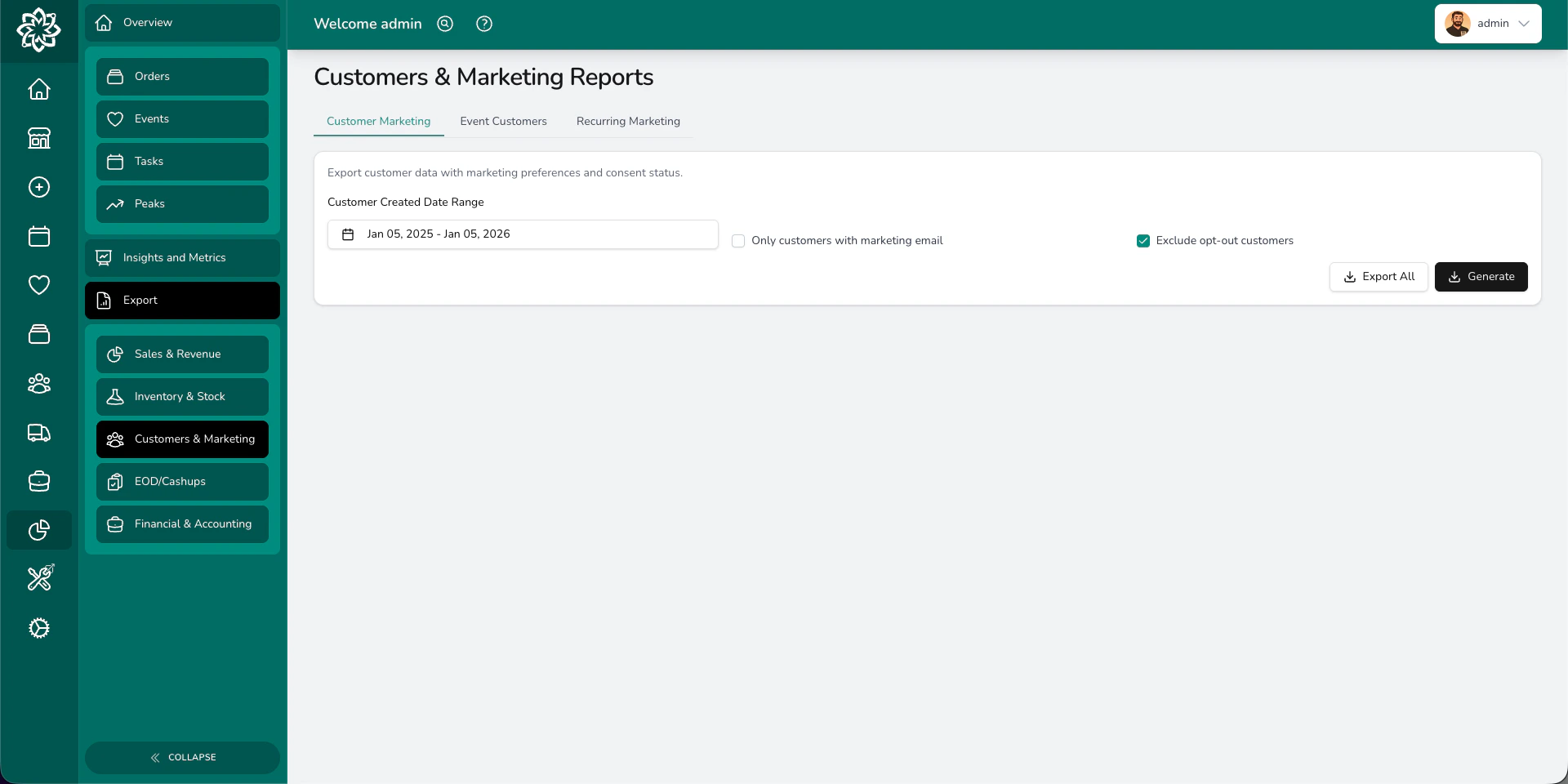
Customer marketing report with export options
Four reports for understanding and reaching your customers:
ReportWhat it answers
Customer MarketingWho can you contact? Customer names, emails, phone numbers, and marketing consent status. Filter by date, or use Export All to download every customer.
Mailing ListNeed a clean list for an email campaign? Pulls just the contactable customers with marketing consent.
Event CustomersWho’s booked events? Customers who’ve had weddings or events, filterable by event date, creation date, or quote acceptance date.
Recurring MarketingWho orders regularly? Customers with recurring or subscription orders, for targeted loyalty campaigns.
Make sure you have proper consent before exporting or sharing customer data. Follow your shop’s data protection policy.
You can choose to export only customers with a marketing email, and exclude those who’ve opted out. Both options are checkboxes on the report form before you generate.

Financials & Accounting
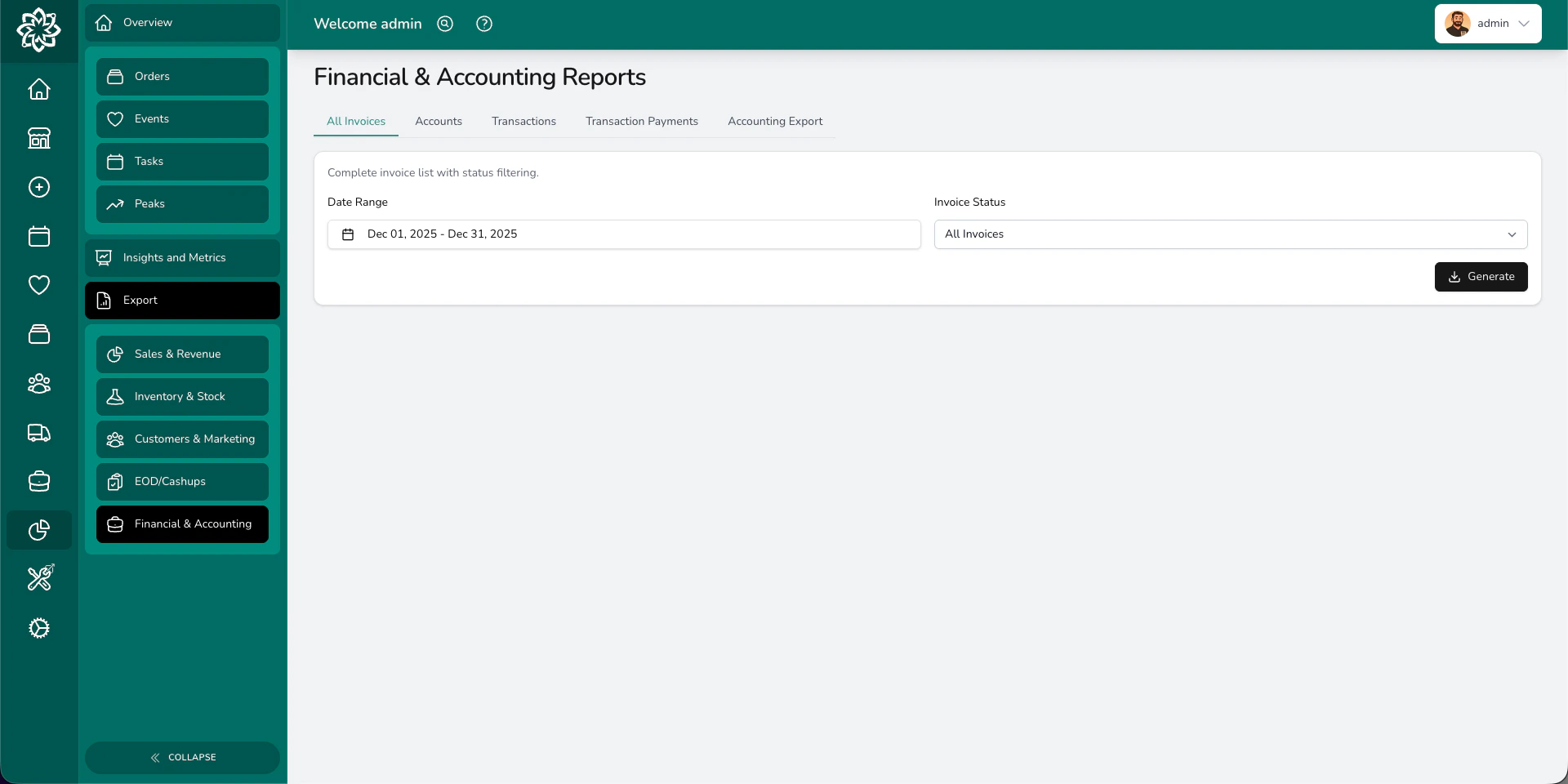
Financial report showing revenue and payment breakdown
Five reports for your accounts and bookkeeping:
ReportWhat it answers
All InvoicesWhat’s been invoiced? Every invoice with status (paid, unpaid, partially paid), amounts, and outstanding balances.
AccountsWho owes us money? Outstanding payments, uninvoiced orders, and aged debt broken down into 0–30, 31–60, 61–90, and 91+ day buckets.
TransactionsWhat transactions happened? Raw transaction data with order and event references, filterable by date type and user.
Transaction PaymentsHow was each payment made? Every individual payment across orders, events, petty cash, and adjustments, with payment method, device, and refund tracking.
Accounting ExportHow do I get this into my accounting software? Formatted exports for Sage, Xero, or QuickBooks with the right columns, tax codes, and account mappings.
The Accounting Export formats your invoices for your accounting software. Select Sage, Xero, or QuickBooks, set your date range, and Digital Florists generates a file your accountant can import.

End of Day

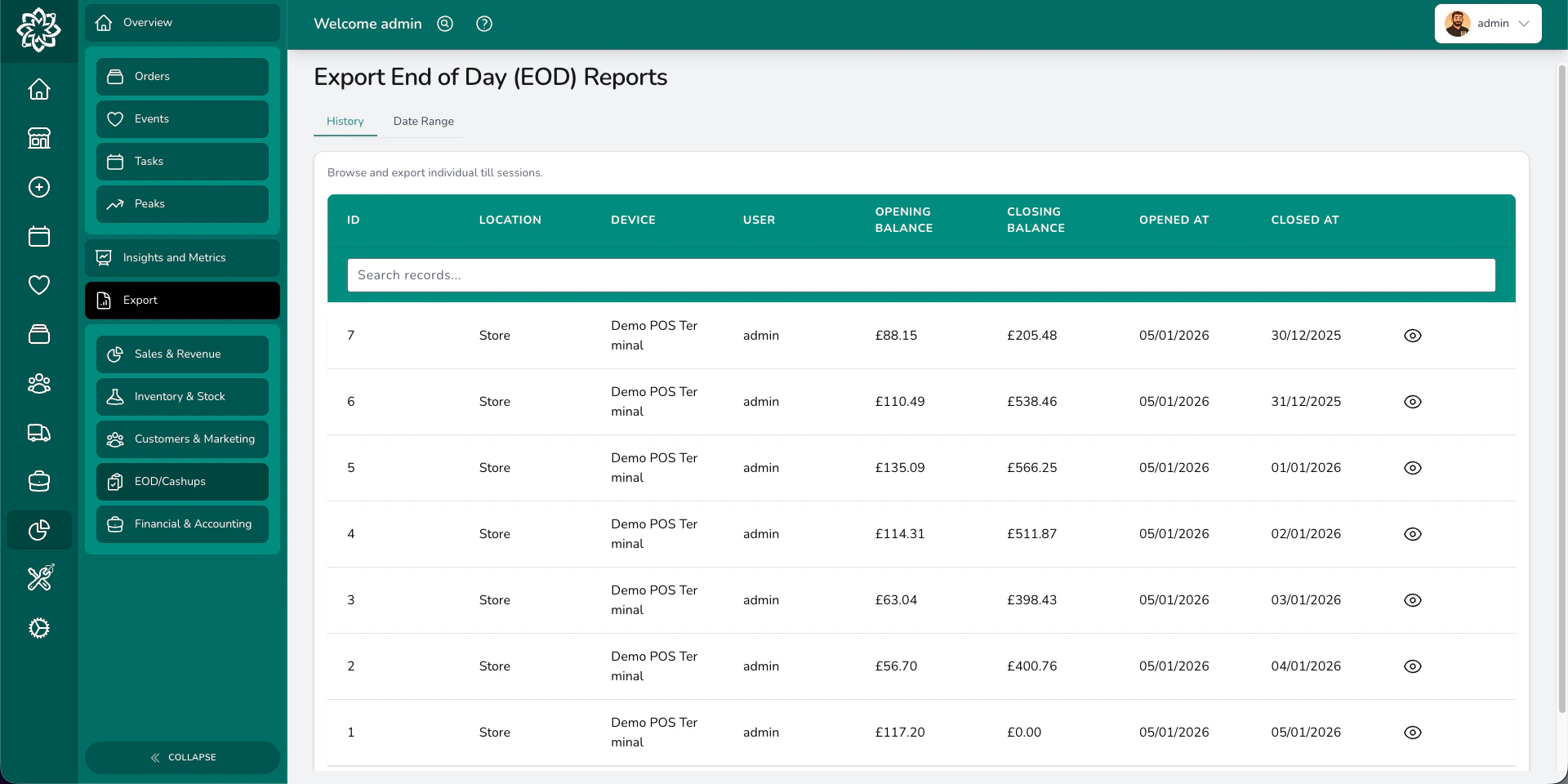
List of end of day till session reports
Two reports for closing out your day:
ReportWhat it answers
HistoryWhat happened in each till session? Browse individual sessions with their totals.
Date RangeWhat happened across multiple days? A consolidated report covering all till sessions in a date range, with summary or detailed breakdowns.
The date range report generates a multi-sheet Excel file with: Sessions, Payments Summary, Payments by Orders/Events/Adjustments, Refunds, and Petty Cash Receipts. Learn more about end of day →

Audit logging

Reports generated from Analytics > Export are logged automatically. The audit log records who generated the file, when, which report type, and the context for that export (such as date range or filter selections). Your administrator can review export entries in the audit log to see who accessed what data and when.
Make sure you have proper consent before exporting or sharing customer data. Follow your shop’s data protection policy.

Understanding multi-sheet exports

Many reports download as Excel files with multiple sheets (tabs). Here’s how to read them:
  • Overview / Summary — the headline numbers and totals
  • Detail sheets — the raw data behind the summary (individual orders, payments, products, and so on)
  • Info — the filters you applied when generating the report, so you know what data is included
Open the file in Excel or Google Sheets and use the tabs at the bottom to switch between sheets.

Common questions

Reports from Analytics > Export download as XLSX (Excel) files that open in Excel, Google Sheets, and Numbers. Delivery Pictures downloads as a ZIP. Order worksheets, the order list, and delivery run sheets are PDF.
The All Invoices report is capped at 10,000 records per export. Other reports have no hard limit, though very large exports may take a moment to generate.
Reports are gated by the Analytics (View) permission. Financial reports additionally require Exports: Financial, and end of day reports require Exports: End of Day. Your administrator can adjust who has each of these in Settings > Team.
Yes. Exports generated from Analytics > Export are recorded in the audit log with who generated the file, when, the report type, and the context for that export. Your administrator can review these in the audit log.
Reports are generated on demand. For Xero or QuickBooks, Digital Florists generates a formatted spreadsheet you import into your accounting package — see Accounting exports.

What’s next?

Analytics

View your data visually with charts and trends.

Insights

Drill into specific areas like staff or products.

End of Day

Learn about the daily cashup process.

Financials

Manage invoicing, payments, and accounting.
Last modified on June 2, 2026