

This page covers features gated by Manager-tier permissions. Managers and Admins have these by default; your administrator can adjust who has them in Settings > Team.
Your analytics overview
What you’ll find
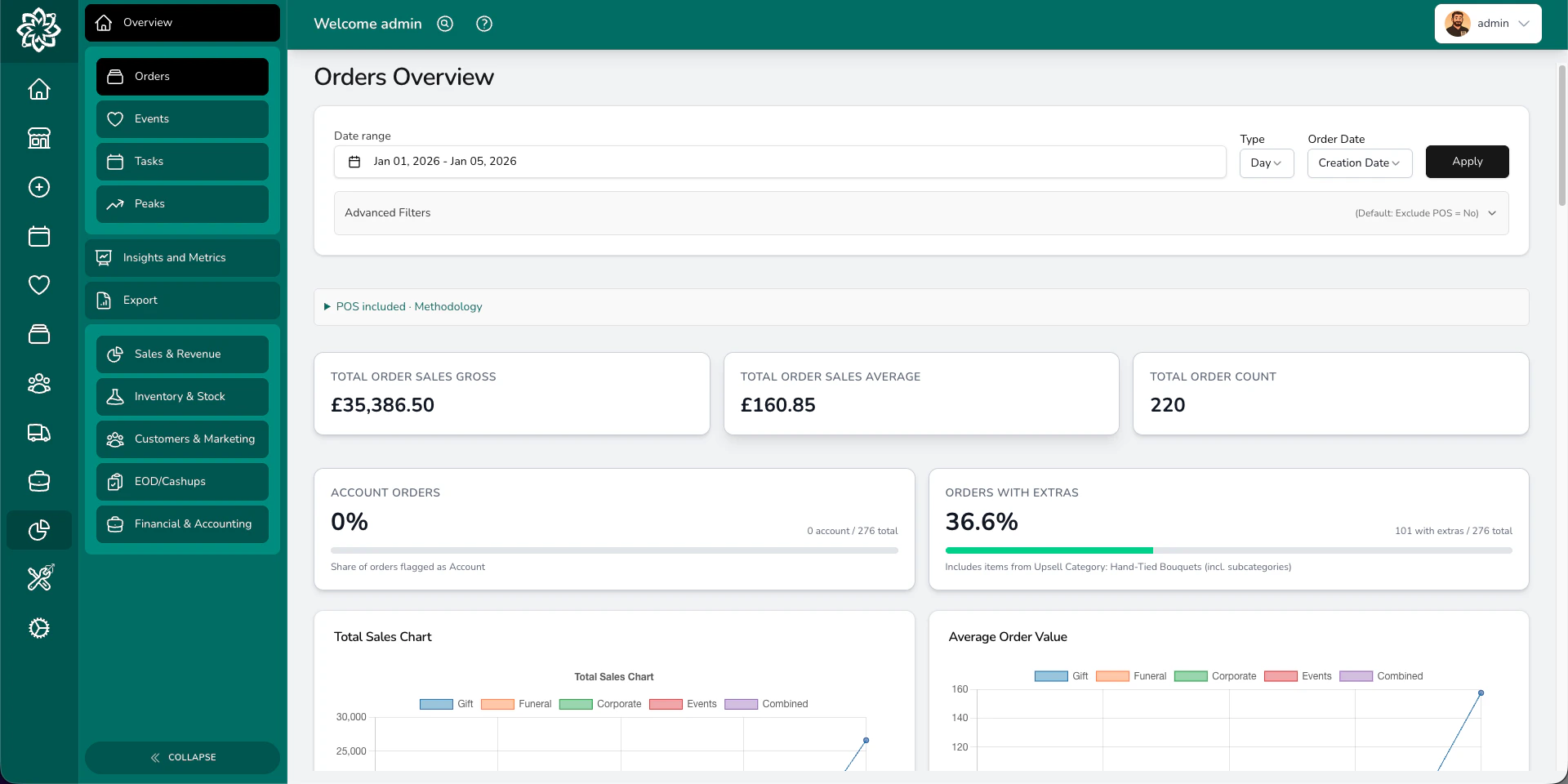
The overview is split into three views, each giving you a different angle on your business.Orders
The Orders view shows your sales at a glance: total revenue, order count, and average order value. View trends by day or month, switch between order date and fulfilment date, and break things down by occasion, source, fulfilment method, or payment method. Use this to answer questions like:- How much did we take this week?
- Are customers spending more or less than last month?
- Which occasions bring in the most revenue?
- Where are our orders coming from: website, phone, or walk-in?
Events
The Events view tracks your weddings, funerals, and corporate events. It shows event counts by month, expected revenue against payments received, and average values per event. Use this to answer:- How many events are booked for the coming months?
- How does our expected event revenue compare to what we’ve collected?
- What’s the average paid revenue per event?
Tasks
The Tasks view shows task volumes over time, so you can see how many tasks your team is completing each day or month. Useful for understanding workload patterns and planning staffing.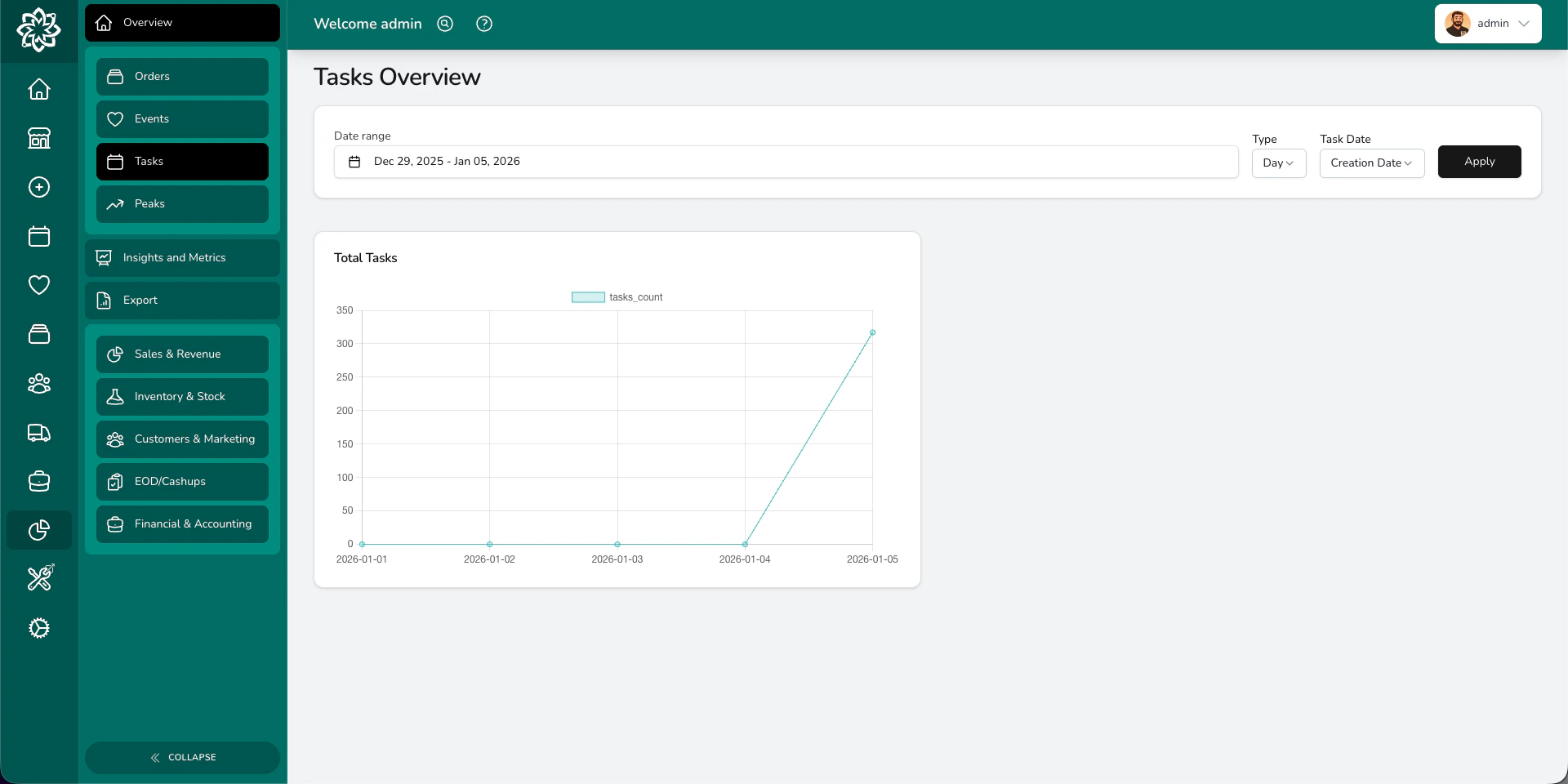
Tasks overview
Filtering your data
Each view has its own filters. Every view lets you pick a date range; the other filters depend on what makes sense for that area.- Orders — date range, daily or monthly view, switch between creation date and fulfilment date, choose which locations to include, and exclude point of sale (POS) walk-in till sales to see only online and phone orders.
- Events — date range, daily or monthly view, and switch between creation date and event date.
- Tasks — date range, and switch between creation date, due date, or completion date.
Going deeper
Beyond the overview, Analytics has more places to dig in:Insights
Deeper analysis across staff performance, products, customers, orders, events, and delivery. Filter by category and drill into the detail.
Peak Reporting
Compare your busiest periods (Valentine’s, Mother’s Day, Christmas) year-on-year and forecast next year.
Areas
See where your orders are coming from by town, postcode area, or county.
Reports
Generate and download detailed reports across sales, inventory, customers, financials, and end of day. Export as Excel or CSV.
Common questions
How far back does the data go?
How far back does the data go?
Your analytics cover everything from when you started using Digital Florists. A single view reads up to two years at a time — ask for more and you’ll see a message telling you the date range is too large. To go further back, shift the date range a year at a time.
How often do the numbers update?
How often do the numbers update?
Numbers refresh each time you load the page, picking up new orders, events, and tasks as they’re recorded.
Who can see analytics?
Who can see analytics?
Analytics require the Analytics (View) permission. Managers and Admins have this by default; your administrator can adjust who has it in Settings > Team.
Can I export the data I'm looking at?
Can I export the data I'm looking at?
Yes. Head to Reports to generate downloadable spreadsheets.
What’s next?
Peak Reporting
Compare your busiest periods year-on-year and plan ahead.
Insights
Drill into staff, product, and customer performance.
Reports
Download detailed reports for every area of your business.
End of Day
Reconcile your till and close out the day.