

This page covers features gated by Manager-tier permissions. Managers and Admins have these by default; your administrator can adjust who has them in Settings > Team.
Your end of day sessions
Reviewing past sessions
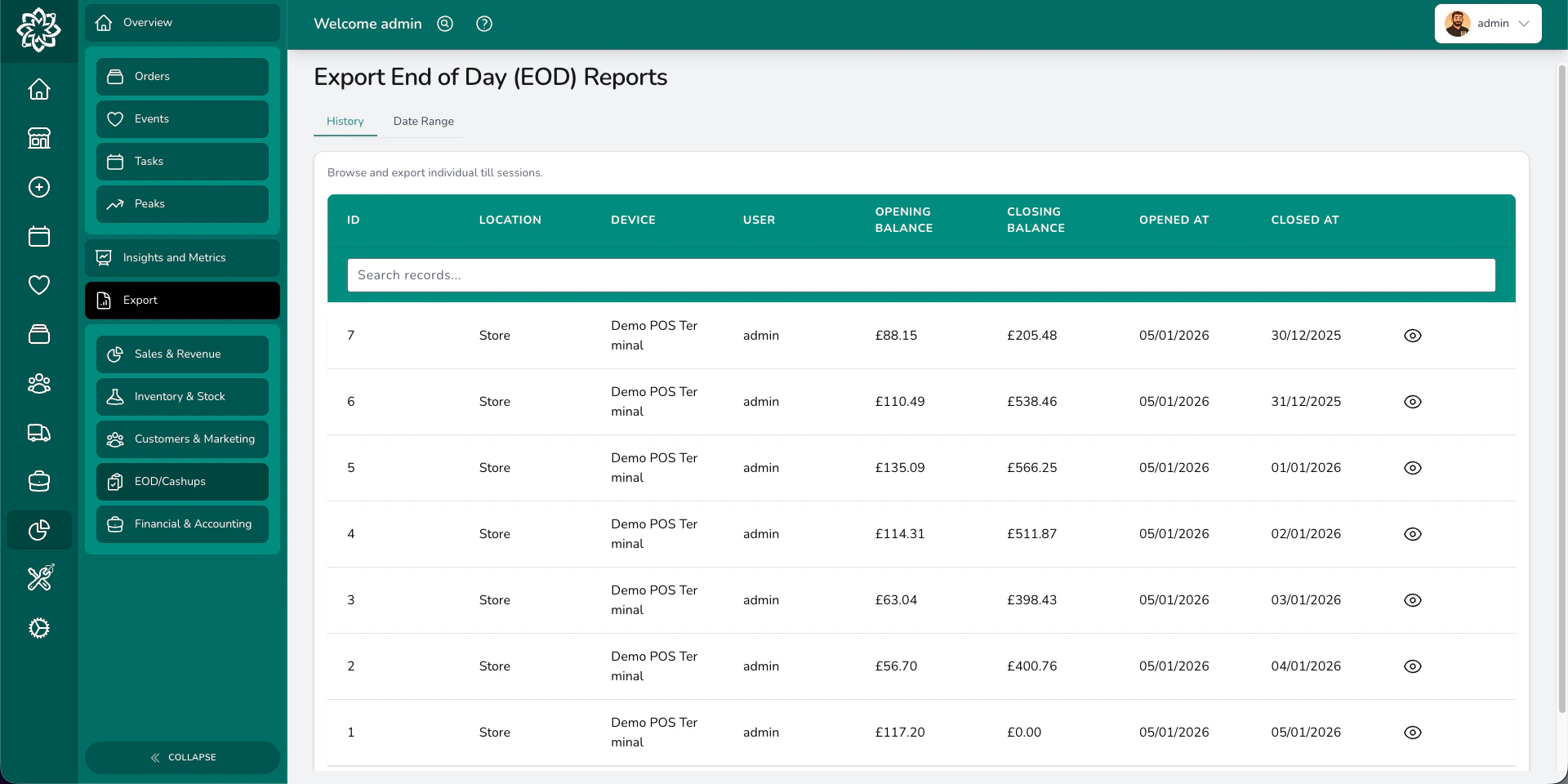
Go to Analytics > Export > EOD/Cashups to see a list of all till sessions on the History tab. Each row shows the location, device, the user who opened it, opening and closing balances, and the open and close times. Click a session to open its full end of day report — a printable breakdown covering:Date range reports
For a broader view, switch to the Date Range tab and generate a consolidated report covering multiple days and devices.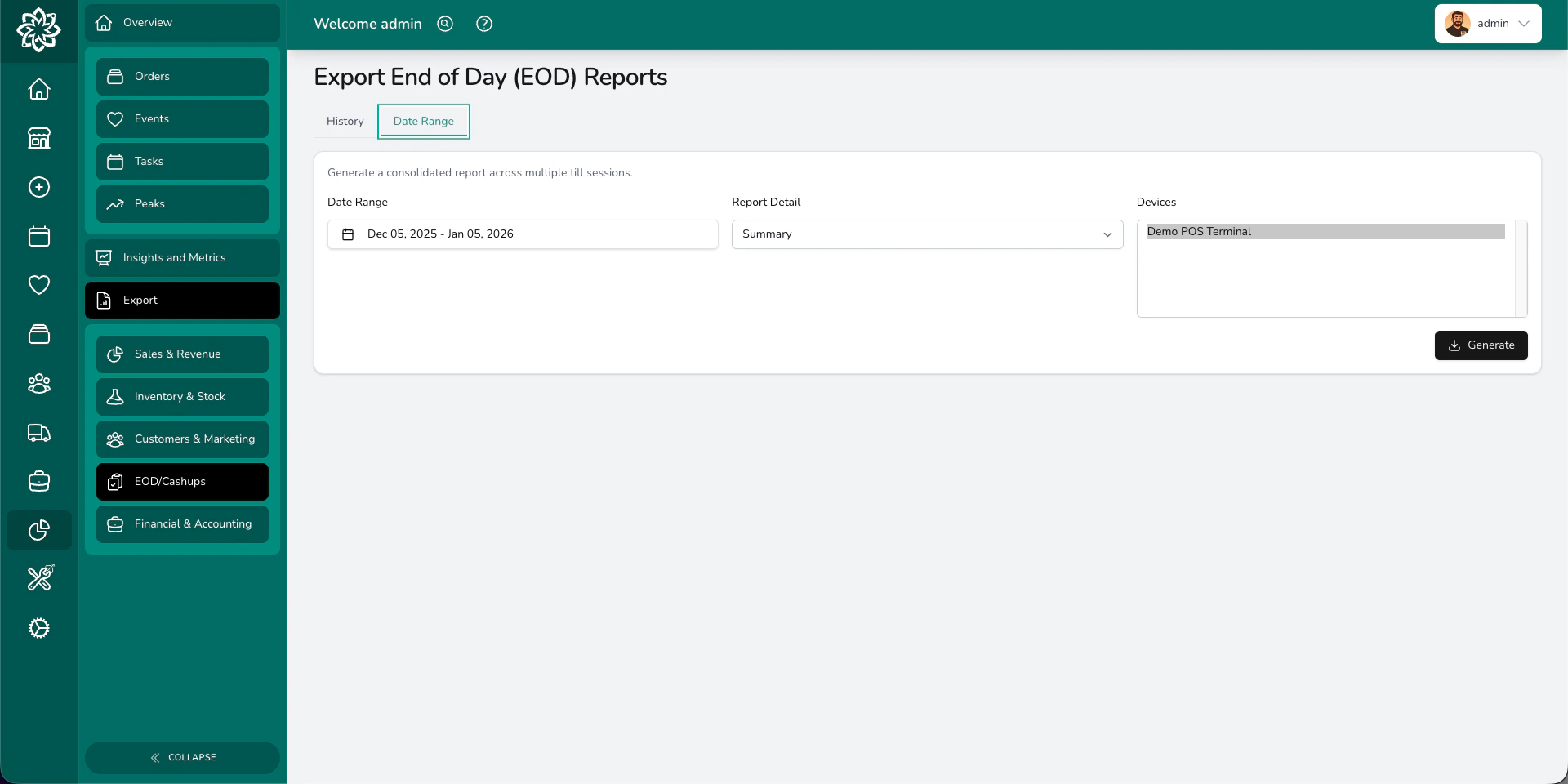
Date range report options
1
Set your date range
Pick a start and end date, for example the whole of last week or the full month.
2
Choose report detail
Summary gives you the headline numbers per session. Detailed adds per-payment-method expected/actual/banked columns, a refunds sheet, and a petty cash receipts sheet.
3
Select your devices
Choose which till devices to include. You can select one, several, or all.
4
Generate and download
Click Generate to download an Excel file.
Florists commonly send this report to their accountant for monthly reconciliation.
Common questions
Can I grant a staff member access to end of day reports?
Can I grant a staff member access to end of day reports?
Yes. Access is controlled by the Exports: End of Day permission, which Managers and Admins have by default. Your administrator can grant it to any user via an advanced permission override in Settings > Team.
Can I see reports across multiple devices?
Can I see reports across multiple devices?
Yes. The date range report lets you select one, several, or all devices. The Excel export includes data from all selected devices.
How far back can I view sessions?
How far back can I view sessions?
Till sessions remain available for as long as your Digital Florists instance is active, so you can go back to any date. Each date range report covers up to 366 days — for a longer span, run one export per year.
What’s next?
POS End of Day
Step-by-step guide to closing the till.
Point of Sale
The main POS guide for walk-in sales.
Reports
Generate and download reports across your business.
Financials
Manage invoicing, payments, and accounting.