

This page covers features gated by Manager-tier permissions. Managers and Admins have these by default; your administrator can adjust who has them in Settings > Team.
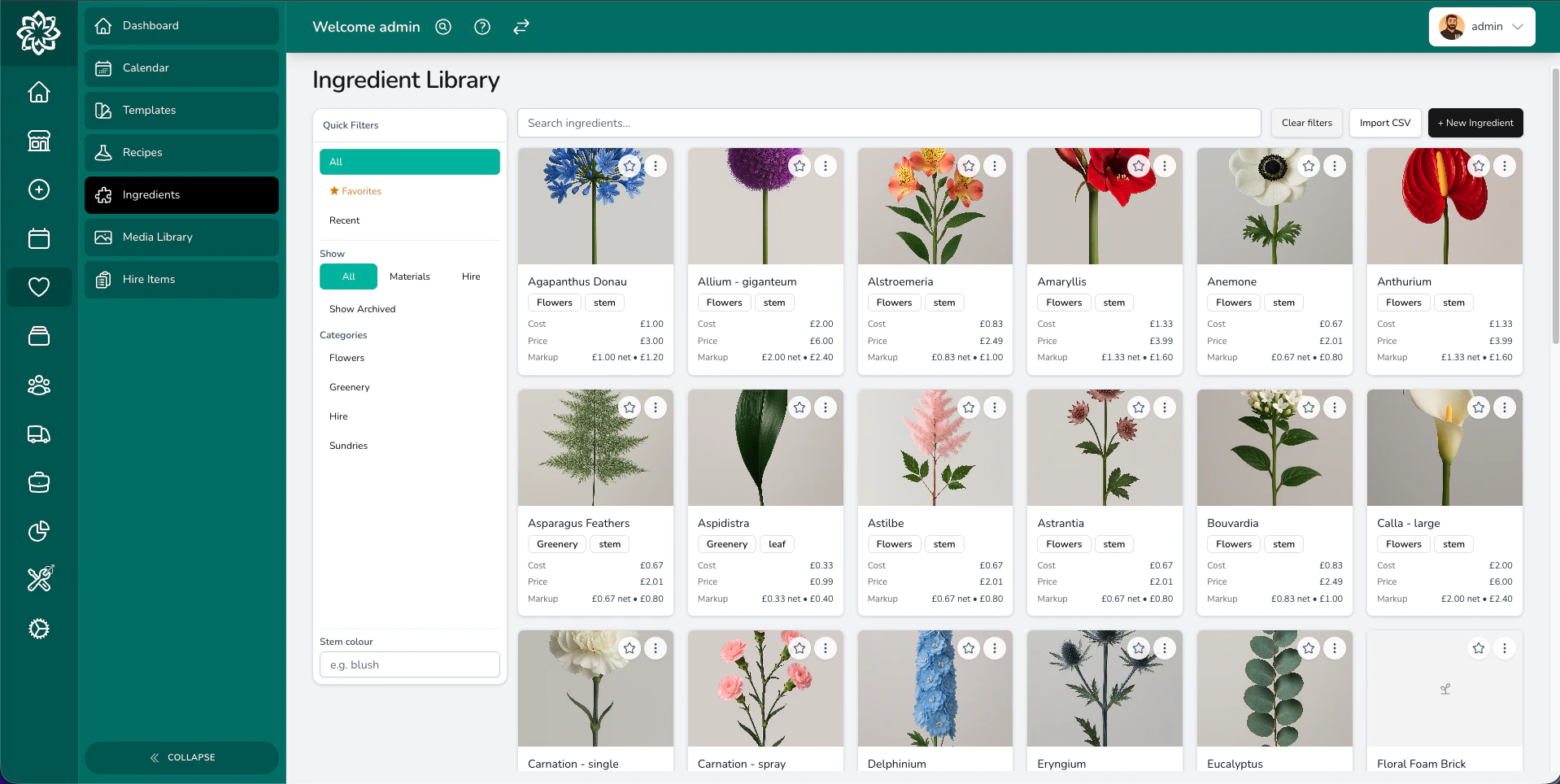
Your ingredient library with costs, categories, and photos
The ingredient library
This is your stock book. Every stem, sundry, and material your shop uses lives here. You can search, filter by category or colour, and switch between All, Favorites, and Recent tabs. You can also narrow to Materials or Hire only, and toggle archived items in and out of view.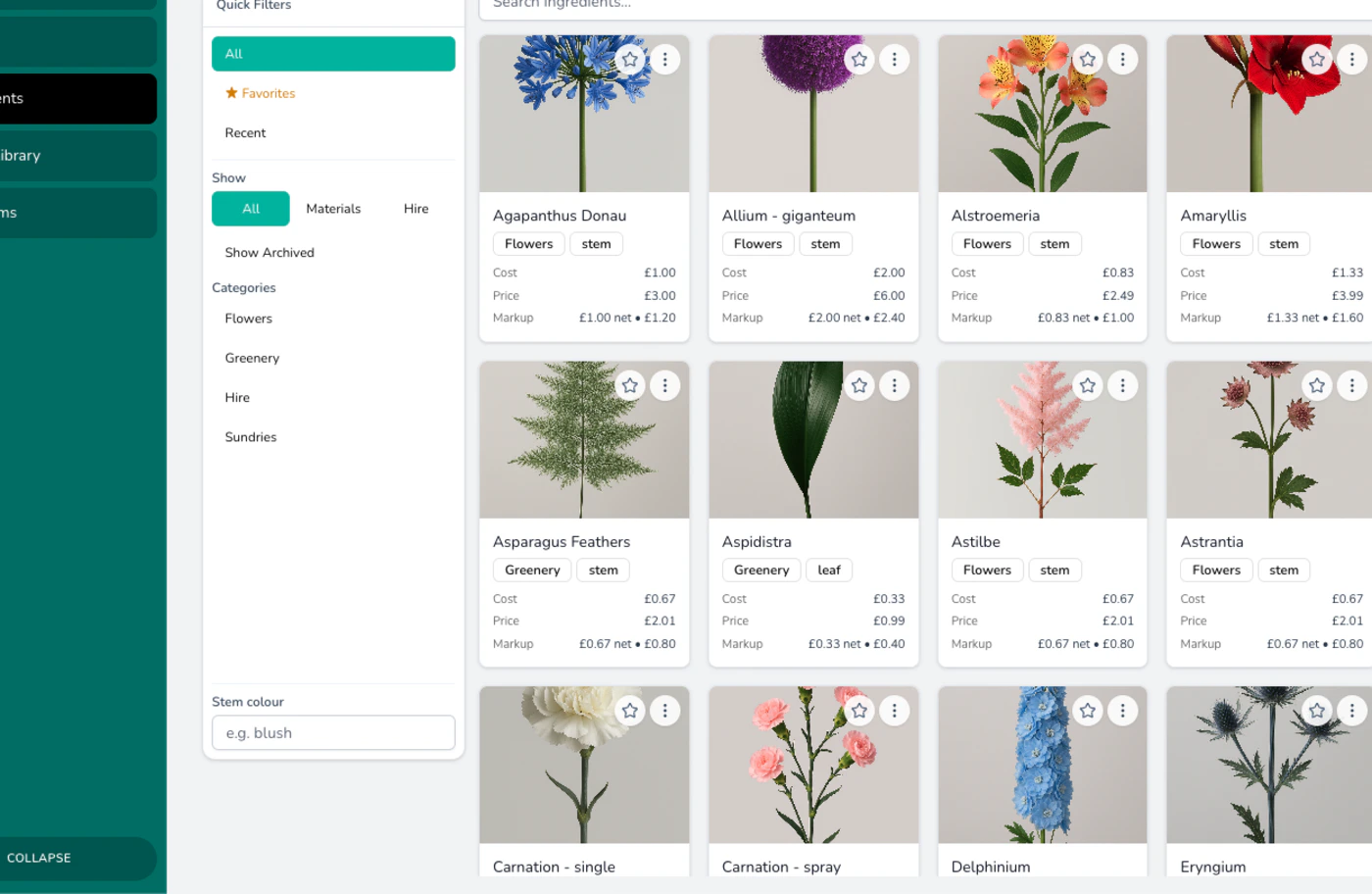
Focused view of ingredient items with pricing details
The starter library
If your library is still thin, Digital Florists can load a ready-made one for you. Look for Get started faster with the Digital Florists starter library at the top of the Ingredient Library page, or on Quotation Templates. Tick what you want and click Add to my account:- Ingredient library — flowers, greenery and sundries with example costs, colours and photos.
- Example recipes — ready-made designs such as bouquets, buttonholes and tributes, costed from those ingredients.
- Quotation templates — priced wedding, funeral and corporate quotations you can personalise.
Hiding the offer
Click Hide this and the offer stops appearing for everyone at your shop, so the till and the office both stop asking. It stays available from the Starter library option at the top of the page whenever you want it back.Adding a new ingredient
Open the ingredients page and click + New Ingredient. A few fields are worth thinking about:- Name and category — what you call it and how it’s grouped.
- Cost, markup, and selling price — type a cost and a markup multiplier and Digital Florists works out the selling price for you. You can override the selling price manually if you’d rather set it directly. Recipes work the same way, with one difference worth knowing: a recipe price you type yourself is marked Set by hand and is carried into quotations as you typed it, rather than being worked out again from the ingredients. See Setting a price by hand.
- Unit — how you count the ingredient in recipes, such as stems, items, or metres. See How you buy it below if your supplier sells it by the bunch, pack, or box.
- Colours — list the colour options for the same base ingredient (for example, a rose available in blush, ivory, and red). These appear when staff are building a recipe so they can pick the right colour without you creating a separate ingredient for each one.
- Supplier and product code — optional. Useful when you reorder or trace an item back to your wholesaler.
- Photo — a JPEG or PNG up to 20 MB.
How you buy it
You count roses by the stem in a recipe and order them by the bunch. Record both and your buying lists come out in the units you order. Unit is how you count the ingredient when you build a recipe — stems, heads, metres, grams, whatever suits. Leave it there if you buy it the same way. Tick Bought in bunches, packs or another unit when you don’t. Two more fields appear.- Bought as — the unit your supplier sells it in, such as bunch, pack, box, bucket, roll, or tray.
- The pack size underneath, labelled for the units you chose, such as Stems per bunch. Enter 20 for a 20-stem bunch.
Where the pack size shows up
Set a pack size and your buying lists round up to whole packs, so a recipe needing 25 stems from a 20-stem bunch asks for 2 bunches. The Ingredient Summary and Ingredient Breakdown exports do the same, giving you a quantity to buy and an estimated spend alongside the stem count. Hand either to a wholesaler in the units they sell in. See Reports.Ingredient categories
Categories help you organise your library by type — Roses, Foliage, Fillers, Sundries, Ribbons, or whatever fits your shop. You can rename, reorder, and archive categories as your range changes.Price history
When you update a cost or selling price, Digital Florists records the change. You can look back and see:- When a price changed
- What the old and new prices were
- How much the price went up or down in percentage terms
How long since a price changed
Every ingredient in the library carries a small badge showing when its price last changed — Updated today, Updated 12d ago, and so on. It goes amber once a price has gone roughly three months without a change, so a scan down the library shows you what’s due a look. The same badge appears against older ingredients in the picker when you’re adding them to a recipe. An ingredient with no recorded price change reads Price not checked. That’s how ingredients start out when they arrive from the starter library or from a spreadsheet import — those figures are ours or your file’s, not ones you’ve been through. Change the cost or the price once and the badge starts counting from then.Hire items
Items you rent out and get back (vases, arches, plinths, candelabra) live in the same library as your ingredients. Tick Hire item when you add one, set a stock quantity, and Digital Florists tracks availability against your event dates.See Hire Items for the full breakdown of availability checks, returns, and stock conflicts.
Importing and updating ingredients in bulk
If you have a long list to add, or you’re moving from another system, you can import ingredients from a CSV or Excel file. Click Import CSV on the ingredients page, fill in the template, and bring everything in at once. It’s also the quickest way to change a lot of prices at once. Choose the My ingredients option to download a spreadsheet of your current ingredients, update the costs or prices, and upload it again. Each row is matched back to the ingredient you already have, so your prices are updated rather than duplicated, and every change is added to your price history just as if you’d edited it by hand. Tick Dry run first to preview what would change before you save.See Importing ingredients for the template options, the full column list, and how matching works.
Archiving ingredients
When you stop using an ingredient, archive it instead of deleting it. Archiving removes the item from your active list but keeps it in any existing recipes and past quotes. Toggle Show Archived in the sidebar to view archived items, then restore any you need to bring back.Common questions
Do I need to add every single stem I use?
Do I need to add every single stem I use?
Only add ingredients you want to cost accurately. If you use a stem occasionally and don’t need to track its price, you can leave it out. For your core flowers and materials, having them in Digital Florists keeps your recipes and quotes accurate.
What happens if I change a cost price?
What happens if I change a cost price?
New recipes use the updated price. Recipes you built earlier keep the cost they were saved with until you bring them forward, and the Recipes list offers to do that for you — you can see what would change before you accept it. See Bringing recipes up to date.Event quotations you’ve already saved keep their original prices, so there’s no risk of changing a price mid-negotiation.
Can I have the same ingredient in multiple categories?
Can I have the same ingredient in multiple categories?
Each ingredient belongs to one category. If you need the same stem in two places, consider whether your categories need restructuring, or create the ingredient once under the most fitting category.
How do colour options work?
How do colour options work?
The Colours field lets you list every colour you stock for the same base ingredient — a rose in blush, ivory, and red, for example. When someone’s building a recipe they can pick the colour they need rather than searching for a separately named ingredient.
Why don't I see a tax rate on the ingredient?
Why don't I see a tax rate on the ingredient?
Tax is applied when an ingredient is used in a product variant or event quotation, not on the ingredient itself. This keeps the same ingredient usable across products and events that may have different tax treatments.
What’s next?
Recipes
Use your ingredients to build and cost recipes for arrangements.
Hire Items
Track reusable items like vases, arches, and plinths.
Products
Manage your storefront product catalogue and pricing.
Importing Data
Bring in ingredients or products from a spreadsheet.