A fast till interface for walk-in sales, phone orders, and in-store payments.
Your Point of Sale (POS) is a full-screen till interface built for speed. Whether a customer walks in for a bunch of flowers, picks up a pre-ordered arrangement, redeems a gift card, or pays off an invoice, the POS handles it.Point of sale requires Orders or Complete.
The first time you open the POS, you’ll be asked to select a device, which is your till. Each device is linked to a location and has its own payment methods, printer settings, and session history. If your shop has one till, you’ll see one device; if you have multiple tills, choose the one you’re working on.See Devices for the full guide on registering devices, managing settings per till, and running multi-till setups.
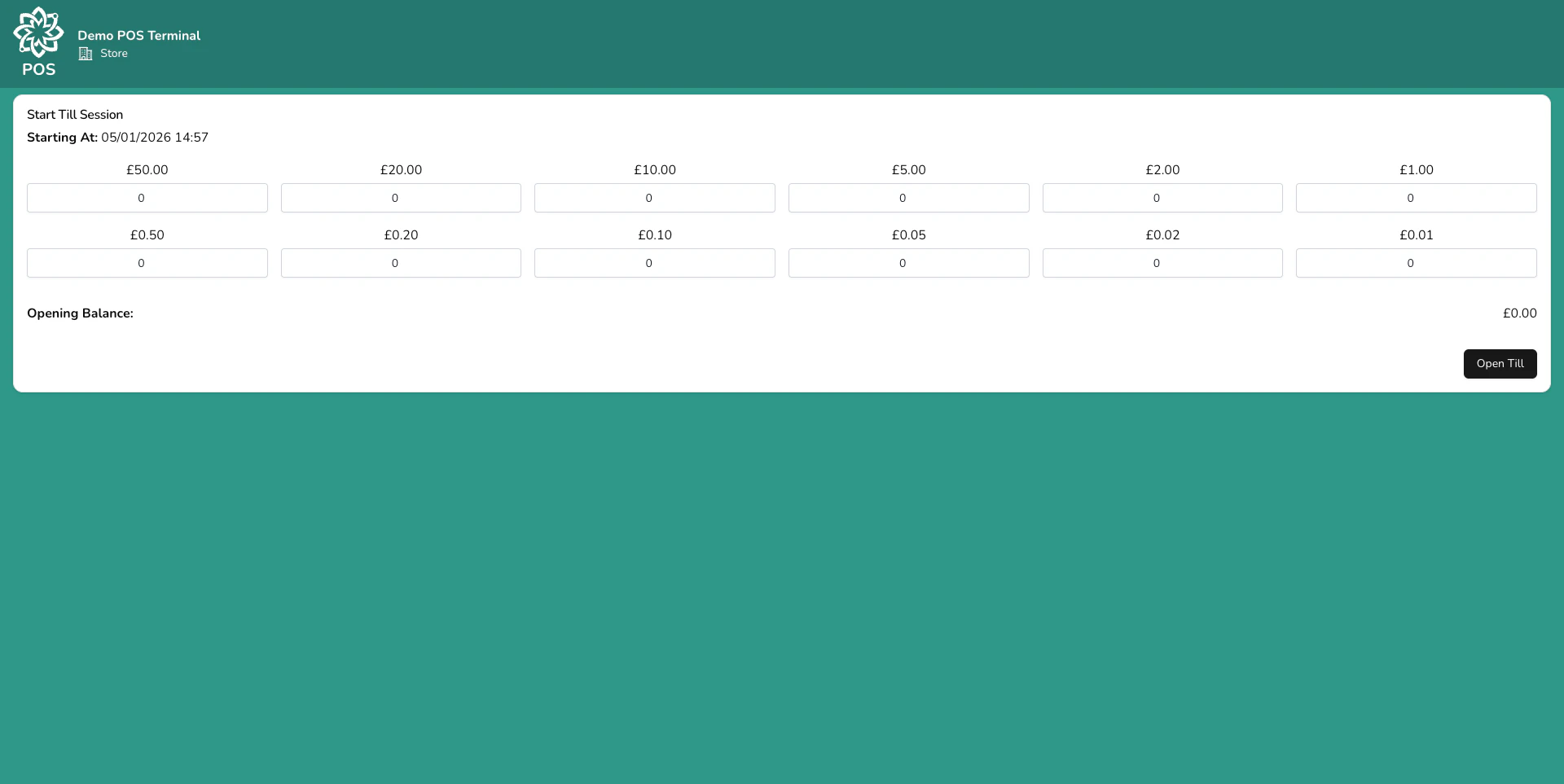
Before you can take payments, you need to start a till session. This tracks every sale and payment during your shift, making cashing up at the end of the day straightforward.
Starting a new till session
1
Select your name
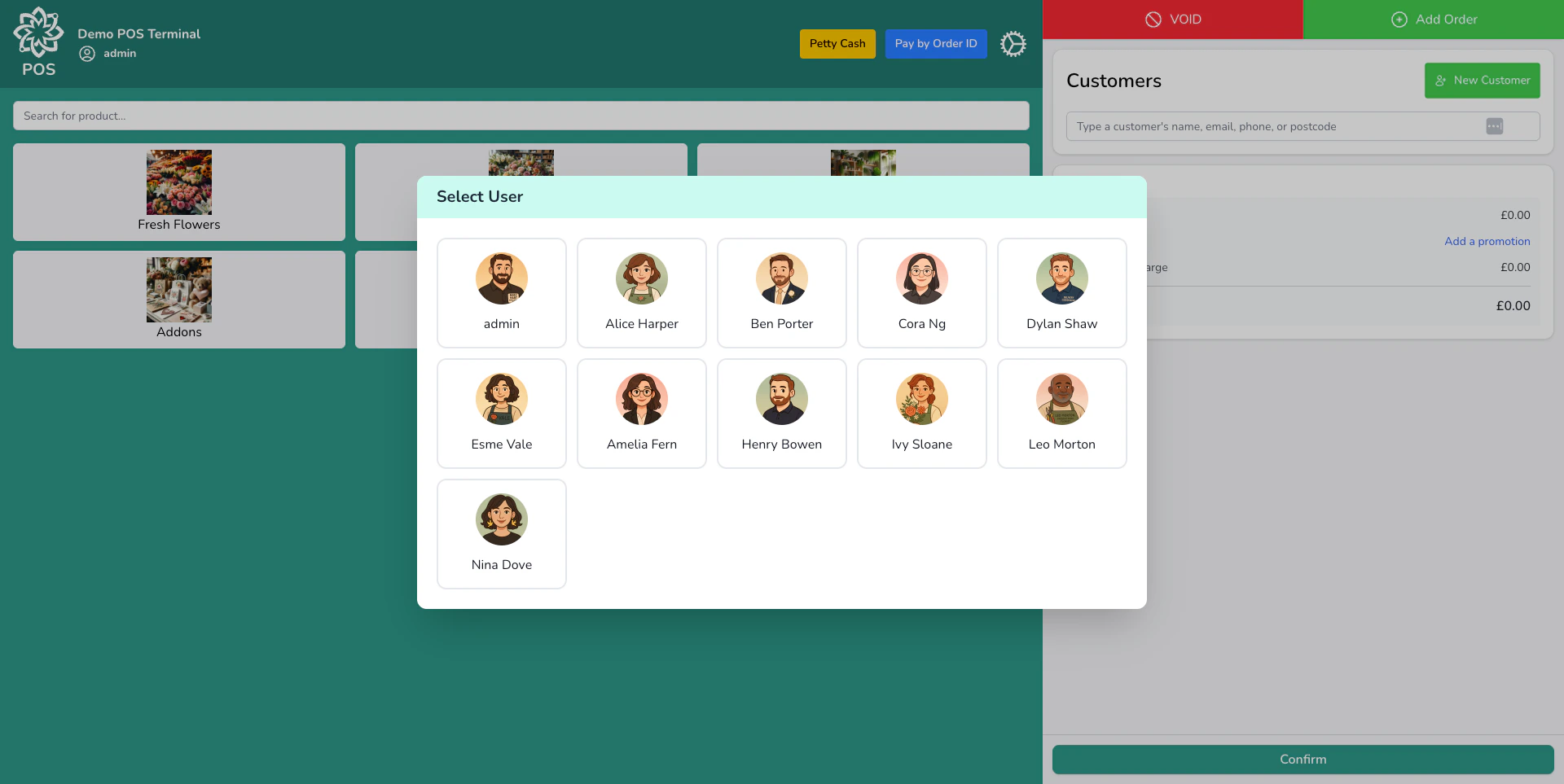
Choose your name from the team list. This records who opened the session and who processed each sale.
Choosing a team member
2
Count your float
Count the cash already in the drawer. You can either:
: enter the number of each coin and note (£1 coins, £5 notes, etc.) and the total is calculated for you. This is the most accurate method and speeds up your end-of-day count.
Enter a total — if denomination counting is turned off for your shop, just type the total amount.
This is recorded as your .
If you closed the till yesterday, your dashboard pre-fills the denomination counts from your last closing count, so you only need to adjust for any changes.
3
Open the till
Click Open Till to begin. You’re now ready to take payments.
If the same person works the till all day, turn on Single-user mode in Settings > General > Point of sale. You then choose the operator once when you open the till and keep them for every sale, instead of being asked again after each one. You can still switch to someone else when you hand over.
Turning this on only changes who the till assumes is serving. Refunds and other restricted actions still ask for a security code.
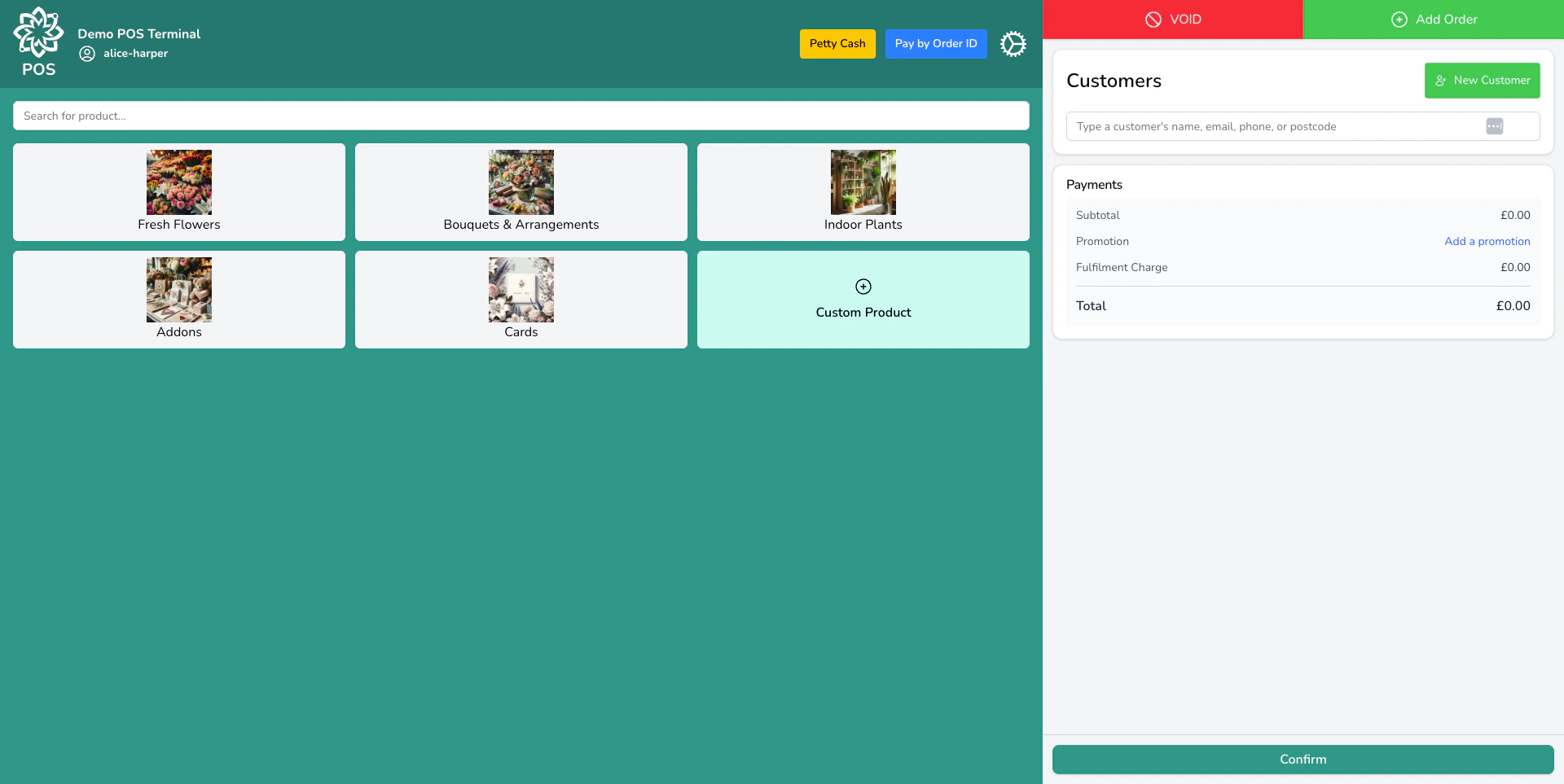
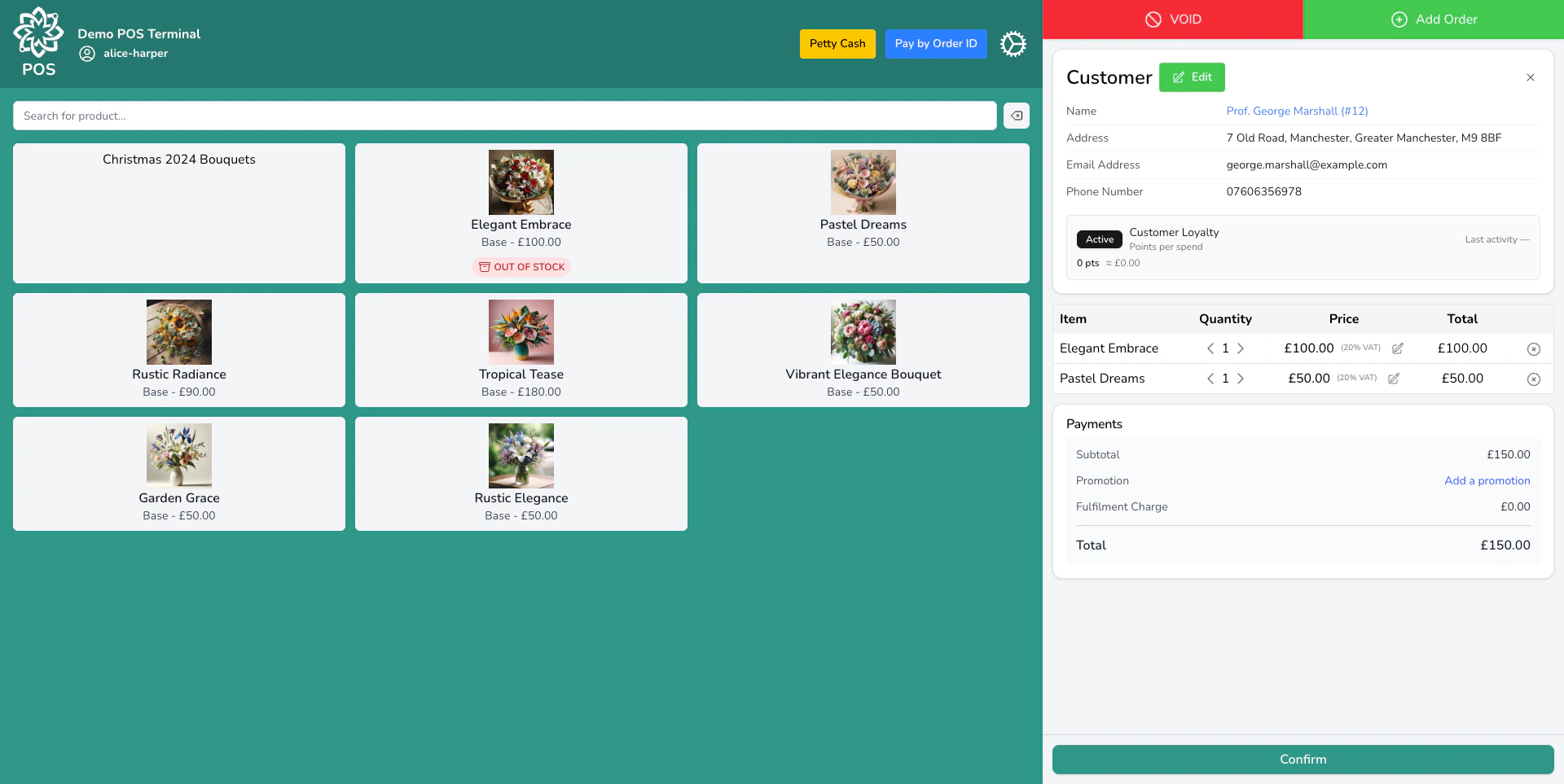
The left side of the POS shows your product catalogue. You can find products in several ways:
Tap a category to browse (Bouquets, Plants, Add-ons, etc.)
Search by product name using the search bar
Scan a barcode with a USB barcode scanner and the product is added straight to the cart
Scan a loyalty code with the same scanner and the customer it belongs to goes onto the sale
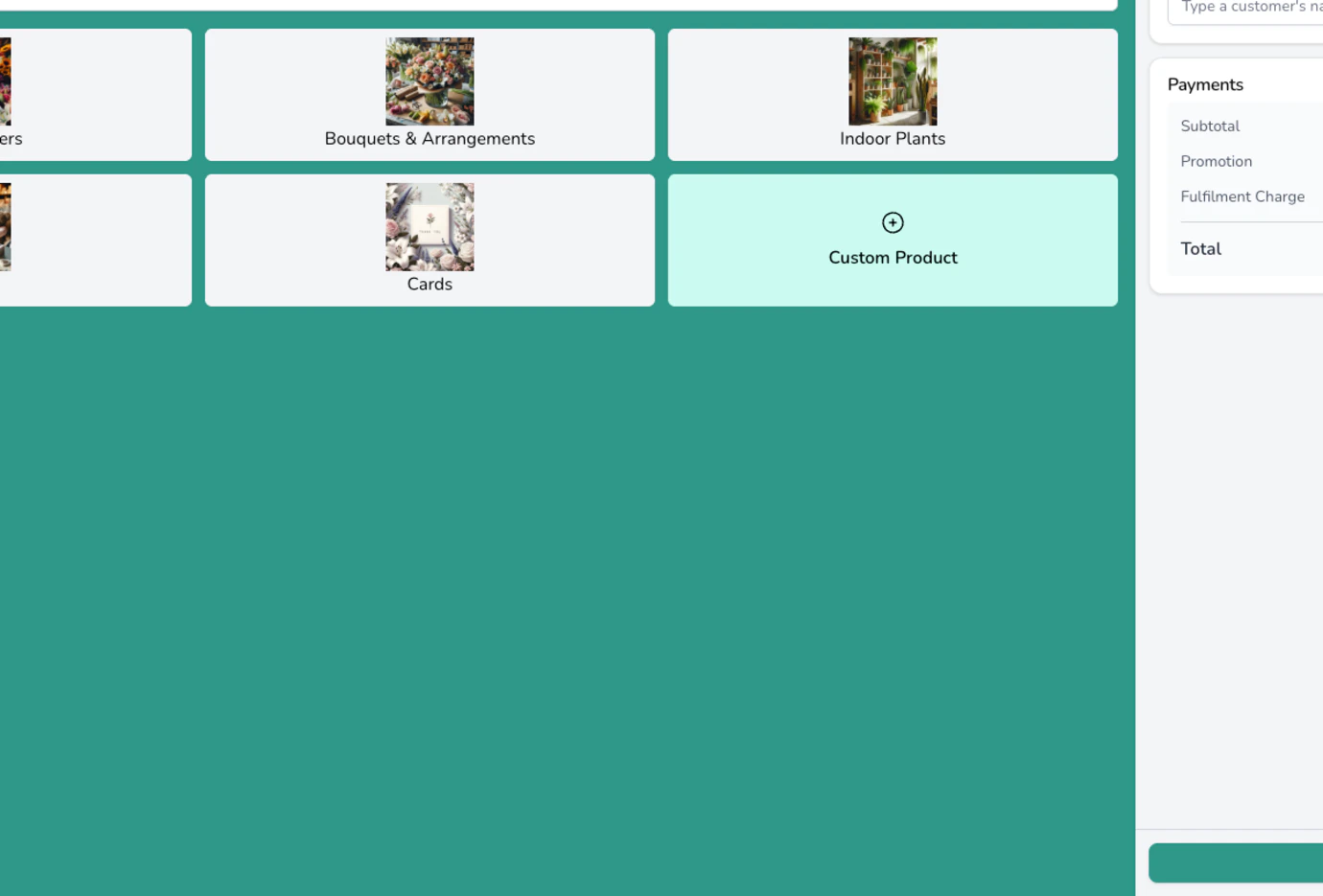
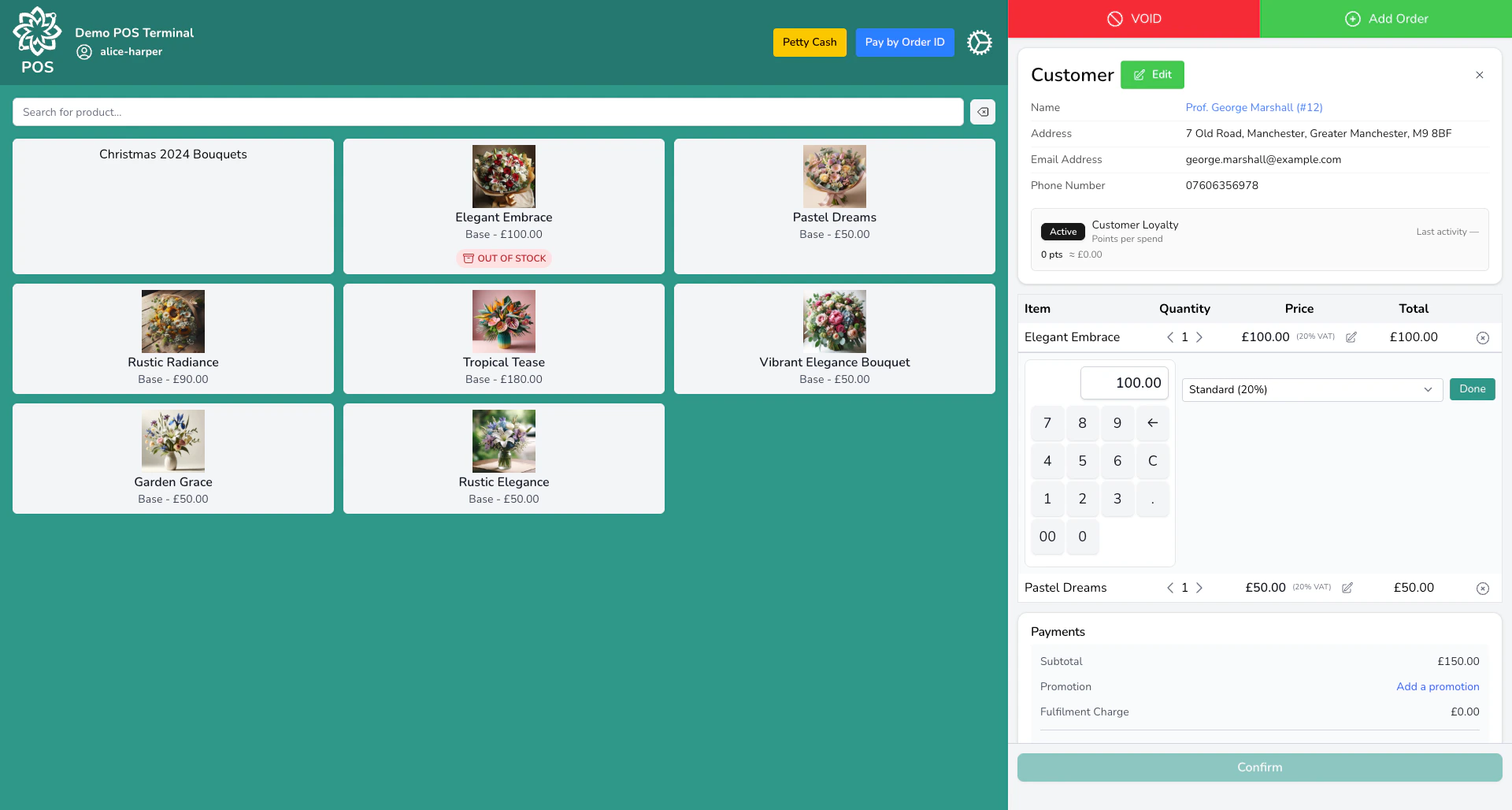
Add a custom item for anything not in your catalogue: just enter a name, price, and tax rate
Type or scan into the same search box for all of these. If a customer reads their code out over the phone, type it in and press Enter.When you tap a product that has (like Standard, Large, and Luxury), a selector appears showing each variant with its price and current stock level. Tap the one you want.
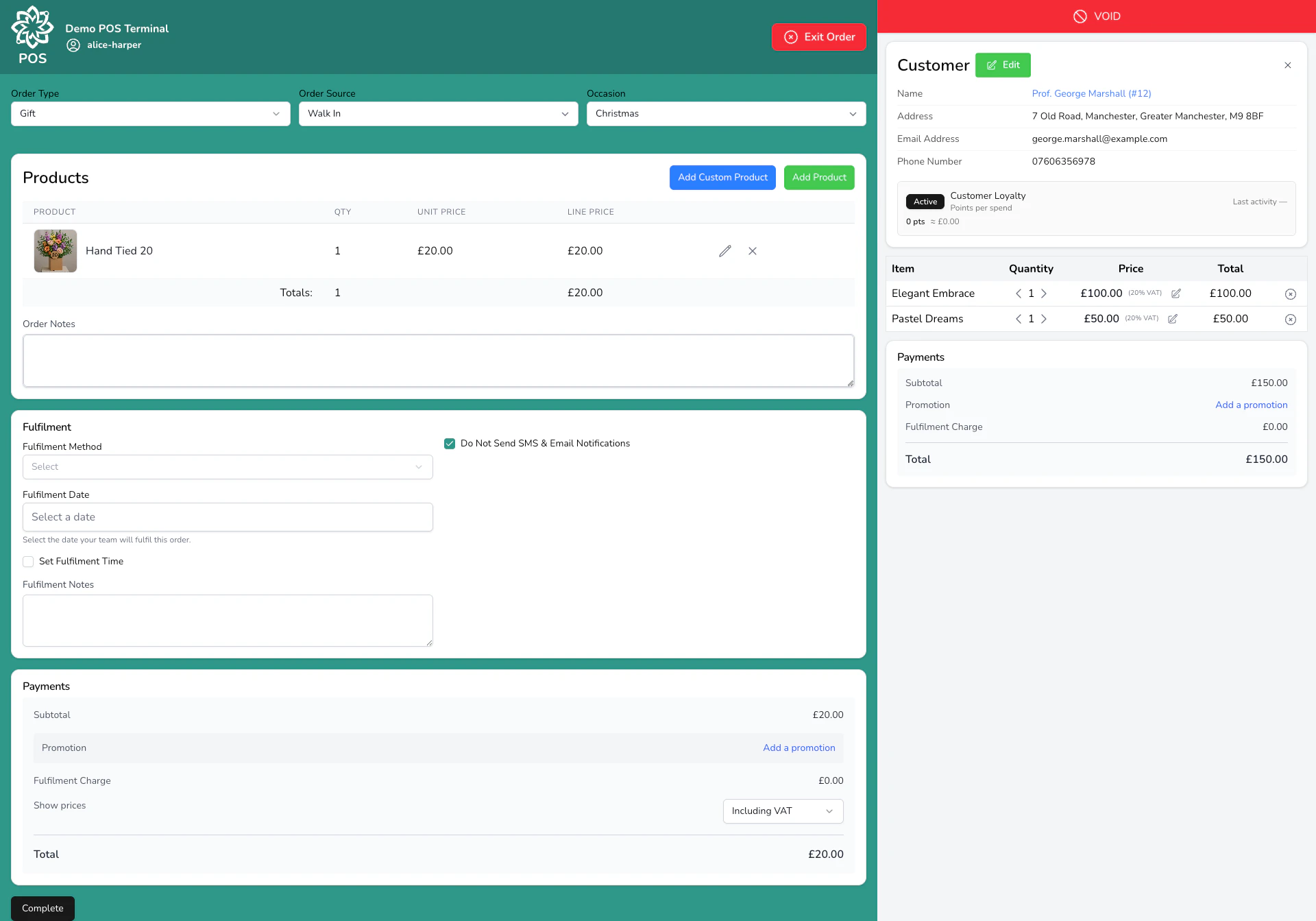
You can create orders for future dates from the POS, not just walk-in sales for today. If a customer wants to book a collection for next week, click Add Order, set the fulfilment date, and add the items. You can add multiple orders for different dates and different addresses in a single transaction: for example, a plant they’re taking with them, a bouquet for delivery to their mum next Friday, and an arrangement for collection the following week. Each order gets its own order number, but the customer pays once for everything.POS-created orders land on your dashboard as Unconfirmed, so your team picks them up in the usual queue and confirms them when they’re ready.
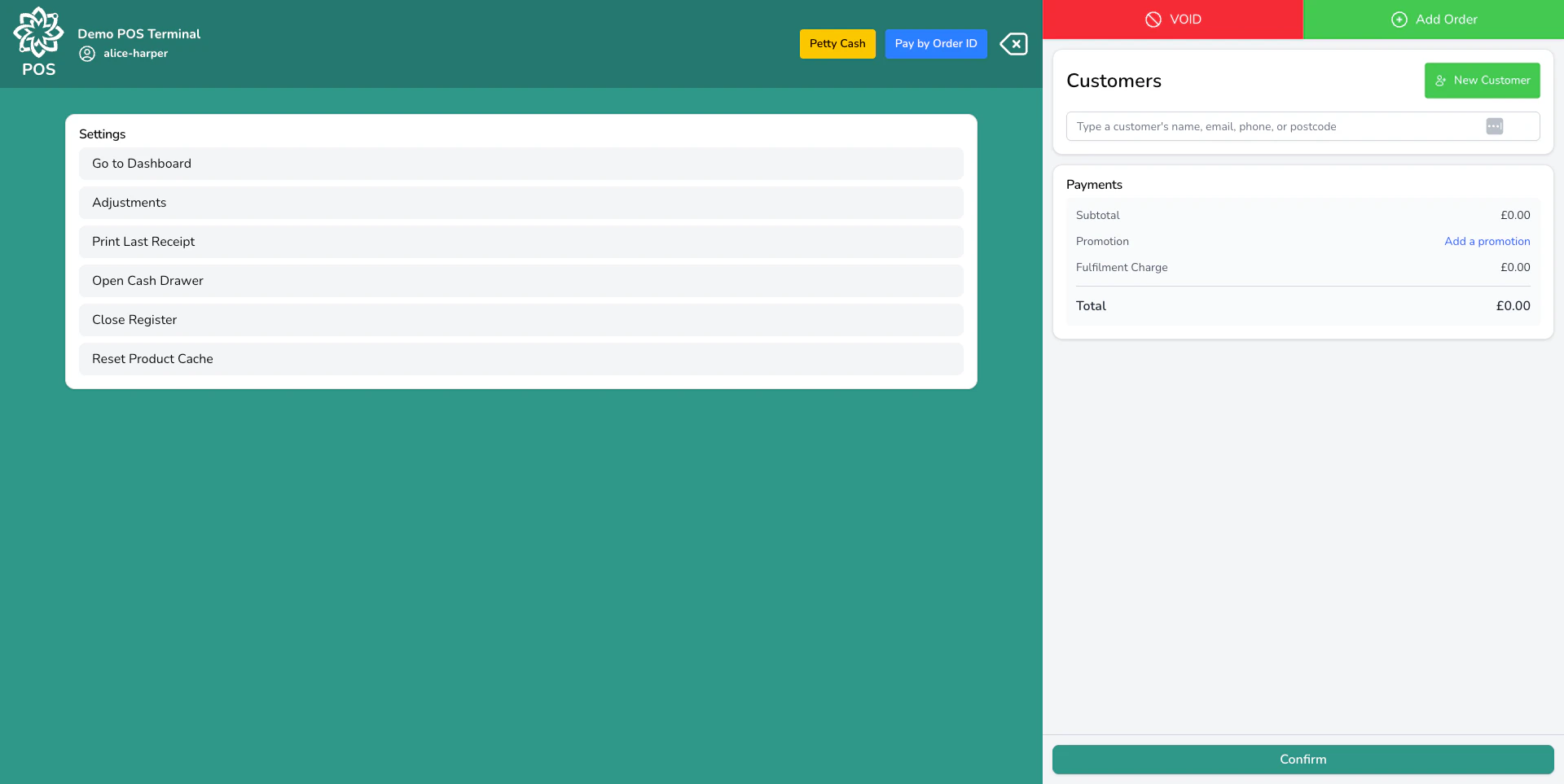
Put a customer on the sale and the loyalty panel tells you where they are on their stamp card. Find them by name, or scan or type their loyalty code into the search bar.You’ll see how many stamps they hold, and whether this sale earns one. The panel reads Will earn a stamp or Will not earn a stamp as you build the basket, so you can tell the customer before they pay.If they have a reward waiting, tap the redeem button and it comes off the sale as its own line. Take any promotion off the basket first, because a reward and a promotion can’t be used on the same sale.See Loyalty for how the stamp card is set up.
When the customer is ready to pay, tap Confirm to open the payment screen. The POS accepts cash, card, gift cards, account, and combinations. See Payment Methods for what each method does, how card and account work, and how they’re configured. Loyalty rewards apply as a discount before payment, not as a payment method.If the button reads Finish editing to confirm, you still have a basket line open. Close the line you were editing and the button goes back to Confirm.Where a reward or a discount covers the whole basket, confirm the sale as normal. There’s nothing left to collect, so the sale is recorded as paid without you taking a payment.
Use the quick-cash buttons (£5, £10, £20, £50) or type the cash tendered, and the till works out the change. Tap Exact due when the customer has the right money.
Enter the customer’s gift card code and PIN. The balance is applied to the sale; if it doesn’t cover the full amount, the card is fully redeemed and the remainder is paid by another method. To sell a gift card, add it to the cart like any other product.
Pay one order across multiple methods: gift card and card, deposit-by-link and the balance at the till, and so on. Apply each method against the remaining balance until it hits zero.
If a customer comes in to pay for a phone or website order, use Pay by Order ID instead of starting a new sale. Enter their Order ID and the POS shows the outstanding balance and links the payment to that order. Especially useful for click-and-collect, where the customer placed the order online and pays when they pick it up.
You can also take payment for an order from your dashboard: click the pay button next to any order and it opens a payment session linked to your POS. The transaction reconciles in your till’s End of Day report alongside walk-in sales.
Once payment is complete, you’re asked whether to print a receipt. Tap Print Receipt to send it to your thermal printer, or skip the prompt.Receipts can also go out by email automatically. When Email receipts automatically is turned on for your shop (off by default, under Settings > General > Point of sale), a receipt is emailed to the customer as soon as a sale is paid in full. Walk-in sales, customers without an email address, and customers who’ve opted out of notifications are skipped.The completed sale is recorded as an order on your dashboard and appears in your reports.
If you need to cancel a sale before it’s completed, you can void it from the cart. This removes all items and cancels the transaction. Voiding requires manager permission. See Voiding a transaction for the full rules (and the difference between void and refund).
Yes, if your shop runs paper-free: email receipts, card payments, little or no cash. Some shops work exactly that way. What a tablet can’t do is print receipts, open a cash drawer, or print labels. Those run through Connect, which needs a Mac or Windows computer. See Tablets as a till for where the line is.
What if the internet goes down?
The POS requires an internet connection to process sales. If your connection drops, you won’t be able to complete transactions until it’s restored.
Can multiple staff use the POS at the same time?
Each till session is tied to one device. If you have multiple tills, each one can have its own session with a different team member. You can also hand over a session to another user during a shift change.
Do POS sales appear on the dashboard?
Yes. Every POS sale creates an order, so it appears on your dashboard, in your reports, and in the customer’s order history.
Can I sell gift cards from the POS?
Yes. Gift cards are products in your catalogue. Add one to the cart, take payment, and a gift card code is generated automatically. See Gift Cards for setup.
What if a product isn't in Digital Florists?
Use the custom item option to add a one-off product with a name, price, and tax rate. This is handy for selling something you don’t normally stock.