

This page covers features gated by Admin-tier permissions — typically Settings access. Admins have these by default; your administrator can adjust who has them in Settings > Team.
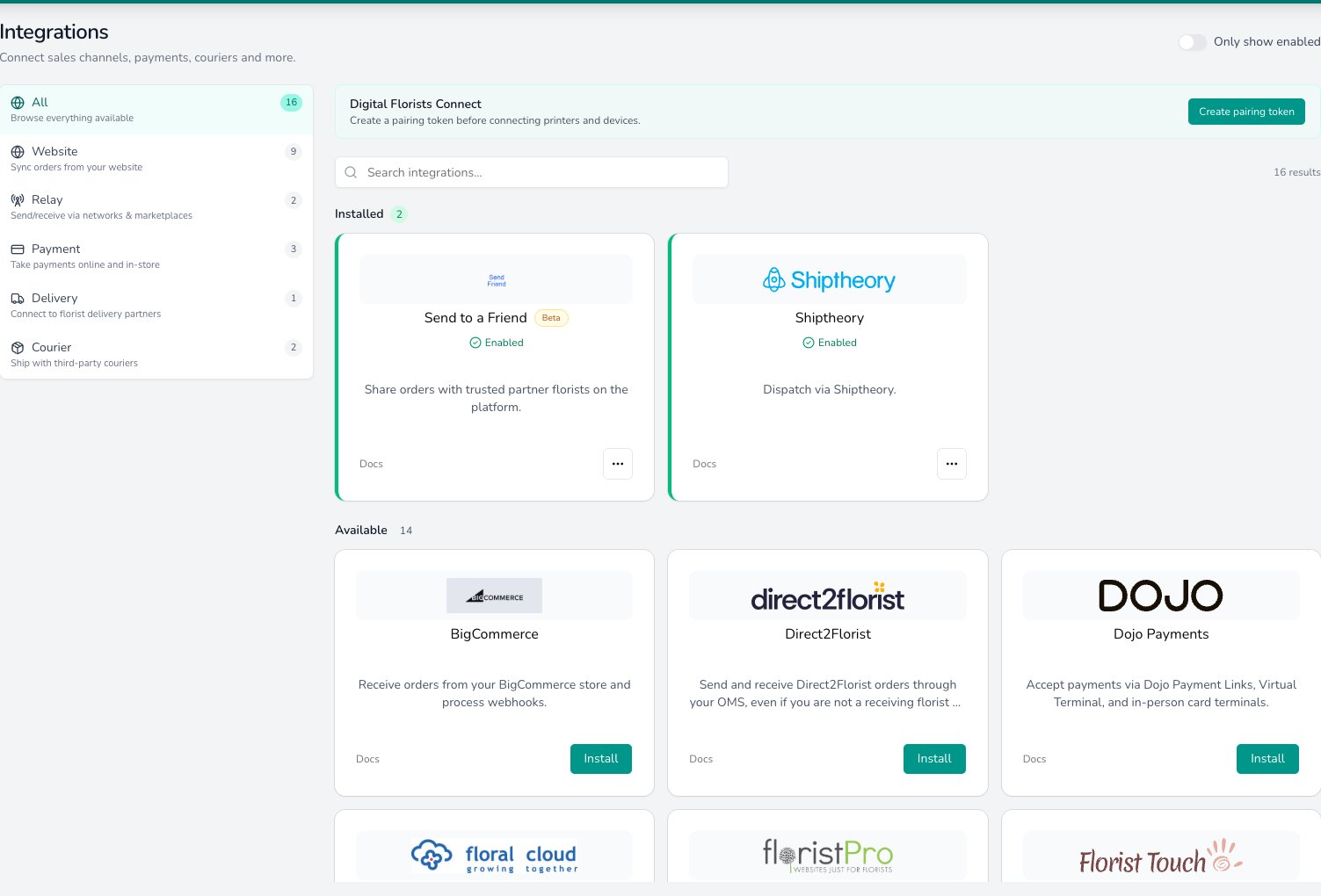
Integrations are grouped by what they do. Installed ones sit at the top marked Enabled, and everything else is one Install click away.
Choosing an integration
Pick by what you’re trying to do, not by the brand. Most shops only switch on one or two of these.Categories at a glance
Website
Pull web orders straight onto your dashboard so they sit alongside phone and walk-in orders. Providers: Shopify, WooCommerce, BigCommerce, FloralCloud, FloristTouch, FloristPro, FloristWindow. See Website integrations for the setup steps and product-matching rules.Courier
Book a label, capture the tracking number on the order, and let the customer’s delivery notification carry the link. Providers: Shiptheory (multi-carrier UK and EU aggregator), ShipStation (multi-carrier global aggregator). Royal Mail, DPD, Evri, ParcelForce, UPS, FedEx, DHL and most other parcel carriers are reached through Shiptheory or ShipStation. Your contract with the carrier sits inside the aggregator account, not with Digital Florists. See Courier integrations for the connection steps.Payment
Accept card payments for online orders, payment links and card terminals at the counter, and refund a charge from the order screen. Providers: Stripe, Paymentsense, and Dojo. See Payment integrations for the setup, test-to-live flow, and refund behaviour.Relay
Florist-to-florist orders run in two directions, and each direction is set up in a different place. Send out (in Settings): Direct2Florist for the international D2F network, and Send to a Friend (peer-to-peer). Receive in (via Connect): Interflora (Florist Hub), eFlorist, and Interflora Spain. These arrive through the Connect desktop app and have no Settings tile. See Relay integrations for how each route is set up and which direction it runs in.Common questions
Do I need all of these?
Do I need all of these?
No. Connect only the services you use. Each integration is independent, and switching one off doesn’t affect the others.
An integration isn't showing in my Settings, what gives?
An integration isn't showing in my Settings, what gives?
First check Settings > About, because your plan controls which integration categories are available. Get in touch with support if your plan should include the category but the provider still isn’t visible.
Does the customer notice when an integration has a problem?
Does the customer notice when an integration has a problem?
No. If a web order can’t be matched to a product, or a courier label can’t be booked, the order appears on your dashboard with a note to action. The customer’s confirmation still goes out as normal.
Where do I find Interflora and eFlorist intake?
Where do I find Interflora and eFlorist intake?
Interflora and eFlorist orders come in through Digital Florists Connect, the desktop companion app, not through a Settings tile.
What’s next?
Website
Connect Shopify, WooCommerce, BigCommerce, or one of the specialist florist platforms.
Couriers
Set up Shiptheory or ShipStation to book labels and capture tracking.
Payment
Connect Stripe or Paymentsense for online card payments, payment links, and dashboard refunds.
Relay
Send and receive florist-to-florist orders through Direct2Florist, Interflora, and eFlorist.
Connect
The desktop app behind Interflora and eFlorist intake, label printers, and receipt printers.