

This page covers features gated by Admin-tier permissions — typically Settings access. Admins have these by default; your administrator can adjust who has them in Settings > Team.
Direct2Florist
Direct2Florist (D2F) is a two-way relay network. You can send orders out to D2F’s florist network without being enrolled as a receiving florist yourself. Receiving D2F orders is separate: those only start arriving once D2F enrol your shop as a receiving florist on their network.What it does
- Send orders out. Pick a D2F florist for the delivery address from inside the order, choose a product from D2F’s network catalogue, and the order is sent over with the customer’s details and any instructions you added.
- Receive orders in. D2F-sourced orders arrive on your dashboard as Unconfirmed. Confirming, fulfilling, or cancelling pushes the status back to D2F.
- Retail price on the line. When an incoming item’s retail price differs from the network price, the retail price is noted on the order line, so pricing is clear at a glance.
- Browse florists and products. When you’re sending out, you can look up which D2F florists cover the recipient’s address on the delivery date and what products they offer.
- Delivery photos. When you mark a D2F order delivered, any photos attached to the order are sent back to D2F as proof of delivery.
- Service fee handling. If the D2F order includes a relay service fee, it’s kept separate from product lines on the order.
- Funeral details. When the order has a funeral date and time, that information is added to the instructions the receiving florist sees.
What an order you send costs
Choose the receiving florist and the delivery charge on the order comes from that florist, so you don’t pick one of your own delivery options for a Direct2Florist order. Where that florist adds a charge of their own, it shows as Extra delivery charge beside their name and address. The network’s service fee sits on its own line on the order, so it stays separate from the flowers.Checking a send Digital Florists couldn’t confirm
Now and then you send an order and no answer comes back from the network, so nobody can be sure the receiving florist has it. The order page then asks you to check Direct2Florist, and you can’t change the order until you’ve recorded what you found. Open your Direct2Florist account and match the recipient, the delivery date and the total against the order in front of you. Then pick one of the two buttons on the order:- No matching order found: confirm it and the order is released, so you can send it again in the normal way.
- Matching order found: enter the Direct2Florist order reference exactly as Direct2Florist shows it and click Record reference. The order counts as sent from then on and can’t be sent to the network again.
Orders waiting for you on the dashboard
Look at your dashboard and any relay order needing a person is in the Relay send alerts panel, with a count in the heading. Click Retry send on a row that just needs another go. Where the send couldn’t be confirmed you get Review & resolve instead, which opens the order at the check above.Required details
Setting up
Go to Settings > Advanced > Direct2Florist. The request form on the right is filled in from your Shop details, so check the contact name, address, phone number and email and correct anything that’s out of date. Tick the consent box, click Submit to Direct2Florist, and their team contacts you to activate sending.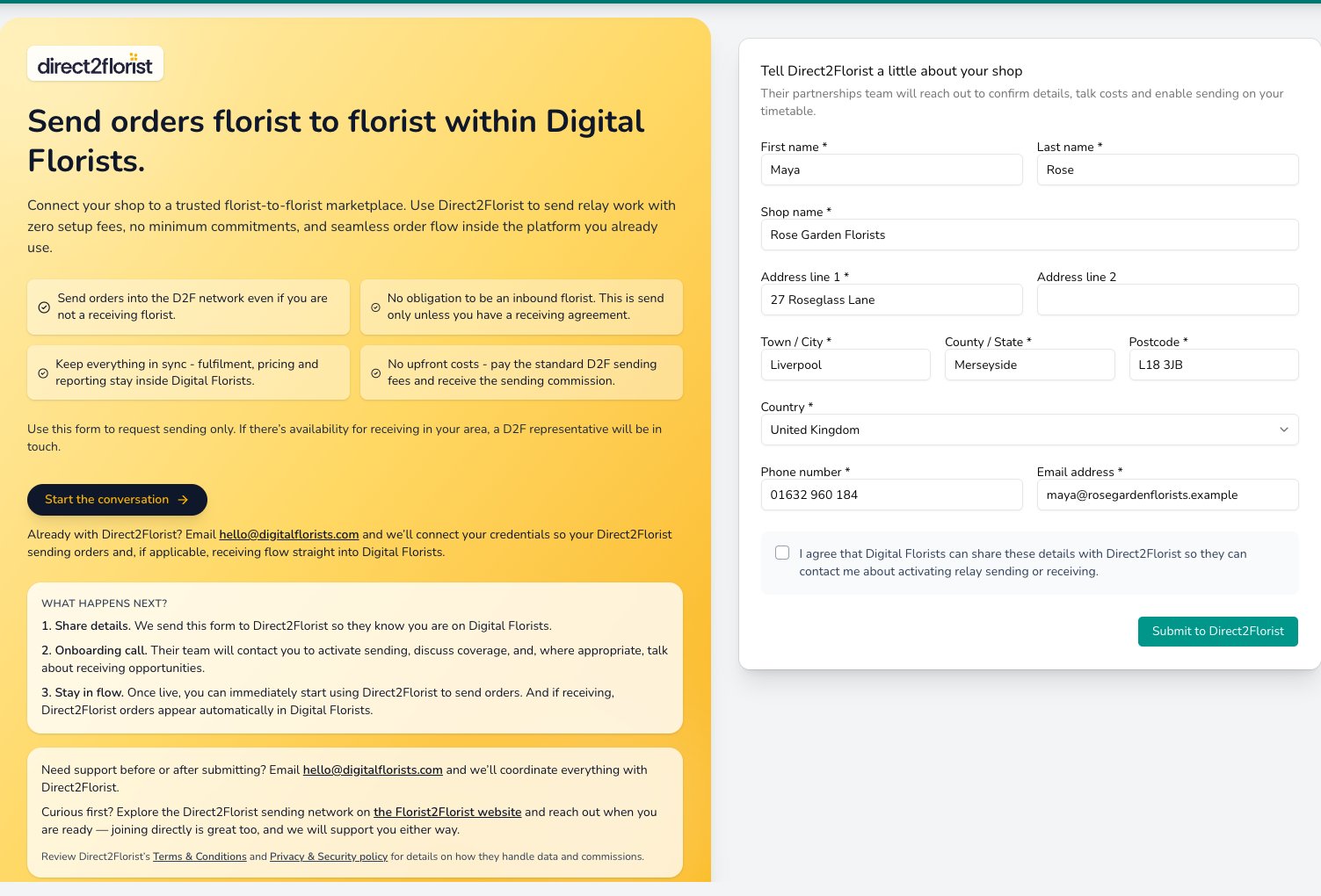
The Direct2Florist page explains relay sending and pre-fills your shop's details, so requesting access is a single form submission.
Direct2Florist must confirm your enrolment before the connection goes live.
Receiving relayed orders from Interflora and eFlorist
Incoming Interflora and eFlorist orders don’t use a Settings tile. They come in through Digital Florists Connect, which reads the make-up sheets as they arrive and creates the orders on your dashboard.Interflora
Incoming Interflora orders come through the Florist Hub make-up sheets, which Connect reads onto your dashboard. See Connect for Interflora for the setup. Interflora Spain intake also runs through Connect; see Interflora Spain.eFlorist
eFlorist is intake-only. There’s no eFlorist tile in Settings, so it’s set up through Connect: the desktop app reads the eFlorist make-up sheets as they arrive and creates the orders on your dashboard. Acceptance, decline, and status updates still happen through the eFlorist Portal. See Connect for eFlorist for the full setup.Make-up sheets that didn’t become orders
Now and then a make-up sheet arrives that Digital Florists can’t read as an order. Your dashboard shows a Partner PDF Imports alert with how many are waiting and a Review failed imports button, and the same list sits at the top of Settings > Advanced > Integrations. Each row names the network the sheet came from, when it arrived, why it couldn’t be turned into an order, and a support code. Work through the three buttons on the row:- Download PDF: open the original sheet and raise the order by hand if you need it today.
- Retry: have another go at reading it, once you’ve fixed what the reason points at.
- Dismiss: clear the row when you’ve dealt with it. The alert disappears once no rows are left.
Send to a Friend
Send to a Friend is a peer-to-peer link between two florists who already know each other and both use Digital Florists. It isn’t a third-party network. See Send to a Friend for the full guide.
Common questions
Do I need to be a receiving florist on the network to send orders?
Do I need to be a receiving florist on the network to send orders?
For Direct2Florist, no. You can send out without being enrolled as a receiver. Receiving D2F orders is the part that needs D2F to enrol your shop as a receiving florist on their network.
Can I switch between relay providers per order?
Can I switch between relay providers per order?
Yes. When you create a relay order you choose Direct2Florist, Send to a Friend, or manual per order, and pick whichever fits that delivery.
Why don't my Interflora orders look like Direct2Florist orders?
Why don't my Interflora orders look like Direct2Florist orders?
They take different routes. Direct2Florist runs through the Settings integration end-to-end. Interflora and eFlorist orders arrive into your dashboard through Connect reading the make-up sheet PDFs, so Connect is what’s doing the work, not a relay-network credential.
What happens if a relay send fails?
What happens if a relay send fails?
The order stays on your dashboard and appears in the Relay send alerts panel with the reason it was rejected. Send it again from there once you’ve dealt with the cause. Nothing is sent again on its own. If you can’t see what went wrong, get in touch with support.
What’s next?
Website integrations
Pull orders from Shopify, WooCommerce, and other shop platforms onto your dashboard.
Connect
The desktop app that brings Interflora and eFlorist make-up sheets into your dashboard.
Send to a Friend
The peer-to-peer link between two Digital Florists shops.
Integrations overview
Every integration category: website, courier, payment, and relay.