

Your morning routine
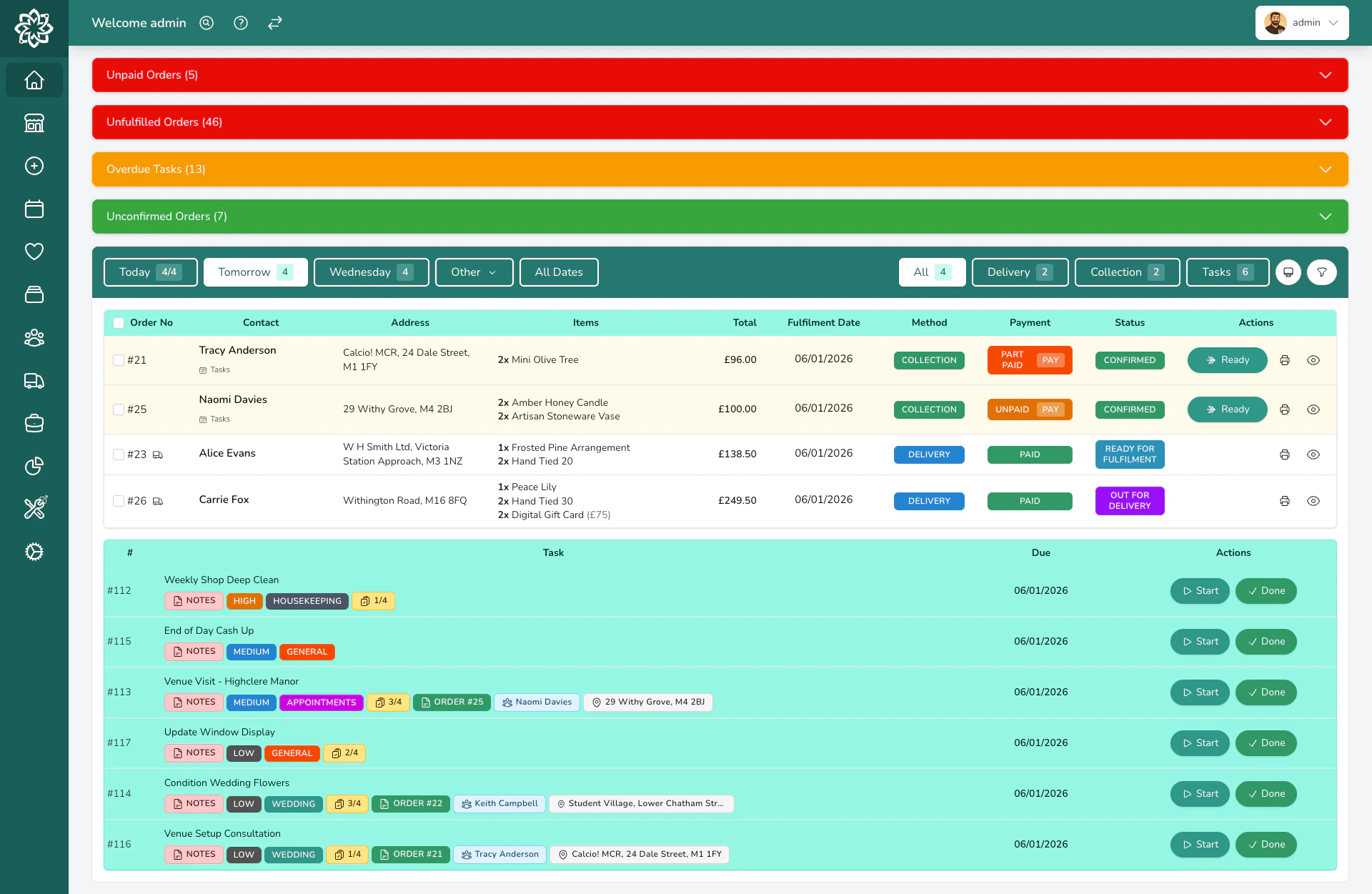
Start each day with this quick check. It takes about two minutes:Check your alerts
Look at the top of your dashboard. Are there any red or amber alert cards? If so, deal with them first. Unfulfilled orders from yesterday, unpaid orders, or failed integrations all need attention.
Confirm new orders
Check the Unconfirmed Orders section (highlighted in green). These are orders that came in overnight from your website or relay networks. Review and confirm them so your team can start working.
Review today's orders
Click Today above the orders table and scan through your order list. Check the All Orders count at the top. Does it match what you expected? Are there any special requests or funeral orders that need priority?
Check your shopping list
If you use product recipes, click Shopping List to see what stems and materials you need. Pull stock from the cooler before your team starts making up.
Sorting your orders
By default, your dashboard uses Curated sorting, which puts the most urgent orders first:- Funeral orders with specific times, because these can’t be late
- AM deliveries that need to go out first
- Standard deliveries sorted by time
- Collections for customers picking up in-store
- By Latest for newest orders first
- By Oldest for oldest orders first
- By Fulfilment Date (Newest First) sorted by when they need to be ready, newest first
- By Fulfilment Date (Oldest First) same, but oldest first
- By Fulfilment Time sorted by specific delivery times
Working faster with bulk actions
On busy days (Valentine’s Day, Mother’s Day), use bulk actions to save time:- Tick the Select All checkbox to select every order in the current view
- Click Confirm to accept them all at once
- Click Print to generate worksheets for your whole team
Using the calendar to plan ahead
Above the orders table, click the Other button to open the full calendar. Each date shows the number of orders scheduled, and dates with events show a heart icon. Use this to:- Spot busy days coming up and order extra stock
- See when events are scheduled so you can plan around them
- Check past dates to review how a day went
Assigning orders to your team
If you have team assignments enabled, you can assign orders to specific staff members:- Select one or more orders using the checkboxes
- Click Assign in the toolbar
- Choose a team member from the dropdown
Tips for peak periods
During Valentine’s Day, Mother’s Day, and other peak periods:- Start the night before by confirming all pre-orders the evening before so your team can start first thing
- Use the Production view to get a total count of each product type so you can batch-make arrangements
- Print in bulk by selecting all confirmed orders and printing worksheets in one go
- Check the Shopping List to make sure you have enough stems before the day starts
- Use the “Not Printed” filter after a rush of new orders to see only the ones you haven’t printed yet
Common questions
Can different staff see different things on the dashboard?
Can different staff see different things on the dashboard?
Yes. Each team member can set their own filters (like “Assigned To: Me”) to see only their work. Filters are personal and don’t affect other users. Roles and permissions control what actions each person can take.
Does the dashboard work on a tablet?
Does the dashboard work on a tablet?
Yes. The dashboard is designed to work on tablets and iPads, which is handy for checking orders on the shop floor. For on-the-go use, Digital Florists App is even better. See Digital Florists App.
Can I leave the dashboard open all day?
Can I leave the dashboard open all day?
Absolutely. The dashboard refreshes automatically (every 20 seconds for orders, every 2 minutes for alerts), so it always shows the latest information. Many shops keep a screen with the dashboard running throughout the day.
What’s next?
Your Dashboard
Go back to the main dashboard guide.
Dashboard Metrics
Learn what each number on your dashboard means.
Create an Order
Learn how to create your first order.
Tasks
Manage your team’s daily to-do list.