

This page covers features gated by Admin-tier permissions — typically Settings access. Admins have these by default; your administrator can adjust who has them in Settings > Team.
Most florists never need this. It’s a safety net for the rare day when your normal printing or order flow isn’t working, or when you want to hand a courier a printed run sheet because the driver app is down.
How it works
Open the tab and it prepares today’s paperwork straight away, so the downloads on the right are ready for the orders due today. To cover a different day, pick a window under Which day?:- Today. Every order due today.
- Tomorrow. Every order due tomorrow.
- Next 3 days. Tomorrow through three days ahead.
- Next 7 days. Tomorrow through seven days ahead.
- Custom…. Any window between tomorrow and seven days from now.
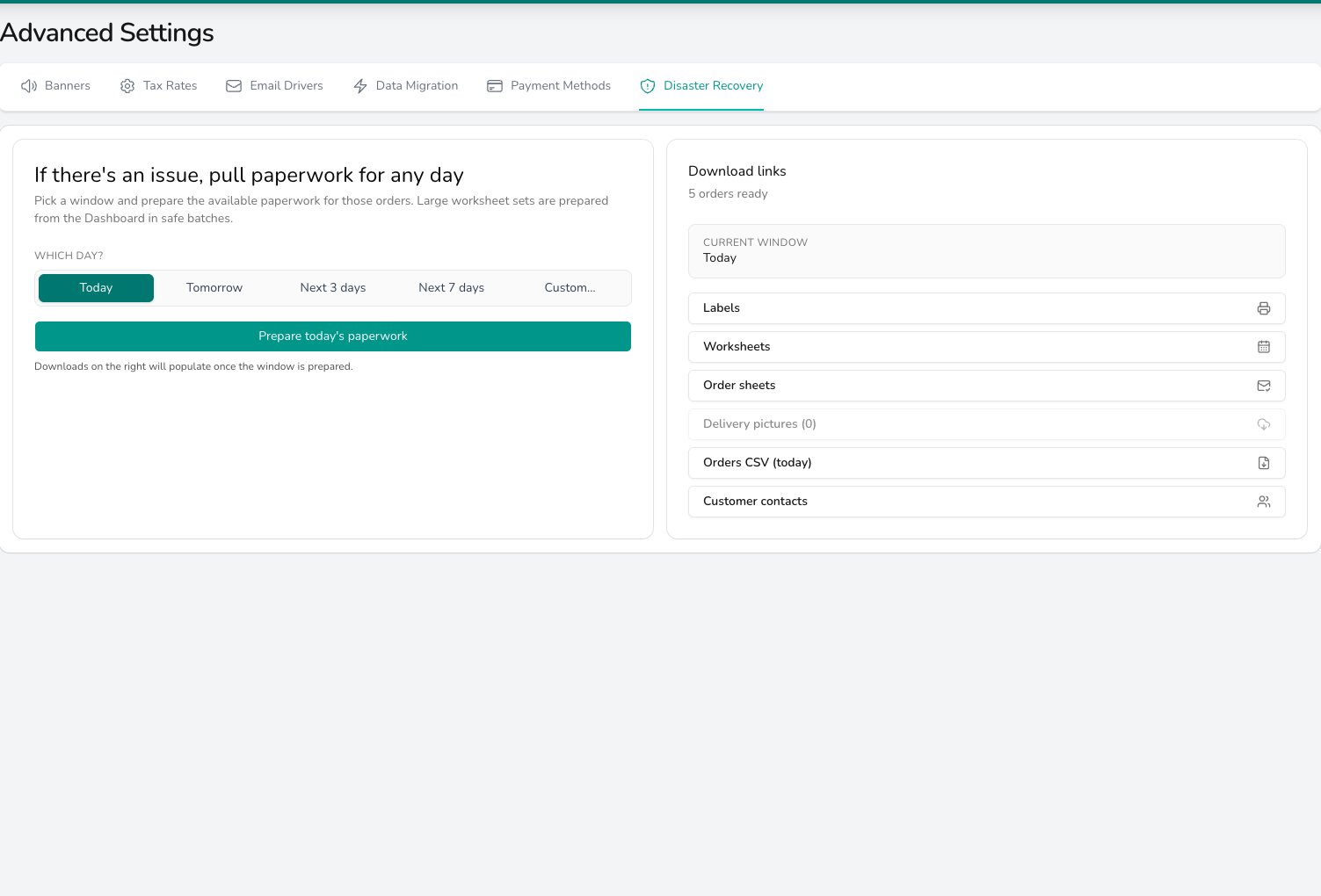
Pick a day window, prepare the paperwork, and every download for those orders appears on the right so the shop can keep trading if the system is unavailable.
Disaster Recovery only looks forward, from today up to a week ahead. For a record of what was printed or delivered in the past, see Delivery History and Audit Logs.
Downloads on offer
Once a window is prepared, the Download links panel offers:- Labels. Every order label in the window, sent to your label printer through Connect when label printing is set up, or opened in the browser to print from there.
- Worksheets. The digital worksheet for each order, opened in a new tab ready to print. A very large window tells you to print worksheets from the Dashboard in batches instead.
- Order sheets. The order list for the window.
- Delivery pictures. A ZIP of every proof-of-delivery photo for the orders in the window. The count next to the name tells you how many there are.
- Orders CSV (today). A flat export of today’s orders.
- Customer contacts. The customer details for today’s orders, useful if you need to phone round.
When to use it
- Your label printer or Connect is down and you need to print today’s labels through the browser instead.
- The shop’s internet is patchy. Prepare tomorrow’s paperwork in advance so the team has paper backups.
- A courier needs a run sheet because the driver app isn’t usable on their phone.
- You’re handing the shop to a stand-in and want them to have everything printed and ready before you leave.
Common questions
Does this change any data?
Does this change any data?
No. Disaster Recovery only reads orders and produces paperwork. It doesn’t edit, restore or delete anything. Each lookup is recorded in Audit Logs so you have a record of who pulled what.
Why can't I pick a date in the past?
Why can't I pick a date in the past?
Disaster Recovery is for paperwork you still need to act on: today’s work or work coming up. For historical orders, search Orders directly. You can reprint labels and worksheets from each order’s screen.
How does label printing decide between Connect and the browser?
How does label printing decide between Connect and the browser?
If Connect label printing is set up for your shop, Labels sends the batch to your label printer. If not, it opens the labels in a new tab so you can print from the browser.
What if I can't even reach Digital Florists?
What if I can't even reach Digital Florists?
If the dashboard itself is unreachable, get in touch with support straight away. Our team can help you get a paper copy of what you need.
What’s next?
Audit logs
See every Disaster Recovery lookup, who ran it, and the window they prepared.
Connect
Set up Connect so labels print straight to your label printer in normal operation.