

This page covers features gated by Admin-tier permissions — typically Settings access. Admins have these by default; your administrator can adjust who has them in Settings > Team.
Where the terms live
Go to Settings > Legal. The page shows the current Terms of Service in full, with the acceptance bar underneath. Once the terms have been accepted, the top of the same page shows who accepted them, the role they gave, and the date and time. Check it there if you’re asked whether your shop has accepted the current terms.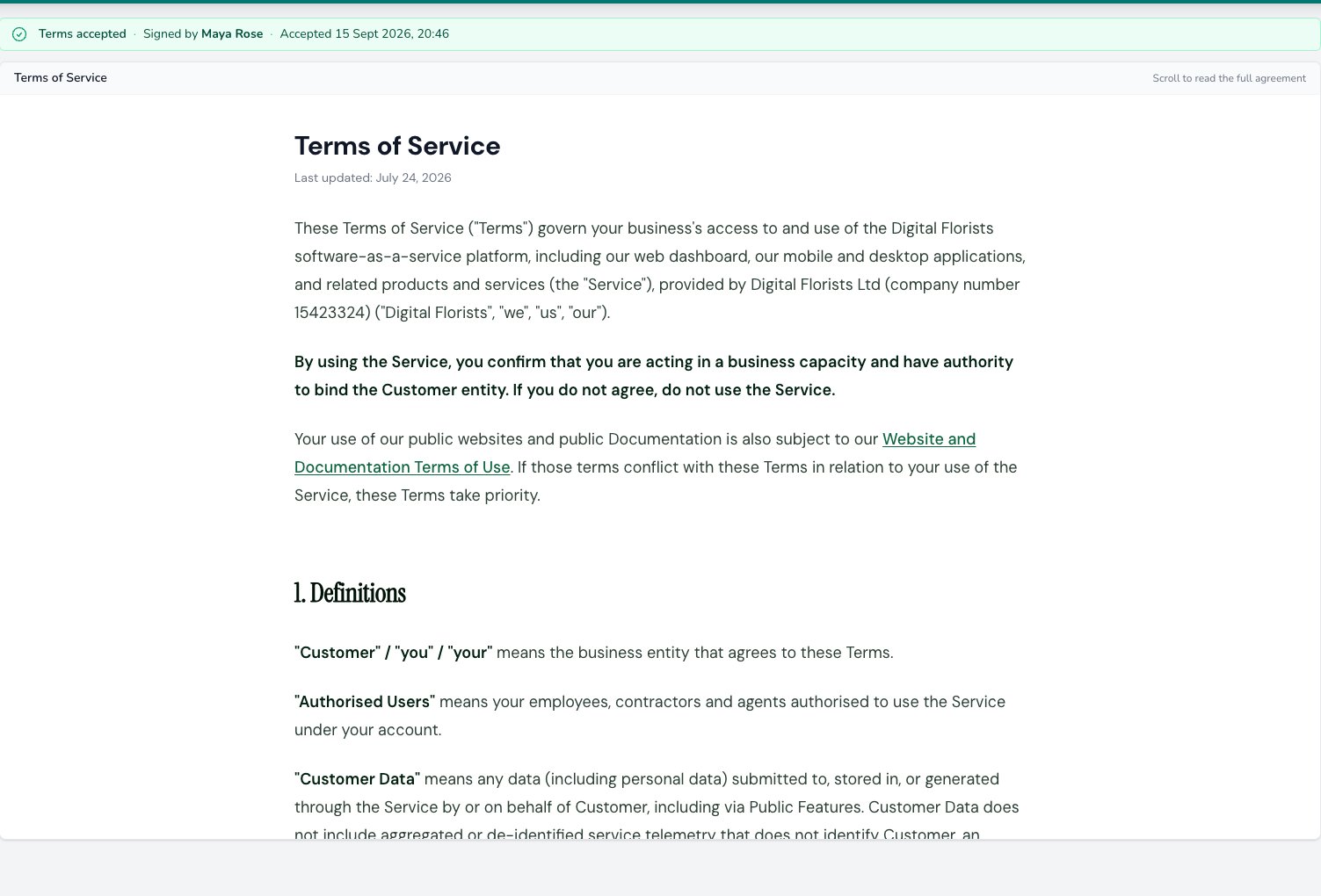
The Legal page records who accepted the Terms of Service and when, with the full agreement readable underneath.
Accepting the terms
Only an administrator with the Settings (Admin) permission can accept, and Settings asks for their security code (PIN) first. See Team for how permissions and security codes work.1
Open the Legal page
Go to Settings > Legal, and enter your security code if you’re prompted for it.
2
Read the terms
Read through the document. The acceptance bar is underneath it.
3
Confirm and sign
Tick the confirmation, then enter your full name and your role at the business. All three are needed before you can continue.
4
Click Accept & continue
You’re taken back into Settings, and the banner stops appearing.
Digital Florists records the name and role entered as the person who accepted for your business. Who can commit your business to an agreement is your decision.
The countdown banner
When the terms are updated, a banner appears at the top of Digital Florists for everyone signed in. It gives the number of days left to accept and carries a Review terms button. Everything else carries on working normally while the banner is showing. Click Review terms and an administrator goes straight to the Legal page. If the person at the screen can’t accept, the button opens the screen for choosing an administrator and entering their security code, so someone with the right access can take over on the same computer.Once the deadline passes
If the terms haven’t been accepted by the deadline, Digital Florists is blocked for everyone signed in, dashboard and till alike. Instead of the page you asked for you’ll see Terms of Service acceptance required, with a Review terms button. Signing out still works. Accept the terms and the block clears for the whole shop. Your orders, payments and history aren’t affected while the block is in place.If you can’t accept
You’ll see the same block screen as everyone else. Accepting needs settings access, so for most of the team the job is to hand it to someone who has it. It doesn’t have to be the owner: any administrator with the Settings (Admin) permission can accept.- Click Review terms. Digital Florists shows the people at your shop who can accept.
- Hand the computer to one of them. They pick their own name, enter their security code, then accept on the Legal page.
- If nobody who can accept is in the shop, ring the owner or an administrator. They can sign in as usual from another computer and accept from there.
Common questions
Digital Florists says the administrator needs a security code. What now?
Digital Florists says the administrator needs a security code. What now?
Anyone with settings access needs a security code (PIN) before you can switch to them. Someone with settings access can set one from Settings > Team. If the deadline has already passed and nobody can get into Settings, get in touch with support.
How do I check whether we've already accepted?
How do I check whether we've already accepted?
Open Settings > Legal. If the terms have been accepted, the top of the page shows who accepted them, the role they gave, and when.
Where can I read the terms outside Digital Florists?
Where can I read the terms outside Digital Florists?
The current version is published at digitalflorists.com/legal/terms-and-conditions.
What’s next?
Team
Roles, permissions, and security codes.
Shop details
Your shop name, contact details, logo and regional settings.
About
Your plan, allowances, and usage.
Getting Help
Ways to reach the support team.