

This page covers features gated by Admin-tier permissions — typically Settings access. Admins have these by default; your administrator can adjust who has them in Settings > Team.
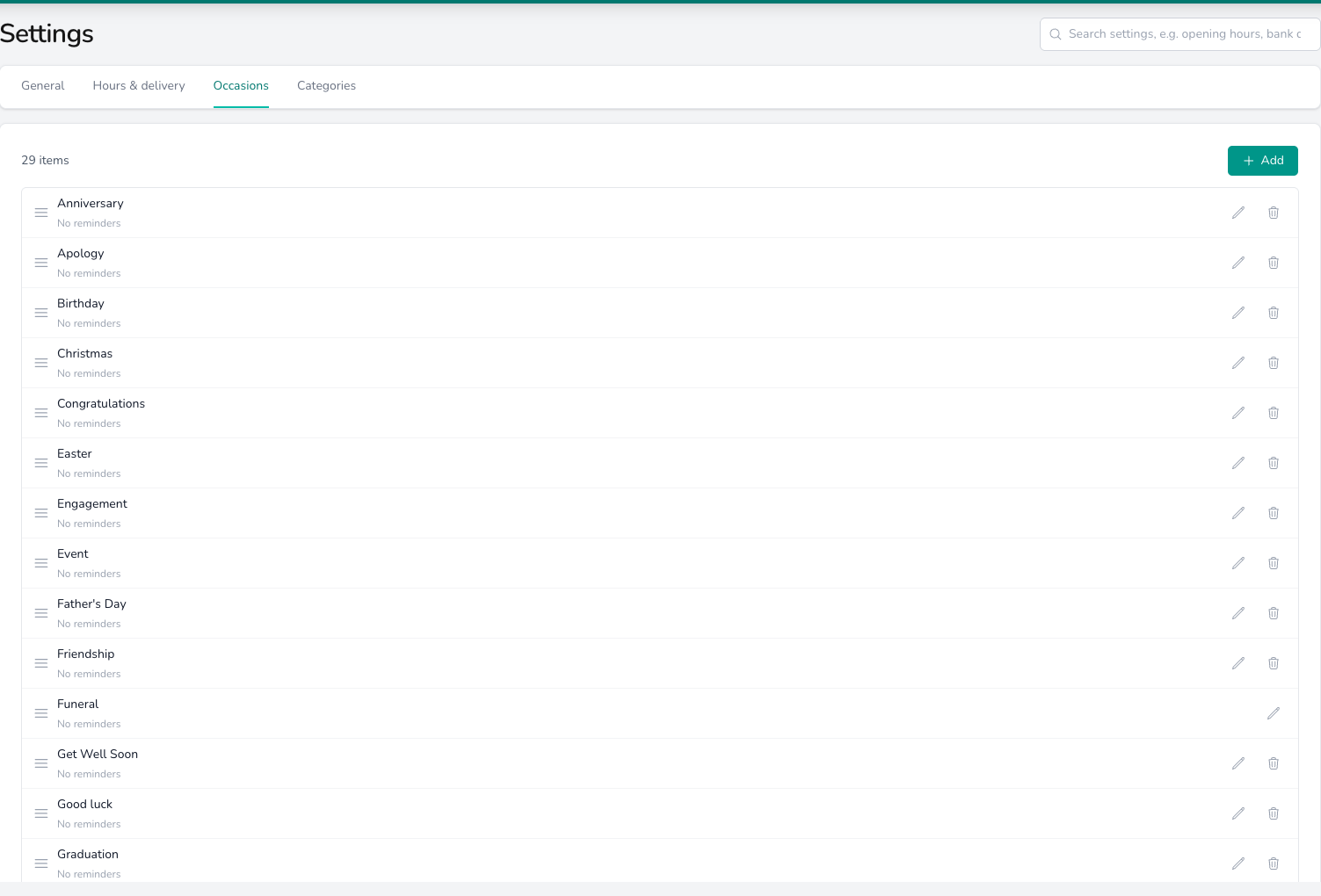
Occasions in the order your team sees them, each showing whether it sends reminders.
Where occasions appear
Your team chooses an Occasion on the order form. See Creating an order. Orders from your website carry the occasion the shopper picked at checkout when its name matches one in this list. Otherwise the order arrives on the Website occasion. See Website integrations. Funeral orders use the Funeral occasion whatever your team picks, so it can’t be deleted. Sales by occasion appear in Insights and the Order Sales report.Adding an occasion
Click Add, type the Name and click Create. The occasion is ready to pick on the next order, and you can drag it into place in the list. To rename an occasion, click the edit icon on its row, change the Name and click Save. Orders already using it show the new name.Putting them in order
Drag an occasion by the handle at the left of its row and drop it where you want it. The list saves as soon as you let go. Put the ones your team picks most at the top, and they’re first in the order form’s list.Reminder timing
Edit an occasion and click Add Reminder under Reminders. Each row says how long before or after the date to send the reminder, and at what time. Add a second row for an early nudge as well as a final one. To pause a row without deleting it, flick its switch to Off. Once an occasion has an active reminder row, the note under its name changes from No reminders to the timing you set. That’s also when the Schedule marketing reminder tick box starts appearing on orders with that occasion. Sending, the reminder email and the list of everything scheduled are covered in Marketing reminders.Deleting an occasion
Click the delete icon on the row and confirm. The occasion and its reminder timing are removed together, and it disappears from the order form. Orders that already used it keep their history. If you only want a different label, rename the occasion instead.What’s next?
Marketing reminders
Switch the reminder email on and see every reminder that’s scheduled.
Creating an order
Where your team picks the occasion on an order.
Categories
Task categories, order sources and the other lists your team picks from.
Website integrations
How the occasion a shopper picks at checkout reaches the order.