

This page covers features gated by Admin-tier permissions — typically Settings access. Admins have these by default; your administrator can adjust who has them in Settings > Team.
The options your team sees
Your everyday options list first. Options with dates sit under Date-specific options, and options an integration uses sit under Integration & other options. Drag one by its handle to change the order your team sees on the order form, and click Add delivery option to create one. An option is shared across all your shops unless you limit it to one shop in Available for.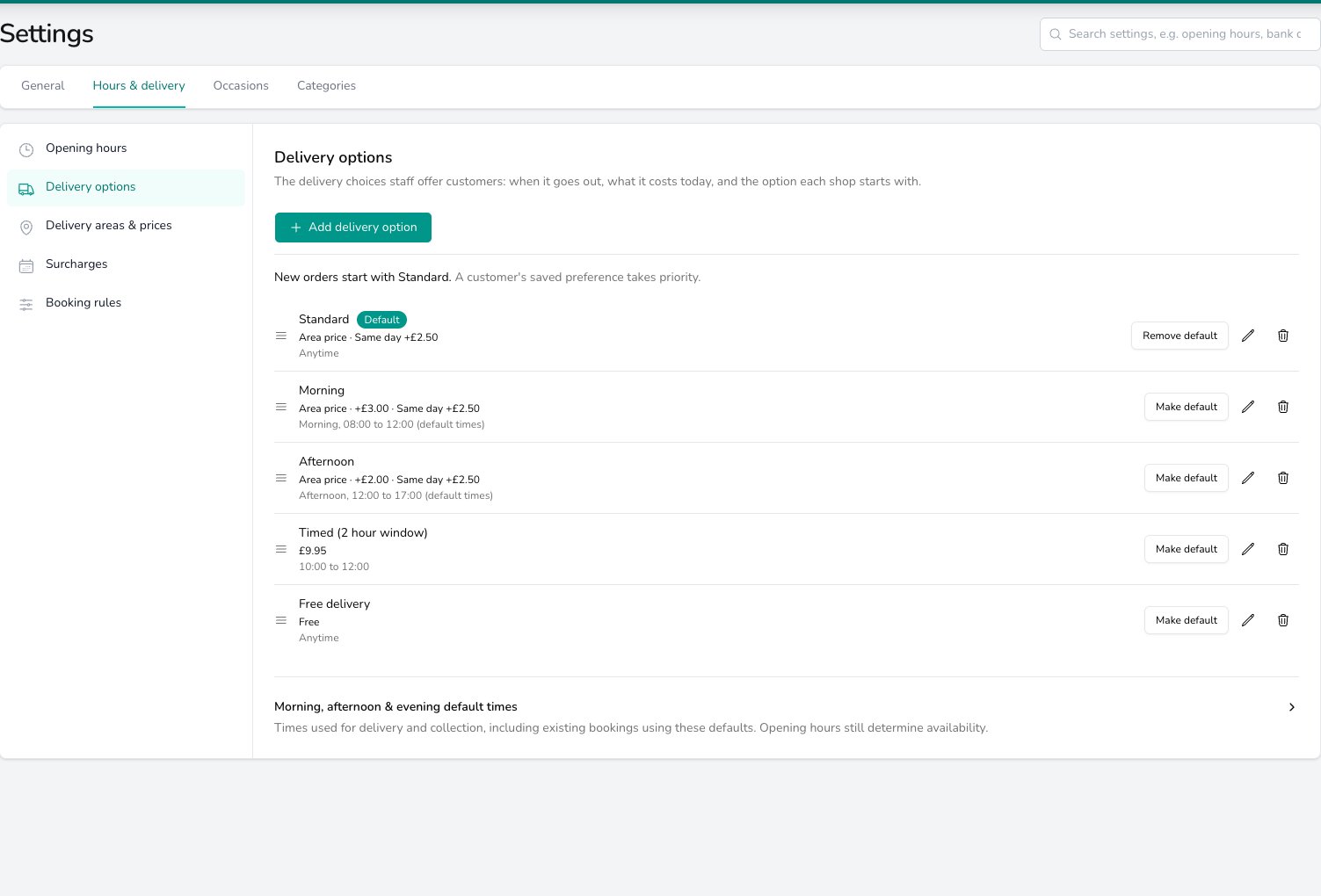
Each delivery option carries its own pricing and time window, and the Default badge shows which one new orders start with.
Pricing an option
Choose Fixed price to charge the same amount wherever the flowers go, and put the figure in Price (inc. tax). Tick Charge a different price for same-day orders to add a Same-day price (inc. tax). That price applies to orders placed before your same day Order by time, set in Surcharges. Choose Priced by delivery area to take the charge from the recipient’s area instead. Put an amount in Added to the area price to charge extra for a premium window, or leave it blank to charge the area price alone. An option priced this way takes its same day extra from Surcharges, and it needs at least one delivery area before it can price an order. Choose Free and the order carries no delivery charge.Morning, afternoon and evening default times
Open Morning, afternoon & evening default times to set the clock times behind each named window. Give Morning, Afternoon and Evening a From and a To. Your team then sees the real range beside the choice on the order form, and delivery runs and collections booked for that part of the day follow it too. Your opening hours still decide which days and times your team can book.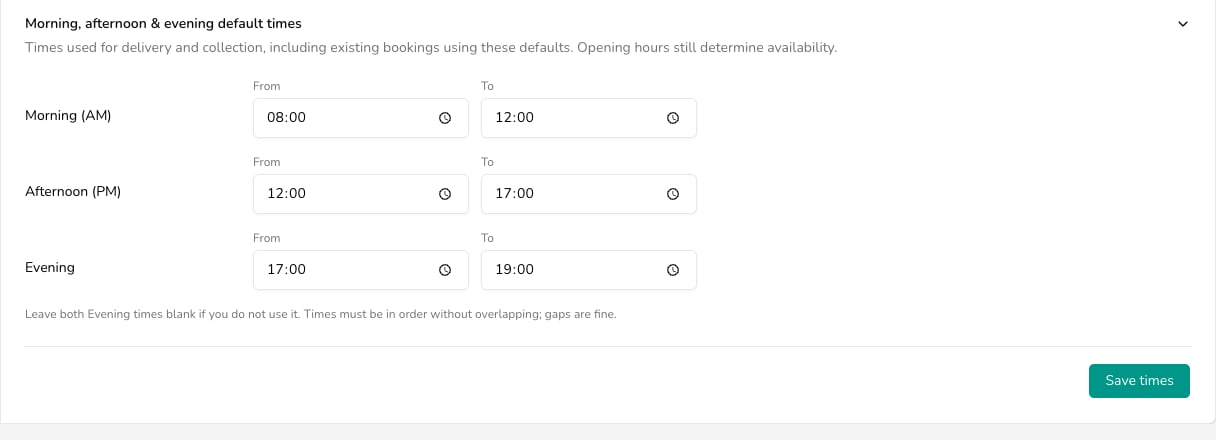
Morning, afternoon & evening default times: a From and To for each named window, saved with Save times.
Date-specific options
When an option carries a from or to date, your team is only offered it between those dates, so a seasonal option drops off the order form out of season. Those options gather under Date-specific options, and stay there once their dates have passed. To offer the same price on other dates, add another option.Your default delivery option
Press Make default on a row and new orders start with that option. The row is then badged Default, and a customer’s saved preference still takes priority over it. Press Remove default and your team picks an option on every order. If you run more than one shop, each shop chooses its own in Default delivery option in the Set per shop band.Archiving an option
Press the bin icon on an option’s row and confirm Archive option. It stops being offered on new orders. Orders you have already taken keep that option and the charge you agreed.Common questions
Can I charge more for a timed window?
Can I charge more for a timed window?
Yes, two ways. Give the option a Fixed price higher than your standard one, or leave it Priced by delivery area and put the extra in Added to the area price so it rides on top of whatever that address costs.
Why is an option missing from the order form?
Why is an option missing from the order form?
Check four things on the option: that Order form is ticked under Offered on, that it is available for the shop taking the order, that it is not a date-specific option outside its dates, and that the address and date suit it. The line under the picker gives the reason when a day or an address rules an option out.
Do collection orders use delivery options?
Do collection orders use delivery options?
No. A collection is timed by its fulfilment date and time and follows your opening hours and closed days, along with the daily collection limit in Booking rules. Delivery options apply to delivery, relay and courier orders.
What’s next?
Opening hours
The hours you work, separate delivery hours, and the days you close.
Delivery areas & prices
Where you deliver and what each area costs.
Surcharges
Busy day extras and your same day deadline.
Booking rules
Notice, how far ahead orders go, and what a broken rule does.
Create an Order
See the charge, the warnings and the window as you take an order.