

This page covers features gated by Admin-tier permissions — typically Settings access. Admins have these by default; your administrator can adjust who has them in Settings > Team.
Busy days
Select a date on the calendar in Busy days, or drag across several, then choose Add an extra delivery charge. Add busy days gives you a blank row to type into instead. Name the row so your team recognises it, then set the From and To dates. Put the amount in Extra per delivery (inc. tax). Tick Every year and the date repeats, so you set Valentine’s Day and Mother’s Day up once. Press Save busy days when you’re done. The extra goes on every paid delivery option on those dates. Free delivery stays free.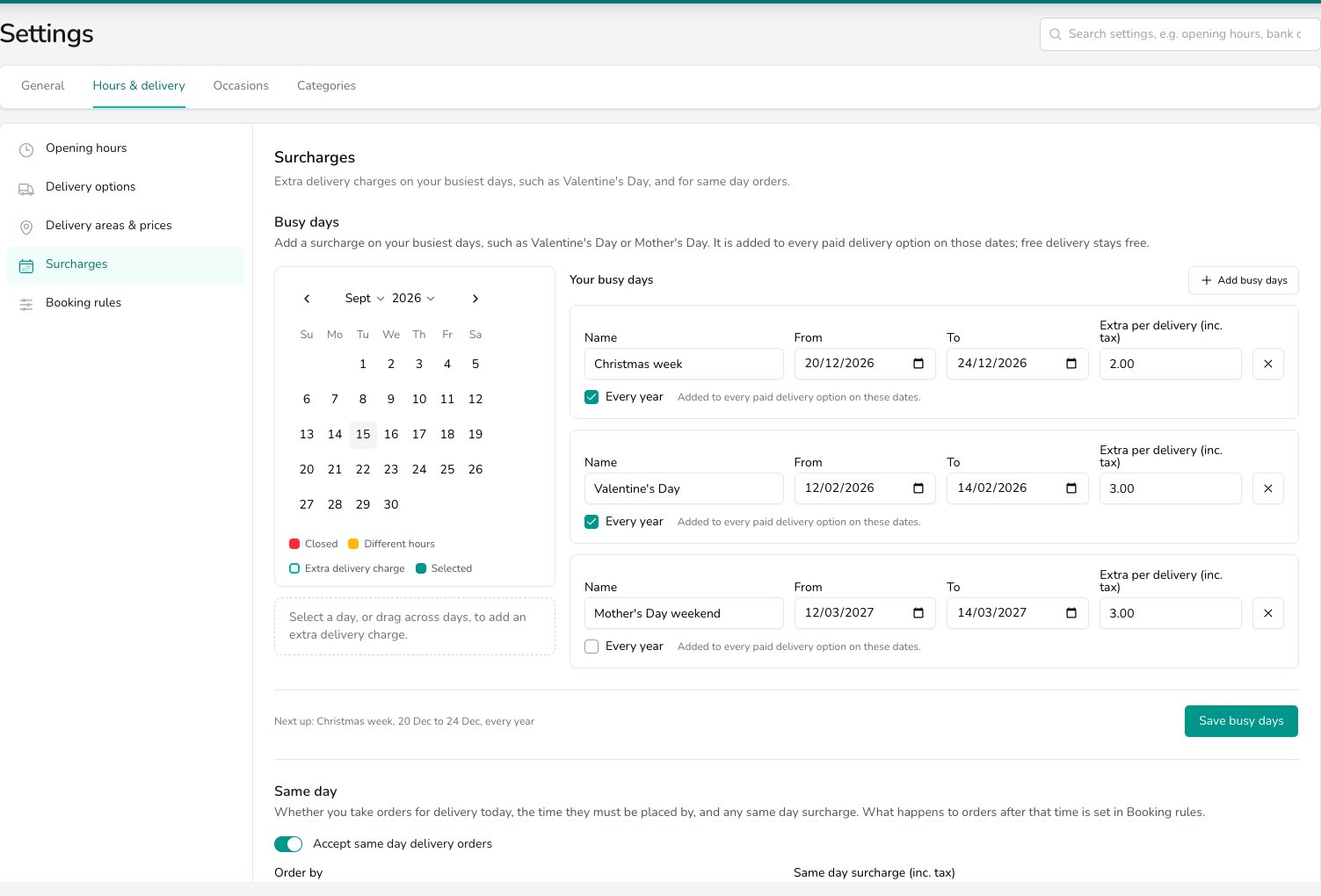
Busy day surcharges add a fixed amount to every paid delivery option on the chosen dates, and can repeat every year.
Same day
Same day decides whether you take orders for delivery today.- Accept same day delivery orders switches it on or off for the shop. Switch it off and your team can’t book a delivery for today.
- Order by is the time a same day order has to be placed by. One time serves every delivery option. Leave it blank for no deadline.
- Same day surcharge (inc. tax) goes on top of the area price for options priced by delivery area.
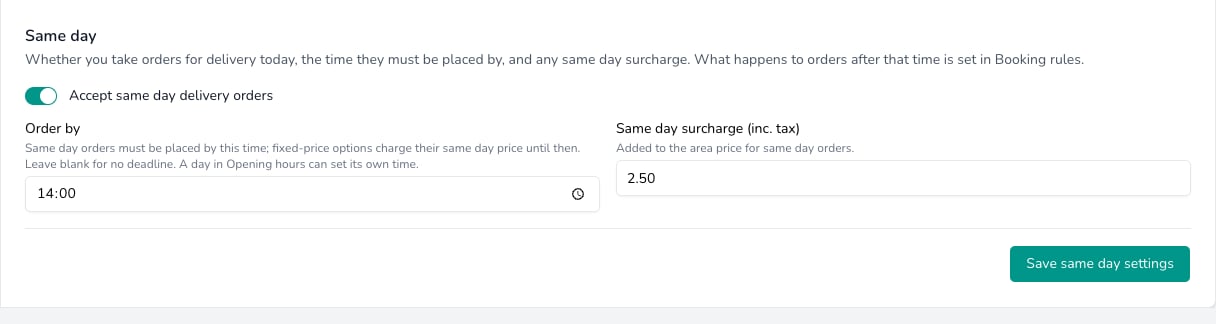
Same day: the switch, the Order by deadline and the surcharge, saved with Save same day settings.
What happens after the Order by time is a booking rule, not a surcharge. Whether your team sees a warning or is stopped from taking the order is set in Booking rules.
Common questions
Does a busy day extra apply to free delivery?
Does a busy day extra apply to free delivery?
No. The extra goes on every paid delivery option on those dates, and a free delivery option stays free.
Can each shop have its own busy days and same day rules?
Can each shop have its own busy days and same day rules?
Yes. Both belong to the shop, and you switch shop in the Set per shop band. Delivery options themselves are shared, though you can limit an option to one shop.
Which price does a fixed-price option charge for a delivery today?
Which price does a fixed-price option charge for a delivery today?
Its own Same-day price (inc. tax), up to the Order by time. Options priced by delivery area take the area price plus the Same day surcharge instead.
What’s next?
Opening hours
Weekly hours, closed days and the per-day same day deadline.
Delivery options
The options your team offers and what each one costs.
Delivery areas & prices
Where you deliver and what each area costs.
Booking rules
Notice, how far ahead orders go, and what a broken rule does.
Create an Order
See the charges and warnings as you take an order.