

This page covers features gated by Admin-tier permissions — typically Settings access. Admins have these by default; your administrator can adjust who has them in Settings > Team.
The rules an order is checked against
Press Save booking rules when you’re done.
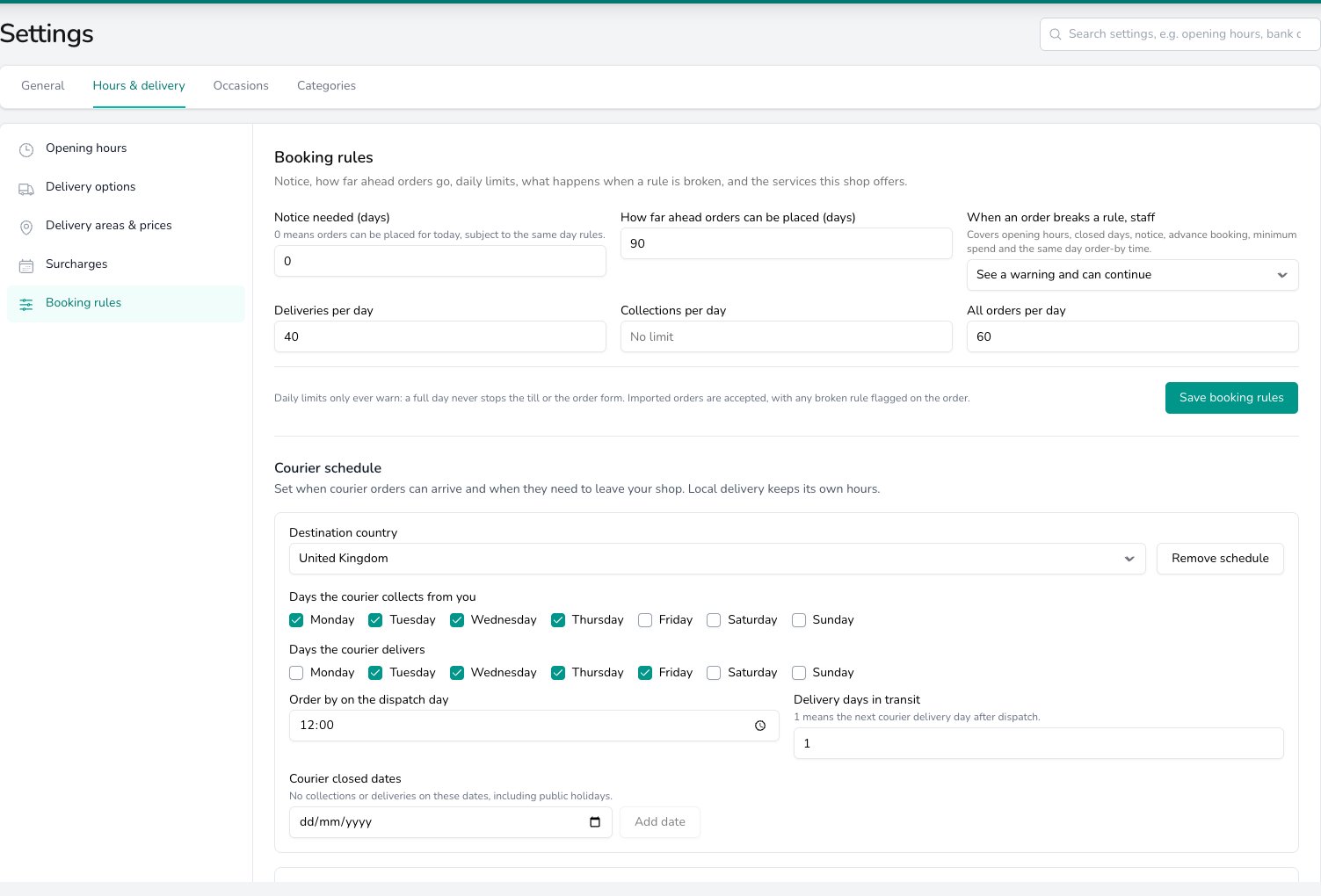
Booking rules set how far ahead orders can be placed, daily limits, what staff see when a rule is broken, and the courier's collection and delivery days.
When an order breaks a rule
One choice covers every rule your team can run into: opening hours, closed days, notice, how far ahead orders go, minimum spend and the same day Order by time. Pick See a warning and can continue and a line under the date picker says what the problem is. Your team reads it and carries on. Pick Cannot take the order and dates that break a rule are struck through on the picker. The order won’t save until the date, time or option changes.Daily limits
Daily limits warn rather than stop. When a day reaches one, your team sees the warning and can still take the order, at the till and on the order form. Orders arriving from your website or a relay network are taken too, whichever choice you make above. The broken rule is saved on the order and shown in an amber note on the order page, so someone can look at it before it’s confirmed.Courier schedule
A courier works to its own week, and it rarely matches your shop’s. Press Add country schedule in Courier schedule and pick the Destination country. Tick Days the courier collects from you and Days the courier delivers, then set Order by on the dispatch day and Delivery days in transit. Add any dates the courier is closed under Courier closed dates. The order form then works out which day a parcel has to leave you to arrive on the day the customer wants. Your local delivery hours are left alone. See Courier orders for how that plays out on an order.Services offered
Tick which of delivery, collection, relay and courier this shop offers in Services offered. Anything you untick stops appearing in the order form’s list for that shop. New orders start as sets whether a new order is confirmed straight away or waits to be confirmed. Book couriers automatically books each confirmed courier order with the courier you choose here. Leave it on Off to book each one yourself.Copying rules to your other shops
Press Copy operating policies… under Services offered to copy this shop’s saved Services offered and New orders start as choices to the other shops you tick. Each shop keeps its own details, tax and printing setup. Save your changes first. The button is unavailable while anything on the card is unsaved.Common questions
What does a broken rule look like to my team?
What does a broken rule look like to my team?
A line under the date picker says what the problem is, such as the shop being closed that day. With See a warning and can continue they read it and carry on; with Cannot take the order the order won’t save until the date, time or option is changed. The same lines show at the till.
Do daily limits stop my team taking an order?
Do daily limits stop my team taking an order?
No. A full day warns and nothing more, at the till and on the order form. Use Notice needed (days) or your opening hours if you need a date genuinely closed off.
Can each shop have its own booking rules?
Can each shop have its own booking rules?
Yes. Booking rules, courier schedules and services offered all belong to the shop, and you switch shop in the Set per shop band.
What happens to a website or relay order that breaks a rule?
What happens to a website or relay order that breaks a rule?
It’s still taken, whichever choice you’ve made in When an order breaks a rule, staff. The broken rule is saved on the order and shown in an amber note on the order page, so someone can look at it before it’s confirmed.
What’s next?
Opening hours
Weekly hours, closed days and different hours.
Delivery options
The options your team offers and what each one costs.
Delivery areas & prices
Where you deliver and what each area costs.
Surcharges
Busy day extras and your same day deadline.
Create an Order
See the warnings as you take an order.
Courier orders
Booking and tracking a courier shipment.