

This page covers features gated by Admin-tier permissions — typically Settings access. Admins have these by default; your administrator can adjust who has them in Settings > Team.
Scheduling a reminder
Three things have to line up before a reminder is scheduled.1
Set reminder timing on the occasion
Open Settings > Occasions, edit the occasion you want, such as Birthday or Anniversary, and add a reminder row under Reminders. Each row sets how far before or after the date the reminder goes and at what time. See Occasions for the details.An occasion with no reminder rows doesn’t schedule anything, and the tick box below won’t appear on the order.
2
Tick the box on the order
Pick that occasion on the order form and a Schedule marketing reminder tick box appears. Tick it, save the order, and the reminder is scheduled.To have the box start ticked whenever your team picks an occasion that has reminders set up, turn on Tick ‘Schedule marketing reminder’ by default in Settings > General > Customer messages. The box doesn’t appear on funeral orders.
3
Check the customer has an email address
The reminder goes to the Marketing Email on the customer’s record, or to their main email address if that field is empty. A customer with neither doesn’t get one.
Switching the reminder email on
Reminders don’t send until the Automatic order reminder email is switched on, and it starts off. Open Settings > Advanced > Notifications, go to the Customers tab, expand Automatic order reminder and switch on Email Notification. You can change what the reminder says and how it looks in Templates & Branding. The default wording recalls last year’s order and invites the customer to order again.The reminders list
Open Settings > Advanced > Notifications and click Reminders. Each row shows the Customer, the Order it came from, the Occasion, the date under Reminder scheduled for, its Status, and the Original delivery/collection date it was worked out from.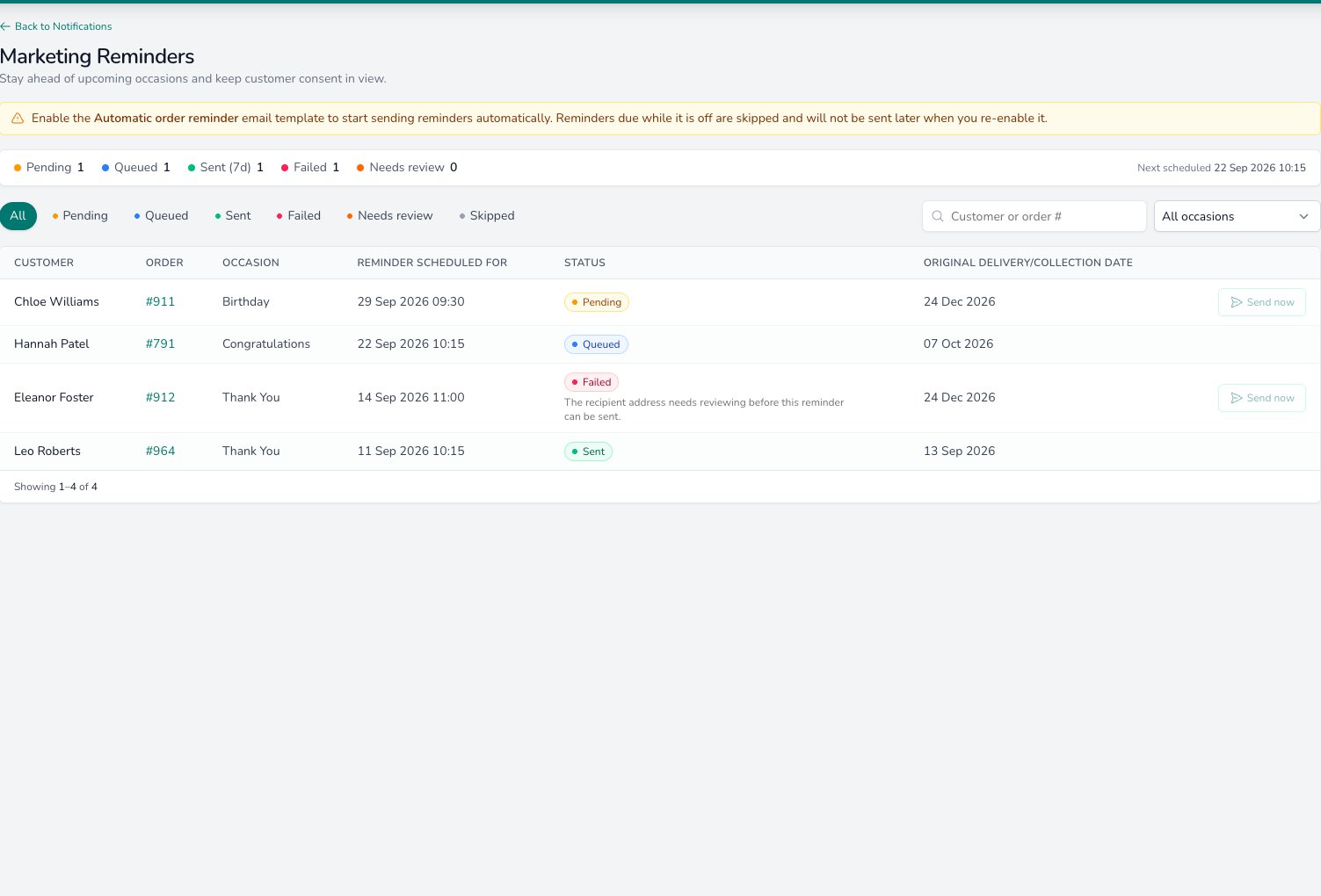
Every scheduled reminder on one list, with its status and a Send now button on the rows that can go early.
Sending one early
Pending and Failed rows carry a Send now button, which sends that reminder straight away rather than waiting for its date. It’s the quickest way to check your wording on a real order. Send now is unavailable while the Automatic order reminder email is switched off. If the customer is opted out of notifications, Send now reports that the reminder was skipped and nothing is sent.Reminders that need review
Occasionally Digital Florists can’t tell whether a reminder reached the customer. Those rows read Needs review, and a message at the top of the list points you at them. Nothing is retried on its own. Check the order’s message history and your own email account first. Then click Review on the row, which opens a screen asking What did you find? with three answers.
Write down what you checked in Review note, then click Save review. Your note is kept on the order’s timeline, so the next person to open that order can see how it was settled. Back closes the screen without recording anything.
Stopping reminders for a customer
There are two controls, and they work at different levels.- One order. Open the order, untick Schedule marketing reminder and save. A reminder from that order that hasn’t gone yet is called off.
- Every order for that customer. Tick Opt out of notifications on their customer record. Reminders for them are then skipped along with their other non-mandatory notifications. See Recipients for what that covers.
Common questions
Why isn't the tick box showing on my order?
Why isn't the tick box showing on my order?
Either the occasion has no reminder rows set up, or it’s a funeral order. Add reminder timing to the occasion in Occasions and the box appears the next time someone picks it.
Can I send more than one reminder for the same occasion?
Can I send more than one reminder for the same occasion?
Yes. Add a row for each reminder on the occasion, for example one four weeks before and one three days before. Each row schedules its own reminder, and each appears as its own line in the list.
What happens if I change the order's delivery date?
What happens if I change the order's delivery date?
The reminder moves with it, as long as it hasn’t started going out. A reminder already marked Sent, Queued or Needs review stays where it is.
Does a reminder repeat every year on its own?
Does a reminder repeat every year on its own?
No. One order schedules one reminder. When the customer orders again, tick the box on that order to schedule the following year’s.
What’s next?
Occasions
Keep your list of occasions and set the reminder timing on each one.
Templates & Branding
Change what the reminder says and how your emails look.
Recipients
Choose who receives notifications and how a customer opts out.
Customers
Marketing email addresses, opt-outs and the message history for each customer.