

This page covers features gated by Manager-tier permissions. Managers and Admins have these by default; your administrator can adjust who has them in Settings > Team.
Quick refund from today’s transactions
If the transaction you want to refund happened during your current till session, the quickest way is to find it in your transaction list. Go to the POS settings cog, tap Close Register (you don’t need to close it), find the transaction, open it, and click Issue Refund. This saves you looking up the order or transaction ID.Refunding from the adjustments panel
For transactions from a previous day — or if you prefer to look up by order or transaction ID — open the Refunds & Adjustments panel from the POS settings menu. You’ll see three tabs: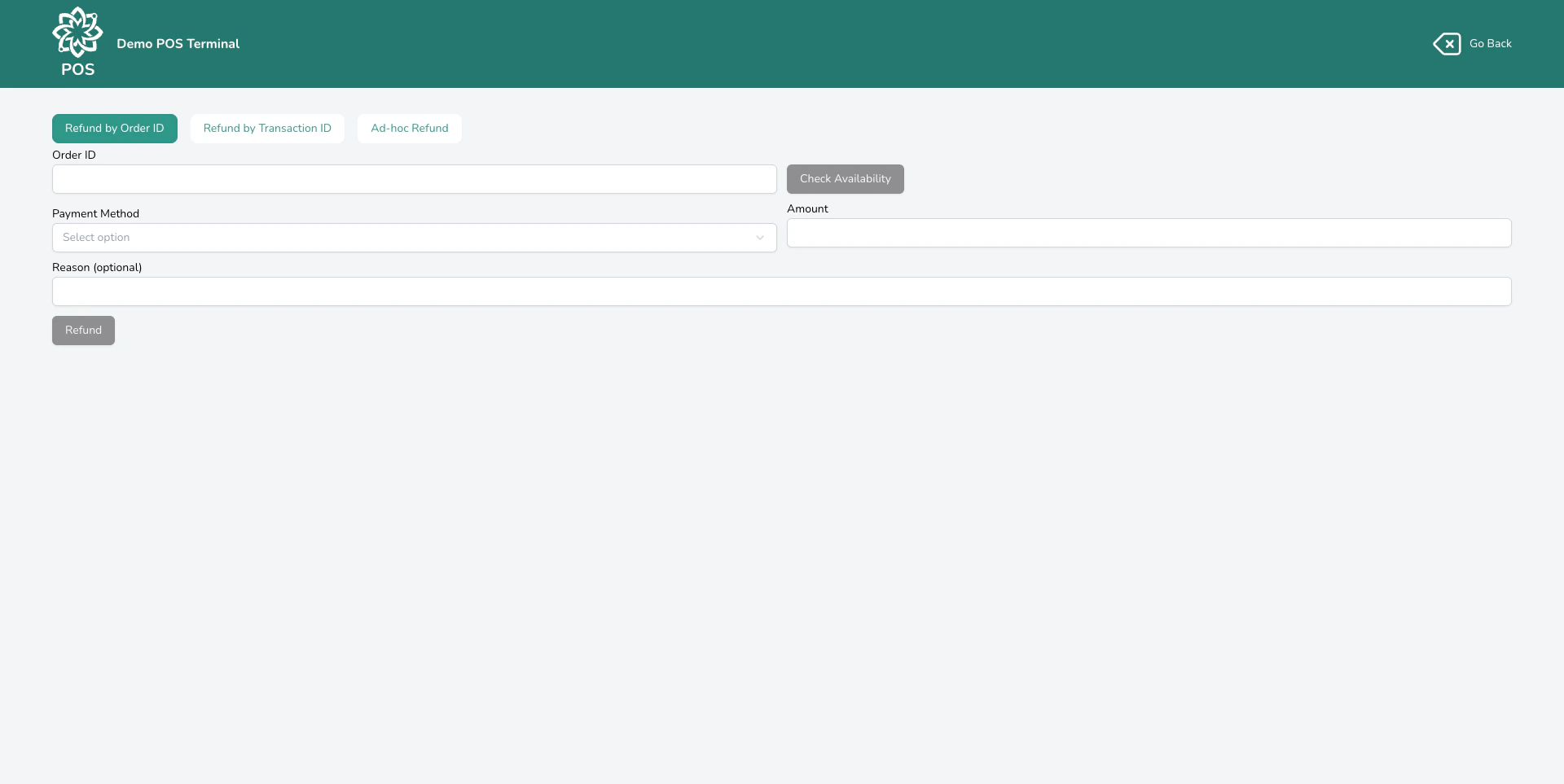
The refunds and adjustments panel
Refund by Order ID
Use this when you know the order number. This is the most common method — a customer brings back flowers or calls about an issue, and you have their order number.1
Enter the order number
Type the order number into the lookup field. Digital Florists finds the order and shows the payment details.
2
Check what's available to refund
Your dashboard shows how much was paid and how much has already been refunded, broken down by payment method. You can only refund up to what was originally paid via each method.
3
Enter the refund amount
Type the amount to refund and choose which payment method to refund to. Pick a reason from the list — every refund needs one, and the reasons total up in your end of day export.
4
Confirm
Review the details and confirm. The refund is recorded against the original order.
Refund by Transaction ID
Use this when you have the transaction ID rather than an order number. This is useful for POS sales where you might not have an order number handy, or when a single transaction covered multiple orders.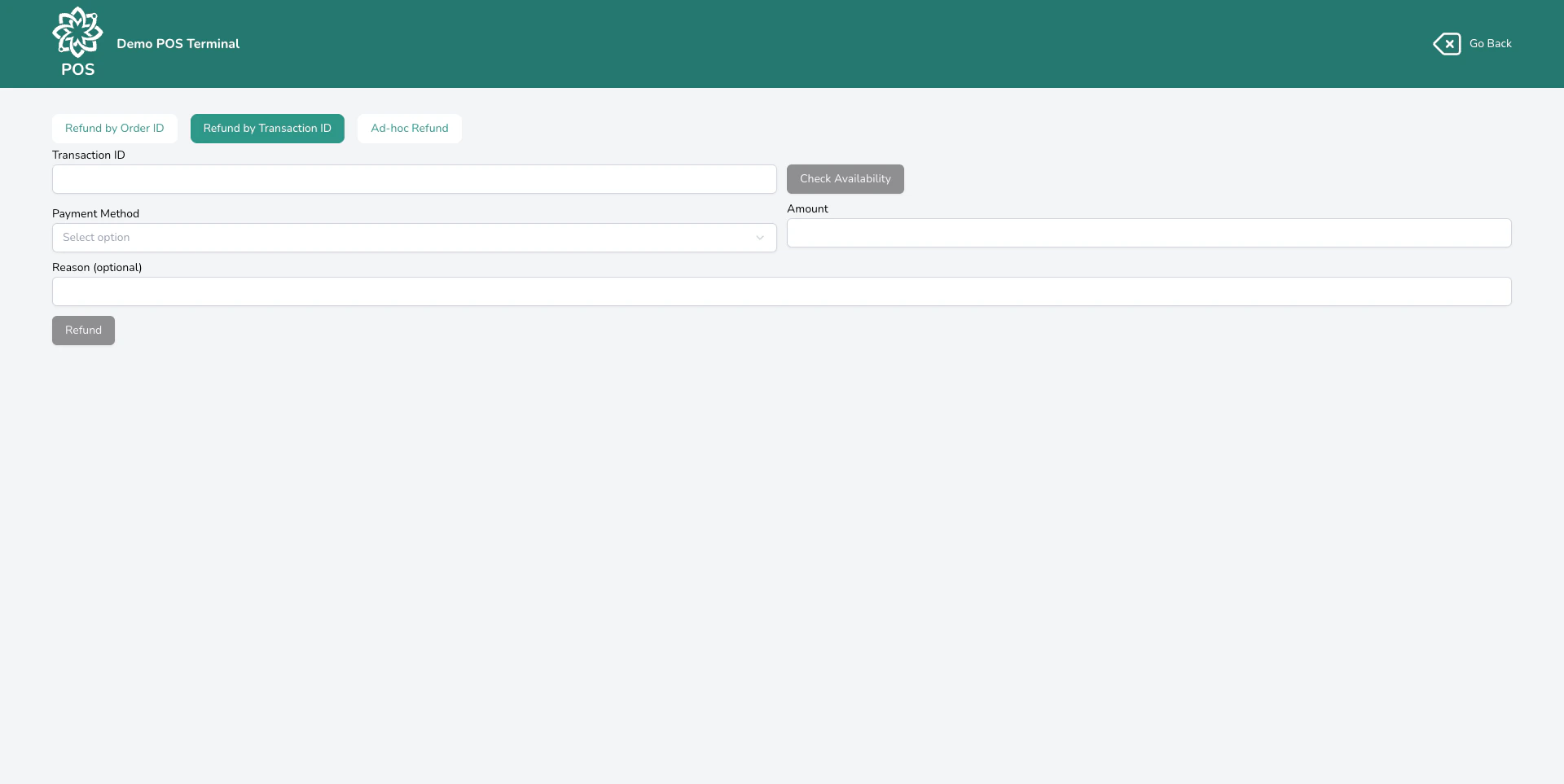
Looking up a transaction to refund
1
Enter the transaction ID
Type the transaction ID into the lookup field.
2
Check availability
Your dashboard shows the paid and refunded amounts per payment method. Each method has a refund cap — you can’t refund more than was paid via that method.
3
Enter the refund amount and reason
Choose the payment method, enter the amount, and pick a reason from the list.
4
Confirm
Review and confirm the refund.
Ad-hoc refund
Use this when you can’t find the original transaction, or when you need to process a standalone (like a goodwill gesture or a correction from a previous day).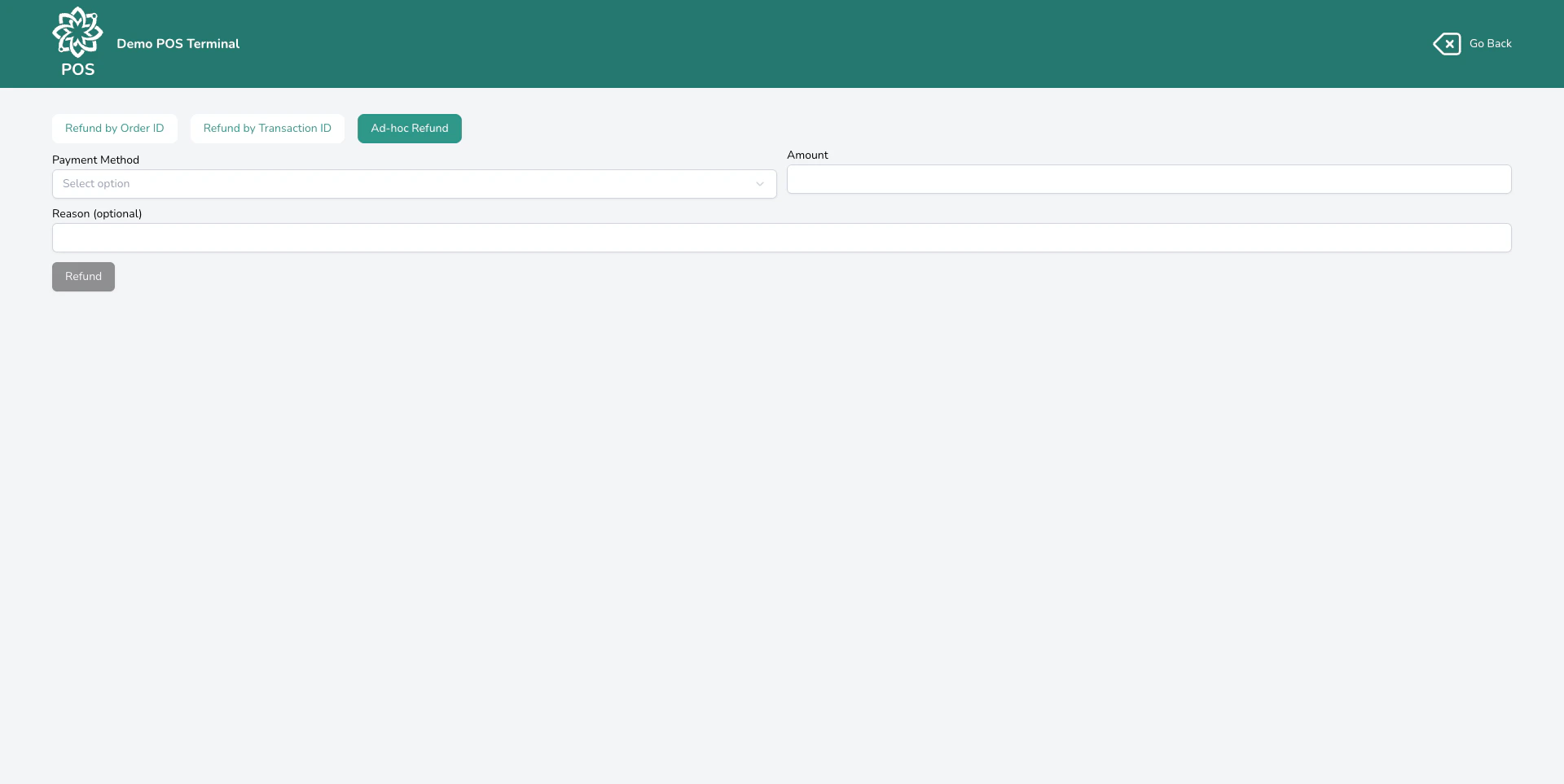
Processing an ad-hoc refund
1
Choose Ad-hoc Refund
Select the Ad-hoc Refund tab in the adjustments panel.
2
Enter the details
Enter the refund amount, choose the payment method, and pick a reason from the list.
3
Confirm
Review and confirm. A standalone refund transaction is created.
Editing a paid order down
Take something off a paid order and a panel appears on the order telling you what’s left to give back. You don’t have to save first, and you can click Discard these edits to leave the order as it was. Look at Amount to refund and you’ll see the figure already filled in for you, so there’s nothing to type or work out. It comes from the payments on the order, and where one payment covered several orders, what those other orders come to is taken off first. Pick a reason, choose how the money goes back, and confirm. What you can do next depends on how the customer paid.- Paid with one method, you can send the money back from here.
- Paid with more than one, the panel writes what’s owed into the order log and no money moves. Refund it from the transaction screen, where you can see every payment.
When you save the order, the payments are checked again. A payment or a linked order that changed while you were editing is picked up at that point.
Refunding when cancelling an order
When you cancel an order from the dashboard, you’re asked how you’d like to handle the refund:- Full refund — returns all payments automatically, split across the original payment methods
- Custom refund — lets you choose specific amounts per payment method
- No refund — cancels the order without returning any money (the transaction is voided if unpaid)
Cancel an order that had a loyalty reward on it and the reward goes back to the customer to use another time. Refund a sale at the till without cancelling the order and the reward stays spent. See Loyalty.
How refunds affect your till
Refunds appear in your End of Day report, financial reports, and exports. Whether a refund lands against the active till session depends on your POS payment session tagging setting — when that’s on, refunds taken at the till are tagged to the current session; when off, refunds aren’t session-bound.
A card service can occasionally reject a refund after you’ve confirmed it. When that happens the order is flagged on your dashboard with a note to action, so you can pick it up and decide what to do next.
Common questions
Can I partially refund a sale?
Can I partially refund a sale?
Yes. Enter any amount up to the original payment. You don’t have to refund the full sale.
Can I refund to a different payment method?
Can I refund to a different payment method?
Yes. Digital Florists lets you refund to any available method regardless of how the customer paid, and records both sides. Before you refund a card sale in cash, check what your card provider allows and what your own shop policy says — those rules are theirs, not ours.
Will the refund show on the customer's record?
Will the refund show on the customer's record?
If the customer was assigned to the original sale, the refund appears in their order history. Ad-hoc refunds without a customer assignment won’t be linked to anyone.
Is there a limit on refund amounts?
Is there a limit on refund amounts?
For order and transaction refunds, you can only refund up to the amount originally paid via each payment method. Ad-hoc refunds don’t have this limit since they aren’t linked to an original payment.
What happens to the transaction status after a refund?
What happens to the transaction status after a refund?
If you refund the full amount, the status changes to Refunded. If you refund part of it, it changes to Partially Refunded. See Transaction Statuses for the full list.
What’s next?
Point of Sale
Back to the main POS guide.
End of Day
Close your till and review the day’s takings.
Transactions Overview
How transactions and payment statuses work.
Reports
Export refund data for your records.