

A recipe is the ingredient breakdown behind every arrangement you create. It tells you exactly what goes into a bridal bouquet, table centre, or pedestal — and what it costs to make. Once you have recipes in place, pricing becomes automatic and your margins stay protected.Documentation Index
Fetch the complete documentation index at: https://docs.florists.digital/llms.txt
Use this file to discover all available pages before exploring further.
This page covers features gated by Manager-tier permissions. Managers and Admins have these by default; your administrator can adjust who has them in Settings > Team.
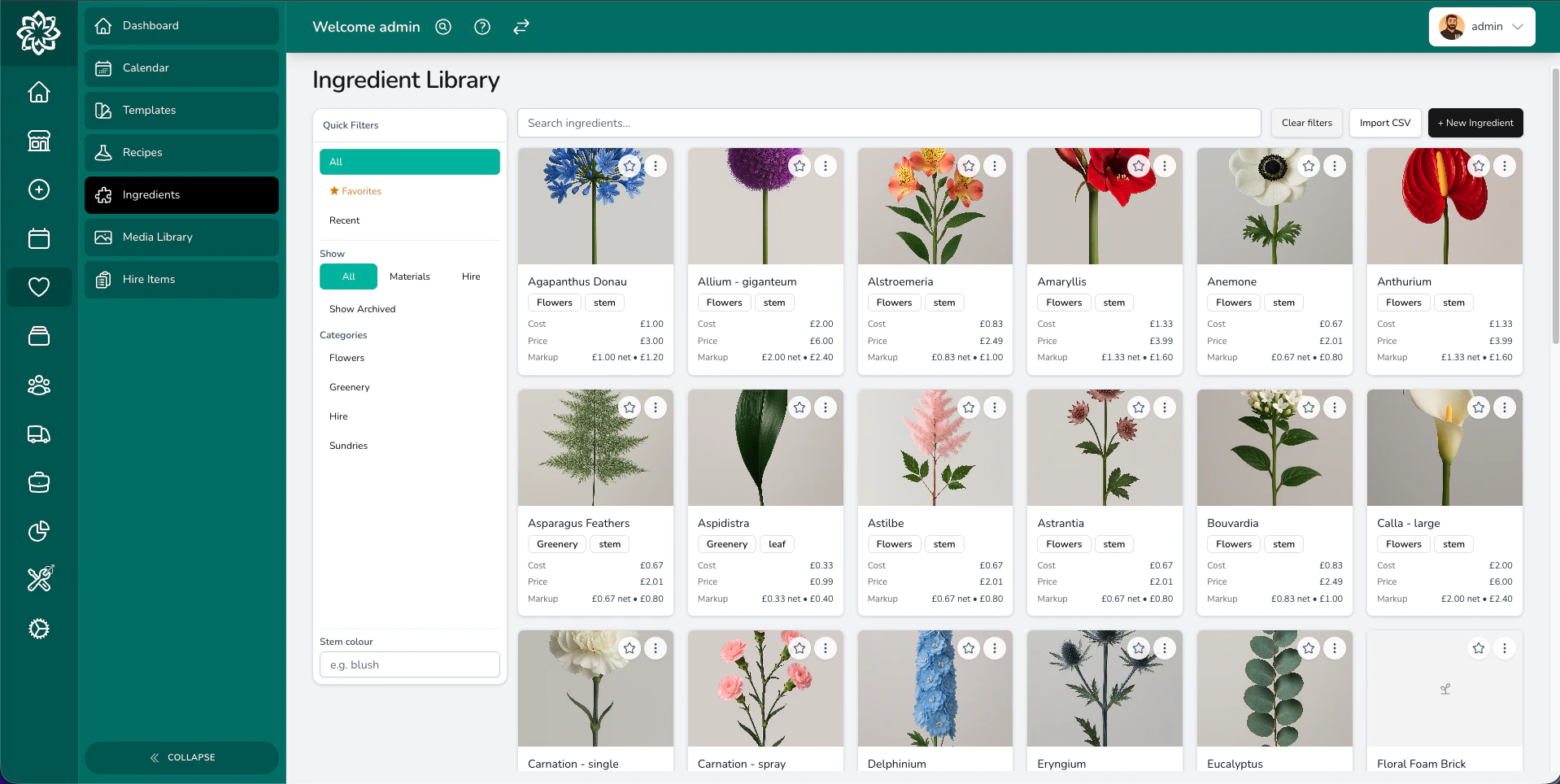
What is a recipe?
A recipe is simply a list of ingredients that make up one arrangement. Think of it like a cooking recipe — instead of flour and eggs, you have stems, foliage, and sundries. For example, a “Bridal Bouquet” recipe might include:- 10× White O’Hara Roses
- 5× Eucalyptus
- 3× White Lisianthus
- 1× Ribbon
- 1× Bouquet Wrap
Adding ingredients to a recipe
When you build or edit a recipe, you pick ingredients from the library you have already set up and enter how many you need.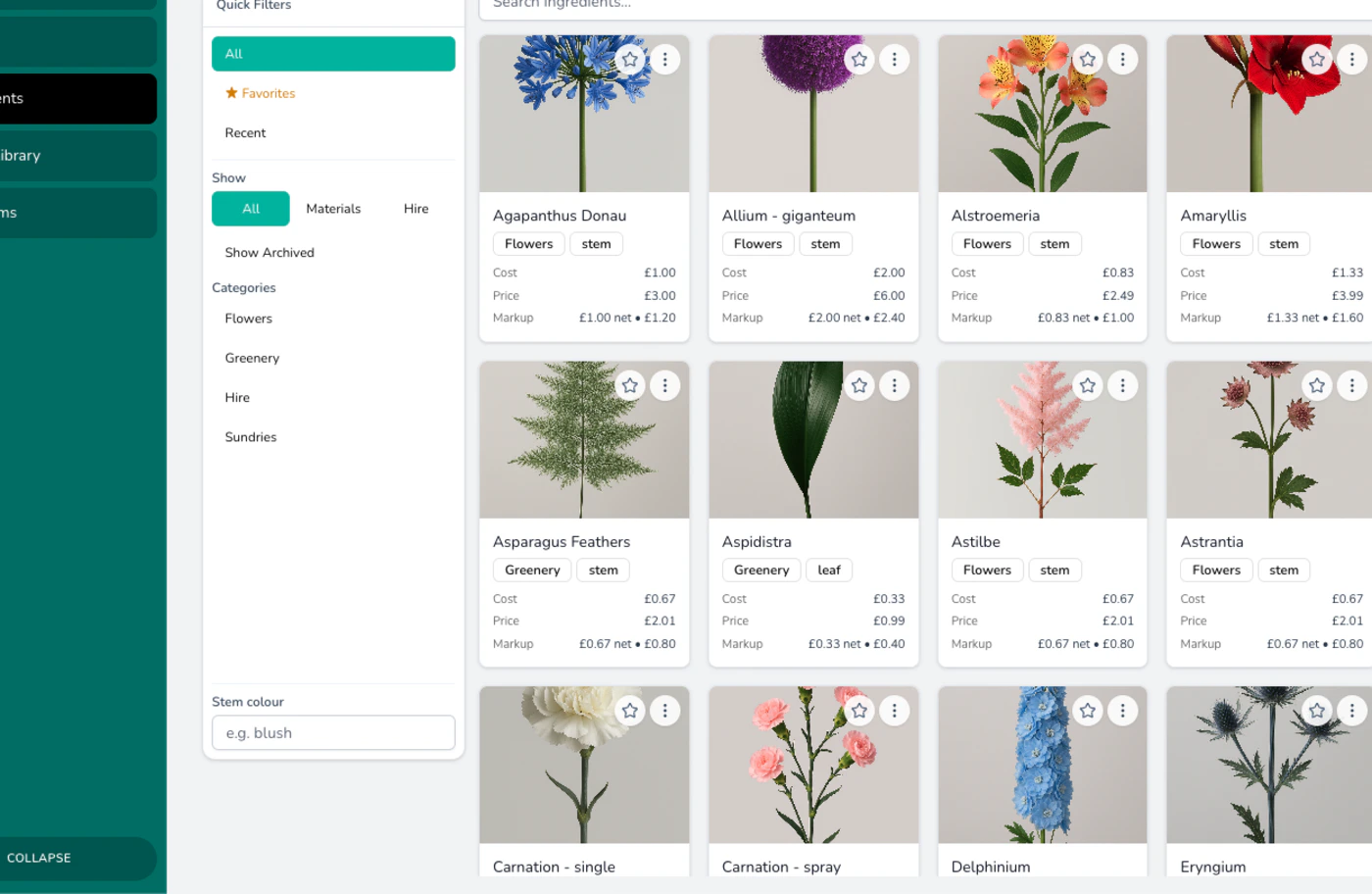
Search the ingredient library
Start typing the name of a flower, foliage, or sundry. Your full ingredient list is searched as you type.
Set the quantity
Enter how many of that ingredient you need — for example, 10 stems of a rose or 2 blocks of oasis.
Ingredient snapshots
When you add an ingredient to a recipe, Digital Florists captures its cost and price at that moment. This is called a snapshot. If you later update the master ingredient (because your supplier changed their price, for example), existing quotes that already use that ingredient stay the same. The quote keeps the price that was correct at the time you built it. This stops old quotes from changing unexpectedly.Cost price vs retail price
Every ingredient has two prices:- Cost price — what you pay your supplier for the ingredient.
- Retail price — what you charge your client for the ingredient.
The markup multiplier
The markup multiplier is the number Digital Florists uses to turn your cost into a retail price. It is simpler than it sounds. Worked example: Your ingredients cost £15 and your markup is set to 3×. The retail price becomes £15 × 3 = £45. That is your materials retail total for the recipe. You can also choose your pricing basis — whether the markup applies to the cost price or the retail price. This gives you flexibility depending on how your business works out its margins.Recipe categories
You can group your recipes into categories so they are easy to find and manage. Common categories include:- Bouquets
- Table Centres
- Pedestals
- Ceremony Flowers
- Buttonholes & Corsages
Design types
A design type is a label like “Bouquet”, “Table Centre”, or “Pedestal” that you assign to a recipe. Each design type carries a default labour percentage that Digital Florists uses to calculate labour costs automatically. For example, if the “Bouquet” design type has a default labour rate of 25%, Digital Florists adds 25% labour to every bouquet recipe — unless you override it.Labour calculation
Labour is the charge for the time it takes to create an arrangement. Each recipe can use the default percentage from its design type, a manual percentage, or a fixed amount. See Adjustments & Labour for the full breakdown of how the modes work.The Shopping List
Once your orders and events have recipes attached, the Shopping List pulls together every ingredient you need for the day. It adds up all the stems, bunches, and sundries across every order, so you know exactly what to pull from the cooler before you start work. You can find the Shopping List on your Dashboard.Protecting your margins
Supplier prices change — that is the reality of working with fresh flowers. When an ingredient price goes up, every recipe that uses that ingredient is flagged. You can then decide how to respond:- Raise your retail price to keep your margin the same.
- Swap in a different ingredient if a cheaper alternative works just as well.
- Absorb the increase if the change is small enough to accept.
Common questions
Do I need a recipe for every arrangement?
Do I need a recipe for every arrangement?
No. Recipes are optional, and you can always set a manual price on any item. That said, recipes give you accurate costing and protect your margins, so they are well worth the effort for any arrangement you make regularly.
What happens if I change a master ingredient's price?
What happens if I change a master ingredient's price?
Existing quotes are not affected — they keep the snapshot price from when the recipe was added. New quotes will use the updated price. Recipes that may need attention are also flagged so you can review them.
Can I reuse recipes across different events?
Can I reuse recipes across different events?
Yes. Once you save a recipe, you can pull it into any future event or quotation. This saves time and keeps your pricing consistent.
How do I choose between auto and manual labour?
How do I choose between auto and manual labour?
Start with auto mode and the default percentage from your design type. If a particular arrangement takes noticeably more or less time than others in that category, switch to a manual percentage or a fixed amount for that recipe only.
What’s next?
Managing Ingredients
Set up and maintain your ingredient library with costs and categories.
Quotation Builder
Use your recipes to build accurate, professional quotations.
Adjustments & Labour
Fine-tune labour, delivery, and setup charges on your quotes.
Proposals
Turn your quotation into a polished proposal and send it to the client.