

This page covers features gated by Admin-tier permissions — typically Settings access. Admins have these by default; your administrator can adjust who has them in Settings > Team.
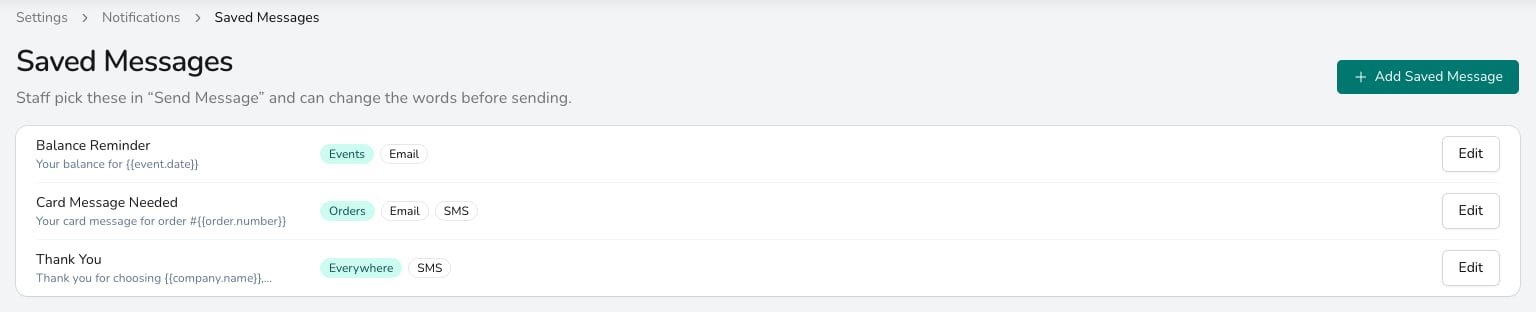
Each saved message shows where it's offered and whether it has an email version, a text version or both.
Adding a saved message
1
Start a new message
Click Add Saved Message and give it a Name your team will recognise in the picker, such as Ready to Collect.
2
Choose where it's offered
Under Offer on, pick Orders, Events or Everywhere (Events is offered when your plan includes Events). An order message can use order placeholders and an event message can use event and quote placeholders. Everywhere offers it on orders, events and customers, so it can only use customer and shop placeholders.
3
Write the words
Write an email version with a subject, a text (SMS) version, or both. Leave the text version blank for an email-only message.
4
Save it
Click Add Saved Message. It’s ready to pick in Send Message straight away.
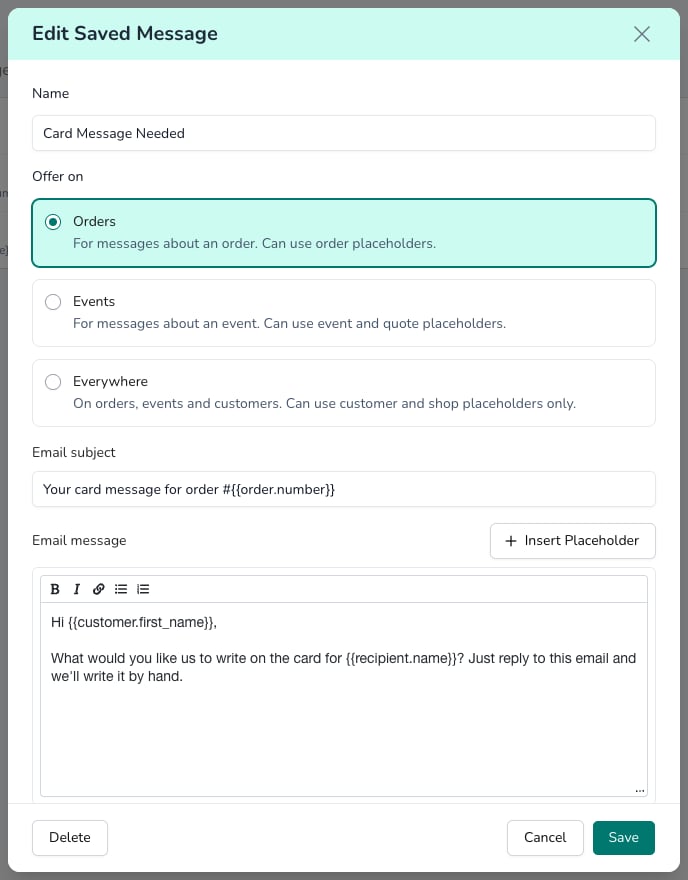
A saved message has a name, where it's offered, and an email version, a text version or both.
Sending a one-off message
Send Message sends an email or text to the people on an order, an event or a customer, outside the automatic notifications. You’ll find it in the header of the order window, on the event page, beside Notification Logs when you edit an order, and above a customer’s message history.1
Open Send Message
Click Send Message on the order, event or customer you’re writing about.
2
Pick a saved message (optional)
Choose one from Saved message to fill in the words. If you’ve already typed something, you’re asked whether to Keep Mine or Replace it. Manage Saved Messages takes you to the list.
3
Choose who it goes to
Under Recipients, tick each person you want on each channel. Email lists everyone with an email address and SMS everyone with a mobile number.
4
Check the words and send
Change anything you need, then click Send Message. The message is logged against the record, so you have a copy.
Common questions
Why isn't my saved message in the picker?
Why isn't my saved message in the picker?
Check its Offer on choice. A message offered on Orders doesn’t appear when you send from an event, and one offered on Events doesn’t appear on an order. Choose Everywhere for a message you want in every place.
Can a saved message include a payment link?
Can a saved message include a payment link?
No. Use Send Payment Link on the order or event, which sends the link in its own message.
Does changing a saved message change messages already sent?
Does changing a saved message change messages already sent?
No. Sent messages keep the words they went out with. The change applies the next time someone picks it.
What’s next?
Notifications Overview
The automatic emails and texts Digital Florists sends.
Logs & Troubleshooting
Check what was sent and why a message didn’t go.